
In this article I will be talking about how to
play with Windows Phone 7 Emulator.
All right Lets start.
Lets create a new Windows Phone 7 Project with XNA and then run it.
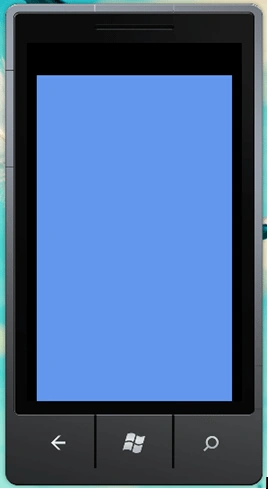
When first run, it will display this screen.
Click on the upper black space and see what happens;
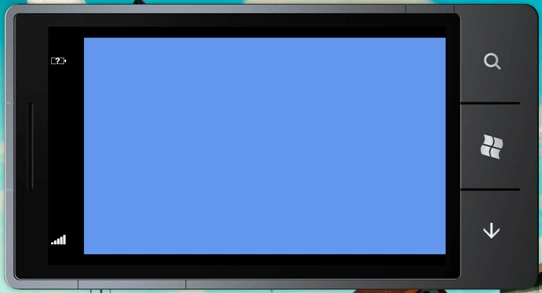
Battery and Internet Access icons!
Because of it supports "Touching" you can make the same thing with a mouse.
Note: I have rotated it to show you much more clear.
Now click on the Back Button:
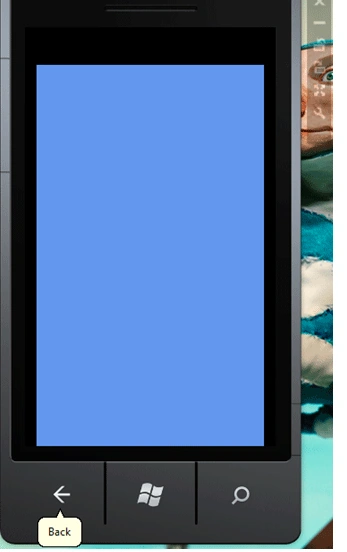
And this screen comes:
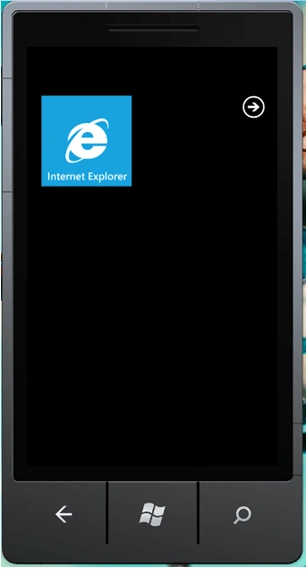
Click on the Internet Explorer to surf the net :)
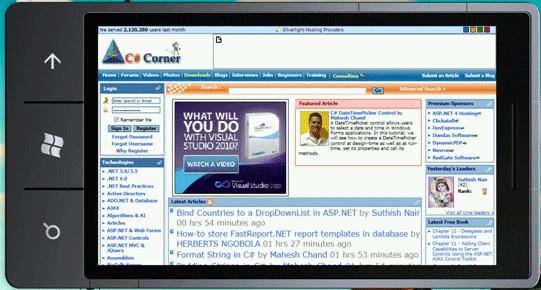
This is how CsharpCorner.com seems on WP7 :)
Using Mouse Click scrolling down you can see the below:
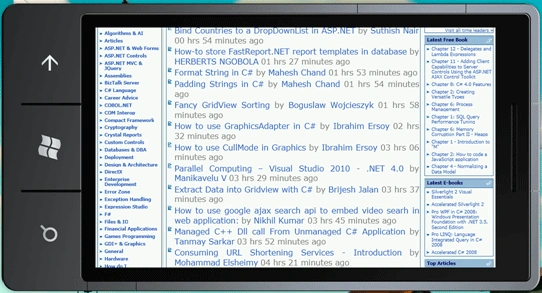
And I want to show you something about Internet Explorer on WP7:
Did you see the "Blue" line above the "We served 2.820.289 users last month"
text?
It is the loader of the Internet Explorer!
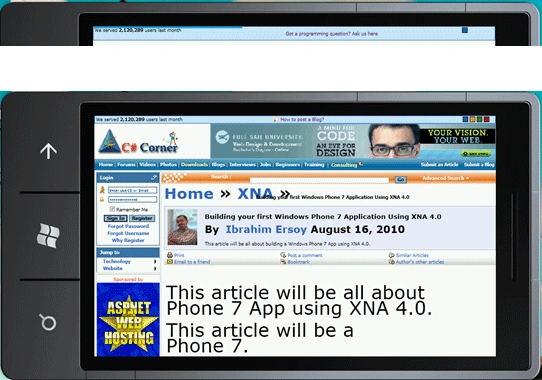
Here I am reading an article of mine.
By Double Clicking you can "Zoom the Screen"!
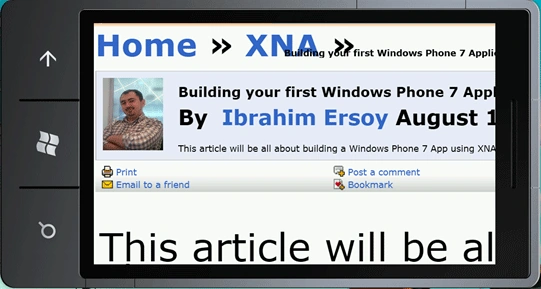
And you can even more "Zoom" in the screen!
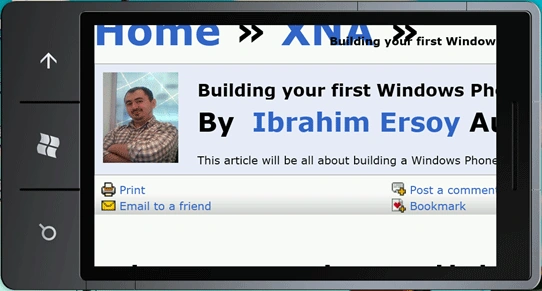
By Double-Clicking a couple of times you can change it to normal size.
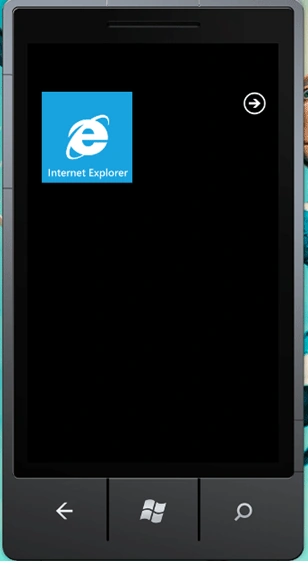
Now Click on the "Right" icon. And lets see what comes next:
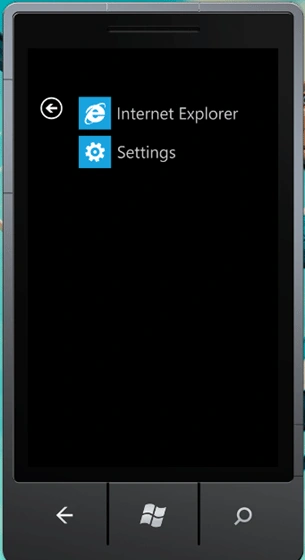
Choose Settings. We will be editing some features here. Lets see what features
are they?
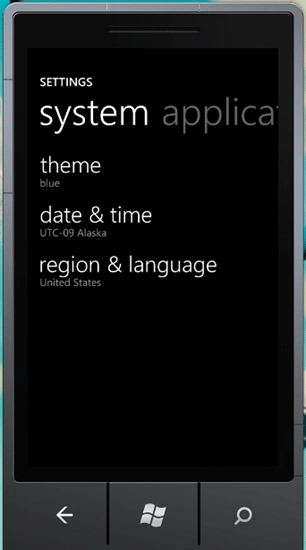
By default "System" Options came on the screen. If you click "Applications"
(which you cant fully see in the emulator) you will see the Applications
Settings.
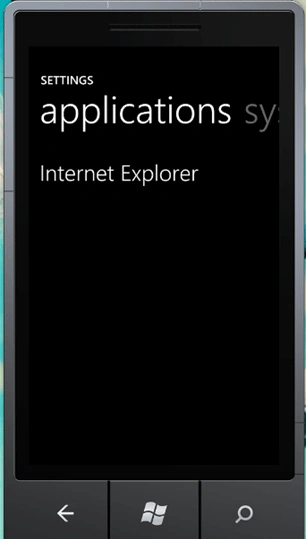
But I would like to show you some nice things in the settings :)
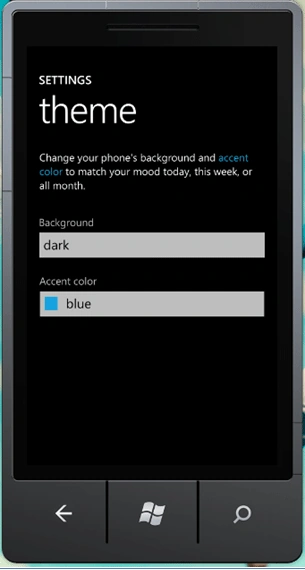
Here is the STYLE settings of WP7 Emulator!
By default the Background is set to Dark and Accent color set to Blue
You can change and get a nice theme ;)
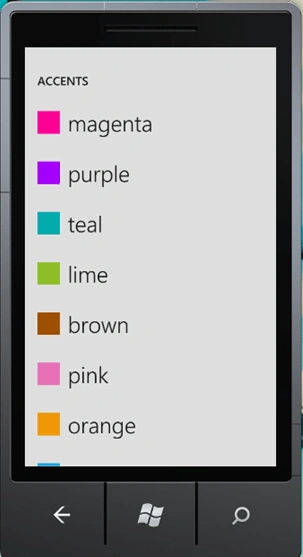
I have set the Accent Color to "Lime" and:
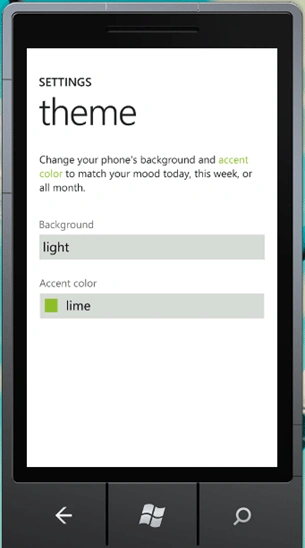
Background to "Light"
Wow looks very nice now :)
And you can use other settings as well as you like to.
And the last thing I will show you is Search:
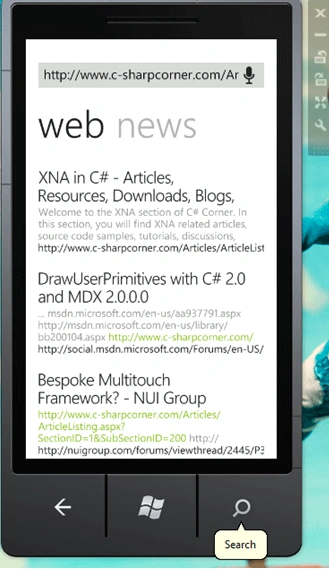
Search is the Rightmost and button in WP7.Using this button you can use Search
capabilities of Bing:
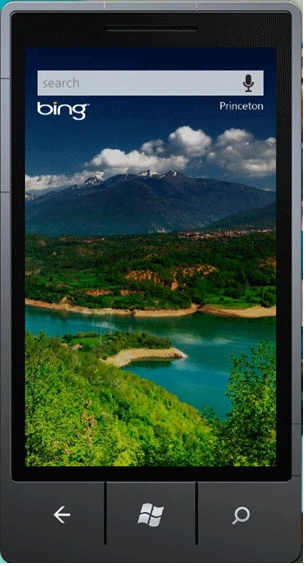
This is the first Screen of the Bing Search Engine. Remember the Images at the
background changes randomly as a part of Bing Search Engine functionality.
When you search something the Keyboard of the WP7 comes instantly...
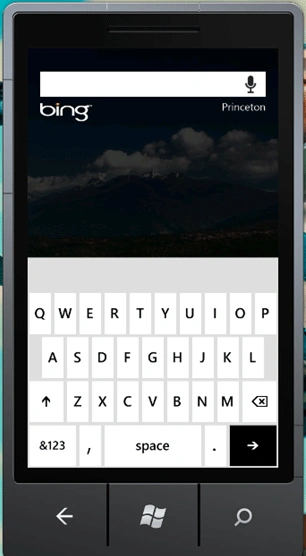
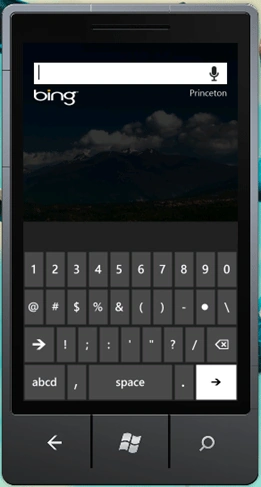
Pretty nice! When you click on the "&123" you can click some special characters
such as numbers and ":","/","\" and so on...
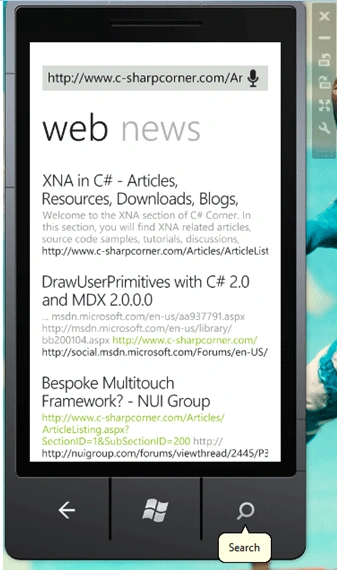
Here search for www.c-sharpcorner.com
Articles.
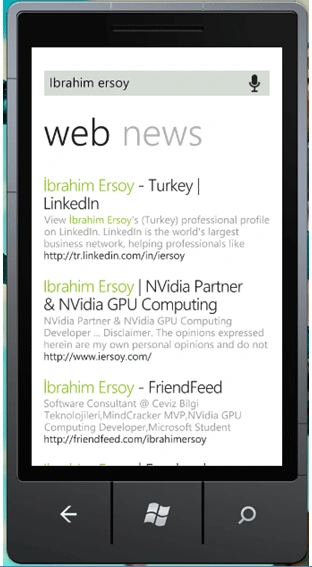
And searched for myself here :)
One more thing about Search Functionality is you can view some historical
knowledge when you click on a square that can be seen on Bing Search Screen.
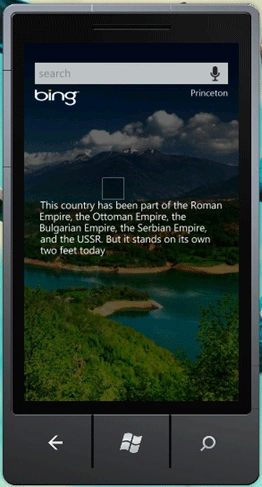
Well this country is Macedonia which isn't my country but doesn't matter :) Its
pretty cool!
When you click this text you can see the map of the country!
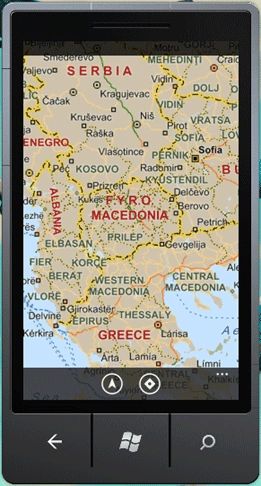
That's what I have been talking about. Very cool! You can use Bing Maps in WP7
just like on your PC.
If you click the "Up" Arrow-button in the screen, then a Dialog Screen will
open:
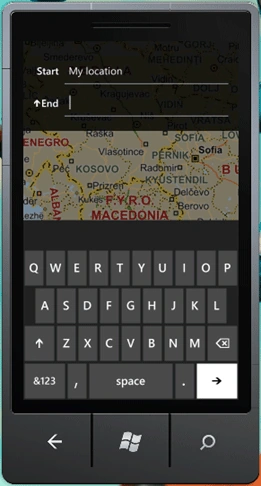
For example when I set Start as "Turkey" and End as "Italy" then it will show me
the way with number of directions!
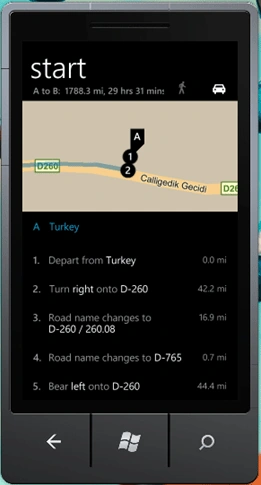
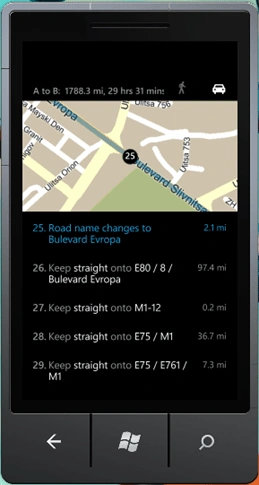
And I can go to Italy from Turkey with a car in 29 hours :) If they don't ask
for a visa of course :))
The things we have done with a mouse in this article will be replaced by our own
hands when it released at the stores! and I will be the first one buying one of
Windows Phone 7-Supported Mobile Devices. The features of WP7 I have shown you
are already enough for you why you should buy one!
In this article I have talked about WP7 Emulator! Hope you liked it!
If you have questions, comments or critics please comment below.
Thank you for reading...

How to Play with Windows Phone 7 Emulator
Join the conversation! Your thoughts help the community grow.
Sign in to leave a comment
It is the same account you read, post and publish with — and you will come straight back to this page.
Surya Pratap SinghPosted Aug 13, 2016, 1:56 AM
How to downloads and extract zip file in windows phone 8.1 .
Amit PatelPosted Jun 25, 2012, 9:19 AM
Great Man..
Mahesh ChandPosted Oct 28, 2010, 10:30 PM
Good article Ibrahim. I am thinking to build a Windows Phone app for C# Corner. Would you be interested in it working with me. It will be an open source project :)