

introduction
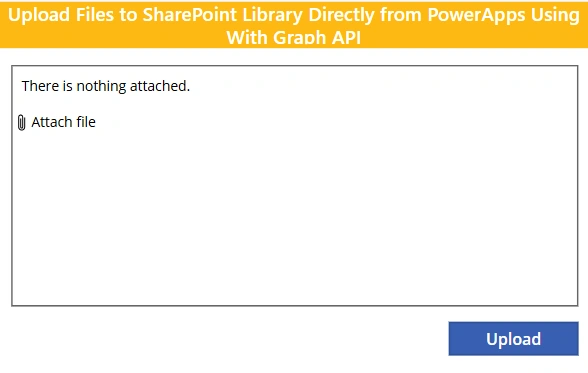
Power Apps (Canvas) enables file uploads to SharePoint by using Microsoft Graph APIs. By combining an Attachment control with a Graph PUT request, files can be securely uploaded to a SharePoint document library (Drive), providing a flexible alternative to standard SharePoint connectors
✅ Power Apps Canvas – Upload Attachments to SharePoint via Graph
Scenario:
Source: Attachment control
Target: SharePoint document library
Method: Microsoft Graph PUT (simple upload)
File size: ≤ 4 MB
🔹 Working Power Fx Code on Upload button
ForAll(
    AttachmentControl.Attachments As FileAttachment,
    Office365Groups.HttpRequest(
        "https://graph.microsoft.com/v1.0/sites/{SITE-ID}/drives/{DRIVE-ID}/root:/" &
        FileAttachment.Name &
        ":/content",
        "PUT",
        FileAttachment.Value
    )
);

Reset(AttachmentControl);
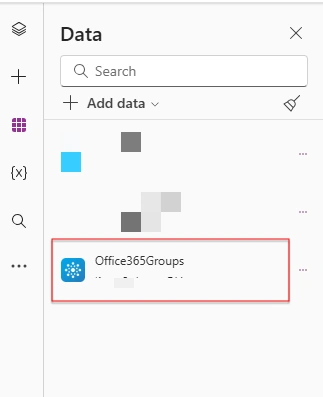
🔹 Add Office365Groups
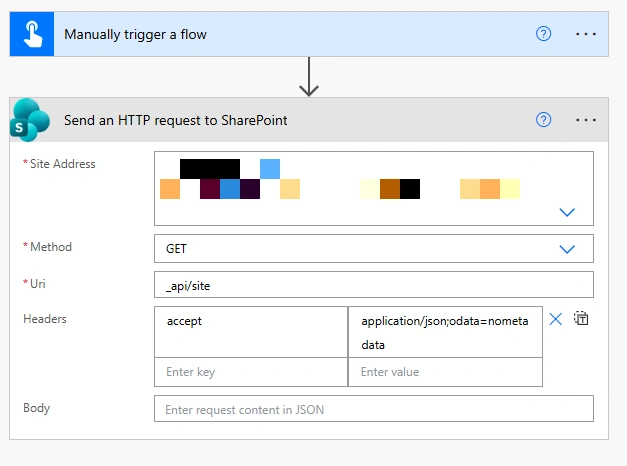
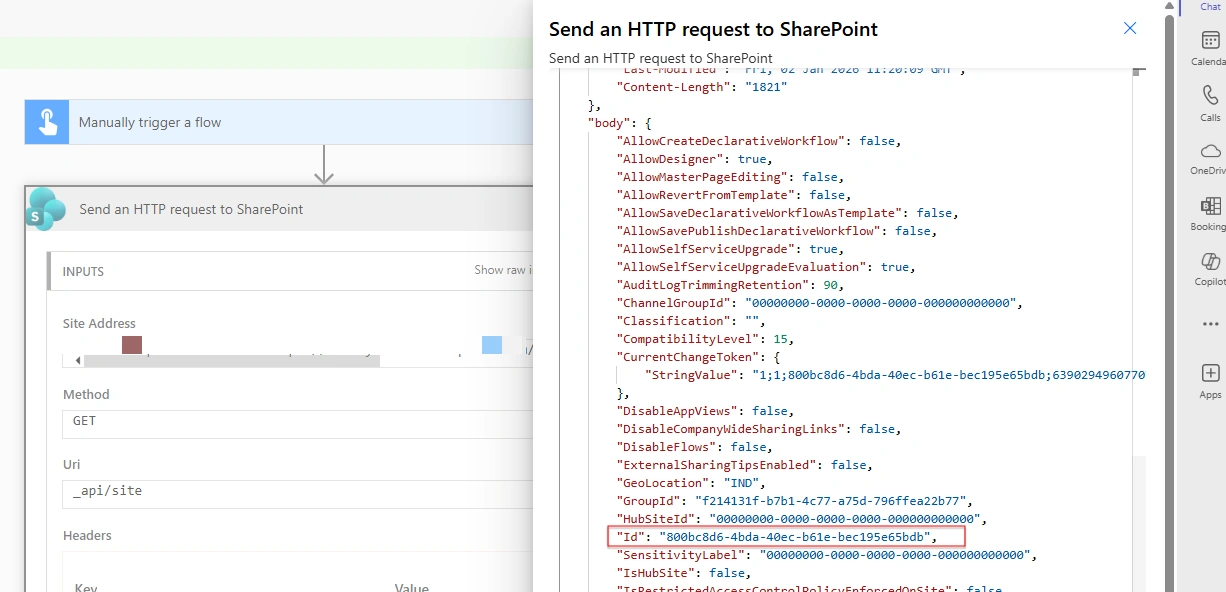
🔹Flow through to get SiteID
🔹Find a SharePoint document library DRIVE ID
Step 1: Open Graph Explorer
Step 2: List document libraries (drives)
GET https://graph.microsoft.com/v1.0/sites/{SITE-ID}/drivesResponse example:
{
  "value": [
    {
      "id": "b!1sgLgNpL7EC2Hr7BleZb25UIxcUghT1Cg9_fHTLzaLfP4GPK7osMQrEDSvsGBHl-",
      "name": "Documents"
    },
    {
      "id": "b!abc123...",
      "name": "Shared Documents"
    }
  ]
}
👉 The id next to the library name you want = DRIVE ID
Sign in with the same account you use in Power Apps.
🔹 Replace These Values
Join the conversation! Your thoughts help the community grow.