

introduction
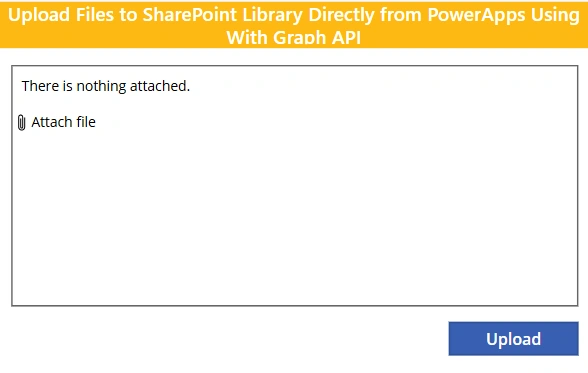
Power Apps (Canvas) enables file uploads to SharePoint by using Microsoft Graph APIs. By combining an Attachment control with a Graph PUT request, files can be securely uploaded to a SharePoint document library (Drive), providing a flexible alternative to standard SharePoint connectors
✅ Power Apps Canvas – Upload Attachments to SharePoint via Graph
Scenario:
Source: Attachment control
Target: SharePoint document library
Method: Microsoft Graph PUT (simple upload)
File size: ≤ 4 MB
🔹 Working Power Fx Code on Upload button
ForAll(
    AttachmentControl.Attachments As FileAttachment,
    Office365Groups.HttpRequest(
        "https://graph.microsoft.com/v1.0/sites/{SITE-ID}/drives/{DRIVE-ID}/root:/" &
        FileAttachment.Name &
        ":/content",
        "PUT",
        FileAttachment.Value
    )
);

Reset(AttachmentControl);
🔹 Add Office365Groups
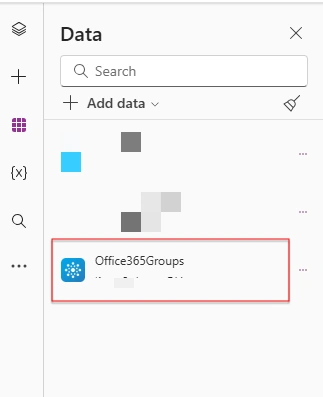
🔹Flow through to get SiteID
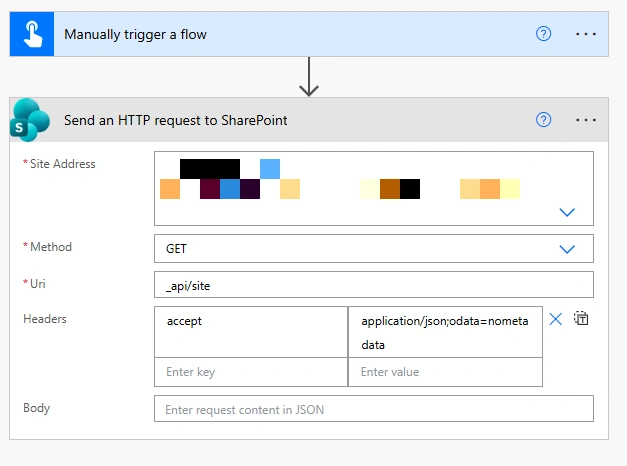
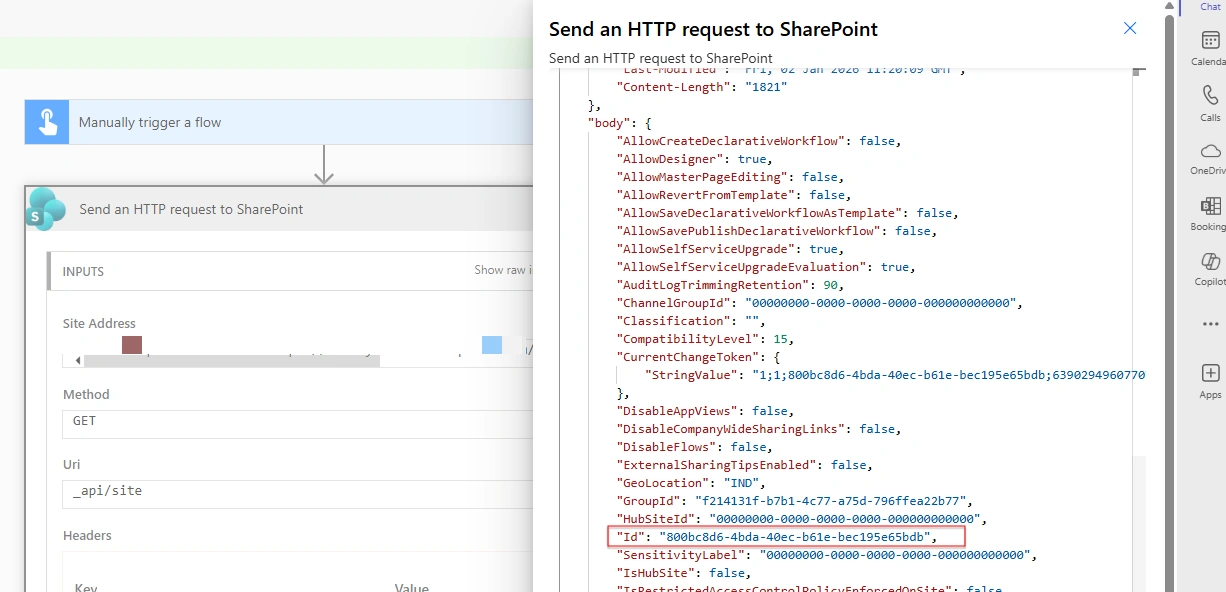
🔹Find a SharePoint document library DRIVE ID
Step 1: Open Graph Explorer
Step 2: List document libraries (drives)
GET https://graph.microsoft.com/v1.0/sites/{SITE-ID}/drivesResponse example:
{
  "value": [
    {
      "id": "b!1sgLgNpL7EC2Hr7BleZb25UIxcUghT1Cg9_fHTLzaLfP4GPK7osMQrEDSvsGBHl-",
      "name": "Documents"
    },
    {
      "id": "b!abc123...",
      "name": "Shared Documents"
    }
  ]
}
👉 The id next to the library name you want = DRIVE ID
Sign in with the same account you use in Power Apps.
🔹 Replace These Values
| Placeholder | Description |
|---|---|
{SITE-ID} | SharePoint Site ID |
{DRIVE-ID} | Document Library Drive ID |
AttachmentControl | Your attachment control name |
🔹 Upload to a Folder
/root:/Folder1/SubFolder2/" & A.Name & ":/content⚠️ Folder must already exist — Graph won’t create it.
🔐 Required Permissions
Your Power Apps connection must include:
Files.ReadWrite.All
Sites.ReadWrite.All
(Granted automatically via the Office 365 Groups connector, but admin consent may be required.)
⚠️ Important Limits
| Item | Limit |
|---|---|
| File size | 4 MB max |
| Upload method | Simple upload only |
| Folder creation | Not supported |
| Overwrite behavior | Replaces existing file |
🔄 For Files Larger Than 4 MB
You must use Upload Sessions:
POST /drive/root:/filename:/createUploadSession
Power Apps cannot do chunked uploads natively, so you’ll need:
Power Automate
Azure Function
Custom API connector
🧪 Debug Tip
Wrap in IfError() to catch failures:
IfError(
    Office365Groups.HttpRequest(...),
    Notify("Upload failed", NotificationType.Error)
)
Conclusion
Add an Attachment control in the Canvas app.
Get the SharePoint Site ID using Microsoft Graph.
Identify the document library Drive ID.
Build the Graph upload URL using Site ID + Drive ID.
Loop through attachments using
ForAll().Upload each file with a PUT request via
Office365Groups.HttpRequest.Send file content as binary with
Content-Type: application/octet-stream.Ensure required Graph permissions are granted.
Reset the attachment control after upload.
Use Power Automate for files larger than 4 MB.
Join the conversation! Your thoughts help the community grow.