

Introduction
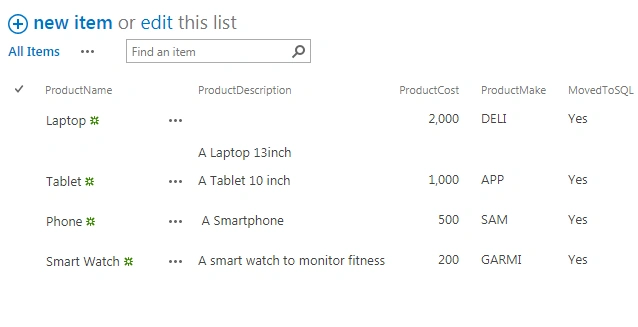
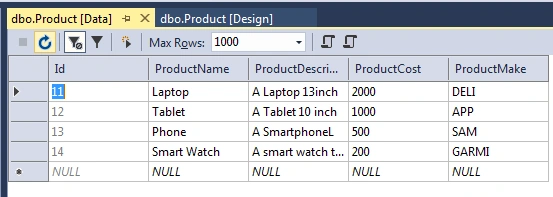
This article demonstrates how to Insert the SharePoint Online List item to On-Premise Microsoft SQL Table using PowerShell. It starts with the introduction of the Get-PnPListItem command available in SharePointPnpPowerShellOnline PowerShell module to read List items from SharePoint List. After that, it demonstrates how to create the SQL query and use Invoke-SQLcmd to create rows for each item in SQL Table. In the end, the article discusses how to Update Column MoveToSQL in the SharePoint List item, so that in next run of PowerShell code it does not insert the same items in SQL table.
This PowerShell script can be used as either a one time activity to insert SharePoint List Item to SQL Table or used as a scheduler so it keeps inserting the List items into Microsoft SQL Table.
Pre-requisites (Environment Details)
- Windows PowerShell
- SharePointPnpPowerShellOnline Module
Please install the SharePointPnpPowerShellOnline module if it’s not already present using the below command.
- Install-Module SharePointPnPPowerShellOnline
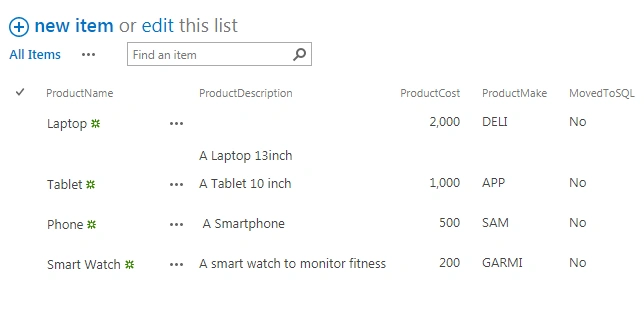
SharePoint List sample columns with data
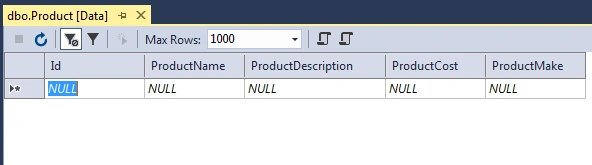
Micrsoft SQL server Table without data
Variables Explanations in this Article
- $MSSQLServerInstanceName="ContosoServer\InstanceName" - on-premise SQL Server Instance
- $DatabaseName="DBTest" - on-premise SQL Database Name
- $TableName="Product" - SQL Table Name
- $O365ServiceAccount="[email protected]" - Your Service Account Name
- $O365ServiceAccountPwd="abc@2020" - Your Service Account password
- $siteURL="https://abc.sharepoint.com/sites/test" - SharePoint Site URL from where the item will be read
- $List="Product" - List Name
For manual execution please use the Get-Credential command to read the user name and password from the user input.
Read SharePoint List Items
SharePointPnpPowerShellOnline Module of PowerShell has made developers' lives easier. To read the all the list items from a list use the code snippet as below.
Please find all the parameter associated with Get-PnpListItem
- $Items=Get-PnPListItem -List $List
Here $Items variable will hold all the items from the List.
Before reading the list you should be connecting to the SharePoint Site using the below snippet:
- [SecureString]$SecurePass = ConvertTo-SecureString $O365ServiceAccountPwd -AsPlainText –Force
- [System.Management.Automation.PSCredential]$PSCredentials = New-Object System.Management.Automation.PSCredential($O365ServiceAccount, $SecurePass)
- Connect-PnPOnline -Url $siteURL -Credentials $PSCredentials
Create SQL Query and Invoke-SQLcmd
Once the PowerShell Script has read all the items of the list and stores in a Variable, the next step is to read the List item form a SQL query with column values and insert to SQL Table one by one in for loop using Invoke-sqlcmd.
If Invoke-sqlcmd is not found as PowerShell Module , please install the SQL Server PowerShell Module using the command below:
- Install-Module -Name SqlServer
The below snippet will read items from List Items Collection variable $Items and insert the items into SQL table.
- #Loop through the items
- foreach($Item in $Items) {
- $MovedToSQL = $Item["MovedToSQL"]
- # check
- if item already moved to SQL
- if ($MovedToSQL - ne "Yes") {
- #
- $ productName = $Item["ProductName"]
- $ productDescription = $Item["ProductDescription"]
- $ productCost = $Item["ProductCost"]
- $ productMake = $Item["ProductMake"]
- # Insert query
- for SQL Table
- $insertquery = "
- INSERT INTO[$DatabaseName]. [$TableName]
- ([ProductName], [ProductDescription], [ProductCost], [ProductMake])
- VALUES('$productName ', '$productDescription ', '$productCost', '$productMake')
- GO "
Tony WambuiPosted Jun 8, 2024, 4:22 AM
Hello Vinit, thank you for the knowledge! :Now, for me to be able to read the SharePoint List Item, do I need to have an admin account login credentials or can I just use my usual organization's authentication/log in details?