Introduction
SharePoint Online provides an effective way to organize and manage documents using folders. However, manually renaming folders can be time-consuming, especially when folder names need to change based on business requirements. Power Automate can automate this process by dynamically renaming SharePoint folders using the Send an HTTP request to SharePoint action.
Renaming a SharePoint folder automatically is a common requirement when folder names need to follow a naming convention, include a project/reference number, or change based on business conditions.
Power Automate does not provide a simple dedicated Rename Folder action in the SharePoint connector. A reliable approach is to use Send an HTTP request to SharePoint and update the folder's FileLeafRef property through the SharePoint REST API. Microsoft documents this approach using a MERGE request.
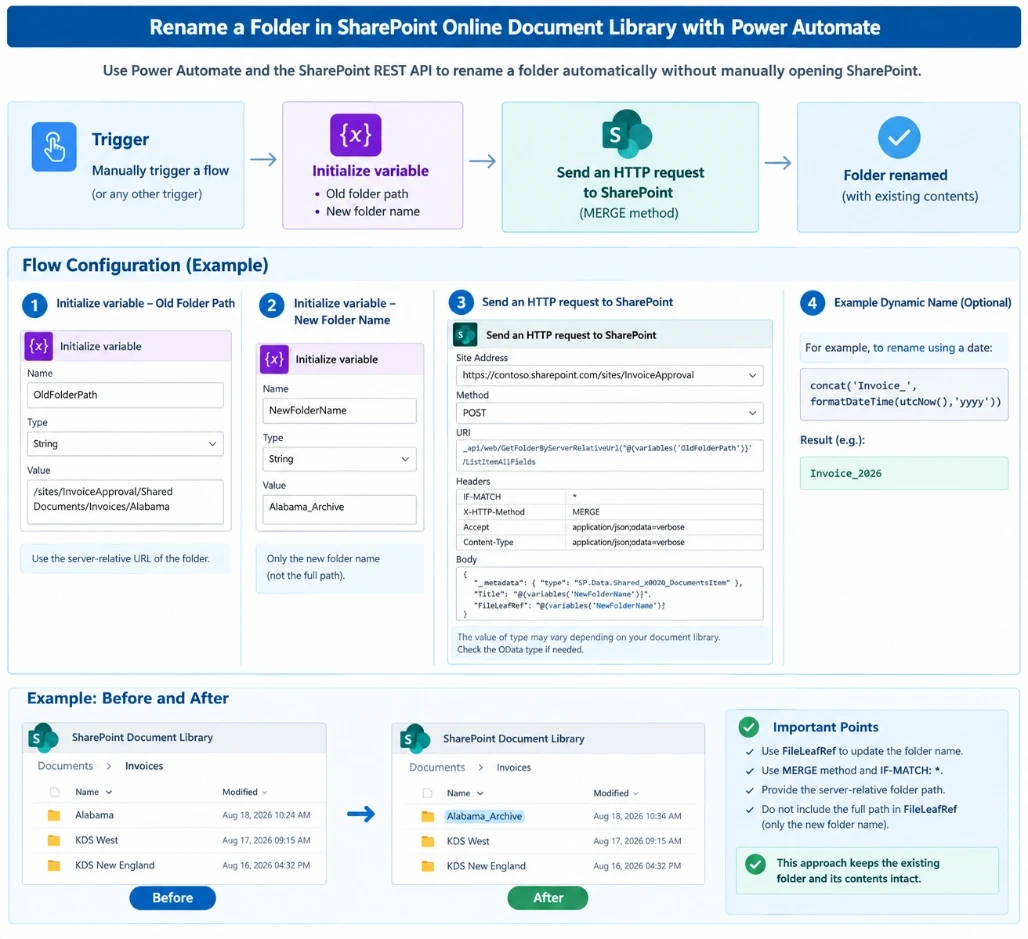
1. Scenario
Suppose you have the following SharePoint document library:
Documents
│
├── Invoice
│   ├── Alabama
│   ├── KDS West
│   └── KDS New England
You want Power Automate to rename:
Alabama
to:
Alabama_Archive
The final structure will be:
Documents
│
└── Invoice
    ├── Alabama_Archive
    ├── KDS West
    └── KDS New England
The folder is renamed in place, rather than copying the folder and deleting the original. This approach preserves the existing SharePoint item rather than creating a replacement.
2. Power Automate Flow
The basic flow is:
Trigger
   ↓
Initialize Variable – Old Folder Path
   ↓
Initialize Variable – New Folder Name
   ↓
Send an HTTP Request to SharePoint
   ↓
Folder Renamed
3. Create the Flow
Go to:
Power Automate → Create → Instant cloud flow
For testing, select:
Manually trigger a flow
You can later replace this with another trigger, such as:
When an item is created
When an item is modified
Recurrence
Power Apps
Another flow
4. Initialize the Old Folder Path
Add:
Initialize variable
Configure:
Property | Value |
|---|
Name | OldFolderPath
|
Type | String
|
Value | /sites/InvoiceApproval/Shared Documents/Invoices/Alabama
|
Example:
/sites/InvoiceApproval/Shared Documents/Invoices/Alabama
Use the server-relative URL of the folder.
5. Initialize the New Folder Name
Add another:
Initialize variable
Configure:
Property | Value |
|---|
Name | NewFolderName
|
Type | String
|
Value | Alabama_Archive
|
Notice that this variable contains only the new folder name, not the complete path.
6. Add "Send an HTTP request to SharePoint"
Add the SharePoint action:
Send an HTTP request to SharePoint
Microsoft specifically provides this action for scenarios where the standard SharePoint connector actions do not cover the required operation.
Site Address
Select your SharePoint site.
Example:
https://contoso.sharepoint.com/sites/InvoiceApproval
Method
POST
URI
_api/web/GetFolderByServerRelativeUrl('@{variables('OldFolderPath')}')/ListItemAllFields
7. Configure Headers
Add the following headers:
Key | Value |
|---|
IF-MATCH
| *
|
X-HTTP-Method
| MERGE
|
Accept
| application/json;odata=verbose
|
Content-Type
| application/json;odata=verbose
|
The MERGE operation updates the existing SharePoint list item rather than creating a new one. Microsoft documents this exact pattern for renaming folders.
8. Configure the Body
Use:
{
  "__metadata": {
    "type": "SP.Data.Shared_x0020_DocumentsItem"
  },
  "Title": "@{variables('NewFolderName')}",
  "FileLeafRef": "@{variables('NewFolderName')}"
}
Important
The value of SP.Data.Shared_x0020_DocumentsItem can vary depending on your document library. Microsoft recommends obtaining the folder's OData type first because the type depends on the library configuration.
For example, your library may have an entity type similar to:
SP.Data.Shared_x0020_DocumentsItem
or another generated name.
9. Complete HTTP Configuration
Your action will look conceptually like this:
Send an HTTP request to SharePoint

Site Address:
https://contoso.sharepoint.com/sites/InvoiceApproval

Method:
POST

URI:
_api/web/GetFolderByServerRelativeUrl('@{variables('OldFolderPath')}')/ListItemAllFields
Headers
IF-MATCH
*

X-HTTP-Method
MERGE

Accept
application/json;odata=verbose

Content-Type
application/json;odata=verbose
Body
{
  "__metadata": {
    "type": "SP.Data.Shared_x0020_DocumentsItem"
  },
  "Title": "@{variables('NewFolderName')}",
  "FileLeafRef": "@{variables('NewFolderName')}"
}
10. How It Works
The important part is:
FileLeafRef
FileLeafRef is the SharePoint internal field used for the file/folder name. Updating it changes the actual folder name. Microsoft’s REST documentation shows both Title and FileLeafRef being updated when renaming a folder.
For example:
Old:

Alabama
Power Automate sends:
{
  "FileLeafRef": "Alabama_Archive"
}
Result:
Alabama_Archive
11. Dynamic Folder Rename
You don't need to hardcode the new folder name.
For example, suppose you want:
Invoice_2026
You can create it dynamically using:
concat('Invoice_', formatDateTime(utcNow(),'yyyy'))
Or based on a SharePoint column:
concat(triggerBody()?['InvoiceNumber'], '_Archive')
For example:
INV-10025_Archive
12. Example Using Invoice Approval
For an Invoice Approval application, you could have:
Invoice Documents
│
├── INV-10001
├── INV-10002
├── INV-10003
After the invoice is paid, Power Automate could rename:
INV-10001
to:
INV-10001_Paid
The flow would be:
Invoice Status = Paid
        ↓
Get folder/path
        ↓
Create New Folder Name
        ↓
Send HTTP Request
        ↓
Rename Folder
Dynamic expression:
concat(variables('OldFolderName'), '_Paid')
13. Alternative: Rename Using List Item ID
If you already have the folder's SharePoint Item ID, another useful approach is the validateUpdateListItem endpoint.
Example:
_api/web/lists/GetByTitle('Documents')/items(72)/validateUpdateListItem
Body:
{
  "formValues": [
    {
      "FieldName": "FileLeafRef",
      "FieldValue": "Renamed Folder"
    }
  ]
}
This approach is particularly convenient when the folder ID is already available in your flow.
14. Which Method Should You Use?
Method | Best for |
|---|
GetFolderByServerRelativeUrl + MERGE
| When you have the folder path |
validateUpdateListItem
| When you have the SharePoint item ID |
Copy + Delete | Generally avoid for a true rename |
Recommended
For a simple folder-path scenario, use:
GetFolderByServerRelativeUrl
        ↓
ListItemAllFields
        ↓
MERGE
        ↓
FileLeafRef
For an existing SharePoint item ID, the validateUpdateListItem method can be simpler.
15. Important Points
✅ Use FileLeafRef
FileLeafRef = New Folder Name
✅ Use MERGE
X-HTTP-Method: MERGE
✅ Use IF-MATCH: *
This allows the update without requiring a specific ETag.
✅ Use the server-relative folder path
Example:
/sites/InvoiceApproval/Shared Documents/Invoices/Alabama
❌ Don't put the complete path in FileLeafRef
Incorrect:
FileLeafRef:
 /sites/InvoiceApproval/Shared Documents/Invoices/Alabama_Archive
Correct:
FileLeafRef:
 Alabama_Archive
Conclusion
Renaming folders with Power Automate helps reduce manual work and maintain a consistent folder structure in SharePoint Online. By using the SharePoint REST API and updating the FileLeafRef property, folders can be renamed dynamically while keeping their existing files and contents intact. This approach is useful for document management, invoice processing, project folders, and archive processes.


Join the conversation! Your thoughts help the community grow.