

Introduction
This article demonstrates how to restore Archived MS Teams using Microsoft Graph API in PowerShell. As an administrator of MS teams for an organization, you want to restore an archived site if the business has requested to do so. The best way to achieve team restoration for archived sites is an automation process using PowerShell with the help of Graph API.
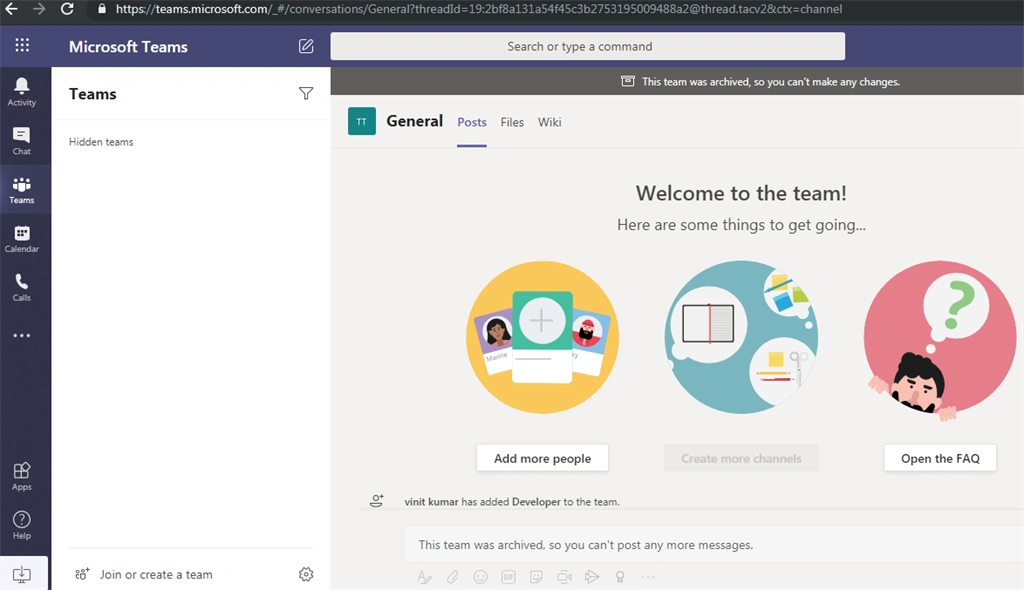
When you restore a team, it restores the user's ability to send messages, chat, and edit the team settings.
In this article, we will use Microsoft Graph API to restore archived teams within the PowerShell script. First, we need to register the PowerShell Module in Azure Active Directory, then provide Admin Consent to the app and finally, Restore the Teams using Graph API.
Prerequisites
- An Azure Active directory
- You should have a Global Administrator role to provide consent to the app
- Windows PowerShell 3.0
- SharePointPnpPowerShellOnline Module
Please install the SharePointPnpPowerShellOnline module if it’s not already present using the below command.
- Install-Module SharePointPnPPowerShellOnline
Register PowerShell application in Azure
Go to the Azure Active Directory App registration page, as shown below:

On a click of the “+ New Registration” link, as highlighted above, you will be redirected as shown in the below screen:

Enter the Name of Application and click on the “Register” button, as highlighted above. The user will be redirected to an overview screen of the app. This is shown below, after registration of the app is successful.

Click on “API permissions” to provide app permission to access the Graph API, the user will be redirected to the below screen:

Click on “Add a permission” as highlighted above.
Select Microsoft Graph API, as shown below.
Select Microsoft Graph API, as shown below.

Click on “Application Permissions”.
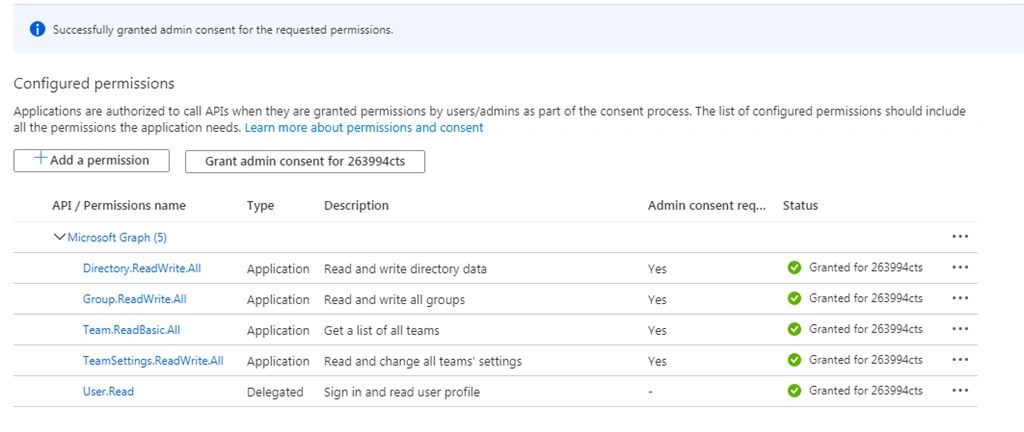
Select the below permissions and click on Add Permission, as highlighted below:
- Directory.ReadWrite.All
- Group.ReadWrite.All
- Team.ReadBasic.All
- TeamSettings.ReadWrite.All

Click Grant admin consent as highlighted below for the app.

Once Admin consent granted successfully screen displayed as below
Go to Overview of the App. Copy the Application (client) ID value as highlighted in the below screen. This value will be used in PowerShell for authentication.

Click on “Certificates & secrets” as highlighted above to generate a secret key which will be used in PowerShell

Click New client secret, as highlighted above.

Enter the Description and click on the “Add” button to generate a Client Secret.

Copy the secret value which will be used in PowerShell for authentication.
Using the above steps, we have received an Application ID and Client Secret which will be used in PowerShell Script.
PowerShell Script to Restore Team
Input MS teams to restore:
Variables Explanations in this Articles
- $ApplicationID="9381bf0d-6128-478e-b1fd-5a0ed48d37d5" # Application ID as we have created during the Register application process
- $ClientSecret="jvo0J3hmDk.Be_1ZE30dkCt0GPDhM.1S~2" # Application ID as we have created during the Register application process
- $ActiveDirectorydomainName="263994CTS.onmicrosoft.com" # Active Directory Domain name
- $TeamName="Test Team to Restore"# Display Name of the Team you want to archive.
Connect the Graph API and Get the Access Token
- #Connect App
- Connect-PnPOnline -AppId $ApplicationID -AppSecret $ClientSecret -AADDomain $ActiveDirectorydomainName
- # Get Access token of the App
- $token = Get-PnPAccessToken
Get All MS Teams in the tenant
Call the Invoke Rest Method to get the All MS teams by Passing the Token and store in $Output variable.
- $GetAllTeamsAPIURL = "https://graph.microsoft.com/beta/groups?`$filter=resourceProvisioningOptions/Any(x:x eq 'Team')"
- $headers = @{"Authorization"="Bearer " + $token;"Content-Type"= "application/json";}
- $output = Invoke-RestMethod -Uri $GetAllTeamsAPIURL -Headers $headers -Method GET
Loop and Restore the Team
Loop all the Teams and match with with the Team name we want to Restore and call UnArchive Team Graph API
- foreach($value in $output.value) {
- if ($value.displayName - eq $TeamName) {
- $TeamID = $value.id
- $ArchiveTeamAPIURL = "https://graph.microsoft.com/v1.0/teams/" + $TeamID + "/unarchive"
- $response = Invoke - RestMethod - Uri $ArchiveTeamAPIURL - Headers $headers - Method "POST"
- }
- }
Complete PowerShell Script
- #Powershell script to Restore an Archived MS team
- #Created By: Vinit Kumar
- # Variable - Change the parameter as it need
- $ApplicationID = "9381bf0d-6128-478e-b1fd-5a0ed48d37d5"
- # Application ID as we have created during the Register application process
- $ClientSecret = "jvo0J3hmDk.Be_1ZE30dkCt0GPDhM.1S~2"
- # Client Secret as we have created during the Register application process
- $ActiveDirectorydomainName = "263994CTS.onmicrosoft.com"
- # Active Directory Domain name
- $TeamName = "Test Team to Restore"
- # Display Name of the Team you want to restore.
- #Ends
- #Connect App
- Connect - PnPOnline - AppId $ApplicationID - AppSecret $ClientSecret - AADDomain $ActiveDirectorydomainName
- # Get Access token of the App
- $token = Get - PnPAccessToken
- # Get all Teams availabe in Tenant
- $GetAllTeamsAPIURL = "https://graph.microsoft.com/beta/groups?`$filter=resourceProvisioningOptions/Any(x:x eq 'Team')"
- $headers = @ {
- "Authorization" = "Bearer " + $token;
- "Content-Type" = "application/json";
- }
- $output = Invoke - RestMethod - Uri $GetAllTeamsAPIURL - Headers $headers - Method GET
- #Ends
- #Loop all the Teams, Match with Team name we want to Restore and call UnArchive Team Graph API
- foreach($value in $output.value) {
- if ($value.displayName - eq $TeamName) {
- $YourTeamID = $value.id
- $ArchiveTeamAPIURL = "https://graph.microsoft.com/v1.0/teams/" + $YourTeamID + "/unarchive"
- $response = Invoke - RestMethod - Uri $ArchiveTeamAPIURL - Headers $headers - Method "POST"
- }
- }
- #Ends
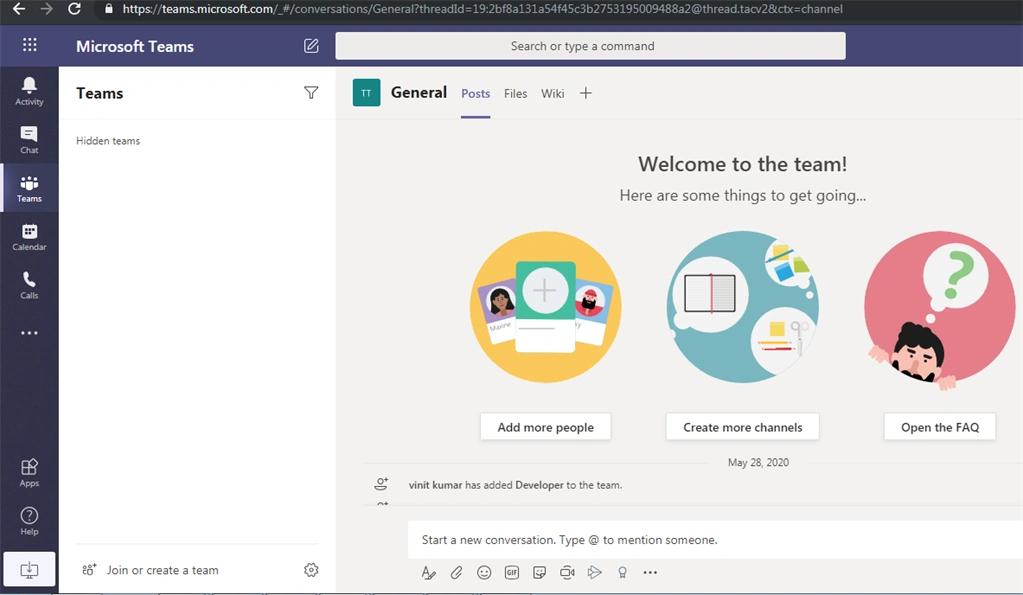
Output of Restored MS team
After execution of the script, your Teams will be restored, as shown below.
Summary
In this article, I discussed how we can restore an archived MS team using Graph API in PowerShell. We discussed how to register the APP in Azure Active Directory and provide permission to the app to connect Graph API. Restoration of the Teams is necessary when IT maintains and governs teams within an organization.
Join the conversation! Your thoughts help the community grow.