

Introduction
Restoring a Windows Operating System to a
previous state is not at all new but it can be very handy and time-saving. Let's
take an example; suppose you installed a new application or driver and after a
while, your system starts performing abnormally or it is infected by viruses from
clicking on the mouse unintentionally. Wherever the case it is, you may want to
go back to a previous state, say yesterday. You can refresh or reset your
system, but system restore is the best for this kind of scenario.
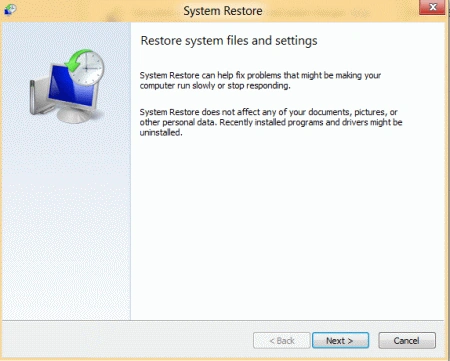
System Restore is a feature of system protection that is available in the
Control Panel. To access the control panel, read my previous
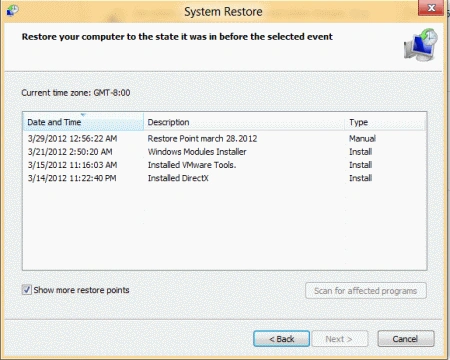
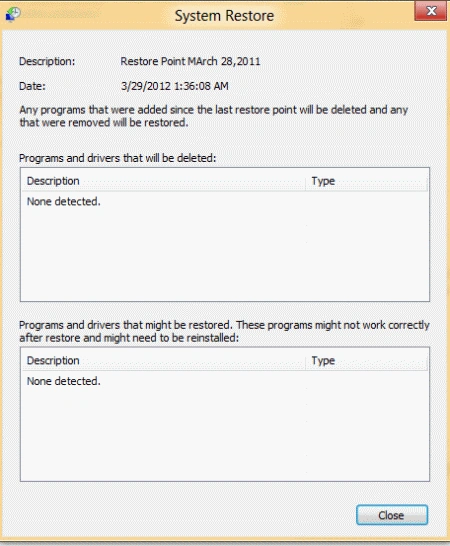
post. To restore a system to a previous state using a restore point, you
have to follow some steps.
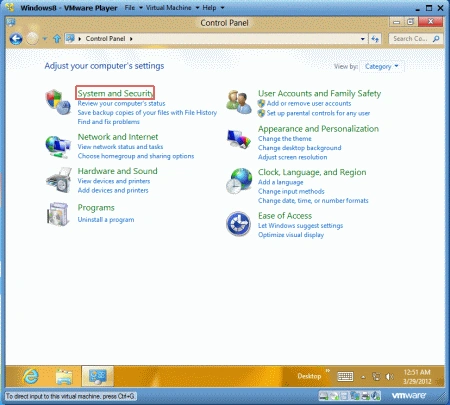
Use the control panel, then select
System and Security.
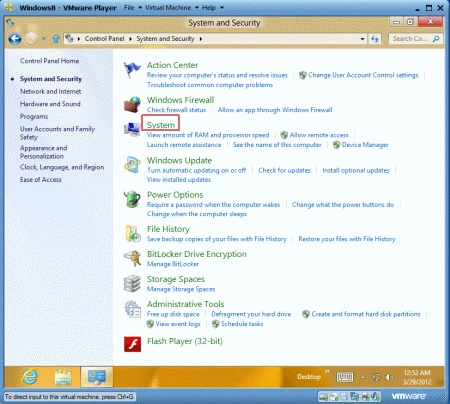
Then select the System.
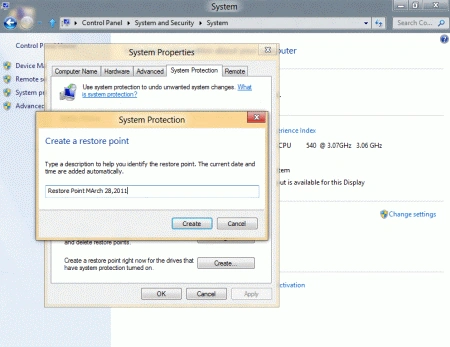
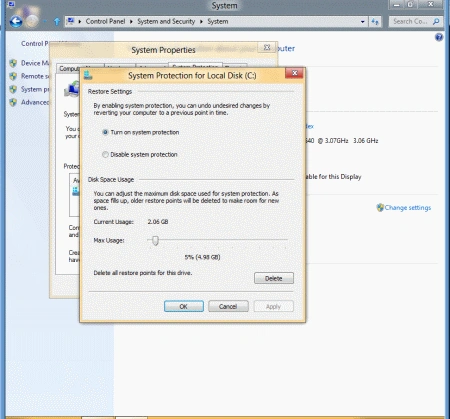
After that select System Protection and
then click on the create option.
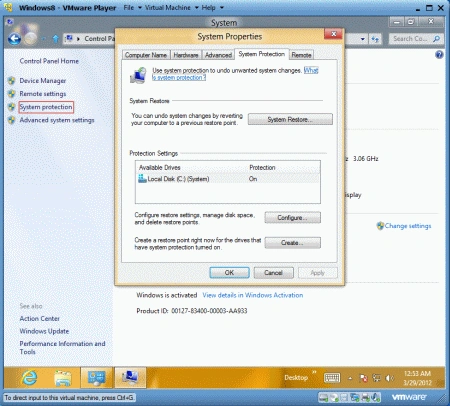
It will open one dialog box as.
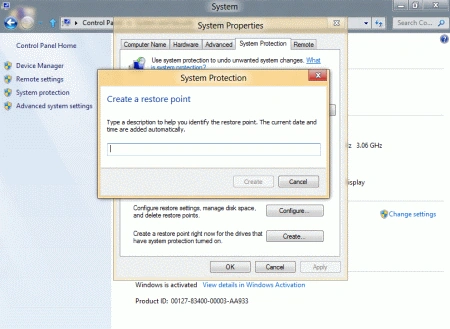
This is optional. Windows 8 creates a restore
point for you automatically during Windows Updates and other system maintenance
events. But you can create a restore point manually at any time. On the
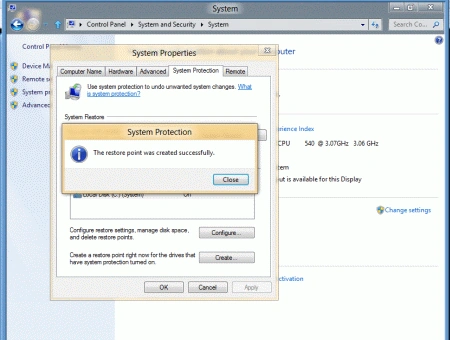
System Protection dialog box, click Create and name the restore
point. Windows creates the restore point for you.
Join the conversation! Your thoughts help the community grow.