

Introduction
One of the most common challenges while working with Microsoft SharePoint and Microsoft Power Automate is efficiently handling large SharePoint lists containing more than 5000 records.
Although the Get items action supports pagination, enterprise-level solutions often require significantly better control over large data processing, including batching, logging, filtering, performance optimization, and error handling. In such scenarios, implementing a Do Until loop with incremental ID-based batching logic becomes a scalable and reliable solution.
In this article, we will implement a batching approach to efficiently retrieve more than 5000 SharePoint records using Power Automate. Instead of fetching all records in a single execution, the flow will retrieve records in batches of 5000 items at a time, process each batch, and then continue retrieving the next set of records sequentially until all items are processed.
This approach helps
Improve overall performance
Reduce timeout and throttling risks
Optimize memory consumption
Provide better control over large-scale data processing
Build more scalable and enterprise-ready automation solutions
By the end of this article, you will understand how to design a reliable batching mechanism for processing large SharePoint datasets efficiently in Power Automate.
Steps for implementation
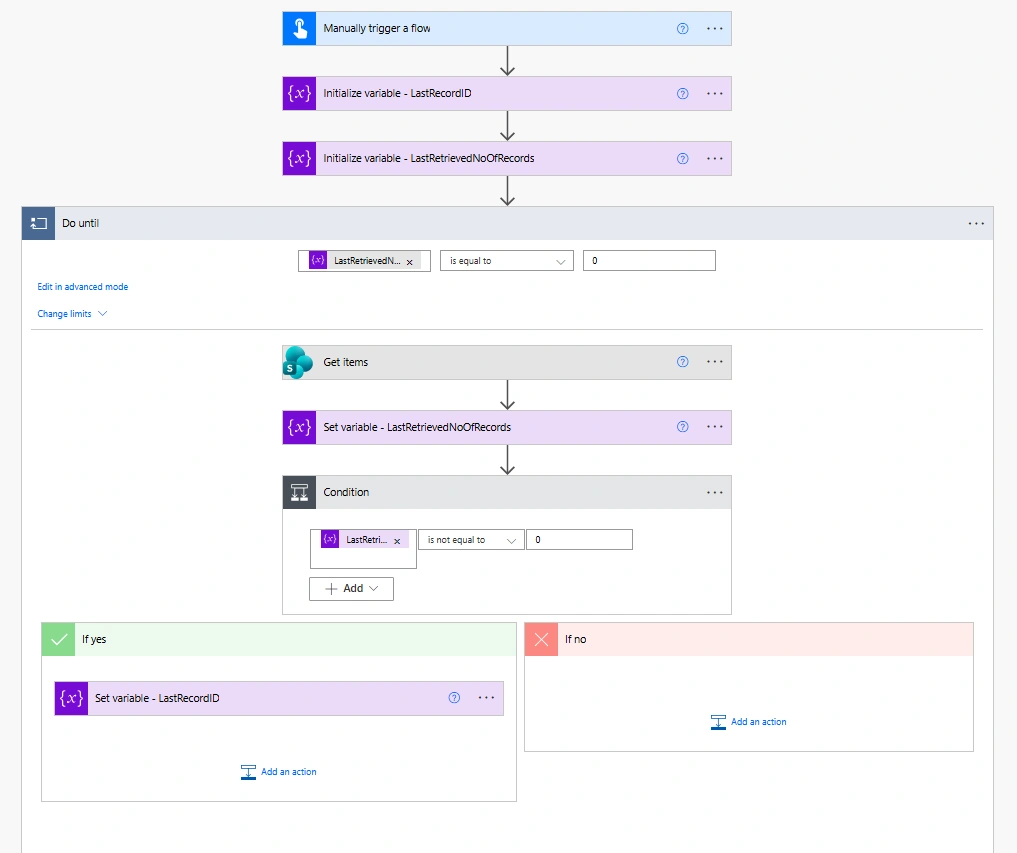
Step 1 : Create the Flow
Create a new flow:
Instant Flow / Scheduled Flow
Add trigger:
Manually trigger a flow
Step 2 : Initialize Variables
Variable 1 - LastRecordID
| Property | Value |
|---|---|
| Name | LastRecordID |
| Type | Integer |
| Value | 0 |
Variable 2 - LastRetrievedNoOfRecords
| Property | Value |
|---|---|
| Name | LastRetrievedNoOfRecords |
| Type | Integer |
| Value | 0 |
Step 3 : Add Do Until Loop
Add Do - until and condition it to run until:
LastRetrievedNoOfRecords is equal to 0
Meaning:
Continue loop until no records are returned.
Step 4 : Add Get Items Inside Loop
Inside the Do Until, add Get Items action:
| Property | Value |
|---|---|
| Site Address | Your SharePoint Site |
| List Name | Your List |
| Filter Query | ID gt @{variables('LastRecordID')} |
Imp: Turn On Pagination and set threshold to '5000'.
This ensures filter query:
Only records greater than previously processed ID are fetched.
Step 5 : Set Retrieved Record Count
After Get items:
Add: Set Variable
Update: LastRetrievedNoOfRecords
Value:
length(outputs('Get_items')?['body/value'])
Purpose:
Stores how many records were returned in current batch.
Step 6 — Add Condition
Add condition:
LastRetrievedNoOfRecords is not equal to 0
Meaning:
Only continue processing if records exist.
Step 7 — Update LastRecordID
Inside: If Yes
Add: Set Variable
Variable: LastRecordID
Value:
last(outputs('Get_items')?['body/value'])?['ID']
Purpose:
Stores highest ID from current batch.
Next loop starts after this ID.
Example Scenario
Suppose a SharePoint list contains:
25,000 records
Instead of retrieving all records together:
Loop 1 → 1–5000
Loop 2 → 5001–10000
Loop 3 → 10001–15000
Loop 4 → 15001–20000
Loop 5 → 20001–25000
This creates efficient batch processing.
Conclusion:
Using a Do Until loop with batching logic is an efficient and scalable approach for retrieving more than 5000 SharePoint records in Microsoft Power Automate. By processing records in smaller batches using incremental IDs, we can improve performance, reduce timeout risks, and handle large SharePoint lists more reliably in enterprise-level automation solutions.
Join the conversation! Your thoughts help the community grow.