

In this article, let’s create Azure Event Grid resources using Azure CLI, register Event Grid resource provider and then configure topic and endpoint. Build a .NET console application using .NET client library to send custom events to Event Grid topic. Validate that event is successfully routed to the endpoint in web application.
Following tasks are performed in this exercise:
Create Azure Event Grid resources using Azure CLI
Register Event Grid resource provider
Configure Topic and Endpoint
Send event using .NET Client Library
Sign in to Azure and Run application
Clean up resources
Create Azure Event Grid resources using Azure CLI
First basic task is to create and make ready Azure Event Grid resources to Azure using Azure CLI. Azure CLI (Azure Cloud Shell) is used to create the required resources. Azure CLI is the free Bash shell which can be run directly within the Azure portal. That is preinstalled and configured within the account. Perform the below steps one by one to achieve this.
Use Azure CLI (Azure Cloud Shell)
It is a free Bash shell which can be run directly within the Azure portal. It is preinstalled and configured within an account.
Click Cloud Shell button on the menu bar at the top right side of the Azure portal.

It will launch an interactive shell which can be used to run the steps outlined in this article. Select a Bash environment. To use code editor in cloud shell toolbar go to Settings menu and then select Go to Classic version.
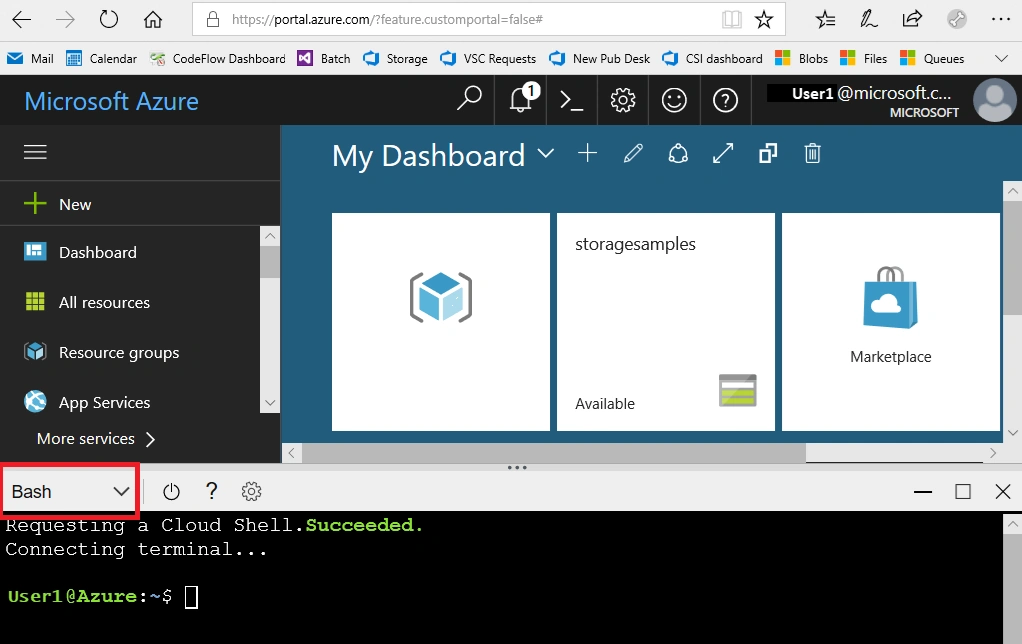
Create resource group - Resource group is a logical container used to hold related resources. In it include the resources which you want to manage as a group. App configuration resource belongs to this resource group. Create it using az group create command.
az group create \
     --name myResourceGroup1 \
     --location eastus2
eastus2 is location code instead of it one can use their nearest region location.
Create variables - Here, several commands require unique names/values with same parameters. Hence, for easy to manege lets create some variables, assign values and reuse them in the command parameters. let command is used as below to create required variables.
let rNum=$RANDOM
     resourceGroup=myResourceGroup1
     location=eastus2
     topicName="mytopic-evgtopic-${rNum}"
     siteName="evgsite-${rNum}"
siteURL="https://${siteName}.azurewebsites.net"Note: Open siteURL’s value in new tab browser to ensure that the web application is running. Leave the browser as running and that is used to show any updates. Click on eye icon option to expand event data. Event Grid sends validation events to endpoint to verify the received event data.
Register Event Grid resource provider
Azure Resource Provider is a service which defines and manages specific type resources in Azure. Microsoft.EventGrid namespace is required to registered for the application. az provider register command is used to register namespaces as like below. This command will take few minutes to complete the registration process.
az provider register \
     --namespace Microsoft.EventGrid
Configure Topic and Endpoint
In this section, lets create topic in event grid and create a message endpoint, and then subscribe to topic. One by one perform the following three steps to achieve this.
Create Topic in Event Grid
az eventgrid topic create command is used to create a topic and it will be used in .NET code later on in Event Grid. Name must be a unique name as it is a part of DNS entry.
az eventgrid topic create \
     --name $topicName \
     --location $location \
     --resource-group $resourceGroup
Create Message Endpoint
Now, create an endpoint for event message. Endpoint is used to take actions based on the event data. az deployment group create command is used to create a deployment at resource group from the remote template file. Deployed solution contains App Service plan, App Service web application and source code from the GitHub repository.
az deployment group create \
     --name myDeploymentGroup1 \
     --resource-group $resourceGroup \
     --template-uri "https://raw.githubusercontent.com/Azure-Samples/azure-event-grid-viewer/main/azuredeploy.json" \
     --parameters siteName=$siteName hostingPlanName=viewerhost
Subscribe to Topic
Once, message endpoint is created and ready to use next one task is to subscribe to the topic. az eventgrid event-subscription create command is used to subscribe to a topic specified. Subscribe to Event Grid topic is used to tell Event Grid which events to be tracked and where to send such events. Following script retrieves subscription ID from the account and used in next command to create the event subscription.
let endpoint="${siteURL}/api/updates" \
     topicId=$(az eventgrid topic show --resource-group $resourceGroup \
     --name $topicName --query "id" --output tsv)

az eventgrid event-subscription create \
     --source-resource-id $topicId \
     --name TopicSubscription \
     --endpoint $endpoint
Send event using .NET Client Library
Next step is to set-up the .NET console application to send an event by using .NET Client Library. Perform the following steps one by one using Cloud Shell to achieve this.
.NET Project Setup
Set up one console application to route events to custom endpoint with Azure Event Grid using .NET Client Library.
Create project directory and change to that directory. First create a directory for the project using below command and move to that directory.
mkdir eventgrid1
cd eventgrid1
Create .NET console application to add and fetch secrets through it. dotnet new console command is used to create a .NET console app.
dotnet new console
Install Packages - run dotnet add package command to add Azure.Messaging.EventGrid and dotenv.net packages in project to use the SDK. Azure.Messaging.EventGrid namespace is used to building scalable event-driven applications, provides logical container (namespace) for the related Event Grid resources such as topics, clients and enhance complex event routing scenarios. dotenv.net is C# library for .NET apps. It is used to load environment variables from an .env files.
dotnet add package Azure.Messaging.EventGrid
dotnet add package dotenv.net
Configure Application
Let's create and update .env file. env file holds the secrets such as topic endpoint and access key to be used in .NET console application in next section. Hence, first retrieve the topic endpoint and access key to add into the .env file to hold the secrets.
Retrieve URL and Access Key for above created topic. Record these values because those will be used in next command to hold the secrets.
az eventgrid topic show \
     --name $topicName  \
     -g $resourceGroup  \
     --query "endpoint"  \
     --output tsv
az eventgrid topic key list \
--name $topicName \
-g $resourceGroup \
--query "key1" \
--output tsvCreate .env file - create .env file using following commands to hold secrets and open it into code editor to update its content.
touch .env
code .env
Update .env file - Into .env file add the below code. Replace actual values with MY_TOPIC_ENDPOINT and MY_TOPIC_ACCESS_KEY. Actual values are recorded earlier in previous above section. To save file press ctrl + s and then to exit editor press ctrl + q.
TOPIC_ENDPOINT="MY_TOPIC_ENDPOINT"
TOPIC_ACCESS_KEY="MY_TOPIC_ACCESS_KEY"
Application Code
Add the below code into the project and replace template code in Program.cs file by using editor in Cloud Shell. Here by with this article a complete code of Program.cs file is attached.
Application editing - open Program.cs file to edit it in the Azure CLI using code command.
code Program.csCode replacing - replace existing code of Program.cs with the below code.
using Azure.Messaging.EventGrid;
using dotenv.net;

// Load environment variables from the .env file
DotEnv.Load();
var envVariables = DotEnv.Read();

// Retrieve the Event Grid topic endpoint and access key from the environment variables
var topicEndpoint = envVariables["TOPIC_ENDPOINT"];
var topicAccessKey = envVariables["TOPIC_ACCESS_KEY"];

// Validate required environment variables are set or not?
if (string.IsNullOrEmpty(topicEndpoint) || string.IsNullOrEmpty(topicAccessKey))
{
     Console.WriteLine("Set TOPIC_ENDPOINT and TOPIC_ACCESS_KEY environment variables in .env file. Press any key to continue!");
     Console.ReadLine();
     return;
}

// Start asynchronous process to send Event Grid event
ProcessAsync().GetAwaiter().GetResult();

async Task ProcessAsync()
{
     // Create EventGridPublisherClient object to send events to specified topic
     EventGridPublisherClient objEventGridPublisherClient = new EventGridPublisherClient
          (new Uri(topicEndpoint),
          new Azure.AzureKeyCredential(topicAccessKey));

     // Create EventGridEvent object with sample details
     var objEventGridEvent = new EventGridEvent(
          subject: "TestingSubject1",
          eventType: "TestingEventType1",
          dataVersion: "1.0",
          data: new { Message = "This message is from the event grid!" }
     );

     // Send event to Event Grid
     await objEventGridPublisherClient.SendEventAsync(objEventGridEvent);
     Console.WriteLine("Event has been sent successfully. Press any key to continue!");
     Console.ReadLine();
}
Here, below activities will be performed through above code execution:
Load environment variables from the .env file.
Retrieve the Event Grid topic endpoint and access key from the environment variables.
Validate required environment variables are set or not?
Start asynchronous process to send Event Grid event.
Create EventGridPublisherClient object to send events to specified topic.
Create EventGridEvent object with sample details.
Send event to Event Grid.
Save & Close - Press ctrl + s to save the changes and continue.
Sign in to Azure and Run application
Now application is ready to run. One by one execute the following commands in Azure CLI to run an application and perform the mentioned steps to verify the result outcomes.
Sign in - az login command used for sign in. Sign in to Azure is mandatory even though Cloud Shell session already may authenticated.
az loginRun application - dotnet run command used to start console application. Application will display appropriate message.
dotnet runOutput - When a message sent it will display success message as like below. One can view web application to see event has been sent. Click on eye icon to expand event data.
Event has been sent successfully. Press any key to continue!Clean up resources
Once finished the exercise its recommended to delete cloud resources are being created to avoid the unnecessary resource usage and any future costs. Deleting a resource group will delete all resources contained within it. Perform following steps one by one into Azure Portal to achieve this:
Navigate to resource group which is being created here and view its contents.
Delete resource group selection from the toolbar.
Choose resource group name and then follow next directions to delete resource group and all the resources it contains.
One can also clean up resources using Azure CLI as following:
Delete event subscription - az eventgrid event-subscription delete command is used to remove event subscription for an Azure subscription.
az eventgrid event-subscription delete \
     --name TopicSubscription \
     --source-resource-id $topicId
Delete deployment group - az deployment group command is used to remove a deployment at resource group.
az deployment group delete \
     --name myDeploymentGroup1 \
     --resource-group $resourceGroup \
Delete topic - az eventgrid topic delete command is used to delete a topic.
az eventgrid topic delete \
     --name $topicName \
     --resource-group $resourceGroup
Delete resource group - az group delete command is used to remove resource group.
az group delete \
     --name myResourceGroup1
Summary
Here, a complete process flow is described to route events to custom endpoint with Azure Event Grid using .NET Client Library. Azure Event Grid resource is created using Azure CLI, registered Event Grid resource provider and then configured topic and endpoint. A .NET console application is created to send the custom events to Event Grid topic. Validated that event is successfully routed to the endpoint or not. Finally, resources are cleaned up. A complete code of Program.cs file is attached with this article. Following is the list of key commands used in this article:
Create resource group: az group create
Register Event Grid resource provider: az provider register
Create Topic in Event Grid: az eventgrid topic create
Create Message Endpoint: az deployment group create
Subscribe to Topic: az eventgrid event-subscription create
Create .NET console application: dotnet new console
Install packages: dotnet add package
Retrieve Event Grid URL: az eventgrid topic show
Retrieve Event Grid Access Key: az eventgrid topic key list
Create .env file: touch .env
Open file into Code Editor: code .env
Sign in to Azure: az login
Run application: dotnet run
Delete event subscription: az eventgrid event-subscription delete
Delete deployment group: az deployment group delete
Delete topic: az eventgrid topic delete
Delete resource group: az group delete
Join the conversation! Your thoughts help the community grow.