

Introduction
I love Visual Studio as an IDE for most of my programming work or experiments but sometimes you have very little code to run/test/debug and for those small chunks of code it feels very costly to fire up the Visual Studio then hit F5 or CTRL + F5.
I prefer using Sublime Text as my go-to text editing tool for not so serious scripting. It's a cross-platform text and source code editor, with a Python application programming interface (API). It is proprietary software but comes with an unlimited trial period. You can extend its functionality using the plugins, most of which have free-software licenses and are community-built and maintained. If you're aware of NuGet in Visual Studio then you can easily understand what Package Control is for Sublime Text (navigate to the Package Control hyperlink if you don't). You can explore all the available plugins for Sublime Text here and their descriptions.
Using Sublime text for running JavaScript, it will cut down the time you will spend with Visual Studio. Follow these procedure to make your Sublime Text editor capable of running your JavaScript code in its console on a Windows Machine: (I assume you have Sublime Text installed already).
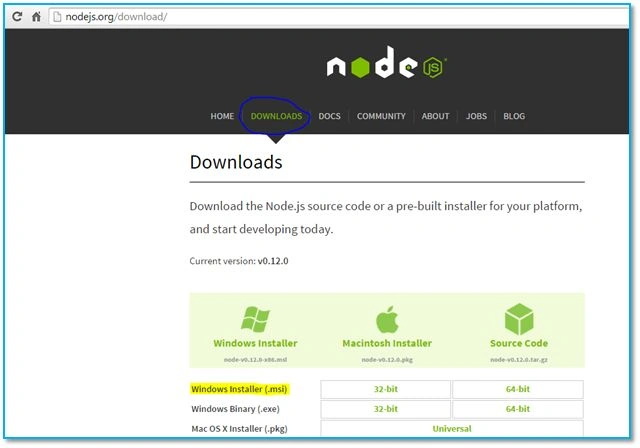
1. Download and Install NodeJS (skip this step if you already have it installed in your machine).
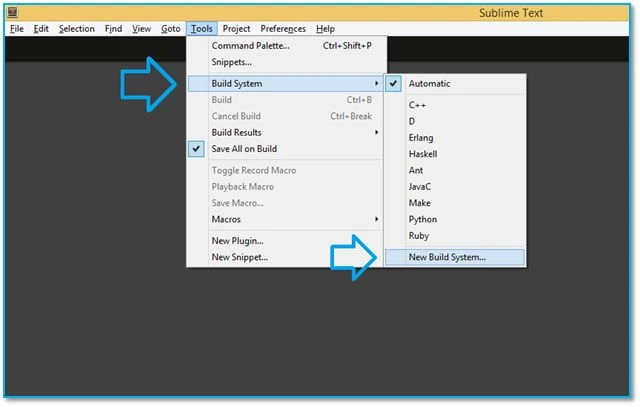
 2. Start Sublime Text, go to Tools > Build System > New Build System:
 3. The following screen will appear:
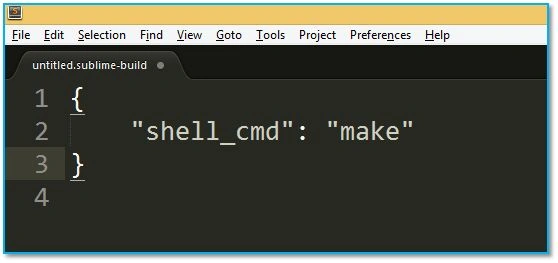 4. Replace the contents as in the following:
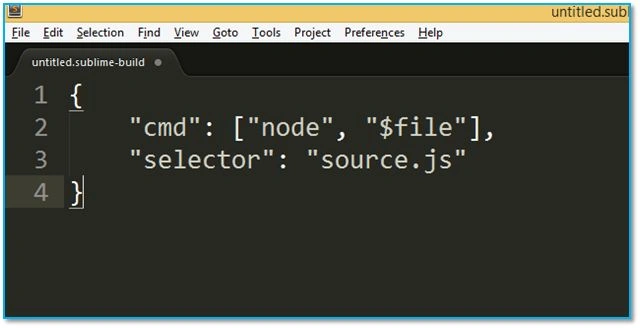 5. Hit File > Save or CTRL + S, save the file as "JavaScript.sublime-build" in the default "user" folder. Please note that you need to start Sublime Text with administrator rights, otherwise it won't let you save this file in the default directory.
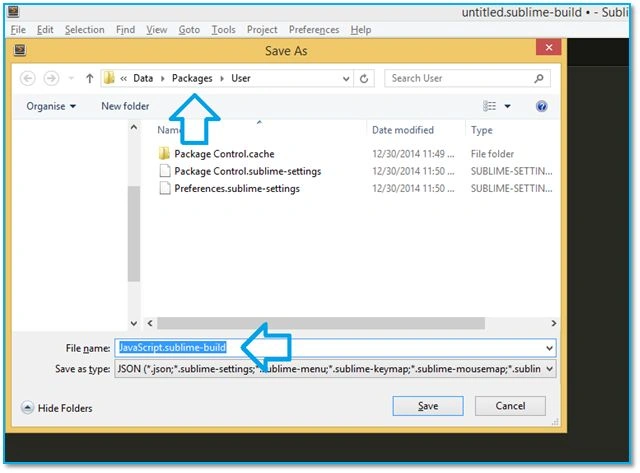 6. Close the sublime build package file that you just have created and saved. Navigate to Tools > Build System and you can see the new JavaScript build system is available in the list. Select it.
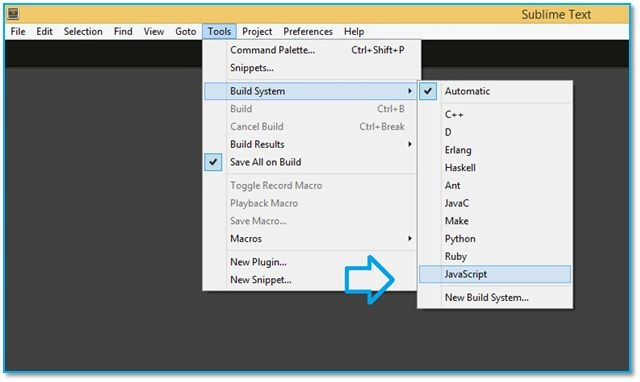 7. Your sublime text is now configured to run JavaScript. To test it I will quickly go and create and save a test.js file somewhere like this:
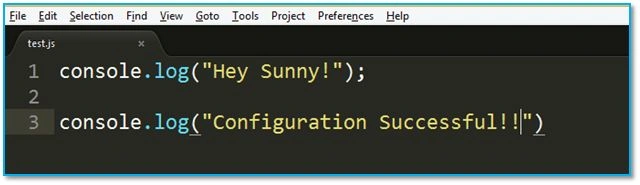 8. To run these codes, Go to Tools > Build or hit CTRL+B and voila! You can see the results appear in the console down below the codes in console:
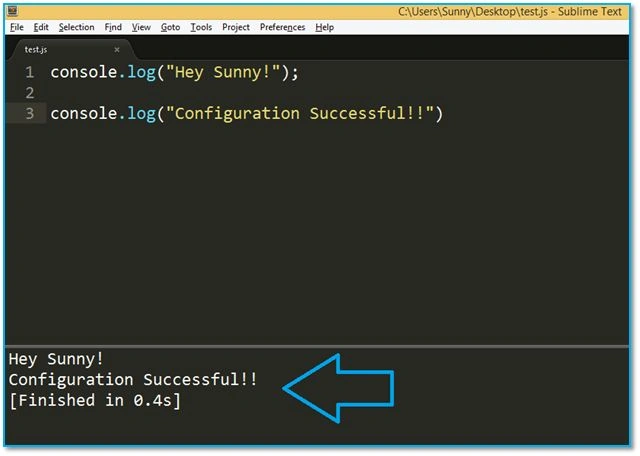 9. You can see all the results, errors, and console messages in this section.
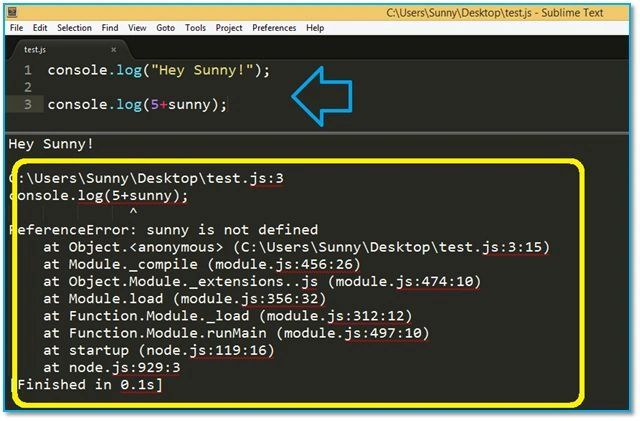 This is all that it takes to configure your Sublime Text to run/debug JavaScript in its console.
Summary
Thank you for reading!
manoj madhurangaPosted Mar 28, 2018, 11:47 PM
Thanks Sunny. you save my time.
Sunny SharmaPosted Mar 11, 2015, 11:57 PM
thanks Rohit, please go through the article and you will have a fair idea of the process. You just need to have Sublime Text and Node JS installed on your machine!
Rohit GayattriPosted Mar 11, 2015, 3:08 PM
Nice article, one of the interviewer asked me a question of which tool do u use to debug Js and i said Js. Please also tell me which file need to download and where to put it..
Tom MohanPosted Mar 1, 2015, 7:55 PM
nice article
Ravi PrajapatiPosted Feb 28, 2015, 1:02 AM
Nice one sir.
Sourabh SomaniPosted Feb 26, 2015, 11:52 AM
Sunny Kumar Awesome feature sir and one more thing sir I think it is very sophisticated tool for Java script and JSON. I also like Visual Studio but I don't think that, for java-script visual studio is best :)
Vithal WadjePosted Feb 26, 2015, 11:24 AM
nice sunny sir,thanks for sharing
Sunny SharmaPosted Feb 26, 2015, 9:42 AM
thanks everyone!
Guest UserPosted Feb 26, 2015, 6:28 AM
good feature, I adopted it
Rahul Kumar SaxenaPosted Feb 26, 2015, 4:31 AM
Good Work...
Srinivasan K KPosted Feb 26, 2015, 3:56 AM
Worthy to read this post. Thanks for making such useful article along with implementation screenshots.
Sibeesh VenuPosted Feb 26, 2015, 2:38 AM
Good One.
Shridhar SharmaPosted Feb 26, 2015, 2:05 AM
Nice resource sir.