If you work with SQL Server, you may already have used Docker to run SQL Server inside a container.
But Docker is not the only option.
Podman is another container tool that can run Docker-compatible container images. In this article, we will see how to run SQL Server 2025 using Podman Desktop on Windows.
We will also connect to SQL Server using SQL Server Management Studio (SSMS) and make sure our database data is not lost when the container is restarted.
What is Podman?
Podman is an open-source tool for running and managing containers.
If you have used Docker before, Podman will feel very familiar.
For example, with Docker we use:
docker pull
docker run
docker ps
docker stop
With Podman, the commands are almost the same:
podman pull
podman run
podman ps
podman stop
One important difference is that Podman does not require a central daemon like Docker.
Podman also supports rootless containers, which means containers can run without giving them unnecessary root permissions.
For developers, the main point is simple:
We can run the official Microsoft SQL Server container image using Podman.
What Do We Need?
For this example, we need:
Step 1: Install WSL 2
Podman needs a Linux environment because the SQL Server container runs on Linux.
Open PowerShell as Administrator and check WSL:
wsl --status

If WSL is not installed, you can install it using:
wsl --install
If it is already installed, you can update it:
wsl --update
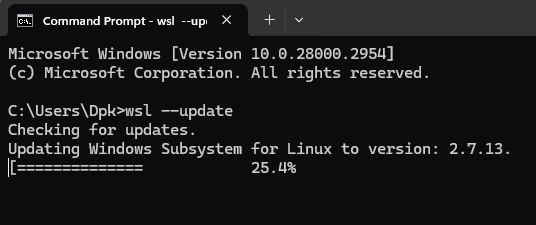
Restart Windows if required.
Step 2: Install Podman Desktop
Download and install Podman Desktop on your Windows machine.

During the setup, you can use WSL 2 as the machine provider.
Once the installation is complete, open PowerShell and run:
podman --version
You can also check the Podman machine:
podman machine list
If the machine is stopped, start it:
podman machine start
Now Podman is ready.
Step 3: Test Podman
Before installing SQL Server, let's make sure Podman is working.
Run:
podman run --rm hello-world
Podman will download the test image and run it.
If this works successfully, we can move to SQL Server.
Step 4: Download the SQL Server 2025 Image
Microsoft provides official SQL Server container images.
Run:
podman pull mcr.microsoft.com/mssql/server:2025-latest
The image is quite large, so downloading it may take some time depending on your internet connection.
After the download finishes, check it using:
podman images
You should see the SQL Server image in the list.
Step 5: Create Storage for SQL Server
Database data is important.
We don't want our database to disappear if we delete and recreate the container.
Let's create a Podman volume:
podman volume create sql2025data
Check the volume:
podman volume ls
We will use this volume to store SQL Server database files.
Step 6: Run SQL Server 2025
Now let's create our SQL Server container.
Open PowerShell and run:
podman run -d `
  --name sql2025 `
  --hostname sql2025 `
  -e ACCEPT_EULA=Y `
  -e MSSQL_SA_PASSWORD="YourStrongPasswordHere" `
  -p 1433:1433 `
  -v sql2025data:/var/opt/mssql `
  mcr.microsoft.com/mssql/server:2025-latest
Replace:
YourStrongPasswordHere
with a strong password.
Let's understand the command.
--name sql2025 gives our container the name sql2025.
ACCEPT_EULA=Y accepts the Microsoft SQL Server license agreement.
MSSQL_SA_PASSWORD sets the password for the SQL Server sa account.
-p 1433:1433 makes SQL Server available on port 1433.
-v sql2025data:/var/opt/mssql stores our SQL Server data in the Podman volume.
Step 7: Check SQL Server
Run:
podman ps
You should see the sql2025 container running.
You can also check SQL Server logs:
podman logs sql2025
SQL Server may take a few seconds to start.
If the container stops automatically, run:
podman ps -a
Then check the logs:
podman logs sql2025
The logs normally tell you why SQL Server failed to start.
Step 8: Connect from SSMS
Now open SQL Server Management Studio.
Enter:
Server Name: 127.0.0.1,1433

Authentication:
SQL Server Authentication

Login:
sa

Password:
Your SQL Server password
Click Connect.
You should now be connected to SQL Server 2025 running inside your Podman container.
Step 9: Check the SQL Server Version
Open a new query window in SSMS and run:
SELECT @@VERSION;
This will show the SQL Server version running inside the container.
You can also check the server name:
SELECT @@SERVERNAME;
Step 10: Create a Test Database
Let's create a simple database.
Run:
CREATE DATABASE PodmanDemo;
GO
Now use the database:
USE PodmanDemo;
GO
Create a table:
CREATE TABLE Employees
(
    Id INT IDENTITY(1,1) PRIMARY KEY,
    Name NVARCHAR(100),
    Department NVARCHAR(100)
);
GO
Add some data:
INSERT INTO Employees (Name, Department)
VALUES
('John', 'Development'),
('Sarah', 'Database'),
('Mike', 'DevOps');
GO
Check the data:
SELECT *
FROM Employees;
Our SQL Server database is now running successfully inside Podman.
Step 11: Stop and Start SQL Server
You don't need to create the container every time.
To stop SQL Server:
podman stop sql2025
To start it again:
podman start sql2025
To restart it:
podman restart sql2025
After starting the container again, connect from SSMS and run:
USE PodmanDemo;

SELECT *
FROM Employees;
Your data should still be there.
Running Multiple SQL Server Containers
One useful feature of containers is that we can easily run multiple SQL Server environments.
Our first SQL Server uses port:
1433
We can run another SQL Server container using port 1434.
For example:
podman run -d `
  --name sql2025-test `
  -e ACCEPT_EULA=Y `
  -e MSSQL_SA_PASSWORD="YourStrongPasswordHere" `
  -p 1434:1433 `
  mcr.microsoft.com/mssql/server:2025-latest
Now we have two SQL Server instances.
The first one can be accessed using:
127.0.0.1,1433
And the second one using:
127.0.0.1,1434
This is very useful when you need separate development and testing databases.
Useful Podman Commands
Here are some commands you will probably use often.
Check running containers:
podman ps
Check all containers:
podman ps -a
Check SQL Server logs:
podman logs sql2025
Watch logs continuously:
podman logs -f sql2025
Stop SQL Server:
podman stop sql2025
Start SQL Server:
podman start sql2025
Restart SQL Server:
podman restart sql2025
Check CPU and memory usage:
podman stats
Open the Linux shell inside the SQL Server container:
podman exec -it sql2025 bash
Remove the container:
podman rm sql2025
Podman Desktop or Command Line?
Podman Desktop provides a graphical interface where you can see:
Containers
Images
Volumes
Pods
Logs
Podman machines
This is useful when you are getting started.
However, I prefer using commands for most development and DevOps work.
Commands are easy to save in documentation or scripts and can be reused on another machine.
Podman vs Docker
Podman and Docker solve a similar problem: they allow us to run applications inside containers.
For basic SQL Server development, both work well.
Docker has a very large ecosystem and is supported by many development and CI/CD tools.
Podman has some interesting advantages. It is open source, supports rootless containers, does not require a central Docker-style daemon, and its commands are very similar to Docker.
If you already know Docker, learning Podman is quite easy.
For example:
docker ps
becomes:
podman ps
and:
docker run
becomes:
podman run
So you don't have to learn everything again.
Common Problems
SQL Server Container Stops Immediately
Check the logs:
podman logs sql2025
One common reason is that the sa password does not meet SQL Server password requirements.
SSMS Cannot Connect
First check that the container is running:
podman ps
Then try connecting using:
127.0.0.1,1433
Port 1433 Is Already in Use
Another SQL Server instance may already be using port 1433.
Use another port:
-p 1434:1433
Then connect using:
127.0.0.1,1434
Database Data Is Lost
Don't store important databases only inside the container.
Use a Podman volume:
-v sql2025data:/var/opt/mssql
This keeps the database files separate from the container.
When Should You Use Podman?
Podman is a good option if you want:
An alternative to Docker Desktop
Rootless containers
An open-source container tool
Local SQL Server development environments
Separate SQL Server environments for development and testing
A container tool that works well with Linux and Kubernetes environments
It is also useful for developers who want to learn more about container technologies without depending only on Docker.
Conclusion
Running SQL Server 2025 using Podman is quite simple.
We installed Podman Desktop, downloaded Microsoft's official SQL Server image, created persistent storage, started SQL Server, and connected to it using SSMS.
The best part is that developers who already know Docker will find Podman very familiar.
Commands such as pull, run, ps, stop, and start work almost the same way.
For local development, testing, database migration testing, and DevOps environments, running SQL Server with Podman is a useful option.
Docker is still a great container platform, but Podman gives us another good choice, especially if we want an open-source, daemonless, and rootless container solution.


Join the conversation! Your thoughts help the community grow.