

Introduction
In this article we will first create a table in a MySQL database and then we will use a Windows Forms application to save an image into the database.
Description
Create a table in a MySQL database using MySQL browser as in the following. To store the image in the database, here is the script for the table:
- CREATE TABLE `image` (
- `name` varchar(100) default NULL,
- `type` varchar(100) default NULL,
- `desc` varchar(100) default NULL,
- `docname` varchar(5000) default NULL,
- `docdisc` varchar(500) default NULL
- ) ENGINE=InnoDB DEFAULT CHARSET=latin1
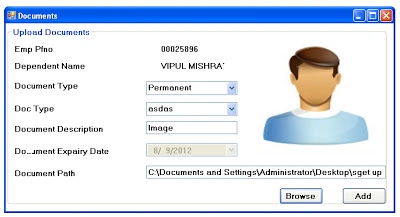
Add a reference to the MySql.Data DLL using the Add Reference dialog box and include the following two namespaces:
- using MySql.Data.MySqlClient;
- using System.IO;
- //The String used to store the location of the file that is currently loaded in the picture box picFile
- String location;
- //The String used to store the name of the file that is currently loaded in the picture box picFile
- String fileName;
- private void Browse_Click(object sender, EventArgs e)
- {
- openPic.Filter = "JPeg Image|*.jpg|Bitmap Image|*.bmp|Gif Image|*.gif";
- //Showing the fileopen dialog box
- openPic.ShowDialog();
- //showing the image opened in the picturebox
- pictureBox1.BackgroundImage = new Bitmap(openPic.FileName);
- //storing the location of the pic in variable
- location = openPic.FileName;
- textBox2.Text = location;
- //storing the filename of the pic in variable
- fileName = openPic.SafeFileName;
- }
- private void btn_SaveImage_Click(object sender, EventArgs e)
- {
- MySqlConnection con = new MySqlConnection(ConString);
- MySqlCommand cmd;
- FileStream fs;
- BinaryReader br;
- try
- {
- //Creating a filestream to open the image file
- FileStream fs = new FileStream(location, FileMode.Open, FileAccess.Read);
- //Getting the legth of the fil in bytes
- int fileLength = (int)fs.Length;
- //creating an array to store the image as bytes
- byte[] rawdata = new byte[fileLength];
- //using the filestream and converting the image to bits and storing it in
- //an array
- fs.Read(rawdata, 0, (int)fileLength);
- //Creating a new mysql command object which will be used to store the image
- MySqlCommand cmd = new MySqlCommand();
- //creating sql command
- String sql = "insert into doc1 values(@pfno,@depname,@doctype,@docdesc,@docexpdate,@docname,@docdisc)";
- //Connection
- con = new MySqlConnection();
- con.ConnectionString = ConfigurationSettings.AppSettings["constr"];
- con.Open();
- //Setting the connection of the command
- cmd = new MySqlCommand(sql, con);
- //setting the sql of the command
- //cmd.CommandText = sql;
- //Setting up the parameter values to be used when storing the image to a
- //table
- //cmd.Parameters.AddWithValue("@docsize", rawdata);
- cmd.Parameters.AddWithValue("@name", label8.Text);
- cmd.Parameters.AddWithValue("@type", comboBox1.Text);
- cmd.Parameters.AddWithValue("@desc", textBox1.Text);
- cmd.Parameters.AddWithValue("@docname", textBox2.Text);
- cmd.Parameters.AddWithValue("@docdisc", fileLength);
- //Executing the query and writing the image to the database
- cmd.ExecuteNonQuery();
- //Closing the filestream
- con.Close();
- MessageBox.Show("Done");
- }
- catch (Exception ex)
- {
- MessageBox.Show(ex.Message);
- }
- }
Join the conversation! Your thoughts help the community grow.