

Introduction
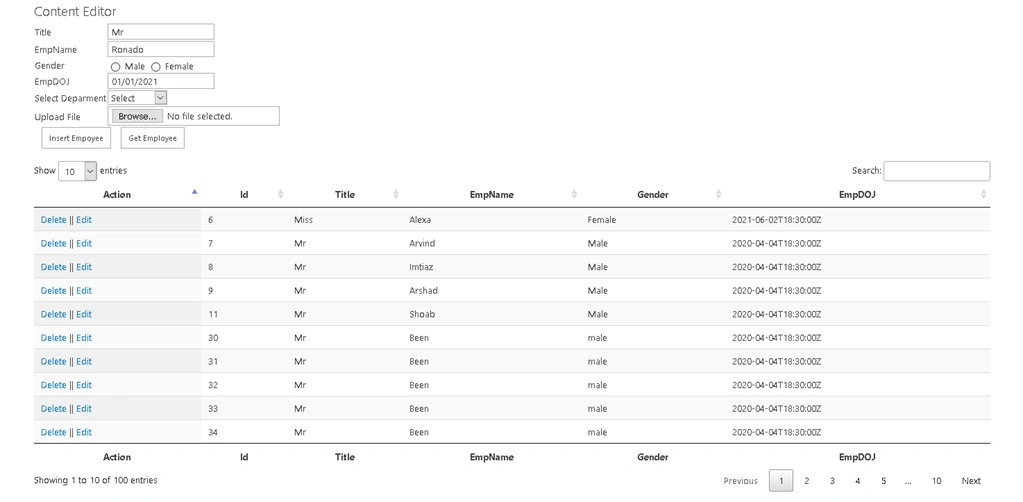
In this article, we will learn how to insert a record into the SharePoint custom list having a lookup column. In this example, first, we will create the Department List and then create the Employee list with lookup column having column name DeptName. We also cover how to upload pictures in the picture library and how to make a relation between Employee list (Custom List) and EmployeePicture (Picture Library). We will also cover the jquery DataTable concept. Using Jquery DataTable we will display the list of records available in Employee (Custome list). We will also perform the Delete operation using Rest API, on click of the delete of delete hyperlink a confirmation popup message will be displayed. Depending on the conformation we will delete the record and rebind the list of the item available in the Employee list (Custom List )
A Lookup field is a field type that allows you to connect a custom list to a field from another custom list. In this article, we refer DeptName field from the Department list (Custom List) as a lookup field. In Employee List we will add one column DeptName as a lookup field from the Department list.
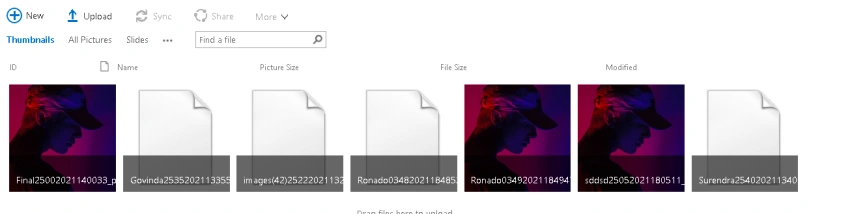
In the case of Picture Library first, we will insert a record into EmployeeList. In EmployeeList having one column EmpProfilePicture, we will insert EmpProfilePicture value (EmpName + yyyyMMddhhmmss + picture extension ) and finally upload the picture into the EmployeePicture library with the same name as inserted into Employee List.
After inserting the record into the Employee list we will upload the Employee profile picture into Picture Library (EmployeePicture) and finally display the Employee in Jquery DataTable.
Scenario
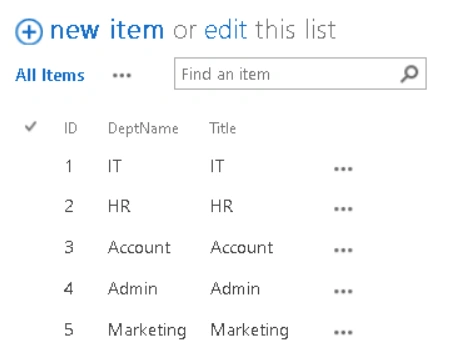
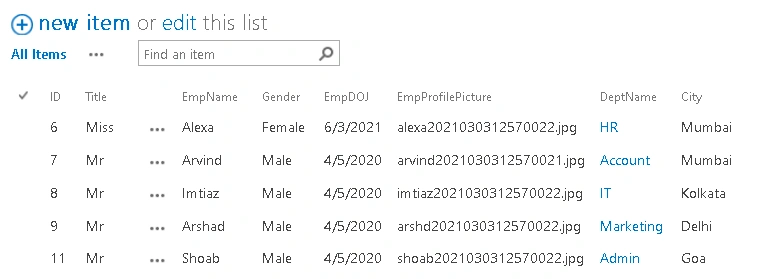
In this example, we will create a custom list called "Department" and in the list, we will create a DeptName field. (ID & Title is the default field). Now create the Picture Library list called "EmployeePicture" with the default field and finally create the custom list "Employee" and in this list, we will create an EmpName field (Single line text), Gender field (Multi Selection), EmpDOJ (Date Time), EmpProfilePicture (Single line text), DeptName (lookup field from Department List ), City (Single line text).
In the Employee custom list, we will insert the record and DeptName we will refer from the Department custom list and name of the picture used during the EmployeePicture upload in the picture library.
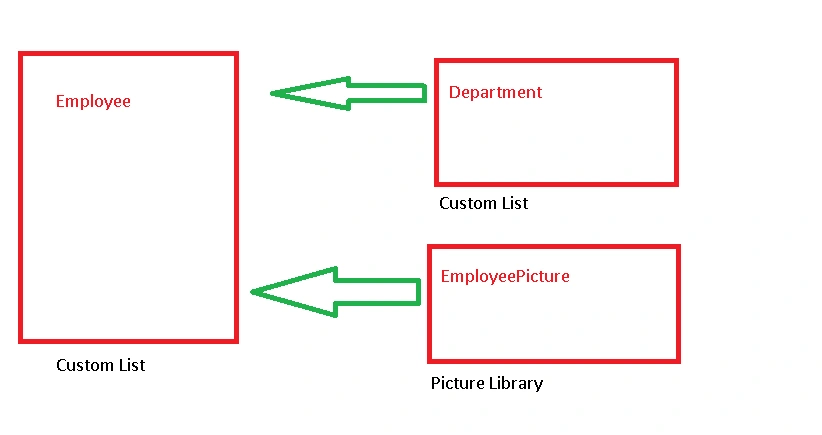
Employee List
A column stores information about each item in the list. The following columns are currently available in this list
|
Column
|
Type
|
|
Title
|
Single line of text
|
|
EmpName
|
Single line of text
|
|
Gender
|
Choice
|
|
EmpDOJ
|
Date and Time
|
|
EmpProfilePicture
|
Single line of text
|
|
DeptName
|
Lookup
|
|
City
|
Single line of text
|
|
Modified
|
Date and Time
|
|
Created
|
Date and Time
|
|
Created By
|
Person or Group
|
|
Modified By
|
Person or Group
|
Department List
A column stores information about each item in the list. The following columns are currently available in this list
|
Column (click to edit)
|
Type
|
|
Title
|
Single line of text
|
|
DeptName
|
Single line of text
|
|
Modified
|
Date and Time
|
|
Created
|
Date and Time
|
|
Created By
|
Person or Group
|
|
Modified By
|
Person or Group
|
Implementation
Step 1
Create Department List with the field DeptName, field ID & Title as Default field
Step 2
Create Employee List with the below field detail. In the Employee list, DeptName is a lookup field and we used EmpProfilePicture name during the picture upload in the Picture library.
Step 3
Create Picture Library called "EmployeePicture" with the default field name. After the data is inserted into the Employee List we will upload the picture into EmployeePicture library.
Step 4
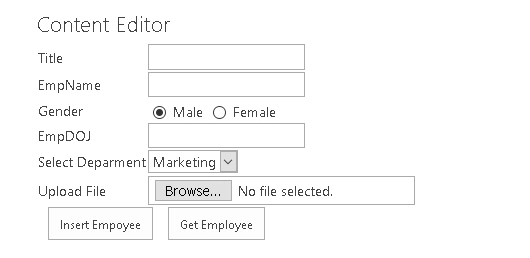
Create an HTML form with the below field and finally add two-buttons, the "Insert Employee" and the "Get Employee" button.
On click of the employee button, we will insert the record into the Employee List and upload the picture into the picture library.
On load of the HTML form we will bind the Department dropdown list from the Department List with ID and Value (Text > 'IT', Value > 1).
Step 5 - HTML code
- <html>
- <head>
- <script src="https://code.jquery.com/jquery-3.5.1.js"></script>
- <script src="https://cdn.datatables.net/1.10.23/js/jquery.dataTables.min.js"></script>
- <link rel="stylesheet" href="https://cdn.datatables.net/1.10.23/css/jquery.dataTables.min.css" />
- <script src="EmployeeApi.js"></script>
- </head>
- <body>
- <div>
- <table>
- <tr>
- <td>Title</td>
- <td>
- <input type="Text" id="txtTitle" value="Mr">
- </td>
- </tr>
- <tr>
- <td>
- EmpName
- </td>
- <td>
- <input type="Text" id="txtEmpName" value="Ronado">
- </td>
- </tr>
- <tr>
- <td>
- Gender
- </td>
- <td>
- <input type="radio" id="male" name="gender" value="male">
- <label for="male">Male</label>
- <input type="radio" id="female" name="gender" value="female">
- <label for="female">Female</label>
- </td>
- </tr>
- <tr>
- <td>
- EmpDOJ
- </td>
- <td>
- <input type="Text" id="txtEmpDOJ" value="01/01/2021">
- </td>
- </tr>
- <tr>
- <td>
- Select Deparment
- </td>
- <td>
- <select id="ddlDepartment" >
- <option value="0">Select</option>
- </select>
- </td>
- </tr>
- <tr>
- <td>Upload File</td>
- <td>
- <input type="file" id="getFile" />
- </td>
- </tr>
- <tr>
- <td colspan="2">
- <input type="button" id="btnInsertEmp" value="Insert Empoyee" />
- <input type="button" id="btnSubmitEmp" value="Get Employee" />
- <input type="button" value="Upload Profile" id="btnUploadProfile" style="display:none" />
- </td>
- </tr>
- </table>
- </div>
- <br />
- <div id="divResults" style='width:80%'></div>
- </body>
- </html>
Step 6
Create a JavaScript EmployeeAPI.js
- $(document).ready(function () {
- $("#btnSubmitEmp").on("click", function () {
- $('#example').DataTable();
- getEmployeeListData();
- $('#example').DataTable();
- })
- $("#btnInsertEmp").on("click", function () {
- debugger;
- InsertEmployeeListData();
- })
- $("#btnUploadProfile").on("click", function () {
- debugger;
- var files = $("#getFile")[0].files;
- uploadFile(files[0]); // uploading singe file
- })
- addDepartment();
- $('#example').DataTable();
- });
- function ProcessUploadPic() {
- if (document.getElementById("fileupload").files.length === 0) {
- alert("Select a file!");
- return;
- }
- var parts = document.getElementById("fileupload").value.split("\\");
- var filename = parts[parts.length - 1];
- var fileInput = document.getElementById("fileupload").files[0];
- var picReader = new FileReader();
- picReader.addEventListener("load", function (event) {
- var picFile = event.target;
- var div = document.createElement("div");
- div.innerHTML = "<img class='thumbnail' src='" + picFile.result + "'" + "title='" + picFile.name + "'/>";
- PerformUploadPic(filename, div)
- });
- picReader.readAsDataURL(fileInput);
- }
- function PerformUploadPic(filename, fileData) {
- var url = document.URL.split('/');
- url = url[0] + "//" + url[2] + "/" + url[3] + "/";
- $.ajax({
- url: url + "_api/web/getfolderbyserverrelativeurl('EmployeePicture')/files/add(url='" + filename + "', overwrite=true)",
- method: "POST",
- binaryStringRequestBody: true,
- body: fileData,
- headers: {
- "accept": "application/json; odata=verbose",
- "X-RequestDigest": $("#__REQUESTDIGEST").val(),
- "content-length": fileData.byteLength
- },
- success: function (data) {
- alert("Success! Your Picture was uploaded to SharePoint.");
- },
- error: function onQueryErrorAQ(xhr, ajaxOptions, thrownError) {
- alert('Error:\n' + xhr.status + '\n' + thrownError + '\n' + xhr.responseText);
- },
- state: "Update"
- });
- }
- function uploadFile(uploadFileObj, empProfilePicture) {
- debugger;
- console.log('Log-1');
- var fileName = uploadFileObj.name;
- fileName = empProfilePicture+"_" + fileName; // + date.format("ddmmyyyyHHmmss");
- var webUrl = _spPageContextInfo.webAbsoluteUrl;
- var documentLibrary = "EmployeePicture";
- //var folderName = "Folder1";
- var targetUrl = _spPageContextInfo.webServerRelativeUrl + "/" + documentLibrary + "/" //+ folderName;
- var url = webUrl + "/_api/web/lists/getByTitle(@TargetLibrary)/RootFolder/files/add(url=@TargetFileName,overwrite='true')?" + "@TargetLibrary='" + documentLibrary + "'" + "&@TargetFileName='" + fileName + "'";
- debugger;
- console.log('Log-2');
- uploadFileToFolder(uploadFileObj, url, function (data) {
- var file = data.d;
- var updateObject = {
- __metadata: {
- type: file.ListItemAllFields.__metadata.type
- },
- Name: 'Test Data', //meta data column1
- Title: 'Test Data', //meta data column2
- };
- console.log('Log-3');
- debugger;
- url = webUrl + "/_api/Web/lists/getbytitle('" + documentLibrary + "')/items(" + file.ListItemAllFields.Id + ")";
- url = webUrl + "/_api/Web/lists/getbytitle('" + documentLibrary + "')/items(5)";
- updateFileMetadata(url, updateObject, file, function (data) {
- debugger;
- alert("File uploaded & meta data updation done successfully");
- }, function (data) {
- debugger;
- alert("File upload done but meta data updating FAILED");
- });
- }, function (data) {
- alert("File uploading and meta data updating FAILED");
- });
- }
- function uploadFileToFolder(fileObj, url, success, failure) {
- var apiUrl = url;
- var getFile = getFileBuffer(fileObj);
- debugger;
- console.log('Log-2.1');
- getFile.done(function (arrayBuffer) {
- $.ajax({
- url: apiUrl,
- type: "POST",
- data: arrayBuffer,
- processData: false,
- async: false,
- headers: {
- "accept": "application/json;odata=verbose",
- "X-RequestDigest": jQuery("#__REQUESTDIGEST").val(),
- },
- success: function (data) {
- console.log('Log-2.2');
- success(data);
- },
- error: function (data) {
- console.log('Log-2.3');
- failure(data);
- }
- });
- });
- }
- function updateFileMetadata(apiUrl, updateObject, file, success, failure) {
- $.ajax({
- url: apiUrl,
- type: "POST",
- async: false,
- data: JSON.stringify(updateObject),
- headers: {
- "accept": "application/json;odata=verbose",
- "X-RequestDigest": $("#__REQUESTDIGEST").val(),
- "Content-Type": "application/json;odata=verbose",
- "X-Http-Method": "MERGE",
- "IF-MATCH": file.ListItemAllFields.__metadata.etag,
- },
- success: function (data) {
- success(data);
- },
- error: function (data) {
- failure(data);
- }
- });
- }
- function getFileBuffer(uploadFile) {
- var deferred = jQuery.Deferred();
- var reader = new FileReader();
- reader.onloadend = function (e) {
- deferred.resolve(e.target.result);
- }
- reader.onerror = function (e) {
- deferred.reject(e.target.error);
- }
- reader.readAsArrayBuffer(uploadFile);
- return deferred.promise();
- }
- function DeleteListItemUsingItemId(Id) {
- var check = confirm("Are you sure you want to Delete ?");
- if (check == true) {
- $.ajax
- ({
- url: _spPageContextInfo.webAbsoluteUrl + "/_api/web/lists/getByTitle('Employee')/items(" + Id + ")",
- type: "POST",
- headers:
- {
- "Accept": "application/json;odata=verbose",
- "Content-Type": "application/json;odata=verbose",
- "IF-MATCH": "*",
- "X-HTTP-Method": "DELETE",
- "X-RequestDigest": $("#__REQUESTDIGEST").val()
- },
- success: function (data, status, xhr) {
- console.log("Success");
- getEmployeeListData();
- },
- error: function (xhr, status, error) {
- console.log("Failed");
- }
- });
- }
- else {
- return false;
- }
- }
- function UpdateEmployeeListData(id) {
- var title = $("#txtTitle").val();
- var EmpName = $("#txtEmpName").val();
- var gender = $("input[id='male']:checked").val();
- var EmpDOJ = $("#txtEmpDOJ").val();
- $.ajax
- ({
- url: _spPageContextInfo.webAbsoluteUrl + "/_api/web/lists/GetByTitle('Employee')/items(" + id + ")",
- type: "POST",
- data: JSON.stringify
- ({
- __metadata:
- {
- type: "SP.Data.EmployeeListItem"
- },
- Title: title,
- EmpName: EmpName,
- Gender: gender,
- EmpDOJ: EmpDOJ,
- }),
- headers:
- {
- "Accept": "application/json;odata=verbose",
- "Content-Type": "application/json;odata=verbose",
- "IF-MATCH": "*",
- "X-HTTP-Method": "MERGE",
- "X-RequestDigest": $("#__REQUESTDIGEST").val()
- },
- success: function (data, status, xhr) {
- getEmployeeListData();
- },
- error: function (xhr, status, error) {
- $("#ResultDiv").empty().text(xhr.responseJSON.error);
- }
- });
- }
- function InsertEmployeeListData() {
- var title = $("#txtTitle").val();
- var EmpName = $("#txtEmpName").val();
- var gender = $("input[id='male']:checked").val();
- var EmpDOJ = $("#txtEmpDOJ").val();
- var Depid = $("#ddlDepartment").val();
- var files = $("#getFile")[0].files;
- var date = new Date();
- empProfilePicture = EmpName+date.format("ddmmyyyyHHmmss");
- $.ajax
- ({
- url: _spPageContextInfo.webAbsoluteUrl + "/_api/web/lists/GetByTitle('Employee')/items",
- type: "POST",
- data: JSON.stringify
- ({
- __metadata:
- {
- type: "SP.Data.EmployeeListItem"
- },
- Title: title,
- EmpName: EmpName,
- Gender: gender,
- EmpDOJ: EmpDOJ,
- EmpProfilePicture: empProfilePicture,
- DeptNameId: Depid
- }),
- headers:
- {
- "Accept": "application/json;odata=verbose",
- "Content-Type": "application/json;odata=verbose",
- "X-RequestDigest": $("#__REQUESTDIGEST").val()
- },
- success: function (data, status, xhr) {
- uploadFile(files[0], empProfilePicture); // uploading singe file
- getEmployeeListData();
- },
- error: function (xhr, status, error) {
- $("#ResultDiv").empty().text(xhr.responseJSON.error);
- }
- });
- }
- function getEmployeeListData() {
- var fullUrl = _spPageContextInfo.webAbsoluteUrl + "/_api/web/lists/getByTitle('Employee')/items";
- $.ajax({
- url: fullUrl,
- type: "GET",
- headers: {
- "accept": "application/json;odata=verbose",
- "content-type": "application/json;odata=verbose",
- },
- success: onQueryEmpSucceeded,
- error: onQueryEmpFailed,
- });
- }
- function onQueryEmpSucceeded(data) {
- var listItemInfo = '';
- var divTableBody = "";
- var divTableHeader = "<table id='example' class='display' style='width:100%'>" +
- "<thead><tr><th>Action</th><th>Id</th><th>Title</th><th>EmpName</th><th>Gender</th><th>EmpDOJ</th></tr></thead><tbody>";
- $.each(data.d.results, function (key, value) {
- divTableBody = divTableBody + "<tr><td> <a href='javascript: DeleteListItemUsingItemId(" + value.Id + ")'>Delete </a> || <a href='javascript: UpdateEmployeeListData(" + value.Id + ")'>Edit </a></td><td>" + value.Id + "</td><td>" + value.Title + "</td><td>" + value.EmpName + "</td><td>" + value.Gender + "</td><td>" + value.EmpDOJ + "</td></tr>"
- //listItemInfo += '<b>Title:</b> ' + value.Title + ' – <b>EmpName:</b> ' + value.EmpName
- // + '<b>Gender:</b>' + value.Gender + '<b>EmpDOJ:</b>' + value.EmpDOJ + '' + '<br />';
- });
- listItemInfo = divTableHeader + divTableBody + "</tbody><tfoot><tr><th>Action</th><th>Id</th><th>Title</th><th>EmpName</th><th>Gender</th><th>EmpDOJ</th></tr></tfoot></table>";
- $("#divResults").html(listItemInfo);
- $('#example').DataTable();
- }
- function onQueryEmpFailed() {
- alert('Error!');
- }
- function addDepartment() {
- var fullUrl = _spPageContextInfo.webAbsoluteUrl + "/_api/web/lists/getByTitle('Department')/items";
- $.ajax({
- url: fullUrl,
- type: "GET",
- headers: {
- "accept": "application/json;odata=verbose",
- "content-type": "application/json;odata=verbose",
- },
- success: function onQueryEmpSucceeded(data) {
- $.each(data.d.results, function (key, value) {
- $('#ddlDepartment').append(new Option(value.DeptName, value.Id));
- });
- },
- error: onQueryEmpFailed,
- });
- }
Output
Note
For the lookup type field, the value will be
Integer and must be the ID of Lookup item. In the request body, you have to specify it as,InternalNameOfTheColumn + Id
Meaning that, If your field's internal name is
DeptName, in the request, it will be DeptNameId. Value of DeptNameId will be an Integer (Id of the lookup item).Summary
In this article, we have seen the step-by-step implementation of the lookup field and also pictured the upload.
I hope this helps. If this helps you then share it with others.
Sharing is caring! :)
Join the conversation! Your thoughts help the community grow.