

Introduction
In this article, I will show how to save Microsoft Forms multi-select answers into a SharePoint multi-select Choice column. I will explain the steps simply so you can save all selected options correctly in the SharePoint multi-select Choice column.
Prerequisites
You should already have a Microsoft Form created.
The Form must include at least one question with multiple-choice options.
In the SharePoint list, the target column must be of type Choice with Allow multiple selections turned on.
Make sure the Choice values in SharePoint exactly match the option values in Microsoft Forms, as shown in the images below.
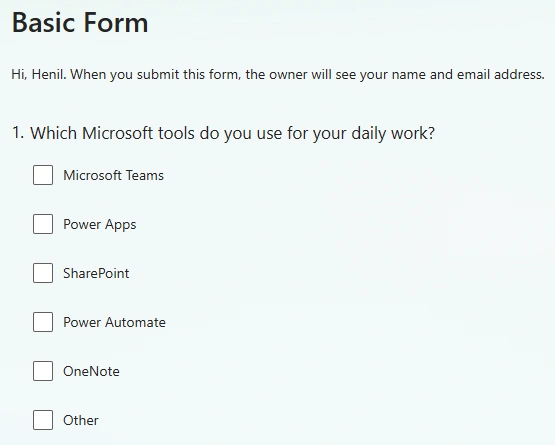
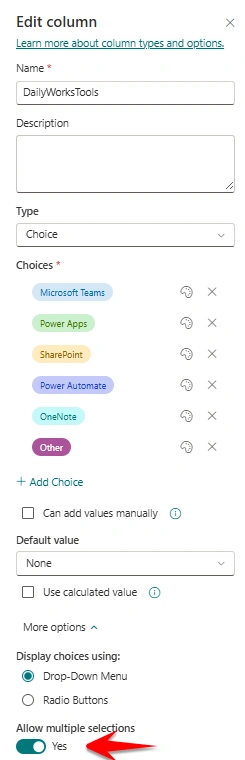
Steps to implement Microsoft Forms multi-select values in a SharePoint multi-select Choice column:
Step 1: Create an Automated Flow
Go to make.powerautomate.com, create a new Automated cloud flow, and select the trigger When a new response is submitted.
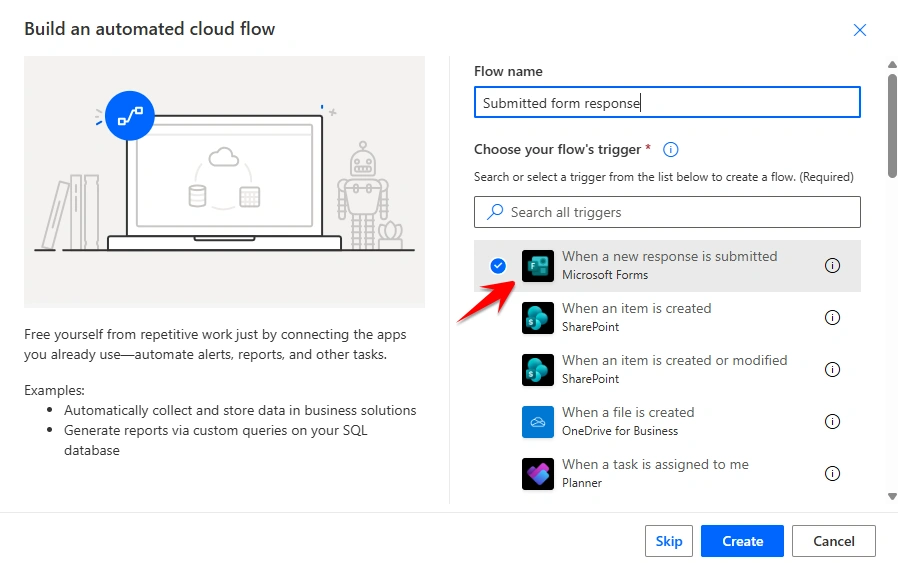
Step 2: Get Form Response Details
Add the Get response details action. Select your Form in Form Id, and in Response Id, pass the Response Id from the trigger.
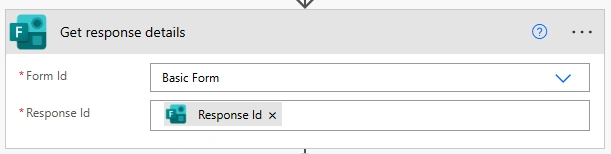
Step 3: Add a Compose Action
Add a Compose action and select your multi-select question from Get response details as its input.
Note: The Compose action shows the question name (for example, Which Microsoft…), but when you hover over it, you will see that Power Automate is actually using the internal question ID from the Form.

Step 4: Add a Select Action
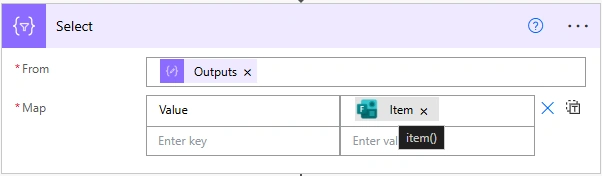
In the Select action, set From to the Outputs of the Compose action.
In Map, use Value as the key and item() as the value.
We map the value with Value because SharePoint multi-select Choice columns only accept data in this format.
Step 5: Save the Flow and Submit the Form
Once you save your flow and submit the Microsoft Form, the flow will trigger. You might see an error like this:
"The 'from' property value in the 'select' action inputs is of type 'String'. The value must be an array."
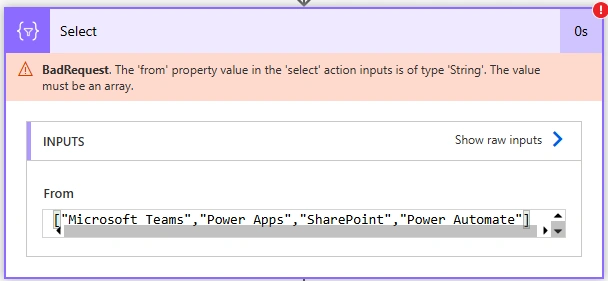
This happens because the multi-select answer from Forms comes as a JSON string, not as separate values. To use these choices in SharePoint, you need to convert the JSON text into an array using the json() function.
Step 6: Convert the Compose Output to JSON in the Select Action
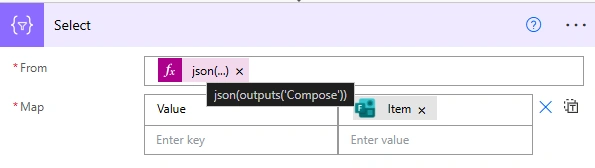
In the Select action, if you previously passed the output from the Compose action directly, you need to modify it. Instead of using the raw output, wrap it with the json() function like this:
json(outputs('Compose'))This converts the multi-select answers from a JSON string into an array that SharePoint can understand.
Step 7: Create Item in SharePoint list
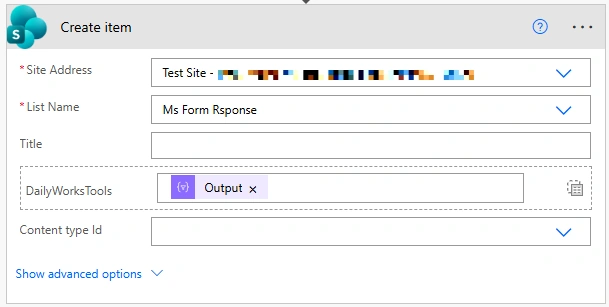
Add a Create item action. Select your Site Address and List Name.
For your multi-select choice field, switch to Enter custom value and pass the output from the Select action. This will save all the selected choices from the Form into the SharePoint multi-select column.
Output
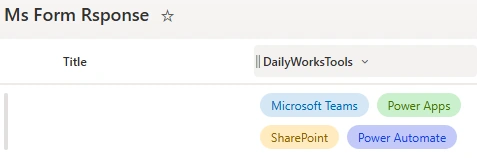
Save the flow, submit the form with multiple choices, and a new item will be created with all selections in list.
Conclusion
By following these steps, you can save Microsoft Forms multi-select answers directly into a SharePoint multi-select choice column.
Join the conversation! Your thoughts help the community grow.