

Microsoft Flow is a cloud-based service. It allows us to react to an event in one service and do something with the data from that event into another service. It makes it practical and simple for line-of-business. The users build workflows that automatically do some business tasks and processes across all applications and services.
Microsoft helps us to monitor all our Workflow with the help of a great Cloud solution called “Microsoft Flow”.
Before reading this article, please go through some important article links mentioned below.
- Deep Dive Into Microsoft Flow
- How To Connect OneDrive To Google Drive With Microsoft Flow
- How To Connect Facebook to Twitter With Microsoft Flow
- How To Save Email Attachment From Outlook To Dropbox With Microsoft Flow
- How To Send Notification Via SMS When Dropbox Is Modified With Microsoft Flow
Connect Office 365 attachment and OneDrive
Here, we can save Email attachments from Office 365 to OneDrive automatically.
Office 365
Office 365 is the brand name Microsoft uses for a group of subscriptions that provide productivity software and related services. For business users, Office 365 also offers service subscriptions for e-mail and social networking services through hosted versions of Exchange Server, Skype for Business Server, SharePoint, and Office Online, integration with Yammer. Login here.
OneDrive
OneDrive is a file-hosting service operated by Microsoft as part of its suite of online services. It allows users to store the files as well as other personal data like Windows settings or BitLocker recovery keys in the cloud. Files can be synced to a PC and accessed from a web browser or a mobile device, as well as shared publicly or with specific people. Login here.
Why we save Email Attachment from Office 365 to OneDrive
Attachments are a pain, especially when there are multiple files attached. Tired of searching through your emails for attachments? You have to manage all the attachments in commonplace to reduce our stress. For that, Microsoft Flow introduces the Flow that saves your Office 365 attachments to OneDrive. As soon as we receive your email, your attachments will automatically appear in your Attachments folder.
It stores them all in one place for easy access. This flow will store all the attachments you receive in your Office 365 inbox to a specific folder in OneDrive.
How to Create a Microsoft Flow for saving Email attachment from Office 365 to OneDrive.
Here, we can connect Office 365 and OneDrive.
Prerequisites
- Microsoft Account – Corporate ID.
- Office 365 Account.
- OneDrive Account.
Follow the below steps to build a Flow using a template.
Step 1
Login to www.flow.microsoft.com
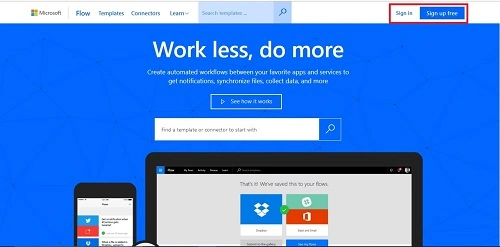
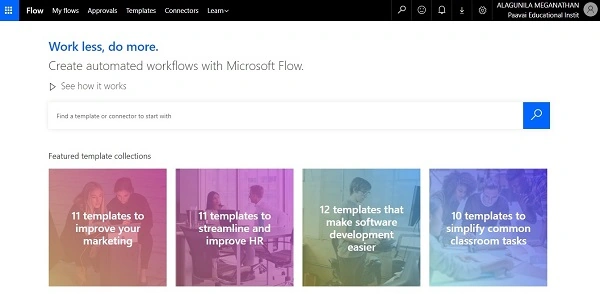
Choose the Templates menu from the menu bar.

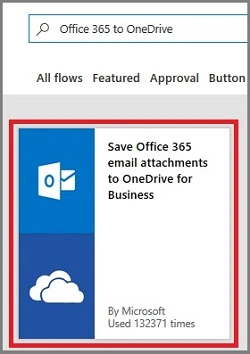
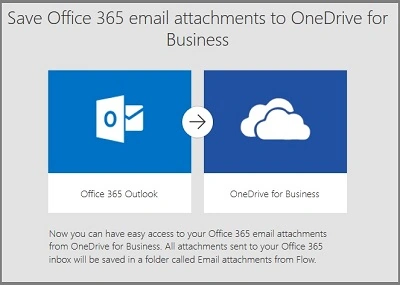
Sign in to Office 365 and give permission to access your accounts

Next, sign in to OneDrive and give permission to access your account.
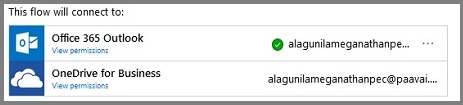
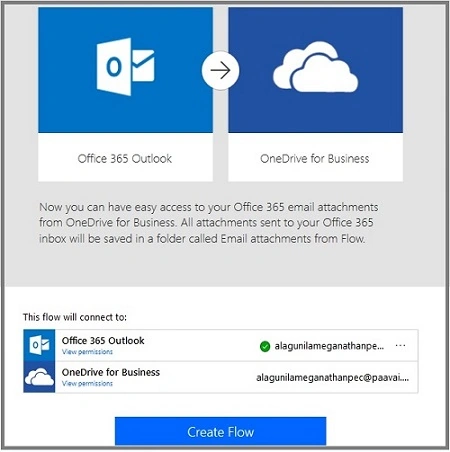
The Flow is created successfully.
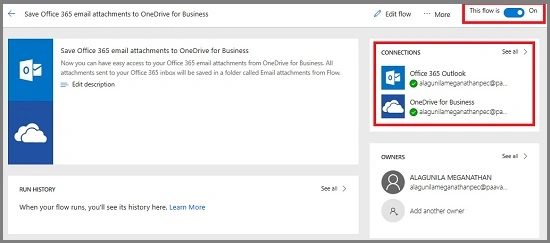
Output
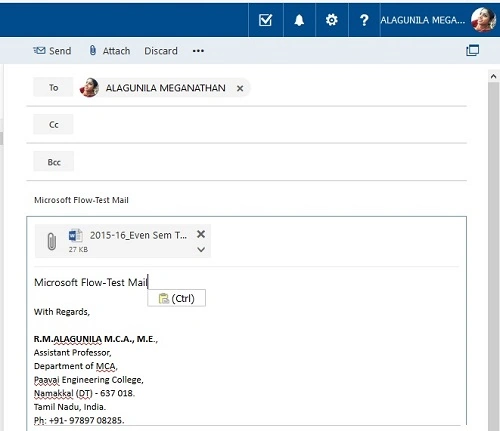
Send an email with attachment to Office 365 mail ID.
Now, the attachment alone is saved into the OneDrive (attachments).
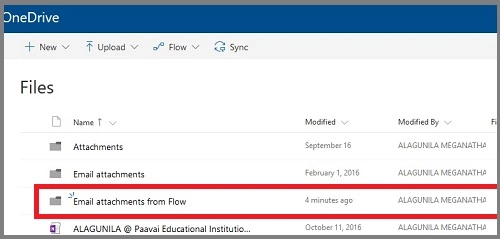
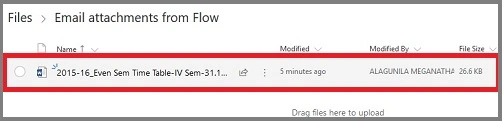
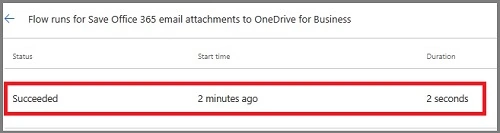
I hope you understood how to save the email attachments from Office 365 to OneDrive automatically and how to run it. Stay tuned for more Flow articles.
Tony HartePosted Aug 6, 2020, 9:16 AM
Hi - it looks like this starts the saving on new email. Is there a way to run the flow to save all attachments prior to the date you put it in place?
Javier CollazosPosted Apr 26, 2019, 4:06 PM
Hi Alaguinila, my name is Javier from Spain and I new in Flow, its possible to save only .csv attachments from emails with certain subject? could be great for me : ) thanks in advanced for your time , regards, javi
Schacher SeppPosted Aug 2, 2018, 5:57 AM
How can I save attachments to a specific folder?