

Introduction
In my previous article you learned How to Create Backup in Windows Server 2012. In today's article you will learn about how to schedule a backup for a daily update in Windows Server 2012.
In one of my previous articles I already told you about Installing Windows Server Backup Feature that is a necessary feature and the first step for creating a backup.
Step 1
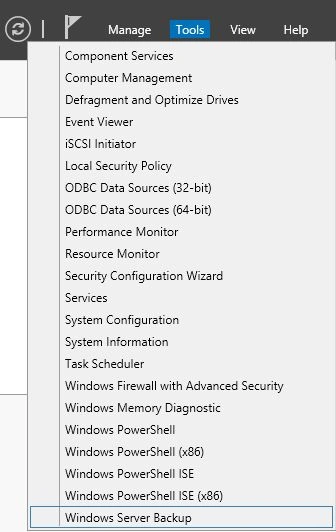
After installing the Windows Server Backup Feature go to the "Tools Menu of the Server Manager", click on it and scroll down to the "Windows Server Backup."
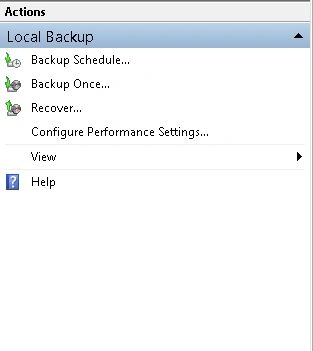
Now the Local Backup Window will be opened. Then on the right hand side you will find an option for "Backup Schedule". Click on this option to create a Schedule for Backup.
Step 2
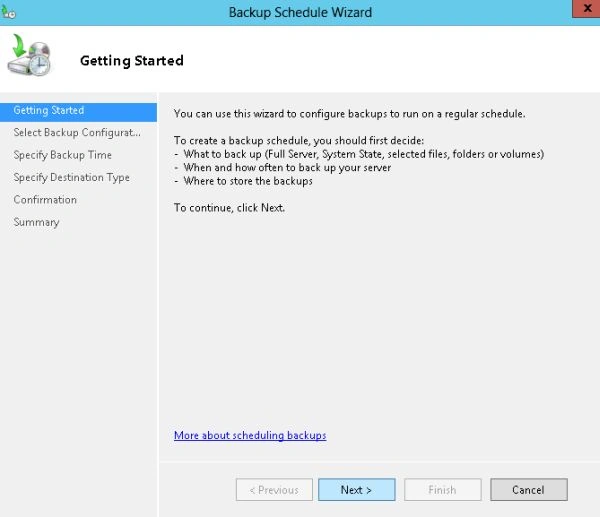
Now a "Getting Started" page will be opened where some information about the Backup Schedule will be given. Click on Next button to continue.
Now on the next page you can select "Backup Configuration" that can be either "Full Server" or "Custom". If you select Full Server then a backup of the Full Server will be created and if you select the Custom feature then you will get an option to select the item for which you want to create a backup.
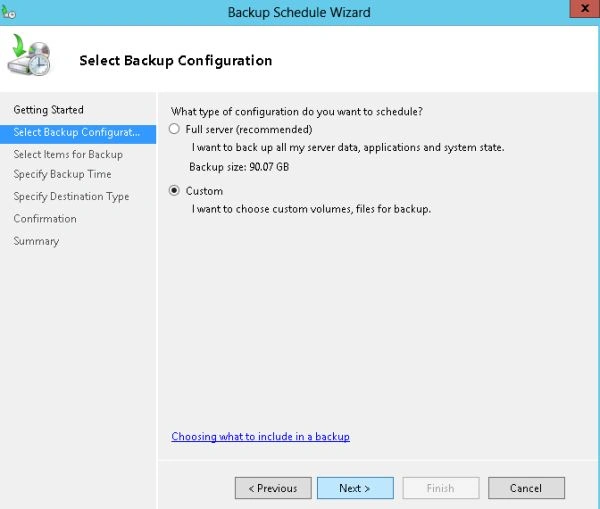
Here I have selected the "Custom" option. After that click on Next.
Step 3
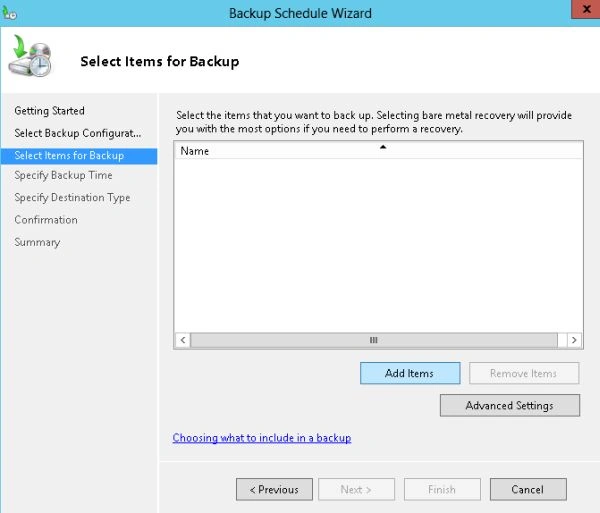
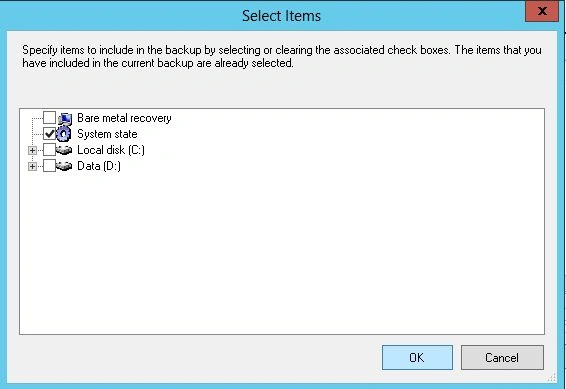
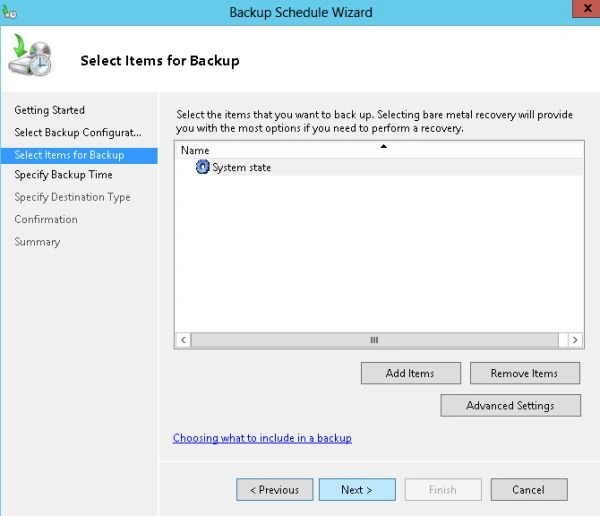
Now you must select the item for which you want to create a backup. For that first click on "Add Items".
Join the conversation! Your thoughts help the community grow.