

Introduction
Microsoft Dataverse is the intelligent data platform that powers Dynamics 365 applications and the Power Platform. It hosts data from both finance and operations apps as well as customer engagement apps like Dynamics 365 Sales and Customer Service. Applications built with Power Apps, Power Automate, and Power Pages also store their data in Dataverse.
To generate meaningful insights, it’s often necessary to extract data from Dataverse, load it into a data warehouse, join it with other relevant tables, and build Power BI reports on top of it.
For organizations already within the Microsoft ecosystem, integrating Dataverse with Fabric makes this process seamless.
Ways to Connect Dataverse to Fabric
There are several ways to connect Dataverse with Microsoft Fabric.
- Dataverse Link to Fabric (Fabric Link)
- Azure Synapse Link
- Shortcut to Dataverse
- Dataflow Gen2
- Copy Activity in Data Pipelines
- DirectQuery via Power BI in Fabric
In this article, we focus specifically on the Dataverse Link to Fabric (Fabric Link) and how to set it up, connect, and load data into Fabric.
Prerequisites
Before setting up the Fabric Link, ensure the following.
- Dataverse and Fabric must be hosted in the same geographical region.
- You must have the System Administrator security role in the Dataverse environment.
- You must have access to a Fabric Capacity, Fabric Trial Capacity, or a Power BI Pro Capacity.
- You need to be a Fabric Admin with the ability to create Fabric items.
Verifying Prerequisites
- Fabric Admin Role: In Fabric, open the Workspace → click Manage Access → verify that you have an Admin role.
- Region Check: In Fabric Workspace Settings → License Info → verify the region.
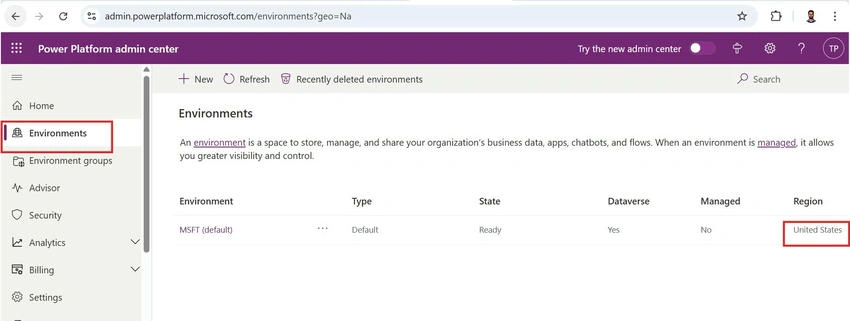
- In Dataverse, log into Power Platform Admin Center → click Environment → verify the region.

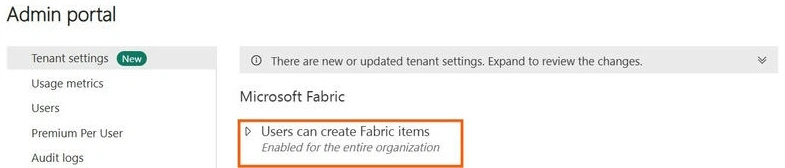
- Create Fabric Items: In Fabric, click Settings → Admin Portal → under Tenant Settings, ensure Users can create Fabric items enabled.
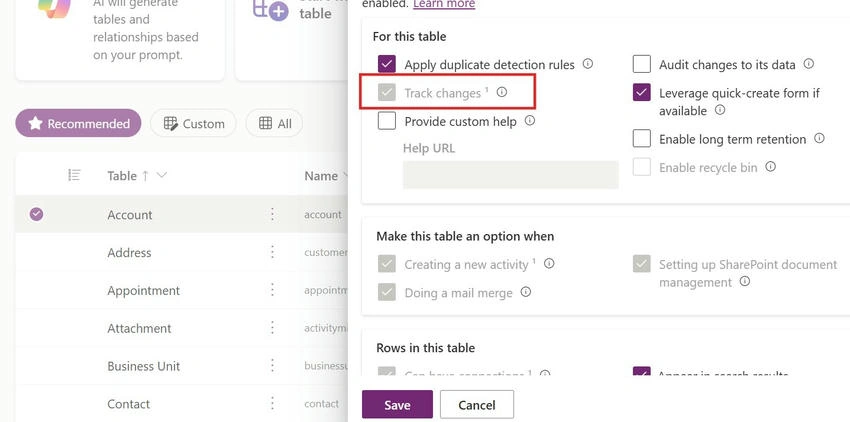
- Track Changes Enabled: Additionally, Dataverse tables must have Track Changes enabled to be used with Fabric Link.

How Fabric Link Works?
When a Fabric Link is established with Dataverse.
- Delta and Parquet files are created inside Dataverse's managed Delta Lake to sync table data and track changes.
- A read-replica of the Dataverse tables is maintained — data physically remains within Dataverse storage, not moved into OneLake.
- A Lakehouse is automatically created in Fabric, with shortcuts in the Tables section pointing to Dataverse data files.
Thus, Fabric reads the Dataverse data without redundant copying.

Steps to Set Up Fabric Link
Workspace Creation in Fabric
- Log into the Fabric homepage.
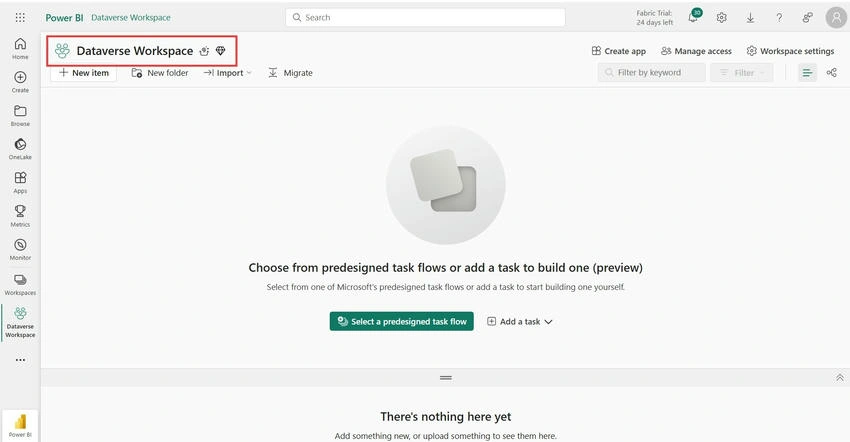
- Navigate to Workspaces → New Workspace → Provide a name (e.g., Dataverse Workspace) → click Apply.
Fabric Link Creation
- Ensure the Dataverse Database is enabled (can be checked/activated in the Power Platform Admin Center).
- Log in to make.powerapps.com.
- Go to Tables → select Analyze → click Link to Microsoft Fabric.

Follow the wizard
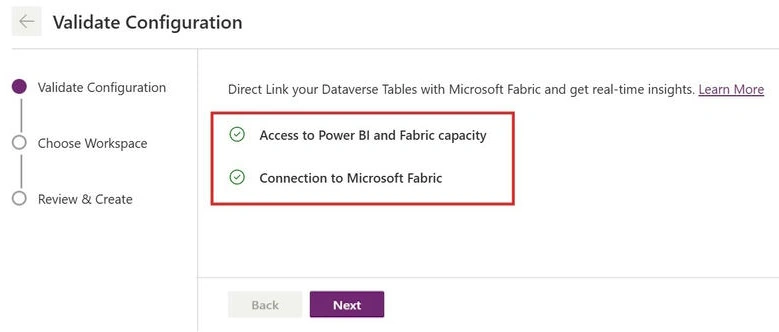
Step 1. Validate Configuration Connection details will auto-populate based on your organizational login. Click Save Connection → Next to validate Fabric connectivity.

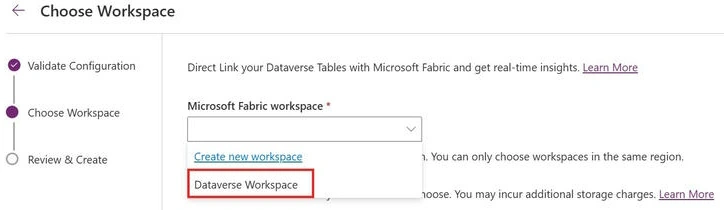
Step 2. Choose Workspace Select the previously created Fabric workspace.
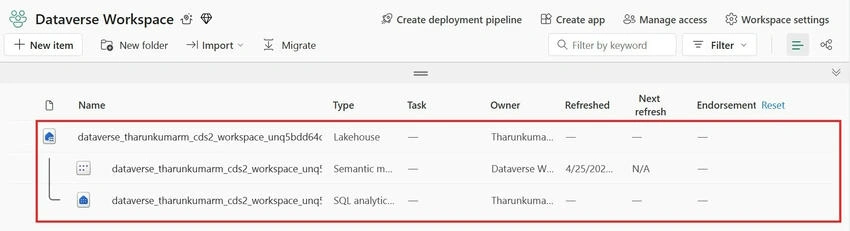
Step 3. Automatic Setup A Lakehouse is created automatically in Fabric. Shortcuts are created inside the Lakehouse, pointing to Dataverse tables.

Validating in Fabric
- Open Fabric and navigate to the linked Lakehouse.
- Initially, the Lakehouse may show “Unidentified” status — wait around 15 to 45 minutes for the initial load to complete but it varies depends on the size of the data.
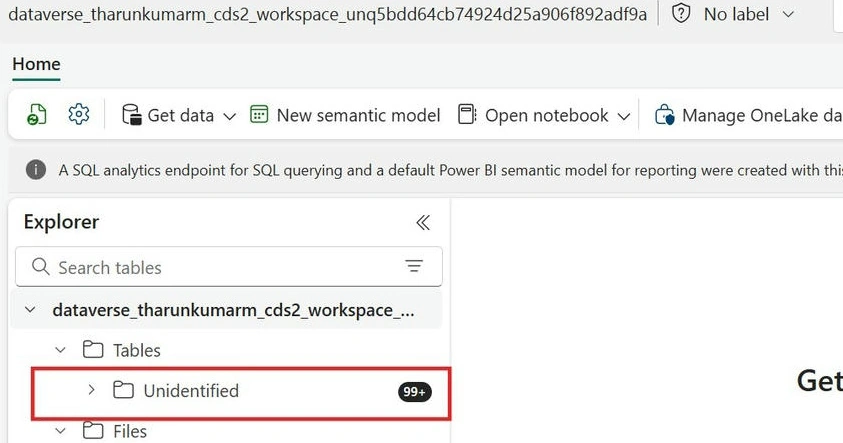
- Once ready, all Dataverse tables will appear under the Tables section.

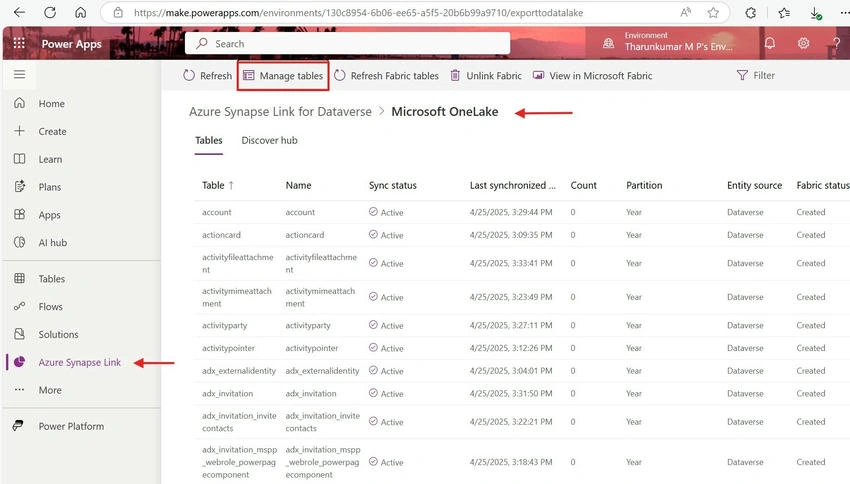
- To see the status of the fabric link -> Open the Azure Synapse link and click Microsoft Onelake where you can see the see sync status and you can manage the tables under the ‘Manage Table’ section.
You can now,
- Query the tables directly,
- Use them in Semantic Models,
- Shortcut them into other Lakehouses,
- Run Notebooks and more!
Note
- Behind the scenes, Fabric creates new Delta Tables inside Dataverse's managed storage, referencing the original Dataverse data.
- Thus, Dataverse storage is consumed even though data is accessible in Fabric.
- While setting up the Fabric Link, you cannot select individual tables for synchronization. All tables in Dataverse are selected for sync by default.
- After establishing the Fabric Link, if new tables are created in Dataverse, they need to be added manually in the Fabric Link. Microsoft has not yet provided an auto-sync feature for new tables in the Fabric link.
- If the Fabric Link is created in an empty Dataverse environment, all tables added afterward will automatically be included in the Fabric Link. However, most organizations already have data in Dataverse, so this is just for your information.
Conclusion
With Fabric Link, Microsoft has enabled a seamless bridge between Dataverse and Fabric making it easier to analyze Dataverse data in a scalable without complex ETL setups.
Join the conversation! Your thoughts help the community grow.