

Introduction
In this article, I’m going to share a simple trick that I use to search more than 2000 records in a PowerApps Combo Box.
Many times, we face issues where the Combo Box doesn’t show all records because of the limit, and search also doesn’t work properly. I also faced the similar kind of problem while working on a project.
So here I’ll show you an easy way to handle large data and make the search work smoothly without missing records.
Scenario
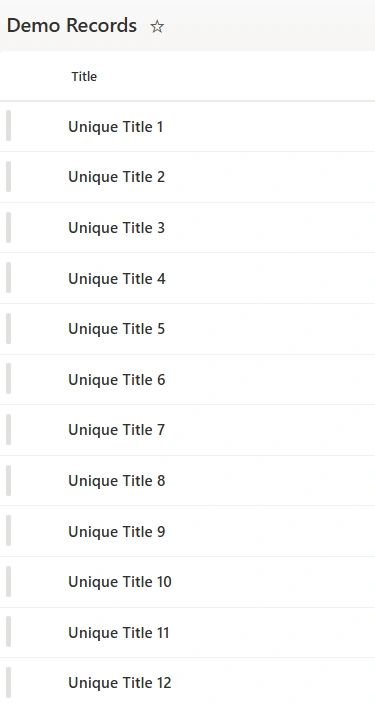
Let me explain my case. I had a SharePoint list named "Demo Records" and it contained around 2500 records. My requirement was very straightforward that I wanted to show all the Title values inside a Combo Box and allow users to search any record from it.

Steps
Step 1: Configure Data Row Limit
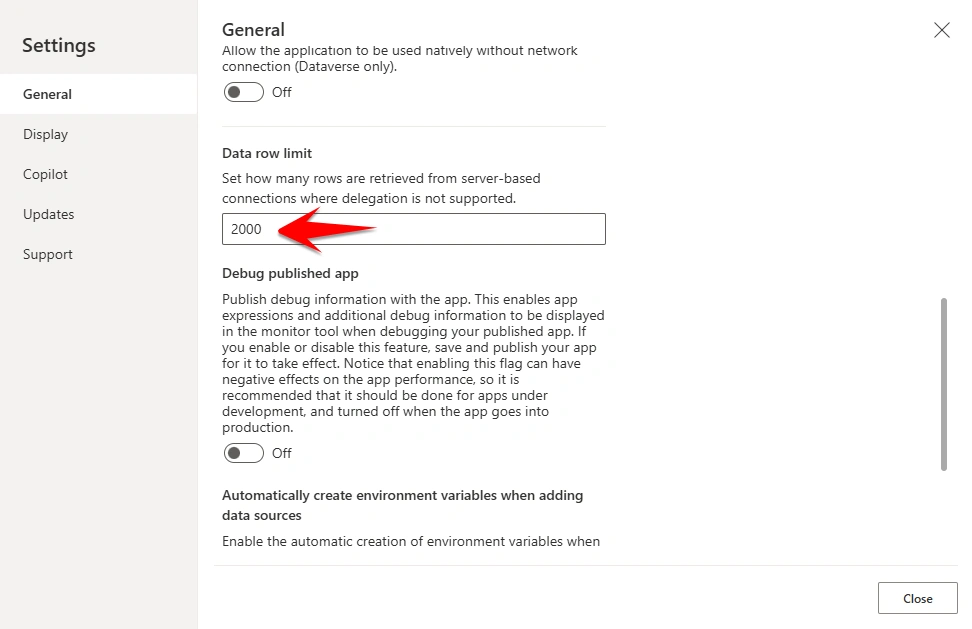
Open your app in PowerApps, then go to App Settings. Inside the settings, open the General section where you will find an option called Data row limit. This setting controls how many records PowerApps can fetch from the data source when delegation is not applied.
By default, this value is 500, so you need to update it to 2000, which is the maximum allowed limit. This step is important because it ensures that PowerApps can at least load up to 2000 records.
Step 2: Add SharePoint List and Combo Box
Add your SharePoint list as a data source into the app. In my case, I added the Demo Records list. After that, insert a Combo Box control on the screen.
Now, set the Items property of the Combo Box using the following formula:
ShowColumns('Demo Records',Title)This will display all the Title values from the list in the Combo Box.
Step 3: Understand the Issue
When you try to search for a record that is beyond 2000, it will not show in the ComboBox. This happens because PowerApps only loads up to 2000 records, so anything after that is not available for search.

Step 4: Apply the Correct Approach
To solve this problem, we need to change the way searching works. Instead of searching within the already loaded records, we should directly query the SharePoint list.
For that, update the Items property of the Combo Box with the below formula:
Filter(
    'Demo Records',
    StartsWith(
        Title,
        Self.SearchText
    )
)
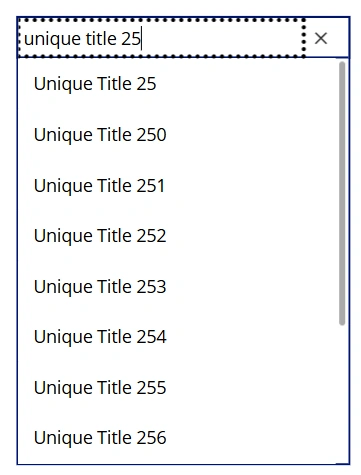
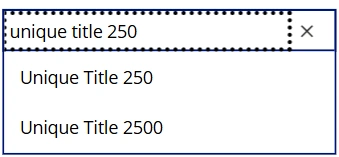
After adding this formula, try searching for records beyond 2000. In my case, I searched for the last record in my list, which is “Unique Title 2500”, and it was displayed in the Combo Box as per below images.
How This Works
Now when a user types something in the Combo Box, the search is not happening on the local data. Instead, PowerApps sends the query directly to SharePoint and fetches matching records.
Because of this, the search is not limited to 2000 records anymore. It works for the full list, even if you have more than 2500 records.
Conclusion
This issue is quite common when working with large SharePoint lists, but the solution is simple once you understand how delegation works.
By using a delegable function like StartsWith inside a Filter, you can make your ComboBox search directly from the data source.
Join the conversation! Your thoughts help the community grow.