In this article we will be seeing how to search the data from the associated external content type.
SQL database details
Database name BCS
Table 1. Department_Details
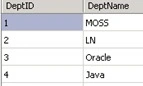
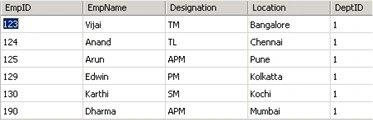
Table 2. Employee_Details
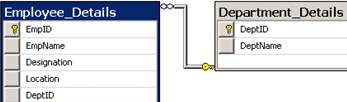
Association
Emploee_Details and Department_Details are associated as shown in the following
Create associated ECT's
External content type department
- Open SharePoint Designer 2010
- Click on Open Site
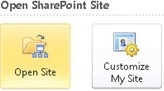
- Enter the site URL and click on Open
- Go to Navigation => External Content Types => New => External Content Type
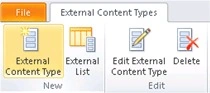
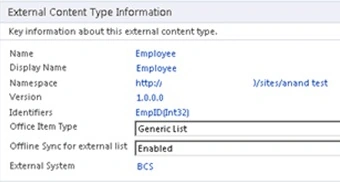
- Enter the details as shown in the following
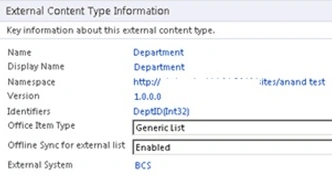
- Click on the link "Click here to discover external data sources and define operations"
- Click on "Add Connection"
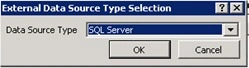
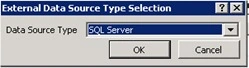
- In the External Data Source Type selections select "SQL Server" and click on Ok
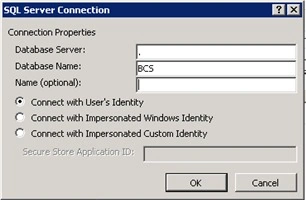
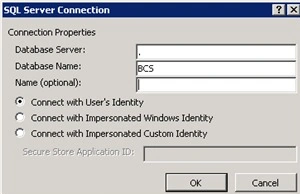
- Enter the details as shown in the following
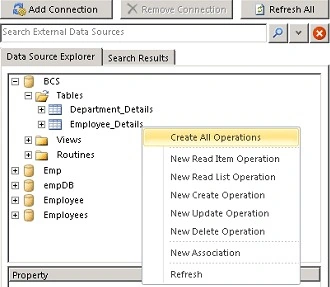
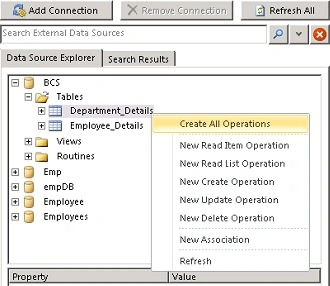
- Right click on Department_Details and click on "Create all operations"
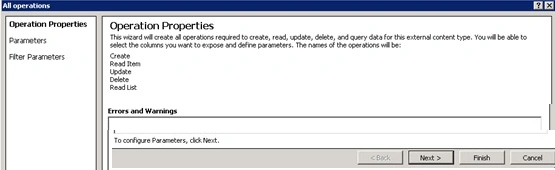
- Click Finish
- Save the external content type
External content type employee
- Go to Navigation => External Content Types => New => External Content Type

- Enter the details as shown in the following.

- Click on the link "Click here to discover external data sources and define operations".
- Click on "Add Connection".
- In the External Data Source Type selections select "SQL Server" and click on Ok

- Enter the details as shown in the following

- Right click on Department_Details and click on "Create all operations"

- All operations wizard will pop up, Click Finish.
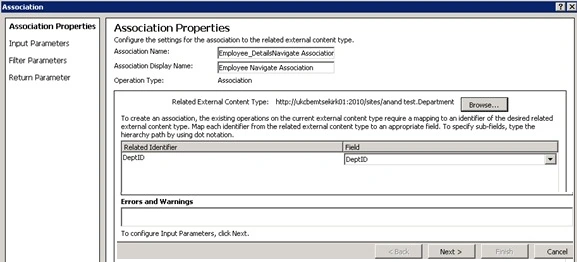
- Right click on Department_Details and click on "New Association".
- Association wizard will pop up.
- Click on browse and select "Department".
- Click on Ok.
- In the Field select DeptID as shown in the following

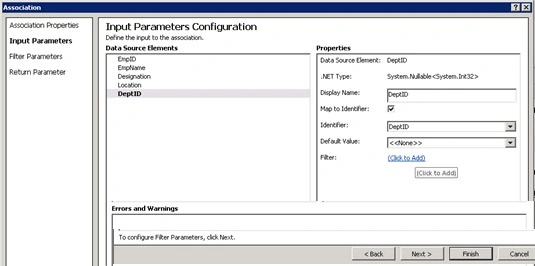
- Click on Next and Map the DeptID to Identifier

- Click on Next.
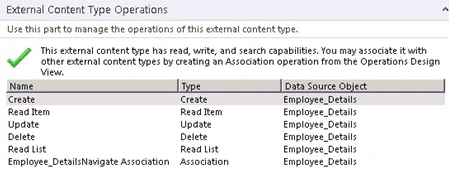
- Click on Finish and you could see the following operations for the External content type

- Save the external content type.
Creating profile page
- Go to Central Administration => Application management => Manage service applications =>Business data connectivity services.
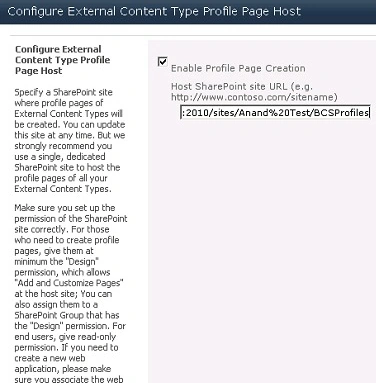
- In the "Profile Pages" group in the ribbon, click on Configure.

- Select the "Enable Profile Page Creation" and enter the URL of the profile site( I have created a new site using "Team Site" template and I am referring that URL)

- In the "Profile Pages" group in the ribbon, click on Create/Upgrade.

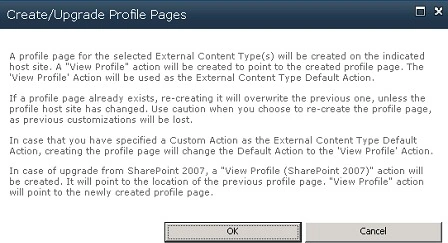
- "Create/Upgrade Profile Pages" wizard will pop up, click on Ok

- A new Profile page will be created successfully

Crawling and searching the associated external content type
Steps Involved
- Create a new content source(Refer:How to search the data from the external content type in SharePoint 2010 )

- Create a new search scope(Refer:How to search the data from the external content type in SharePoint 2010 )
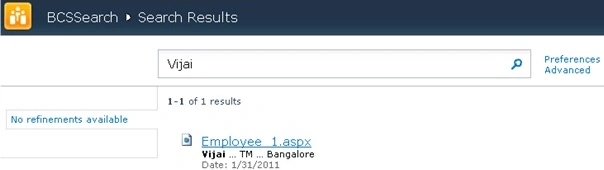
- Create a new search center site and configure the search scopes(Refer:How to search the data from the external content type in SharePoint 2010 )
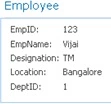
- Start the full crawl(Refer:How to search the data from the external content type in SharePoint 2010 )

- Search for a data from the associated external content type
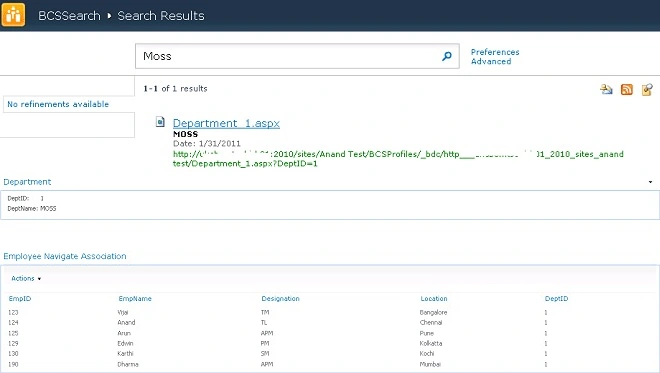
Search for data from the associated external content type
- Go to the root site and if you see by default in the search scope dropdown list BCS Association will be selected

- Enter a search term that will return the result from the external content type

- Click on the search result link you will be redirected to the profile page

- Master/Detail Association


Zheng ZhangPosted Nov 15, 2012, 12:46 AM
Hi Vijai, Excellent Article! Just one more ask - is there a way i can get the results (Department with its Employees in one query)via Query API please? Thanks, ZZ
Dinesh BeniwalPosted Feb 1, 2011, 1:07 AM
Nice article Vijay.