

This article explains how to select items in a list box in Windows Phone 8.
Generally a List Box is a kind of ItemControl together with ListPicker and other similar controls. This means that the basic structure and the SelectedItem behavior are the same.
There are the following two options in a List Box for selecting items.
- ListBoxItems
- Data Binding
ListBoxItems: When using this option the SelectedItem is actually a ListBoxItem so it is easy to apply this option.
Data Binding: It is the process that establishes a connection between the application and the business logic.
Now here, I am using ListBoxItems.
Code of XAML
- <Grid x:Name="ContentPanel" Grid.Row="1" Margin="12,0,12,0">
- <ListBox x:Name="lstBloodCorner" ItemsSource="{Binding}" SelectionChanged="lstBloodCorner_SelectionChanged" >
- <ListBox.ItemTemplate>
- <DataTemplate>
- <StackPanel Orientation="Vertical">
- <TextBlock Text="{Binding Name}" Style="{StaticResource PhoneTextTitle2Style}" />
- <StackPanel Orientation="Horizontal" >
- <TextBlock Text="{Binding Id}" Style="{StaticResource PhoneTextNormalStyle}" />
- <TextBlock x:Name="TextBlock" Text="{Binding PhoneNo}" Style="{StaticResource PhoneTextAccentStyle }"/>
- </StackPanel>
- </StackPanel>
- </DataTemplate>
- </ListBox.ItemTemplate>
- </ListBox>
- </Grid>
- using System;
- using System.Collections.Generic;
- using System.Linq;
- using System.Net;
- using System.Windows;
- using System.Windows.Controls;
- using System.Windows.Navigation;
- using Microsoft.Phone.Controls;
- using Microsoft.Phone.Shell;
- using DataList.Resources;
- using Microsoft.Phone.Tasks;
- namespace DataList
- {
- public partial class MainPage : PhoneApplicationPage
- {
- // Constructor
- public MainPage()
- {
- InitializeComponent();
- this.DataContext = GetData();
- }
- private List<BloodDoner> GetData()
- {
- List<BloodDoner> lstBloodDoner = new List<BloodDoner>
- {
- new BloodDoner { Name ="Ram" , Id ="Analyst" , PhoneNo = 9063737 },
- new BloodDoner { Name ="Shyam" ,Id ="Tester" , PhoneNo = 237563766 },
- new BloodDoner { Name ="Mohan" , Id ="Developer" , PhoneNo = 93792389 },
- new BloodDoner { Name ="Ramesh" , Id ="Programmer" , PhoneNo = 3737676 },
- new BloodDoner { Name ="Michel" , Id ="Professional" , PhoneNo = 35113676 },
- };
- return lstBloodDoner;
- }
- private void lstBloodCorner_SelectionChanged(object sender, SelectionChangedEventArgs e)
- {
- BloodDoner data = (sender as ListBox).SelectedItem as BloodDoner;
- PhoneCallTask phoneCallTask = new PhoneCallTask();
- phoneCallTask.PhoneNumber = data.PhoneNo.ToString();
- phoneCallTask.DisplayName = data.Name;
- phoneCallTask.Show();
- }
- }
- public class BloodDoner
- {
- public string Name { get; set; }
- public string Id { get; set; }
- public int PhoneNo { get; set; }
- }
- }
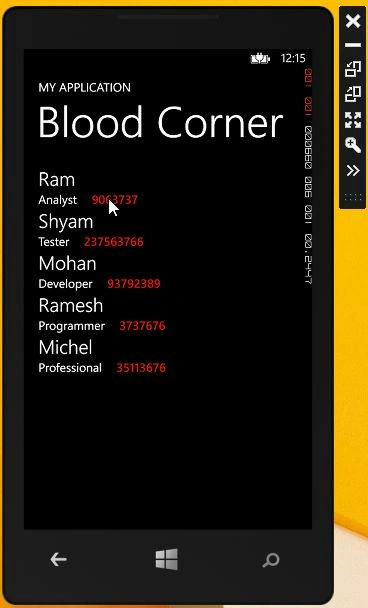
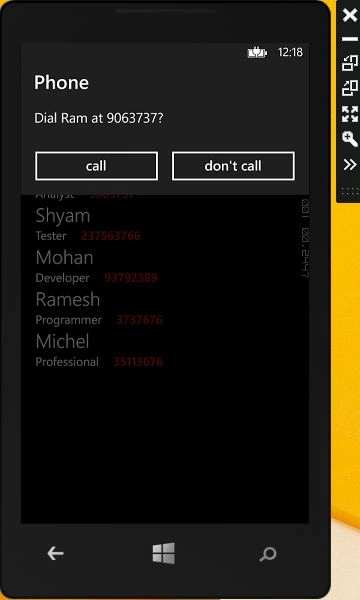
Here, I select a phone number from the list, then automatically make a call.
Summary
This article described how to select an item from a list box in Windows Phone 8.
Shamim UddinPosted Sep 7, 2016, 10:09 PM
Good one.. well Explained
David NultyPosted Sep 7, 2014, 5:26 PM
Hi Prerana.I found your article very helpful. I converted your code to Phone 8.1 code. I had to change very little. The SelectionChanged function - There is no PhoneCallTask in 8.1. Use PhoneCallManager instead. private void lstBloodCorner_SelectionChanged(object sender, SelectionChangedEventArgs e) { try { var data = (sender as ListBox).SelectedItem as BloodDoner; // var number = data.PhoneNo.ToString(); var name = data.Name; // PhoneCallManager.ShowPhoneCallUI(number, name); } catch (NullReferenceException nullException) { // } } The Xaml, I removed the textBox styles and that is all I had to do to get it to work. Thanks for sharing your code. David
Abhishek Kumar RaviPosted Jul 29, 2014, 3:35 AM
Got a decent way #toDo thanx :)