

Introduction
Microsoft Teams notifications are a common requirement in business applications. While most solutions use Power Automate, there are scenarios where you may want to send a Teams message directly from Power Apps without using any flow.
In this article, I explain how to send messages to a Microsoft Teams channel with @mentions directly from Power Apps, without using Power Automate.
Prerequisites
Make sure you have the Microsoft Teams Channel Group ID and Channel ID ready before you start.
Now, open the Canvas app from which you want to send the message and follow the steps below:
Step 1 – Add the Microsoft Teams connector
Go to the Data section from the left navigation menu in the app. Click Add data, search for Microsoft Teams, and add the connector.
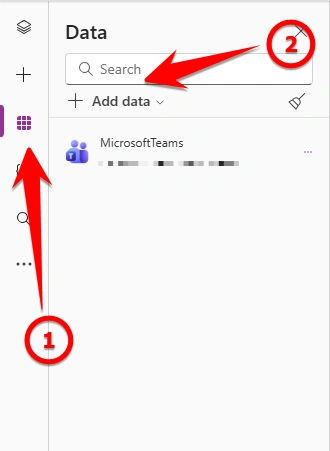
Step 2 – Add controls to the screen
Add the required controls to the screen, such as a combo box to select the users, a text input for the message, and a button to send the message to Microsoft Teams.
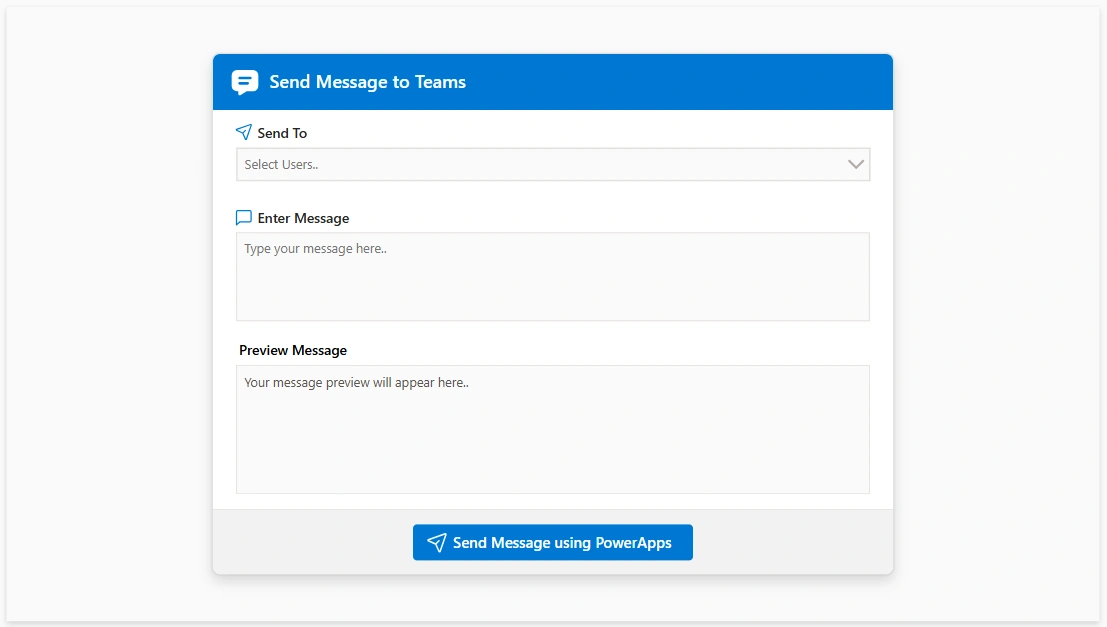
Step 3 – Send message using Power Apps
In the OnSelect property of the Send Message button, add the below code:
MicrosoftTeams.PostMessageToChannelV3(
    "<ADD YOUR GROUP ID>",
    "<ADD YOUR CHANNEL ID>",
    {
        content: "<p>Hello " & Concat(
            combobox.SelectedItems,
            "<at>" & Mail & "</at>",
            " / "
        ) & " - " & TextInput.Text & "</p>",
        contentType: "html"
    }
);
Explanation
The MicrosoftTeams.PostMessageToChannelV3() function is used to send a message to a specific Microsoft Teams channel directly from Power Apps.
The first parameter, Group ID, represents the Microsoft 365 Group (Team) where the message will be posted. The second parameter, Channel ID, specifies the channel within that Team.
The third parameter contains the message body and its formatting.
The content property defines the message text that will appear in the Teams channel. In this example, the message is formatted using HTML and wrapped inside paragraph (<p>) tags.
The Concat() function loops through all users selected in the combo box and adds their email addresses inside <at> tags. This makes the message display the selected users as mentions in the Teams channel.
The TextInput.Text value appends the custom message entered by the user in the app.
The contentType is set to "html" to indicate that the message content uses HTML formatting.
Teams Message Output
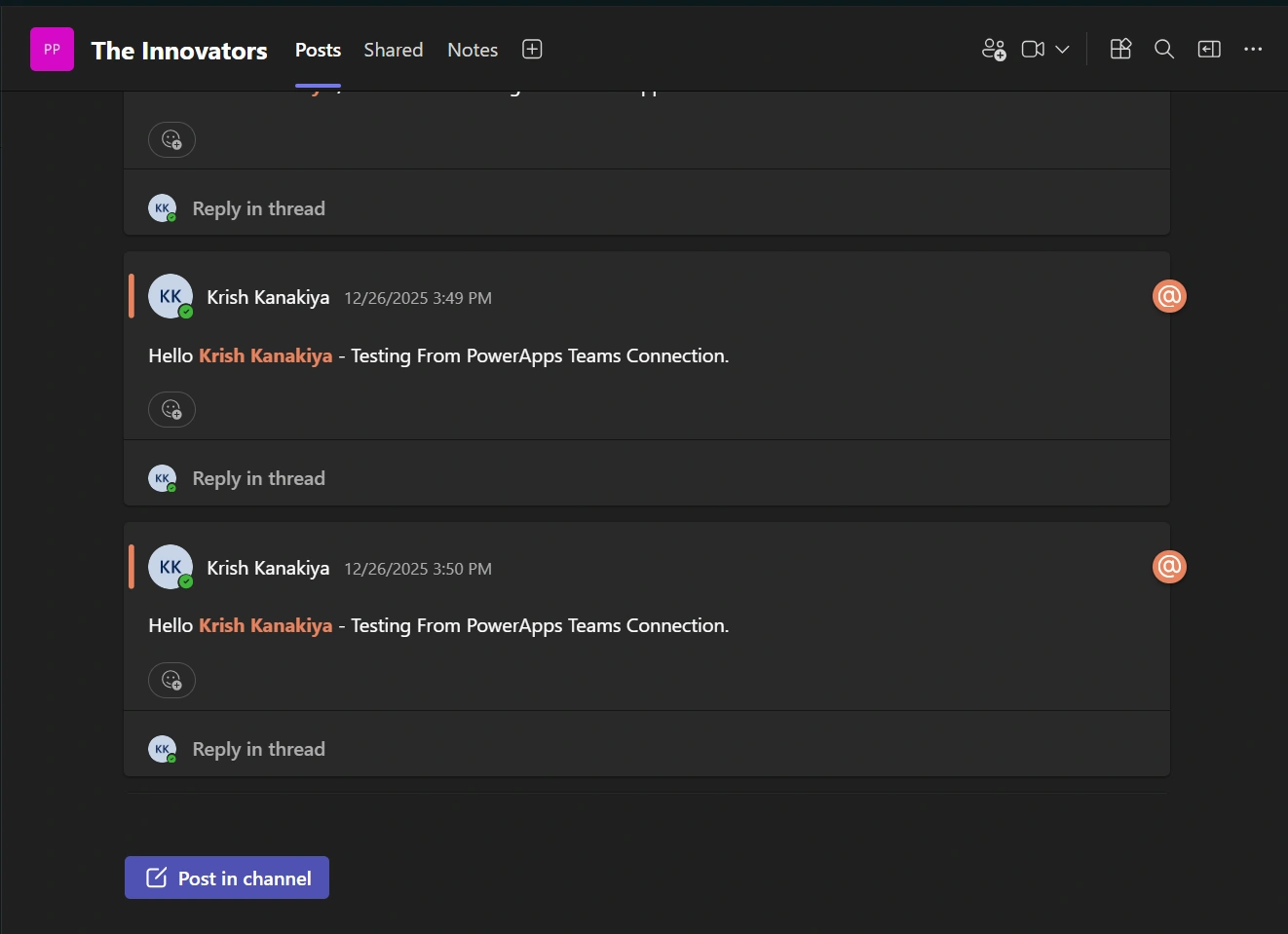
Note: The message is sent on behalf of the signed-in user and appears as a user message in the Microsoft Teams channel, not as a bot or automated service.
Conclusion
By using the Microsoft Teams connector directly in Power Apps, you can send messages to Teams channels with @mentions without relying on Power Automate. This approach simplifies the architecture, reduces maintenance overhead, and provides instant notifications triggered directly from user actions in the app.
Join the conversation! Your thoughts help the community grow.