Introduction
This article describes how to send an email in C#. For sending the email, you need to configure the email services on the server.
Note: For more info about configuration read how to configure mail server.
To explain this article, I will use the following procedure after configuring the server:
- Create a new website and add a page into it.
- Add 3 textboxes into the page for receiver Email-ID, subject of Email and message of Email and a button for sending the mail.
- Write some code in the ".cs" file to send the mail with some text for the button's Click event.
The following are the details of the preceding procedure.
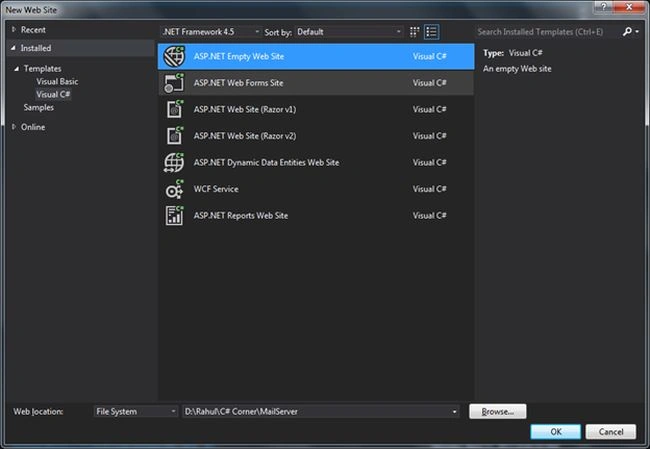
Step 1: Create a new empty web site named "MailServer".
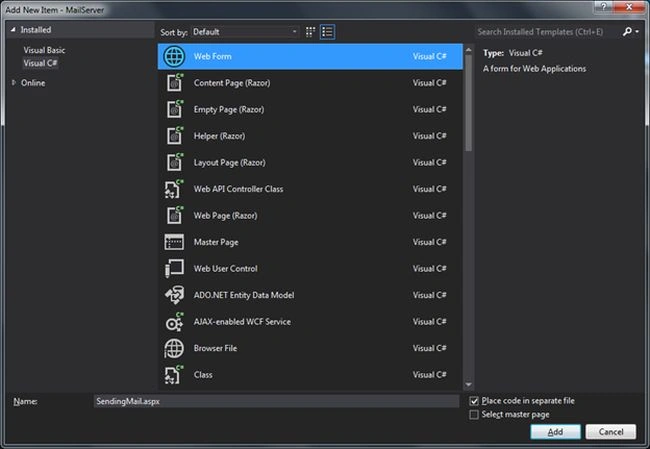
Step 2: Add a new Page named "SendingMail.aspx".
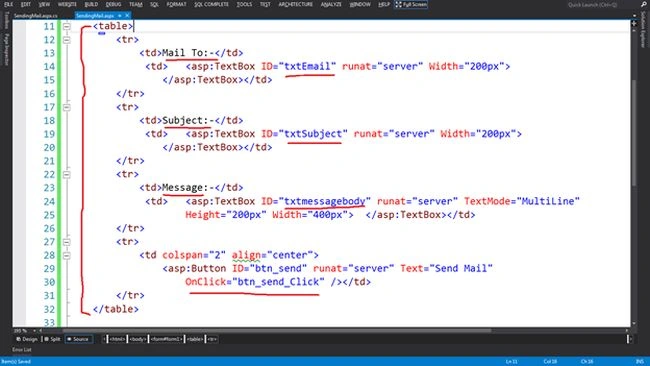
- Add a Button with Onclick event (for sending the Email) on the page.
- <table>
- <tr>
- <td>Mail To:-</td>
- <td>
- <asp:TextBox ID="txtEmail" runat="server" Width="200px">
- </asp:TextBox></td>
- </tr>
- <tr>
- <td>Subject:-</td>
- <td>
- <asp:TextBox ID="txtSubject" runat="server" Width="200px">
- </asp:TextBox></td>
- </tr>
- <tr>
- <td>Message:-</td>
- <td>
- <asp:TextBox ID="txtmessagebody" runat="server" TextMode="MultiLine" Height="200px" Width="400px">
- </asp:TextBox></td>
- </tr>
- <tr>
- <td colspan="2" align="center">
- <asp:Button ID="btn_send" runat="server" Text="Send Mail"
- OnClick="btn_send_Click" /></td>
- </tr>
- </table>
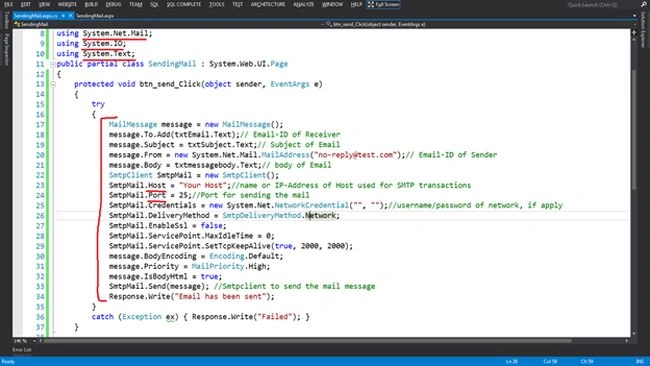
- Add the 3 namespaces on top of the ".cs" file.
- using System.Net.Mail;
- using System.IO;
- using System.Text;
- Write the code to sending the email on the click event of the button.
- protected void btn_send_Click(object sender, EventArgs e)
- {
- try
- {
- MailMessage message = new MailMessage();
- message.To.Add(txtEmail.Text);
- message.Subject = txtSubject.Text;
-
- message.From = new System.Net.Mail.MailAddress("[email protected]");
- message.Body = txtmessagebody.Text;
- SmtpClient SmtpMail = new SmtpClient();
-
- SmtpMail.Host = "Your Host";
- SmtpMail.Port = 25;
-
- SmtpMail.Credentials = new System.Net.NetworkCredential("", "");
- SmtpMail.DeliveryMethod = SmtpDeliveryMethod.Network;
- SmtpMail.EnableSsl = false;
- SmtpMail.ServicePoint.MaxIdleTime = 0;
- SmtpMail.ServicePoint.SetTcpKeepAlive(true, 2000, 2000);
- message.BodyEncoding = Encoding.Default;
- message.Priority = MailPriority.High;
- message.IsBodyHtml = true;
- SmtpMail.Send(message);
- Response.Write("Email has been sent");
- }
- catch (Exception ex)
- { Response.Write("Failed"); }
- }
Note: the "SmtpMail.Host" value will be your hosting name or IP Address and "SmtpMail.Port" will also vary.
 Step 3:
 Run the page in the server that will be like:
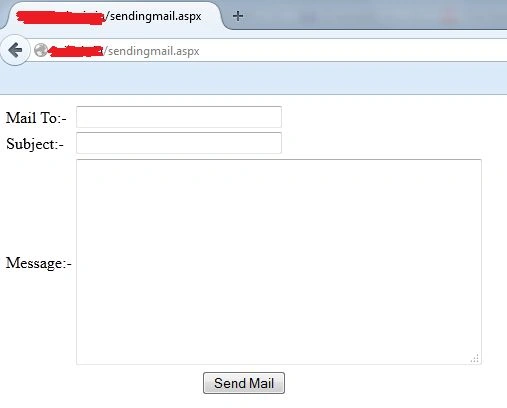
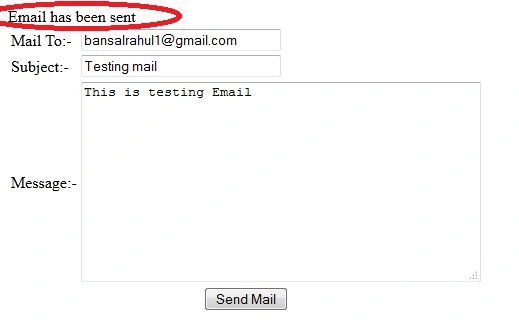
- After filling in the valid Email ID, Subject of Email and message of Email, click on the "Send mail" button to send the email.
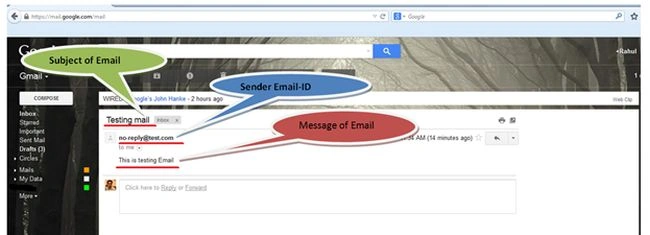
Result: Now you can see that, I (the receiver) got the email.


Pradeep VishwakarmaPosted Aug 7, 2014, 11:05 AM
thank you