

Introduction
Microsoft Teams is like a digital office where teams in different places can talk and work together. But did you know you can make Teams even cooler by adding a super helper called Power Automate? Power Automate helps you do things automatically, which makes your work easier and faster. In this blog, we'll learn how to ask for permission or approval right inside Microsoft Teams using Power Automate. This makes decisions easier and teamwork better.
Why Use Approval Flows in Microsoft Teams?
- Simplify Approvals: Instead of relying on emails or third-party tools to request approvals, you can do it all within the Teams environment, making the process more straightforward for everyone involved.
- Real-time Collaboration: With approval requests integrated into Teams, you can foster real-time collaboration. Approvers can discuss, ask questions, or provide feedback directly within the Teams chat, facilitating quicker decision-making.
- Automation: Power Automate automates repetitive tasks, ensuring that approval requests are sent, reminders are generated, and actions are taken consistently without manual intervention.
- Centralized Collaboration: Keep all your approvals and decision-making processes in one place, eliminating the need to switch between different tools or email clients.
- Real-Time Notifications: Receive instant notifications within Teams when an approval request is created or when it's approved or rejected, ensuring timely responses.
- Easy Tracking: Track the progress of your approval requests directly within the Teams interface, providing transparency and accountability.
- Mobile Access: Access approval requests and provide responses on the go using the Microsoft Teams mobile app.
Implementation
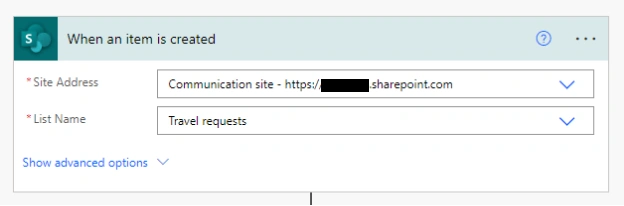
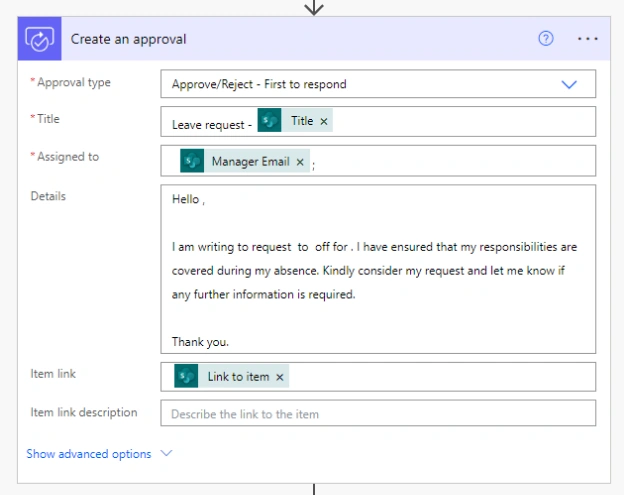
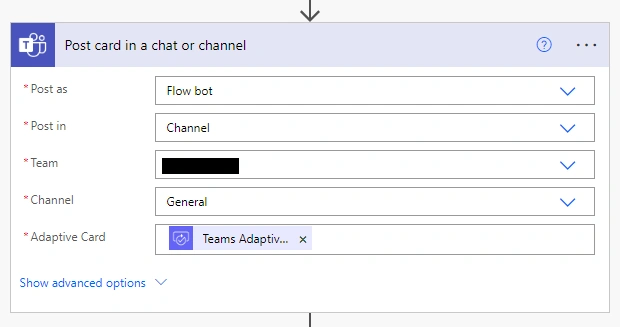
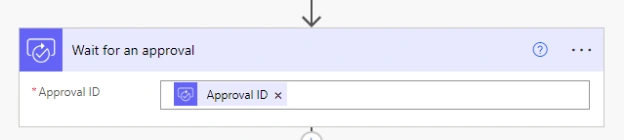
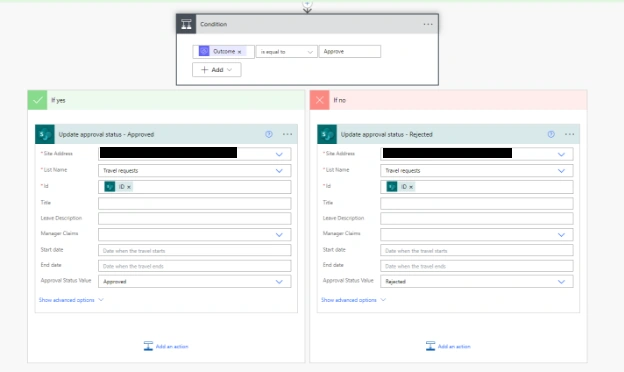
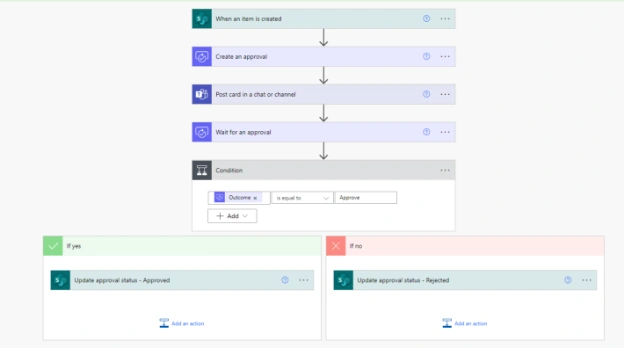
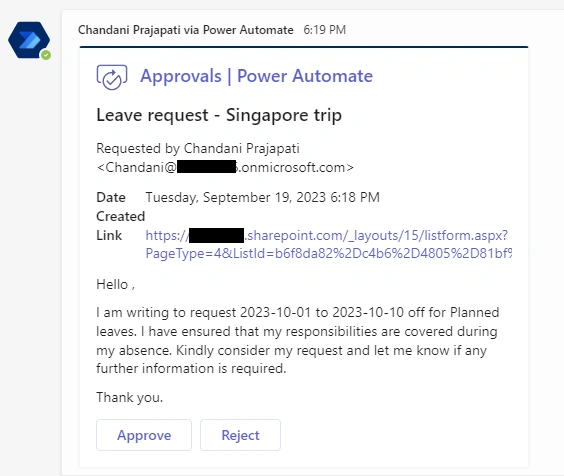
Let's examine a scenario in which when an employee requests time off, they initiate an entry in a SharePoint list, triggering an approval notification to be sent to their manager via Microsoft Teams.
1. Create a SharePoint list (Travel Request)
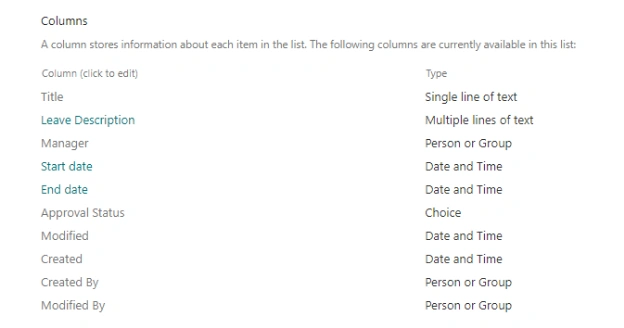
Construct a SharePoint list that mirrors the layout depicted in the provided image. Additionally, configure the 'Approval Status' column to include the following choices: 'Pending,' 'Approved,' and 'Rejected'.
2. Create a flow
Move to the Power Automate > Click on Create a Flow> Select Automated flow.
Join the conversation! Your thoughts help the community grow.