
Introduction
Recently, I was tasked with automating a reminder for a project coordinator to submit their weekly report. As a project manager, I know how challenging it can be to stay on top of recurring tasks and ensure deadlines are met. In this case, manually reminding the coordinator every week would have been time-consuming, and there was always the risk of forgetting. I needed a solution that would send a reminder email automatically every week without any manual intervention.
As a developer familiar with Power Automate, I knew that setting up an automated email reminder would be straightforward and efficient. Power Automate offers an easy way to schedule and send reminder emails with minimal effort, so there is no need for complex research or development. In this article, I’ll walk you through how to set up an automated reminder email flow in Power Automate—perfect for tasks like reminding team members about deadlines, weekly reports, or meetings.
What is Power Automate?
Before diving into the process, let’s briefly discuss Power Automate, a tool by Microsoft that allows users to automate repetitive tasks and workflows without needing to write complex code. With Power Automate, you can create "flows" to automate tasks like sending emails, syncing data between apps, and even setting up reminders.
By using Power Automate to send automated reminder emails, you can ensure that tasks get completed on time while reducing your workload.
Steps to Send a Reminder Email in Power Automate
Now, let’s dive into the practical steps of creating a reminder email flow in Power Automate.
Step 1. Sign In to Power Automate
The first step is to sign in to your Power Automate account. If you don’t already have one, you can sign up using your Microsoft 365 account. Once logged in, you’ll be directed to the Power Automate dashboard.
Step 2. Create a New Flow

Once you're in the dashboard, click on the “Create” option on the left-hand sidebar. This will prompt you to choose a type of flow. Since we are setting up a reminder, we’ll choose "Scheduled Flow," which allows you to set a specific time for the reminder to be sent out automatically.
Step 3. Configure the Flow's Trigger.

After selecting the scheduled flow option, you will be prompted to set the frequency for the flow to run. In our case, we want to send a reminder email weekly.
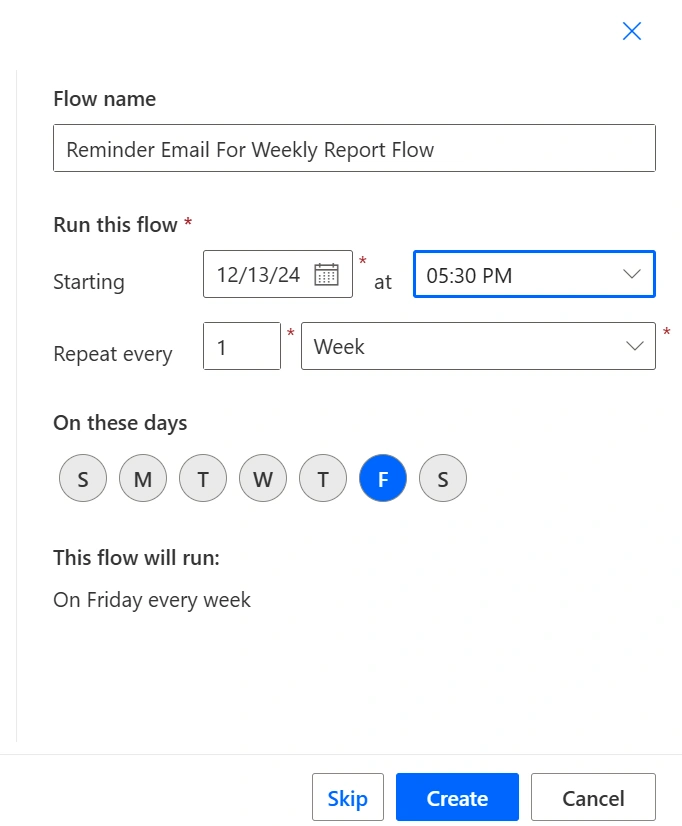
- Repeat every: Set this to 1 week.
- Start date: Choose the date when you want the reminder to start sending emails. For example, if you want the reminder to start sending from the next Monday, choose that date.
Step 4. Add the Action to Send an Email
Once your flow’s trigger is set up, the next step is to add the action that will send the reminder email.
Click on New Step.

Search for "Send an email (V2)" in the action box.
Choose the Outlook or Gmail connector (depending on the email provider you use).

In the "To" field, enter the email address of the person you want to remind (in this case, the project coordinator).
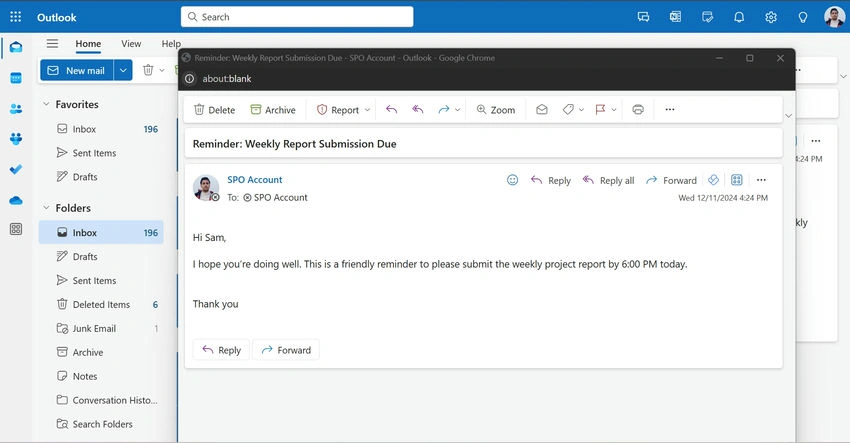
Add a Subject for the email. For example: "Reminder: Weekly Report Due Today".
In the Body section, write the reminder message. For example:
"Hi [Name], This is a friendly reminder to submit the weekly project report by the end of the day. Please let me know if you need any assistance."
Step 5. Save and Test the Flow

After configuring your email, don’t forget to Save the flow. You can then test the flow by manually running it to ensure that the reminder email is sent correctly.

Once the flow is tested and confirmed, it will run on its own at the scheduled time, sending out reminder emails automatically every week.

Features of Power Automate for Reminder Emails
Power Automate offers a variety of features that make sending reminder emails a breeze:
- Customization: You can personalize the content of the reminder emails, including the subject, body, and recipients. You can even include dynamic content like the recipient's name or project-specific details.
- Scheduling: Set exact times and recurrence for your reminder emails. Whether you want a daily, weekly, or monthly reminder, you can configure the flow to meet your needs.
- Integrations: Power Automate integrates with a variety of apps like Outlook, Teams, and SharePoint. This allows you to send reminder emails based on data from other apps (e.g., reminders for pending tasks from Planner or SharePoint).
- No-Code Solution: Power Automate is designed to be user-friendly and requires no programming skills. You can create and manage your flows through an intuitive interface.
- Automated Workflow: Once the flow is set up, the reminder emails are sent automatically. You don’t have to manually remember to send them.
Advantages of Using Power Automate for Sending Reminder Emails
- Time-Saving: Automating your reminders eliminates the need for manual emails, which can save you a lot of time, especially for recurring tasks.
- Improved Consistency: With automation, you ensure that reminders are sent on time every time, helping to reduce human error or forgetfulness.
- Scalability: If you need to send reminders to multiple people, you can easily modify the flow to send emails to a list of recipients.
- Tracking and Logs: Power Automate provides detailed logs of all actions taken, allowing you to track which reminders have been sent and when.
- Reduced Manual Workload: By automating the reminder process, you free up time to focus on other tasks that require your attention.
Disadvantages of Using Power Automate for Sending Reminder Emails
- Complexity for Advanced Customization: While Power Automate is easy to use for simple flows, more complex workflows might require additional knowledge or troubleshooting, especially if you need to integrate multiple systems.
- Limitations in Free Plan: The free version of Power Automate has some limitations on the number of flows you can run and the frequency at which they can run. For more advanced use cases, you might need a premium plan.
- Error Handling: If there is an issue with the flow (such as an email server being down), it might not notify you immediately. Proper error handling should be configured to ensure smooth operations.
- Reliability Dependent on External Apps: Power Automate depends on the APIs of other apps (such as Outlook or Gmail). If there’s an outage or update to these apps, it might disrupt your reminder flow.

Conclusion
Power Automate provides a simple, efficient, and powerful way to send reminder emails without having to manually track recurring tasks. Whether it’s reminding team members about meetings, project deadlines, or report submissions, Power Automate takes care of the repetitive process, ensuring timely reminders without requiring much effort.
The tool’s flexibility and ease of use make it ideal for both beginners and advanced users. By automating routine reminders, you save time, reduce errors, and increase productivity. As a result, Power Automate can be a game-changer in your workflow automation.
By following the steps outlined above, you can create a reminder flow that suits your specific needs. The best part is, once set up, it requires minimal maintenance and runs automatically, leaving you more time to focus on other important tasks.


Join the conversation! Your thoughts help the community grow.