

In this article, you’ll learn how to send inline images directly inside Microsoft Teams messages using Power Automate. Instead of sending plain URLs or attachments, we will use image that is stored in SharePoint Document library.
Stepwise Implementation
1 - Create flow
Go to make.powerautomate.com
I have used instant flow type, you can choose any flow type based on your need.
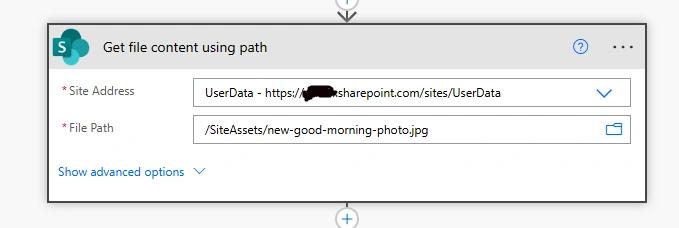
2 - Get image from Document Library
Add action like get file content using path (SharePoint)
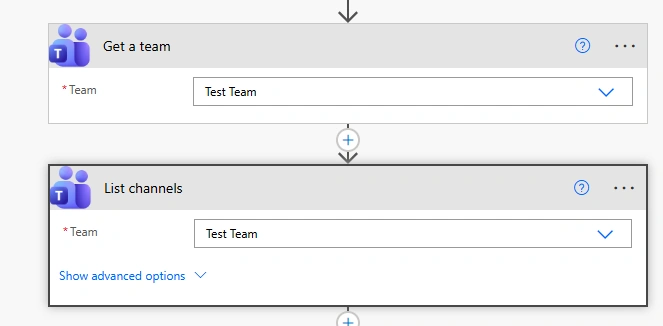
3 - Get team and channel
Here i have pick Test Team for demo.
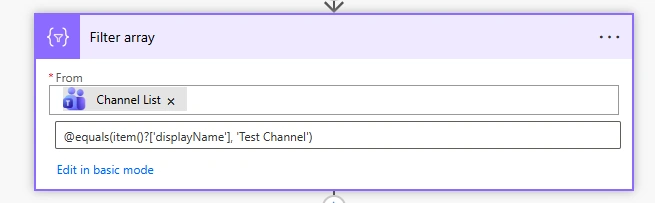
4 - Filter channel by Display Name
Get Test channel from channels list.
5 - Add Send Http action to MS Teams action of Teams
I have used HTTP action of MS Teams for sending image.
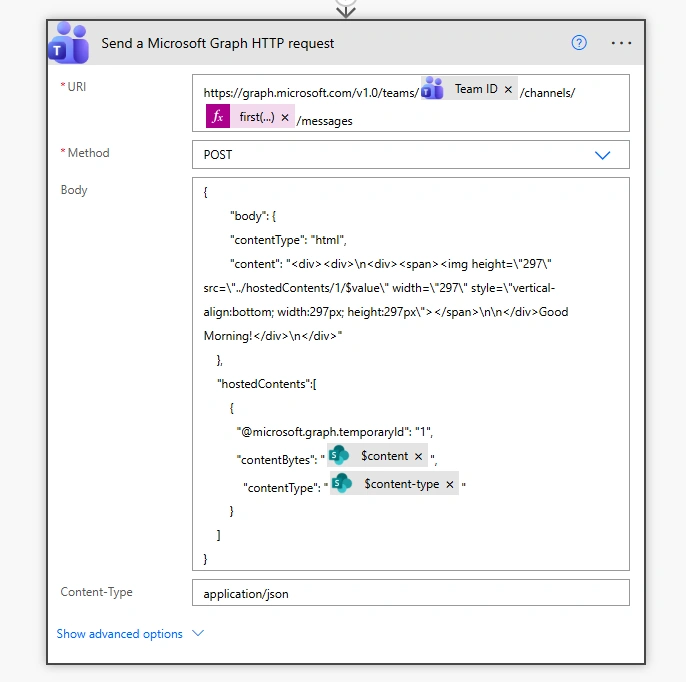
Url: https://graph.microsoft.com/v1.0/teams/@{outputs('Get_a_team')?['body/id']}/channels/@{first(body('Filter_array'))?['id']}/messagesBody: {
"body": {
"contentType": "html",
"content": "<div><div>\n<div><span><img height=\"297\" src=\"../hostedContents/1/$value\" width=\"297\" style=\"vertical-align:bottom; width:297px; height:297px\"></span>\n\n</div>Good Morning!</div>\n</div>"
},
"hostedContents":[
{
"@microsoft.graph.temporaryId": "1",
"contentBytes": "@{body('Get_file_content_using_path')?['$content']}",
"contentType": "@{body('Get_file_content_using_path')?['$content-type']}"
}
]
}6 - Run the flow
After flow run successfully, it will show image in channel
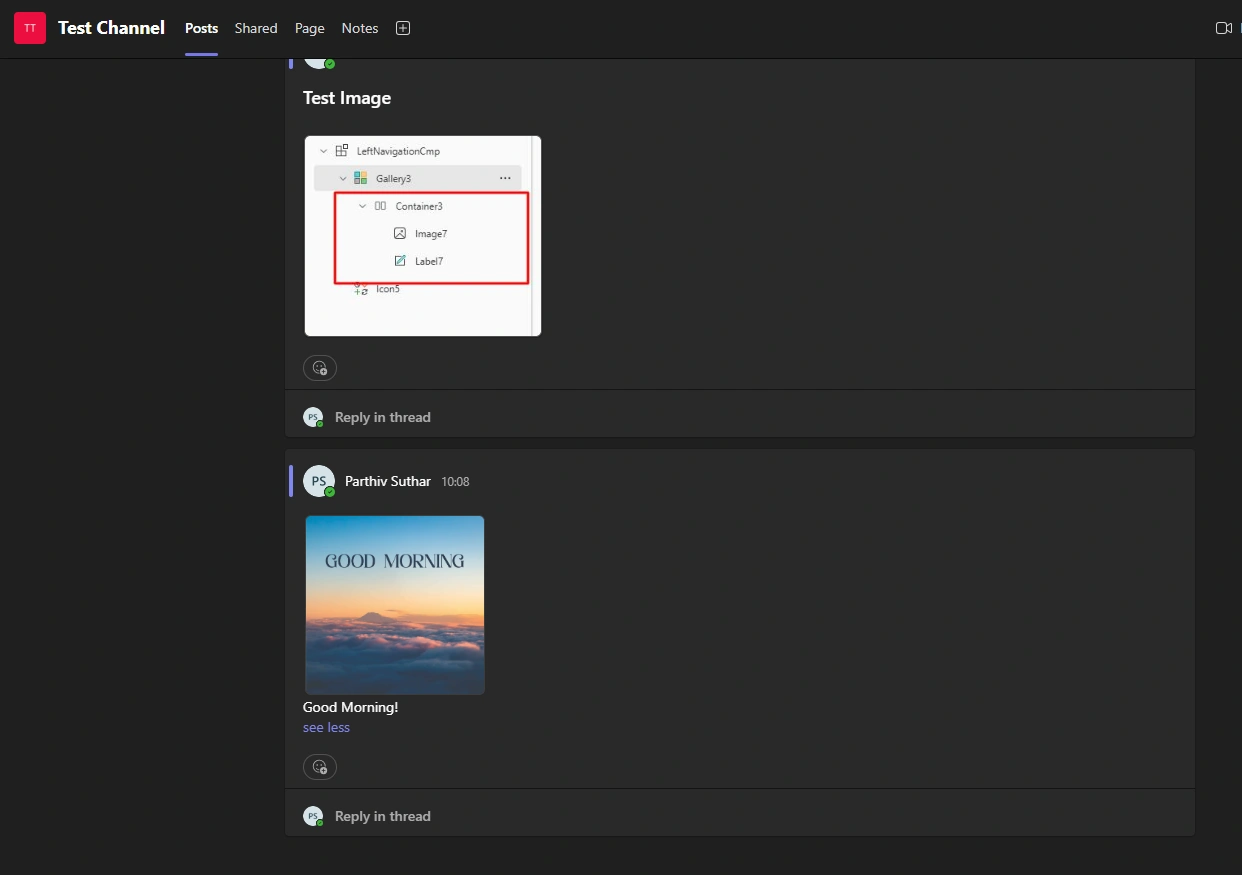
See Good morning image sent in Test Channel.
Conclusion
Here we have learnt, how to send image to MS Teams channels using HTTP action of Teams in Power Automate.
Join the conversation! Your thoughts help the community grow.