

Introduction
Sometimes we need to send multiple files in one email, and doing it manually can take time. With Power Automate, we can send all attachments at once automatically. It is really helpful and saves a lot of effort. In this article, I will show you an easy way to do it step by step.
Prerequisites
Basic Understanding of Power Automate
A SharePoint document library where all the files are stored that you want to send as email attachments.
Scenario
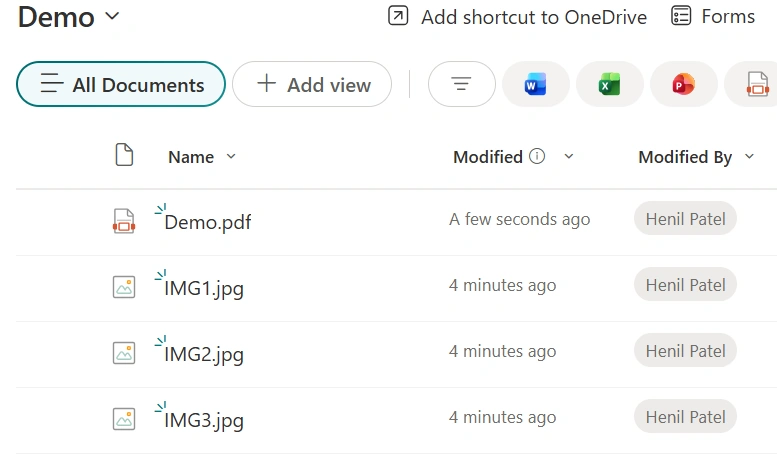
As shown in the SharePoint Document Library above, I have multiple files (PDF and images). My requirement is to send all these files as attachments in a single email using Power Automate.
End Result
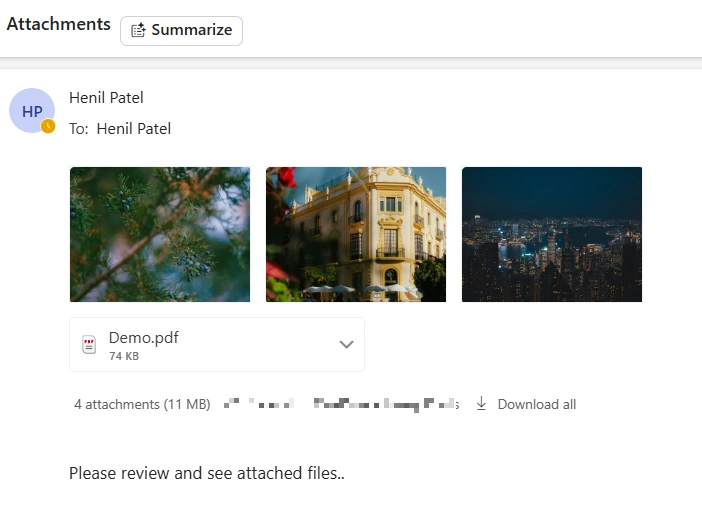
Below are the steps to send multiple attachments in a single email using Power Automate.
Step 1: Create a New Flow
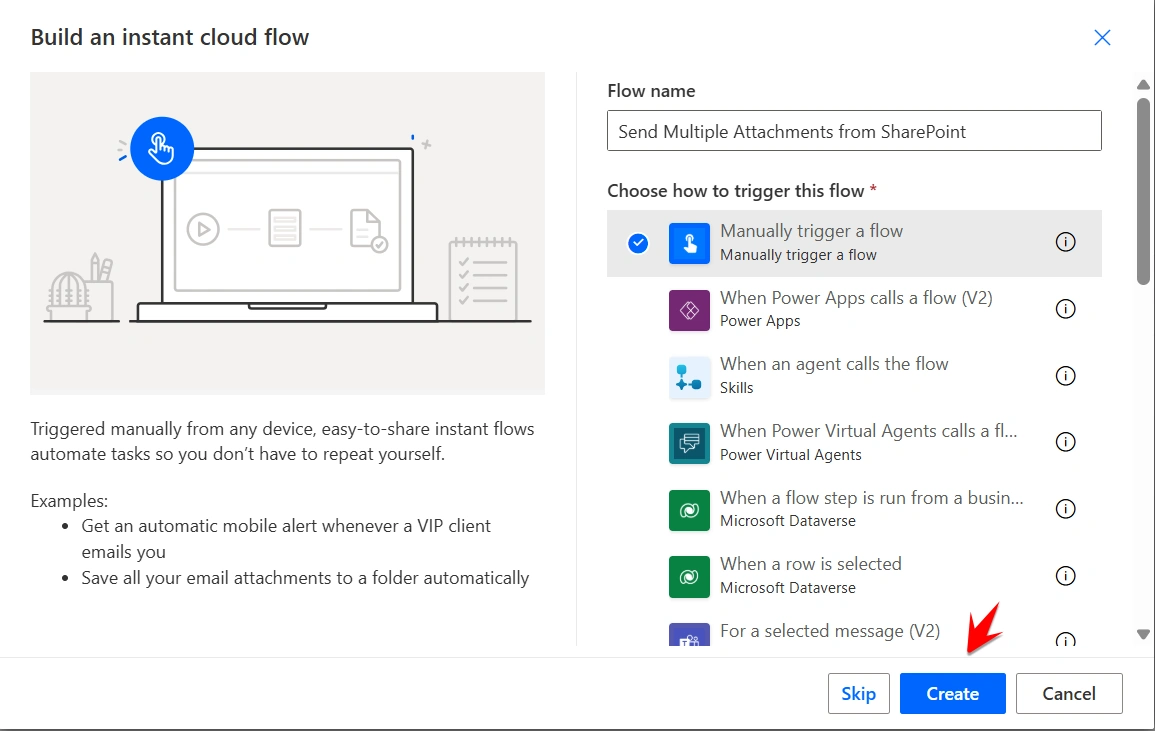
Go to make.powerautomate.com and click on Create. Choose Manually trigger a flow as the trigger. You can also select any other trigger type based on your requirement. Give your flow a name as you want, and then simply click on Create.
Step 2: Initialize an Array Variable
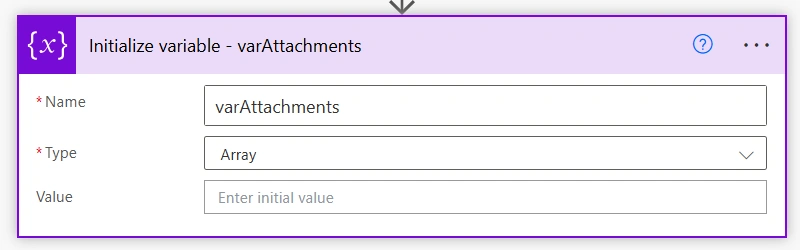
Add the Initialize variable step, give the variable name as varAttachments, and select Array as the variable type.
Step 3: Get files
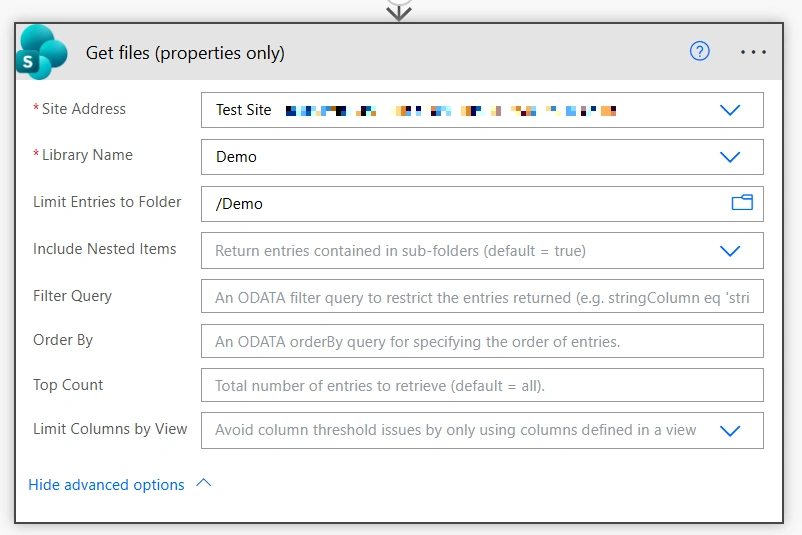
Add the Get files (properties only) action to get all files. Select your Site Address and Library Name. You can also use Limit Entries to Folder if you want to get files from a specific folder, and modify this value as per your requirement.
Step 4: Get File Content Using Path
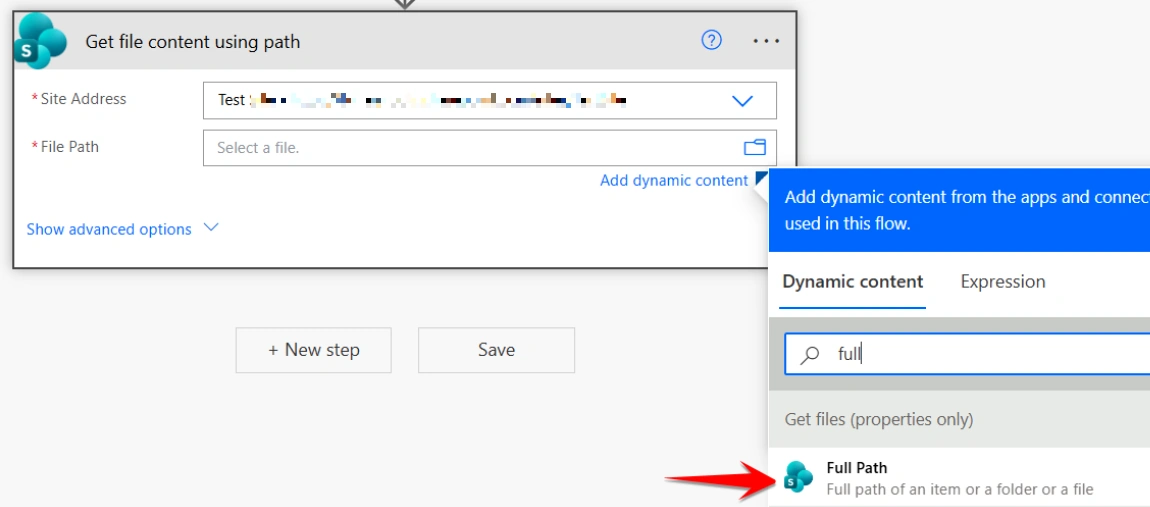
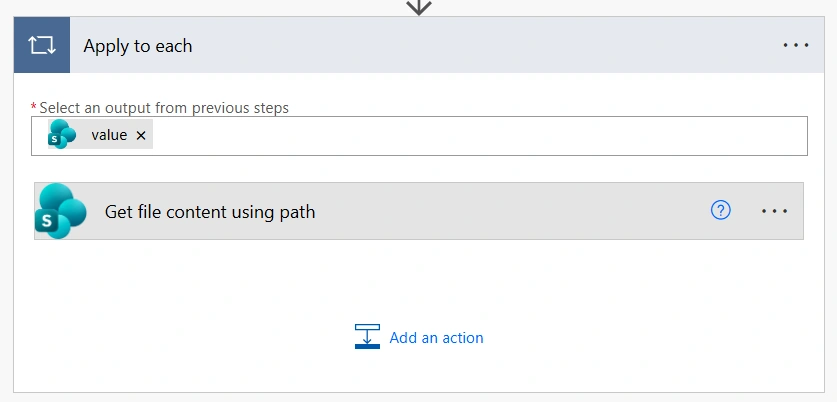
Add the Get file content using path action, select your Site Address, and for the File Path, choose Full Path from the dynamic content of Get files (properties only). Because this action is working with multiple files, Power Automate will automatically add an Apply to each loop.
Step 5: Append Files to the Attachments Array
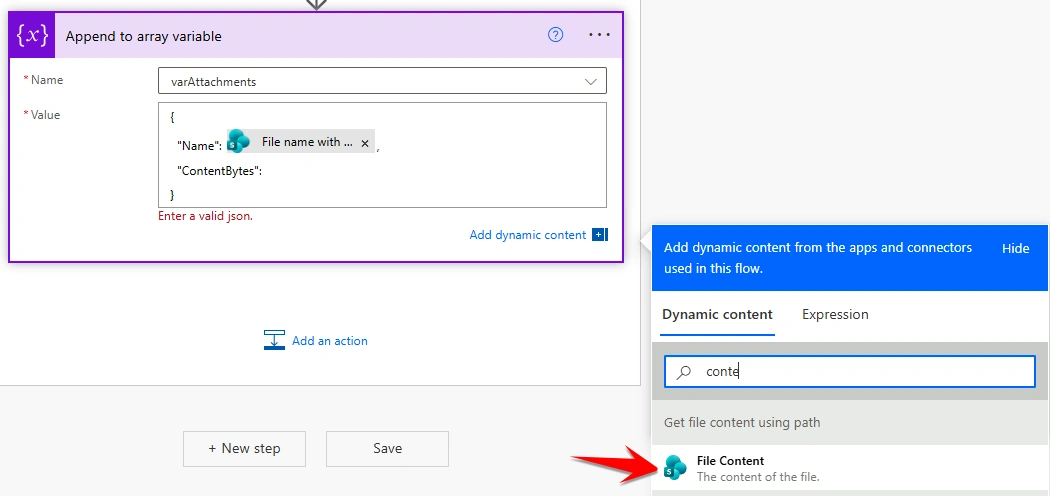
Inside the same Apply to each loop, Add the Append to array variable action and select the variable name varAttachments (that one created in Step 2).
In the Value field, you need to pass an object with two parameters for each attachment:
Name : Select File name with extension from the dynamic content of Get files (properties only).
ContentBytes : Select File Content from Get file content using path.
Make sure both Name and ContentBytes are passed in a valid JSON format, otherwise the flow will throw an error.
This step will add each file into the array so that all files can be sent as multiple attachments in a single email.

Step 6: Add Select action
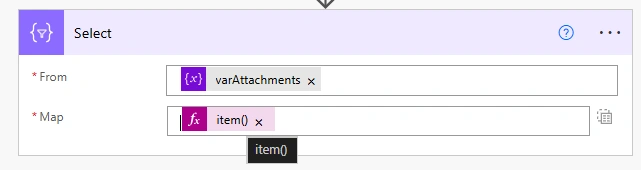
Add the Select action outside of the Apply to each loop.
In the From field, select the variable varAttachments, and in the Map field, use item() (Current item).
This step helps format the attachments in the correct structure so they can be used in the Send email action.
Step 7: Send the Email with Multiple Attachments
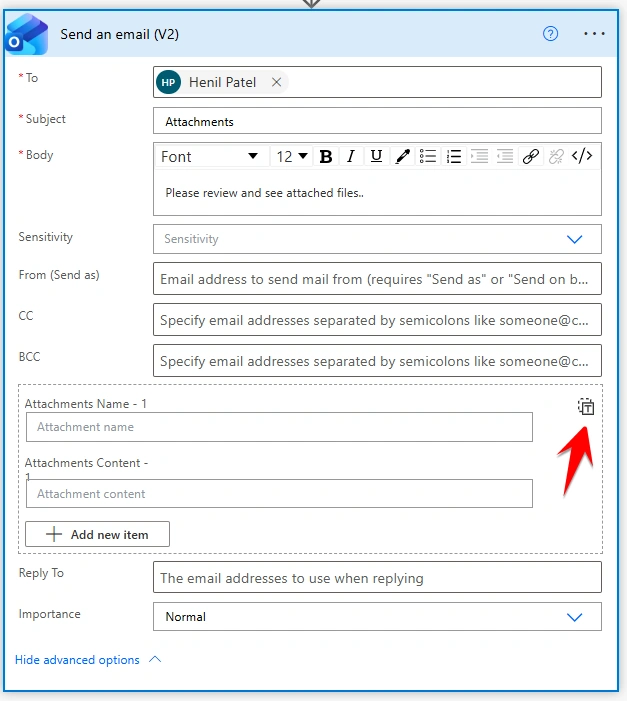
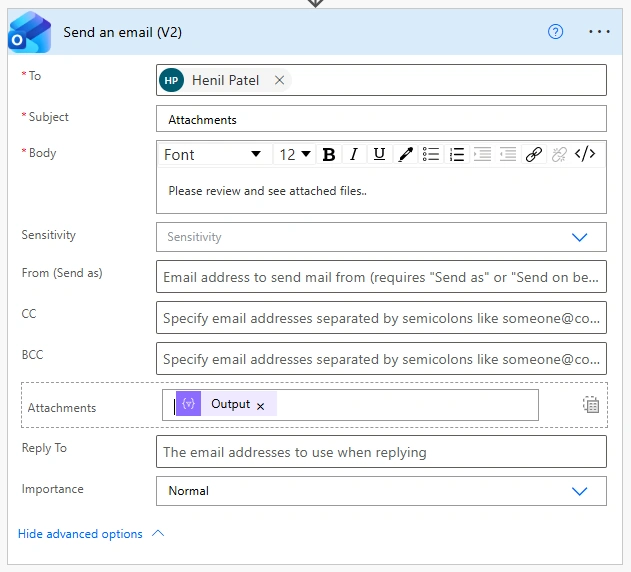
Add the Send an email action and enter the recipient email address as per your requirement. You can also add any Subject and Email Body as needed.
In the Attachments field, pass the output of the Select action
Save the flow and run it to test.
Conclusion
That's it! Now you can send multiple attachments in one email using Power Automate. It makes things a lot easier and saves time.
Join the conversation! Your thoughts help the community grow.