Introduction
Xamarin is a platform to develop cross-platform and multi-platform apps (Ex. Windows phone, Android, iOS). In the Xamarin platform, the code sharing concept is used. Xamarin Studio is available in the Visual Studio also.
How to send message, using SMS Manager or an Intent.
Prerequisites
- Visual Studio 2015 update 3
The following steps are needed to be followed in order to know how to send SMS Message using SMS Manager and Intent in Xamarin Android app.
Step 1
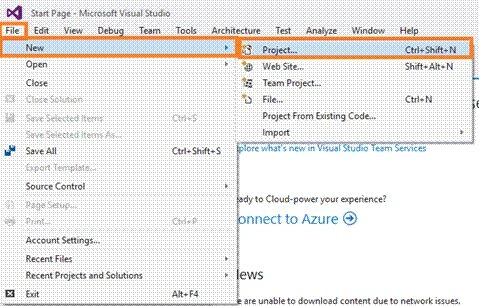
Click File--> select New--> select Project, or click (Ctrl+Shift+N).
Step 2
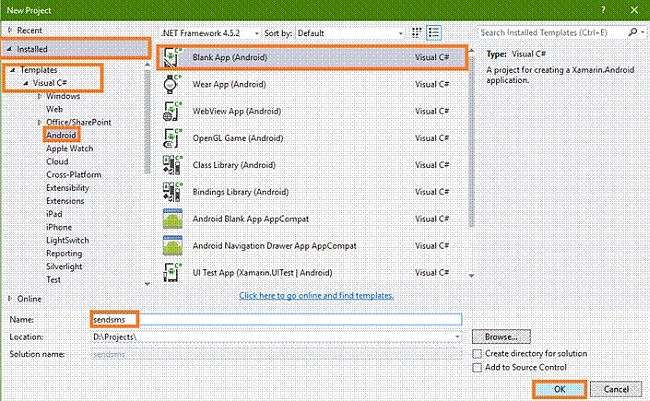
After opening the new project, select Installed-->Templates-->Visual C#-->Android-->choose the Blank App (Android).
Next, give your Android app a name (Ex:sample) and give path to your project. Click OK.
Step 3
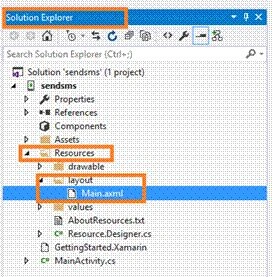
Go to the Solution Explorer and select Resource --> Layout --> double click to open Main.axml page. You can select either the code view or the designer view, based on your expertise.
Step 4
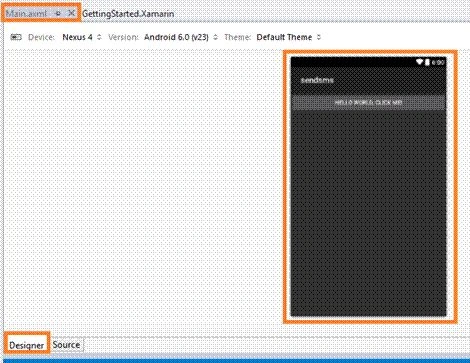
I have opened the page in designer view. Now, delete the default "hello world" button by going to the source panel and deleting its coding.
Also, go to the MainActivity.cs page and delete the C# button action code.
Step 5
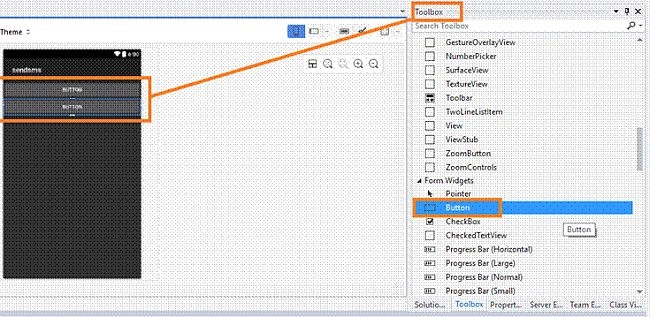
Next, go to the toolbox window and scroll down. Spot the Button control and drag and drop two buttons.
 Step 6
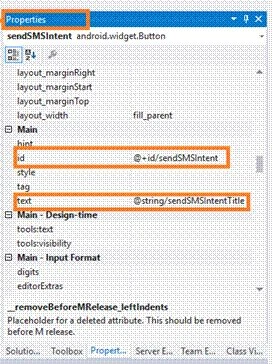
Next, go to the Properties window and edit the first Button id value and Text value (Ex:android:id="@+id/sendSMS" android:text="@string/sendSMSTitle").
 Step 7
Edit the second Button id value and Text value(Ex: android:id="@+id/sendSMSIntent" android:text="@string/sendSMSIntentTitle").
Step 8
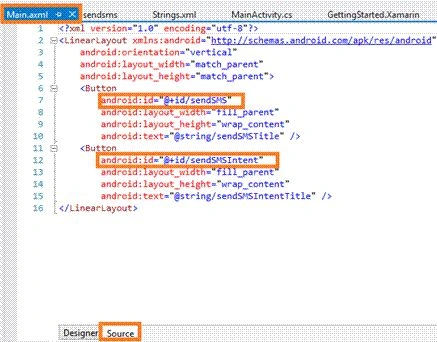
In this step, go to the Main.axml page Source Panel and note the buttons id Value.
 Main.axml
- <LinearLayout xmlns:android="http://schemas.android.com/apk/res/android" android:orientation="vertical" android:layout_width="match_parent" android:layout_height="match_parent">
- <Button android:id="@+id/sendSMS" android:layout_width="fill_parent" android:layout_height="wrap_content" android:text="@string/sendSMSTitle" />
- <Button android:id="@+id/sendSMSIntent" android:layout_width="fill_parent" android:layout_height="wrap_content" android:text="@string/sendSMSIntentTitle" />
- </LinearLayout>
Step 9
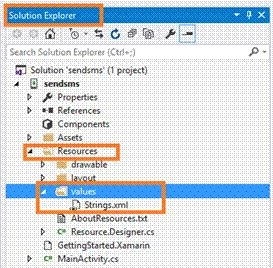
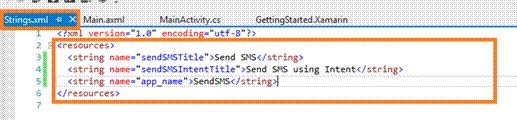
In this step, open the String.xml page. Go to the Solution Explorer-->Resource-->values-->String.xml.
 Step 10
After opening the String.xml file, write the following XML code.
String.xml
- <?xml version="1.0" encoding="utf-8"?>
- <resources>
- <string name="sendSMSTitle">Send SMS</string>
- <string name="sendSMSIntentTitle">Send SMS using Intent</string>
- <string name="app_name">SendSMS</string>
- </resources>
 Step 11
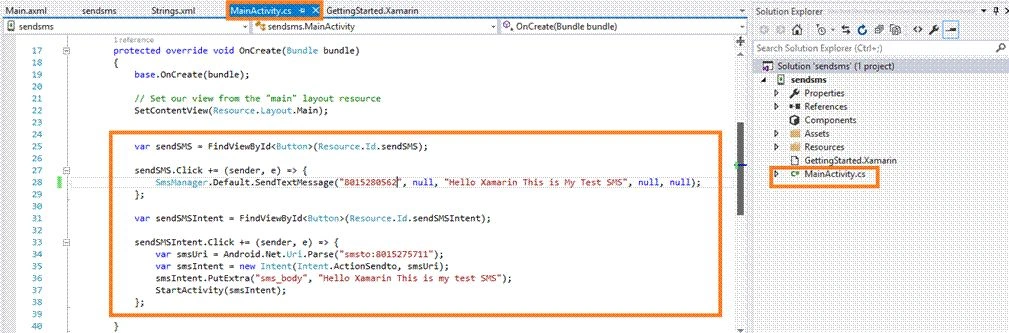
Go to the MainActivity.cs page and write the following code in the OnCreate() Method.
MainActivity.cs
- using Android.Telephony;
- protected override void OnCreate(Bundle bundle) {
- base.OnCreate(bundle);
-
- SetContentView(Resource.Layout.Main);
- var sendSMS = FindViewById < Button > (Resource.Id.sendSMS);
- sendSMS.Click += (sender, e) => {
- SmsManager.Default.SendTextMessage("8015280562", null, "Hello Xamarin This is My Test SMS", null, null);
- };
- var sendSMSIntent = FindViewById < Button > (Resource.Id.sendSMSIntent);
- sendSMSIntent.Click += (sender, e) => {
- var smsUri = Android.Net.Uri.Parse("smsto:8015275711");
- var smsIntent = new Intent(Intent.ActionSendto, smsUri);
- smsIntent.PutExtra("sms_body", "Hello Xamarin This is my test SMS");
- StartActivity(smsIntent);
- };
- }
 Step 12
In this step, give internet permission to your app.
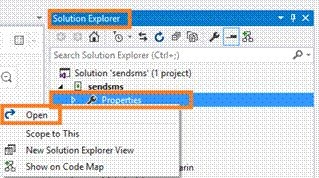
Go to the Solution Explorer --> Properties --> Right click--> Open.
 Step 13
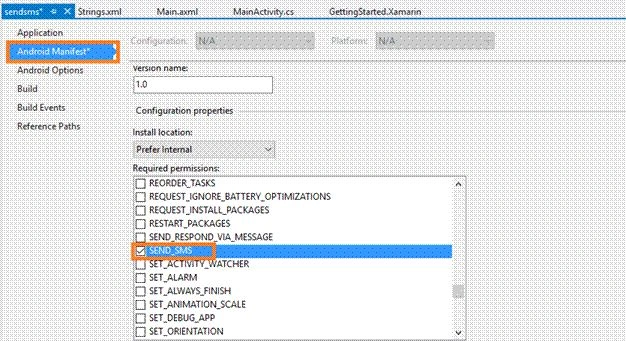
After open the properties options. Select Android Manifest-->Required Permissions-->Check SEND_SMS.
 Step 14
If you have an Android Virtual device, run the app on it. Else, connect your Android phone and run the app in that.
Simply, connect your phone and go to Visual Studio. The connected phone will show up in the Run menu (Ex:LENOVO A6020a40(Android 5.1-API 22)). Click the Run option.
 Output
After a few seconds, the app will start running on your phone.
If you click the SEND SMS Button, the message will be sent, using SMS Manager.
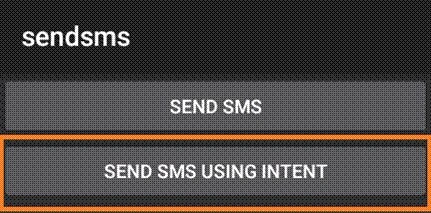
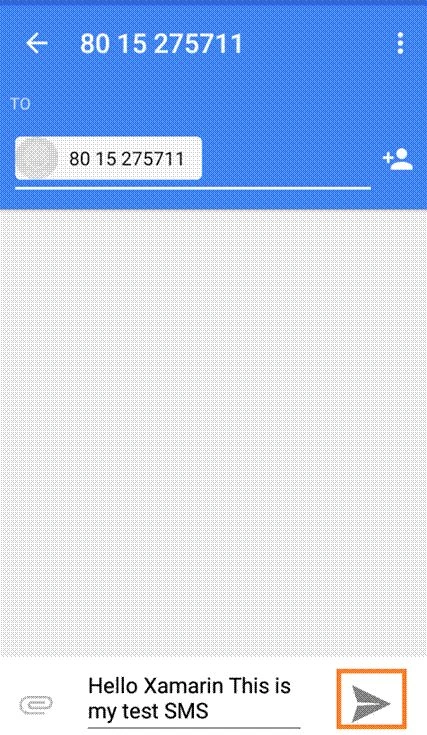
If you click "SEND SMS USING INTENT", the message will be send by any messenger.
You will see the default message. Tap on the send symbol.
 Summary
So, this was the process of sending SMS message, using SMS Manager or an Intent in Xamarin Android app, using Visual Studio 2015.


Dominik NPosted May 2, 2018, 3:35 AM
Hello, I just done it like described, but I have a problem that the "SmsManager" does not exist in the current context. How to add the SmsManager class to avoid that problem?
Pradeep SahooPosted Oct 23, 2016, 6:59 AM
A good read . Thanks for sharing
Prasanna MuraliPosted Oct 22, 2016, 11:43 AM
Nice post...