

Introduction
In this article, we'll explore how to send Teams messages with mentions in Power Automate, enabling you to automate notifications and alerts to specific team members.
Prerequisites
- A Microsoft 365 or Office 365 subscription: You must have access to both Microsoft Teams and Power Automate.
- Permissions: Ensure that you have the necessary permissions to create flows in Power Automate and send messages in Teams.
Implementation
Let's consider an example: When a new leave request is generated in a SharePoint list, send a Teams message to the manager.
Move to the Power Automate > Click on Create a Flow> Select Automated flow.
Enter a flow name and select a trigger When an item is created by SharePoint as below.
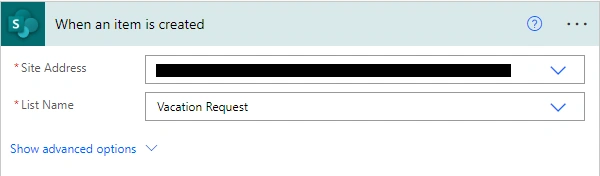
Step 1. When an item is created
- Site Address: Choose the site from which you'd like to retrieve the item.
- List Name: Choose the list from which you'd like to retrieve the item.
Step 2. Get an @mention token for a user
- User: Specify user ID or email address (Here, we will use the Manager email from When an item is created category).

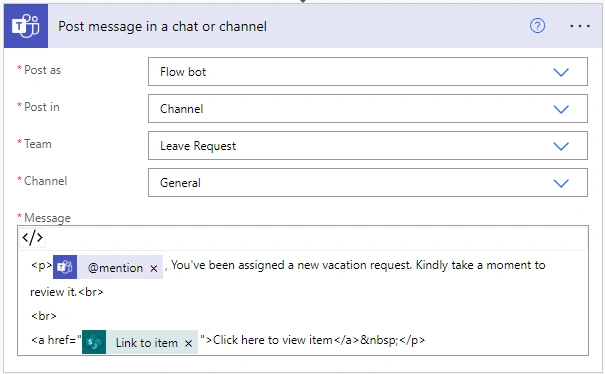
Step 3. Post a message in a chat or channel
- Post as: Select the option as per your requirement.
- Post in: Select the option as per your requirement.
- Team: Choose the team to which you'd like to send your message.
- Channel: Choose the channel to which you'd like to send your message.
- Message: Add a message that you'd like to send.
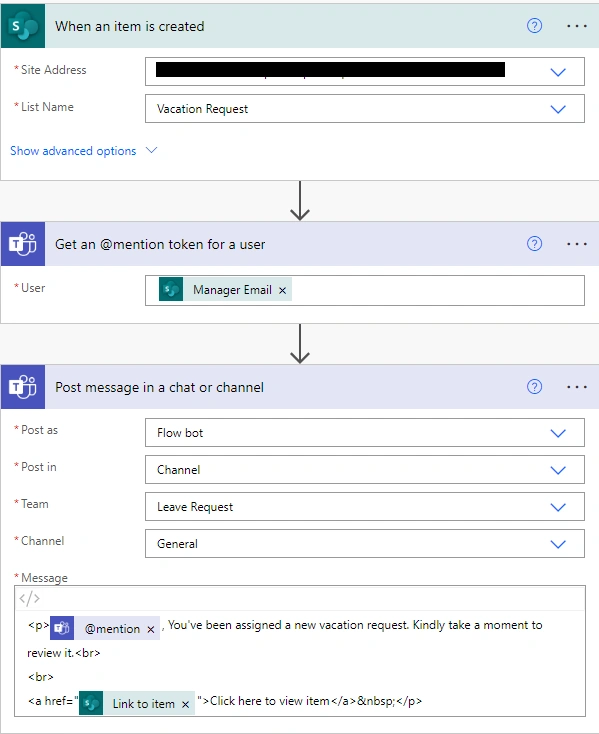
At the end, our flow will look like this.
Output

Conclusion
This article has provided valuable insights into the process of sending Teams messages with mentions or tagging users using Power Automate. By following the step-by-step instructions and leveraging the capabilities of these powerful tools, you can enhance your team's communication and collaboration efforts.
I hope this helps.
Sharing is caring.
Join the conversation! Your thoughts help the community grow.