Introduction
This article explains how to use images in a GridView and how to the GridView to another activity upon a click action.
GridView
It is a view group that displays items in a two-dimensional grid.
Before doing the code part first you need to learn the functionality of this application. In this application first, you need to use a GridView on which you want to show the images.
Second, you need to create an array that contains images.
To these images to the GridView you need to create an Adapter class that extends the baseadpter class.You can all these images to the GridView by calling the setAdapter method with the object of the Grid View and the Adapter class object as a parameter.
Step 1
Create an XML file with this:
- <?xml version="1.0" encoding="utf-8"?>
- <GridView xmlns:android="http://schemas.android.com/apk/res/android"
- android:id="@+id/gridview1"
- android:layout_width="fill_parent"
- android:layout_height="fill_parent"
- android:numColumns="auto_fit"
- android:columnWidth="90dp"
- android:horizontalSpacing="5dp"
- android:verticalSpacing="10dp"
- android:gravity="center"
- android:stretchMode="columnWidth" >
-
- </GridView>
Step 2
Create an another XML file with this:
- <?xml version="1.0" encoding="utf-8"?>
- <LinearLayout xmlns:android="http://schemas.android.com/apk/res/android"
- android:orientation="vertical"
- android:layout_width="match_parent"
- android:layout_height="match_parent">
- <ImageView
- android:layout_width="wrap_content"
- android:layout_height="wrap_content"
- android:id="@+id/imageView"
- />
- </LinearLayout>
Step 3
Create a Java class file MainActivity.java with this:
- package com.gridview;
- import android.app.Activity;
- import android.content.Intent;
- import android.os.Bundle;
- import android.view.View;
- import android.widget.AdapterView;
- import android.widget.GridView;
-
- public class MainActivity extends Activity {
-
- @Override
- public void onCreate(Bundle savedInstanceState) {
- super.onCreate(savedInstanceState);
- setContentView(R.layout.activity_main);
-
- GridView gridView = (GridView) findViewById(R.id.gridview1);
-
- Adapter adapter=new Adapter(this);
- gridView.setAdapter(adapter);
- gridView.setOnItemClickListener(new AdapterView.OnItemClickListener() {
- @Override
- public void onItemClick(AdapterView<?> adapterView, View view, int index, long l) {
-
- Intent i=new Intent(MainActivity.this,Imageset.class);
- i.putExtra("1",index);
- startActivity(i);
-
- }
- });
- }
- }
Step 4
Create another Java Class file:
- package com.gridview;
-
- import android.content.Context;
- import android.view.View;
- import android.view.ViewGroup;
- import android.widget.BaseAdapter;
- import android.widget.GridView;
- import android.widget.ImageView;
-
-
- public class Adapter extends BaseAdapter {
-
- private Context mycontext;
-
- Integer[] pictures={
- R.drawable.pic1,
- R.drawable.pic2,
- R.drawable.pic3,
- R.drawable.pic4,
- R.drawable.pic5 ,
- R.drawable.pic6,
- R.drawable.pic7,
- R.drawable.pic8,
- R.drawable.pic9,
- } ;
-
- public Adapter(Context p)
- {
- mycontext=p;
- }
-
- @Override
- public int getCount() {
- return pictures.length;
- }
-
- @Override
- public Object getItem(int index) {
- return pictures[index];
- }
-
- @Override
- public long getItemId(int i) {
- return 0;
- }
-
- @Override
- public View getView(int index, View view, ViewGroup viewGroup) {
- ImageView imageView = new ImageView(mycontext);
-
- imageView.setImageResource(pictures[index]);
- imageView.setScaleType(ImageView.ScaleType.CENTER_CROP);
- imageView.setLayoutParams(new GridView.LayoutParams(70, 70));
- return imageView;
- }
- }
Step 5
Create another Java class and write this:
- package com.gridview;
-
- import android.app.Activity;
- import android.content.Intent;
- import android.os.Bundle;
- import android.widget.ImageView;
-
-
- public class Imageset extends Activity {
-
-
-
- public void onCreate(Bundle savedInstanceState )
- {
- super.onCreate(savedInstanceState);
- setContentView(R.layout.imageset);
-
-
- Intent i = getIntent();
-
-
- int position = i.getExtras().getInt("1");
- Adapter imageAdapter = new Adapter(this);
-
- ImageView imageView = (ImageView) findViewById(R.id.imageView);
- imageView.setImageResource(imageAdapter.pictures[position]);
- }
-
- }
Step 6
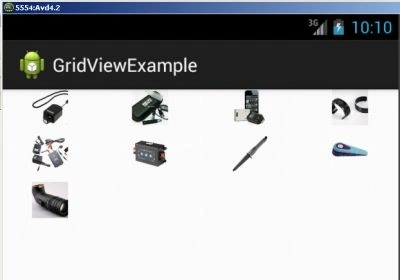
Output
Step 7
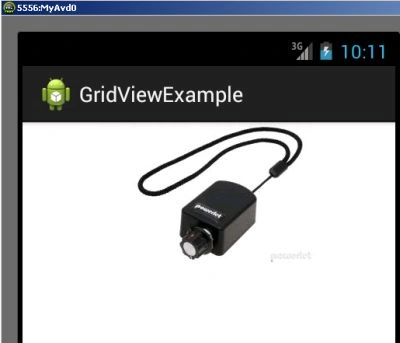
When you will click on the image:

Join the conversation! Your thoughts help the community grow.