

Introduction
GitHub Copilot supports multiple programming languages. It is currently installed in Visual Studio Code (Angular) for the project.
GitHub Copilot is available as an extension for the Visual Studio Code suite of integrated development environments (IDEs).
To install GitHub Copilot and GitHub Copilot Chat, upgrade Visual Studio Code to version 1.57 or above.
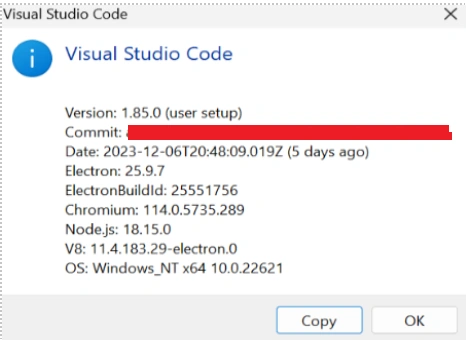
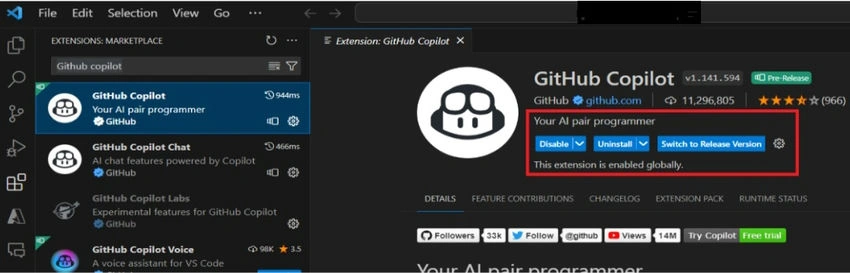
Install GitHub Copilot and GitHub Copilot Chat from the Extensions view in Visual Studio Code. After installation, restart Visual Studio Code and log in to your GitHub account.
Visual Studio Code Extension
In the Extension GitHub Copilot tab in Visual Studio Code, select Install.
If you haven't authorized Visual Studio Code in your GitHub account, you’ll need to sign in. Select Sign into GitHub.
To enable or disable GitHub Copilot, use the drop-down menu in the extension panel of the Visual Studio Code window.
Using GitHub Copilot Commands
Use the “/” commands to get responses that match your expectations.
- Press the Tab key to accept a suggestion or simply keep typing to ignore it. GitHub Copilot will continue to make more suggestions.
- Press Esc to clear a suggestion completely.
- Auto-generate methods for CRUD operations.
- Generate unit test methods for selected methods.
Available Commands
- /explain: After creating a method, select that method to get a step-by-step explanation of the code.
- /doc: Automatically add documentation comments for a symbol. Select the method and run this command to show the documentation. [Watch the video]
- /fix: Propose a fix for problems in the selected code.
- /optimize: Analyze and improve the performance of the selected code.
Metrics for Unit Test cases using Copilot
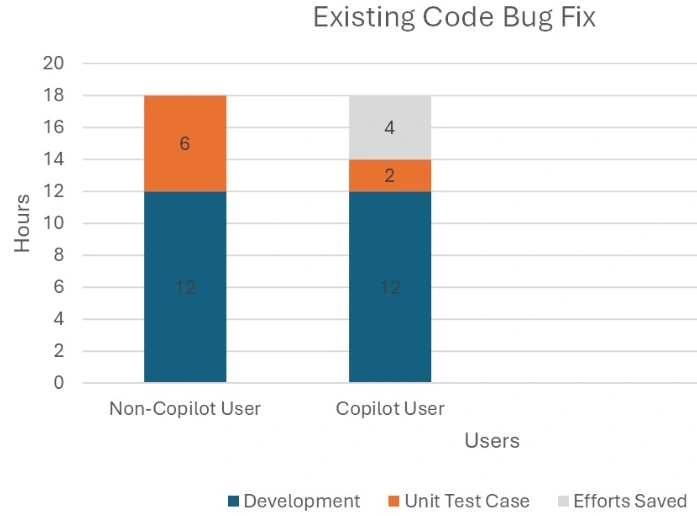
Currently, we manually write unit test cases for all sprint tasks. The metrics below compare unit test case development between Copilot developers and non-Copilot developers.
Copilot Developer
35% of development hours can be reduced using GitHub Copilot.
Using Copilot to auto-generate test cases can reduce 35% of our development hours.
The remaining hours can be utilized for other development tasks.
Unit Test cases and Bug fixes
Existing unit test cases can be used for bug fixes, so there is no need to regenerate them using Copilot.
Copilot usage for development
Suggestions from Copilot can be used and accepted.
New development changes should be made based on requirements.
I trust this article has been largely beneficial.
Join the conversation! Your thoughts help the community grow.