

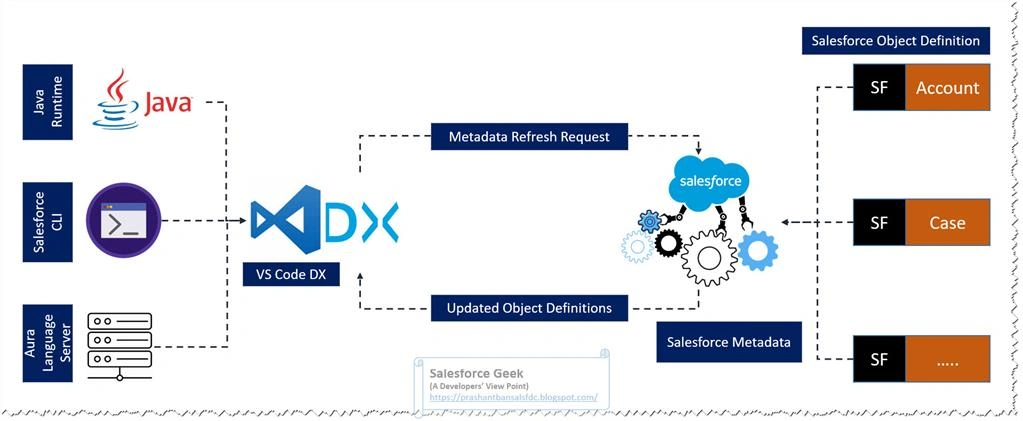
In the recent past we have observed that Visual Studio Code (VS Code) is picking up popularity among open source IDEs for code development across multiple programming languages. JavaScript based frameworks, Python based application development, Salesforce Apex Code development, HTML, CSS based Front End development and so on are the most popular choices working with VS Code. This powerful behavior of supporting multiple platforms resides in the ability to adopt Plugins & Extension Packs that supports most popular programming languages & frameworks, and I believe VS Code has does a brilliant job so far.
In this article we will look into detailed steps to setup Visual Studio Code as IDE for Salesforce code development. Here are the quick list of the components that we would working with in the steps below,
- Install & Configure Visual Studio Code
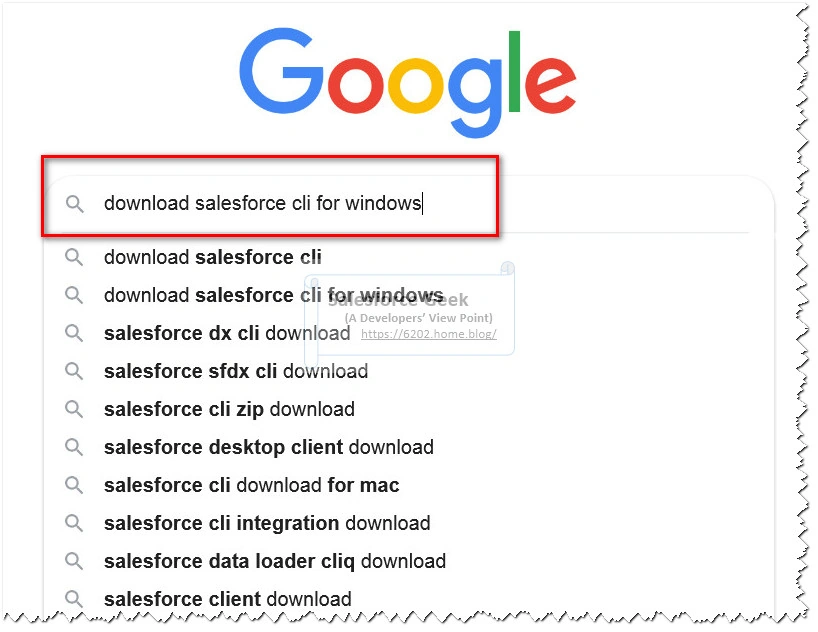
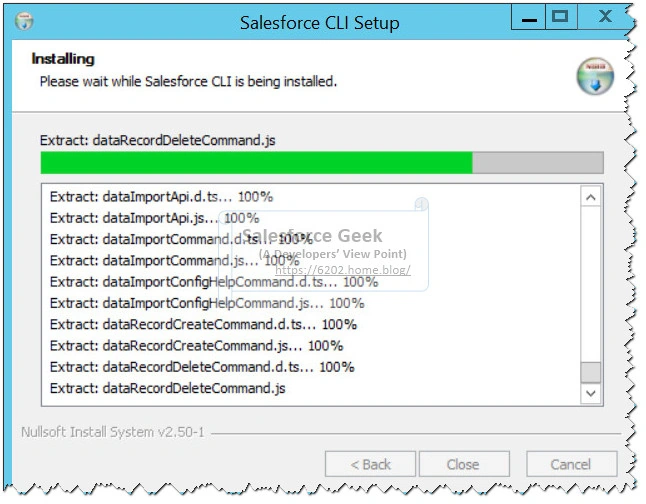
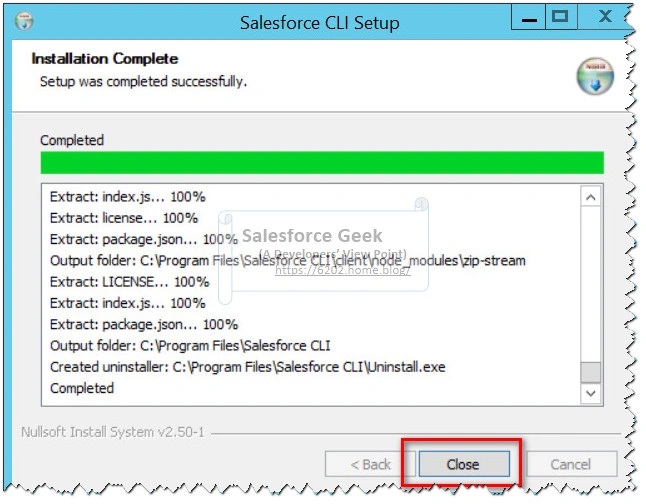
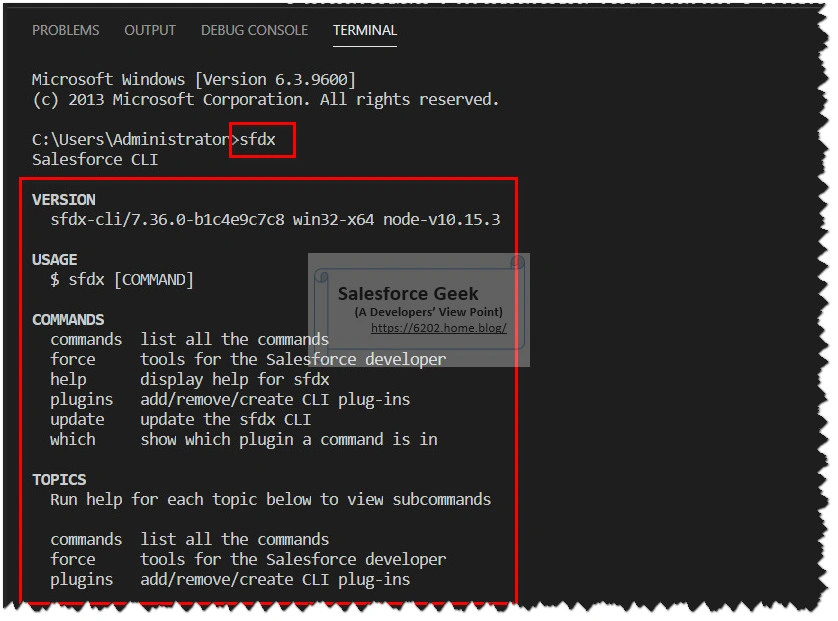
- Install & Configure Salesforce CLI
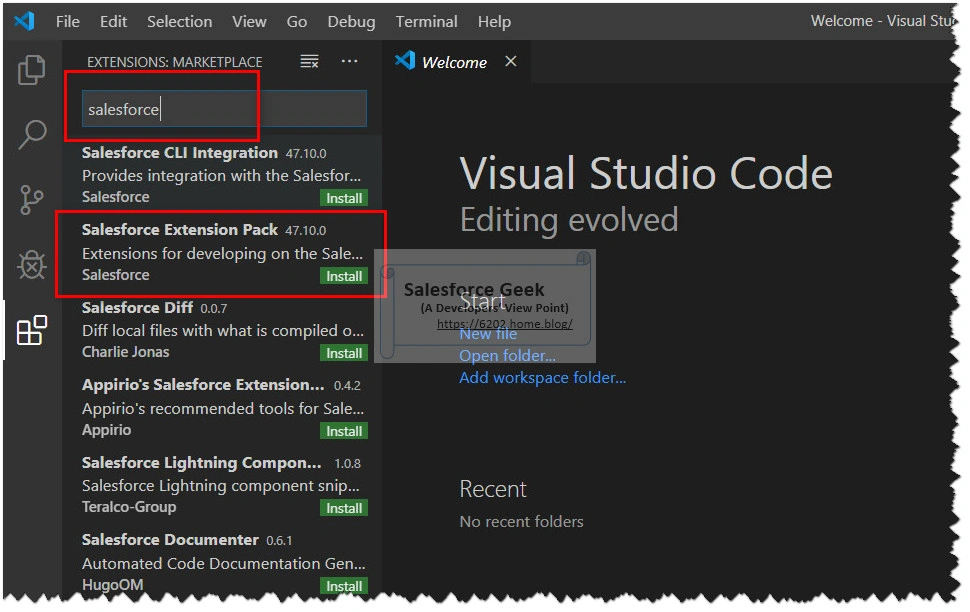
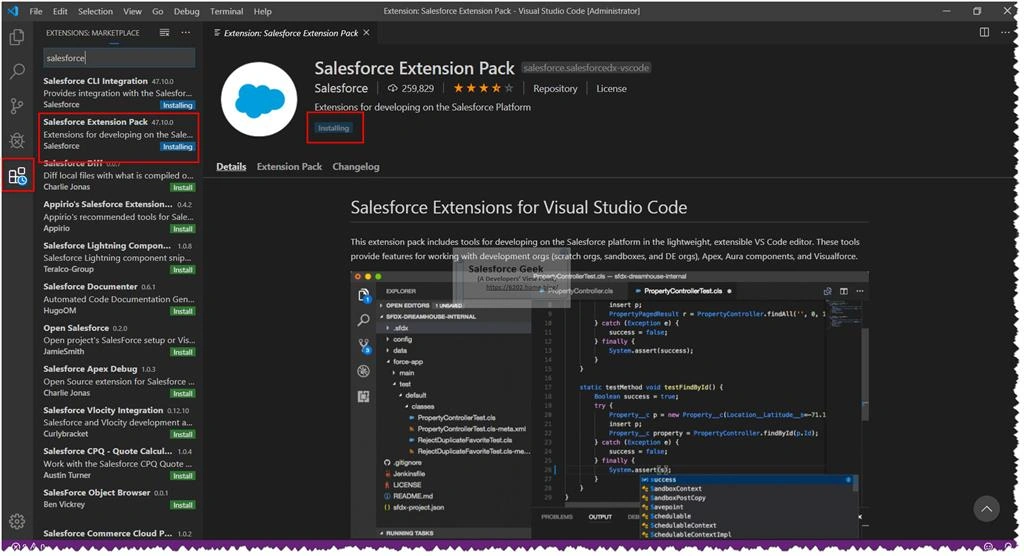
- Install & Configure Salesforce Extension Pack
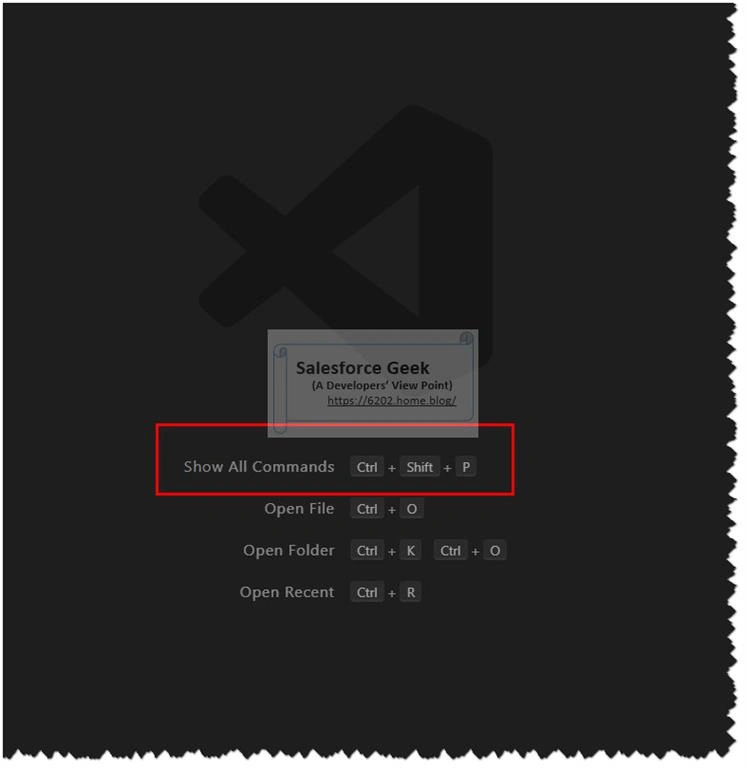
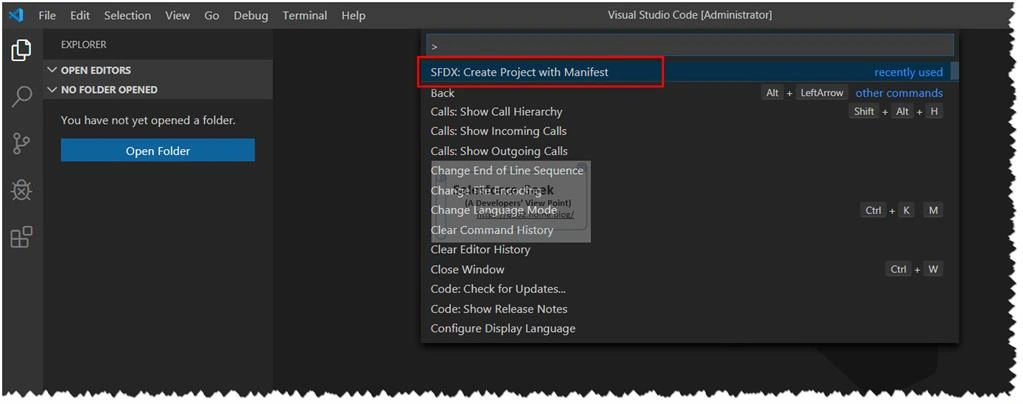
- Create Test Salesforce Project
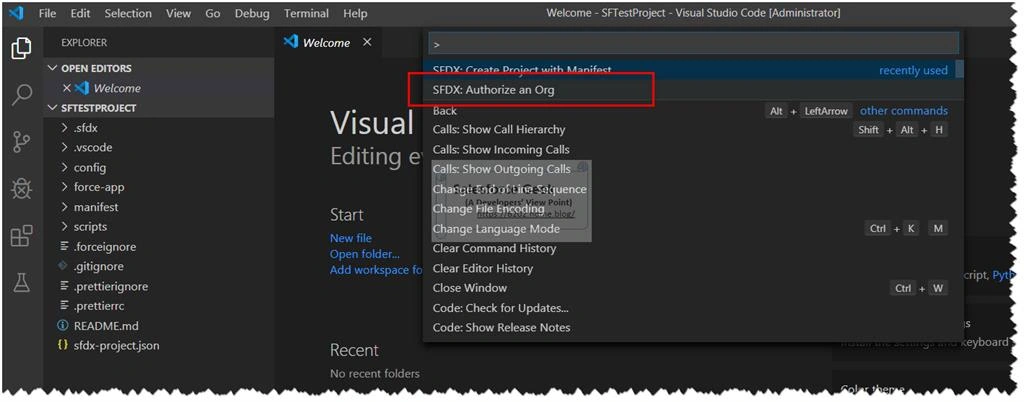
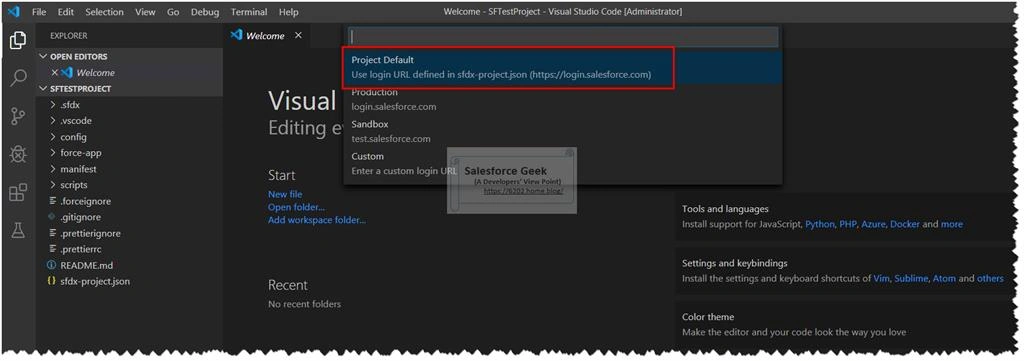
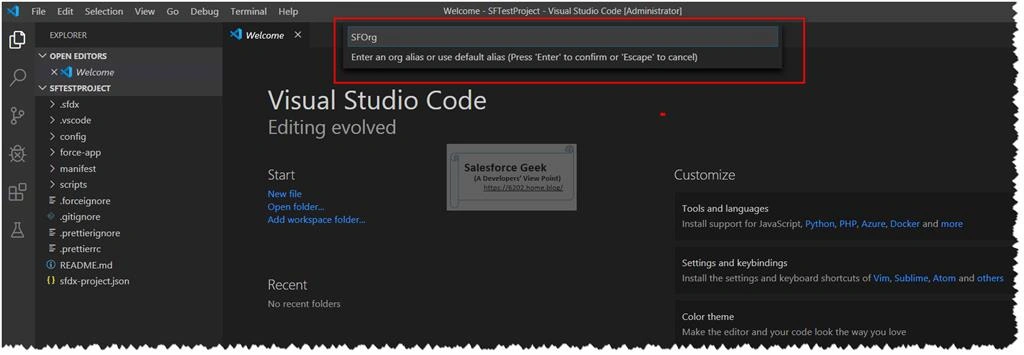
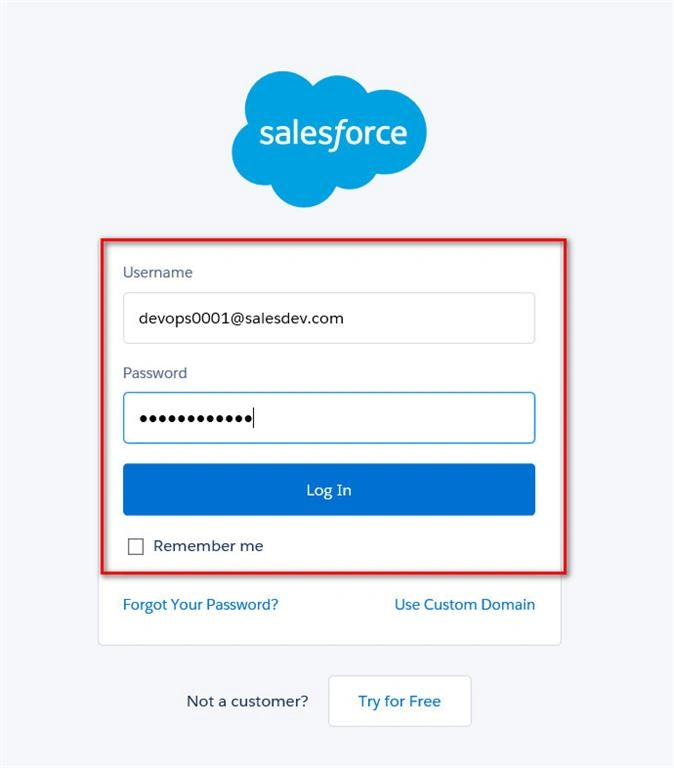
- Authorize Salesforce Org
We will discuss the individual configuration for each of the moving parts contributing to this setup in the upcoming steps,
Install & Configure Visual Studio Code
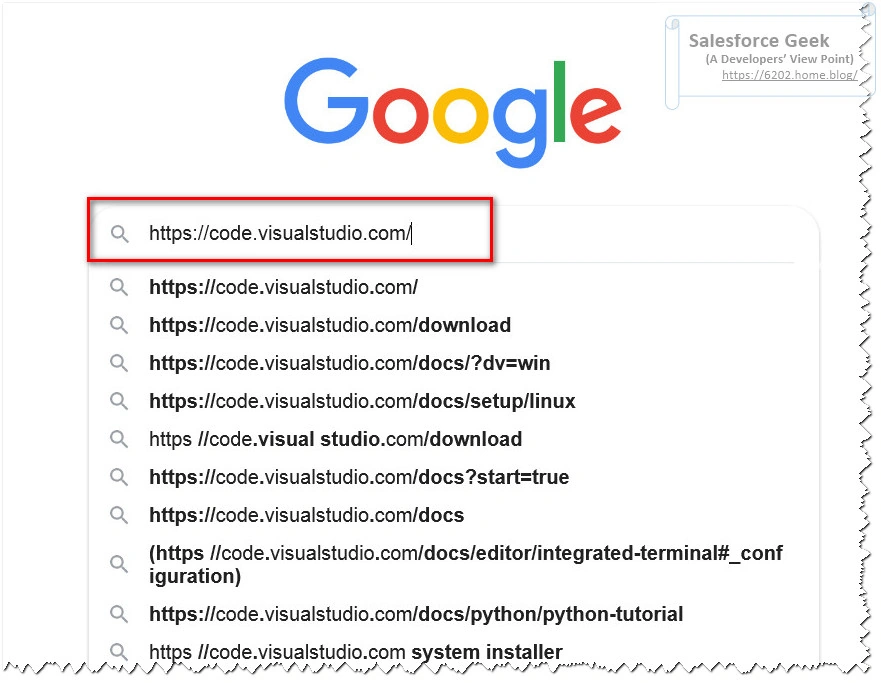
- We can download the latest VS Code Setup from the following Url: https://code.visualstudio.com
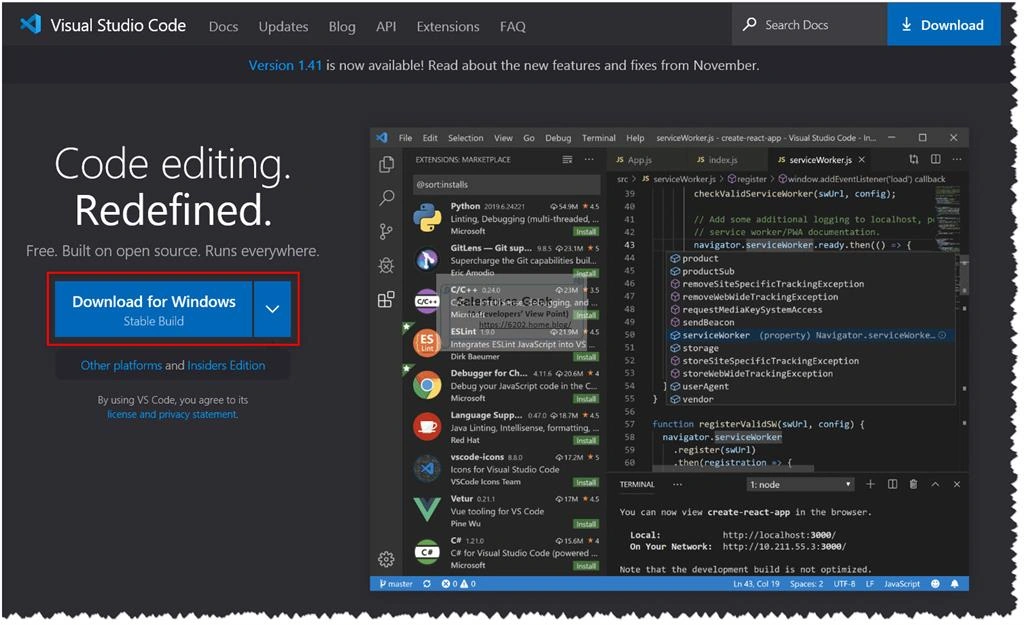
- Click on “Download for Windows”
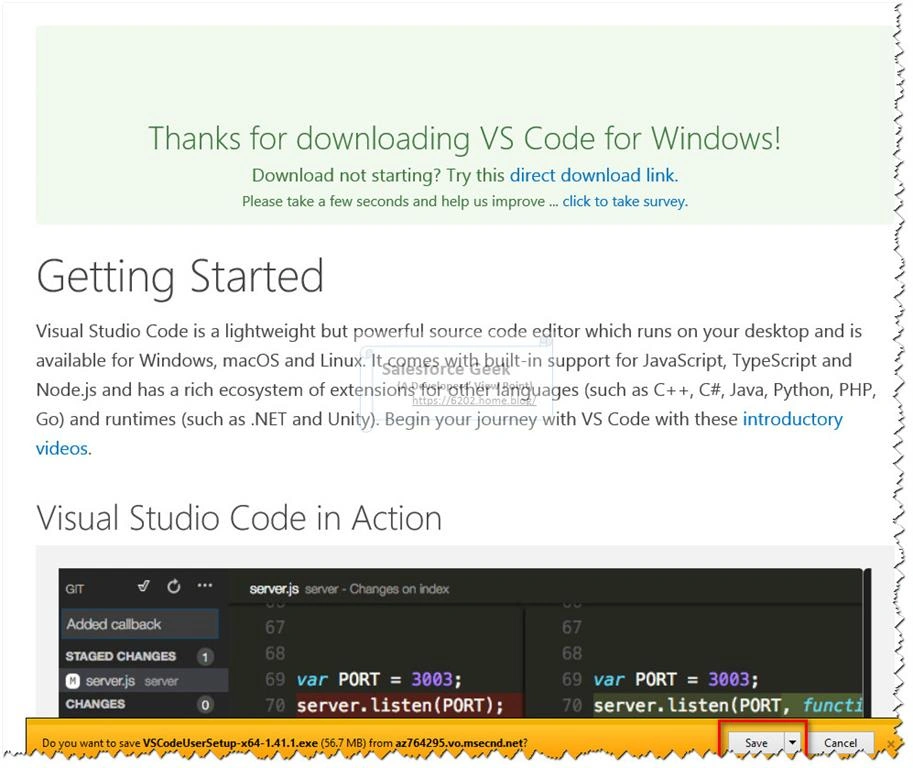
- Save the setup file
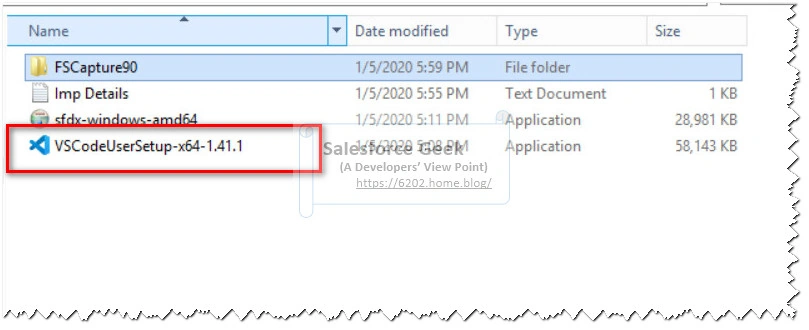
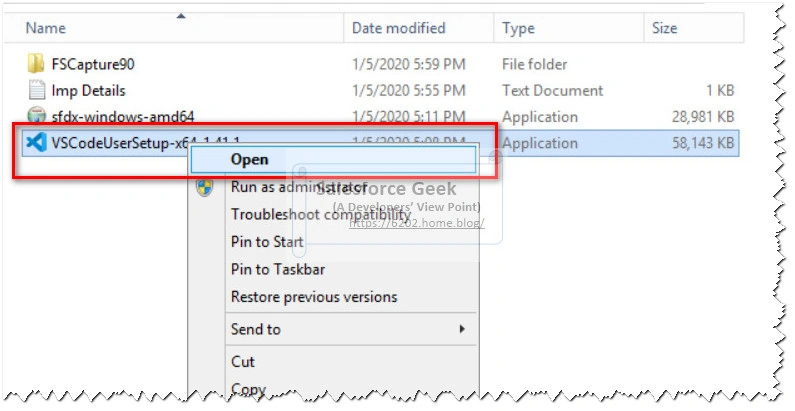
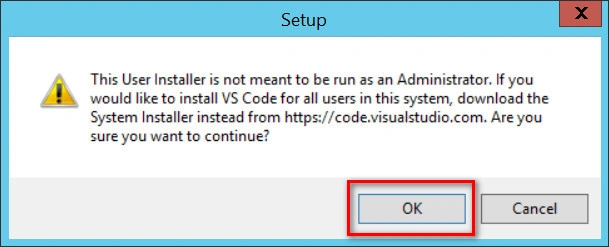
- Open the setup file by right click > Open. Please make sure you don’t use “Run as Administrator” option since VS Code cannot be installed with Admin privileges as suggested by following alert message.
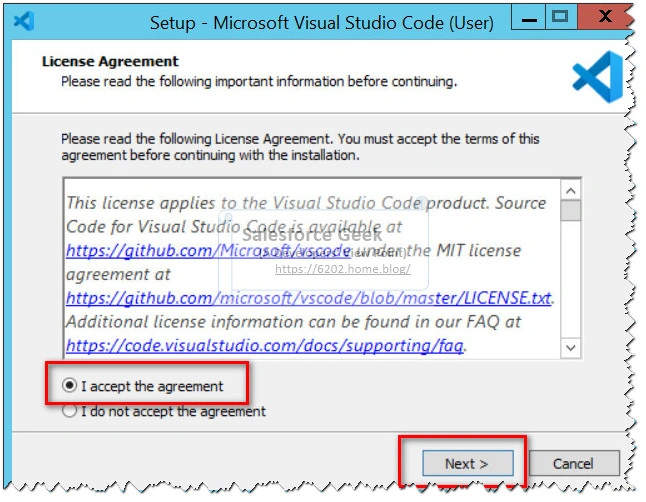
- Accept the License Terms and Click Next
- Click Next
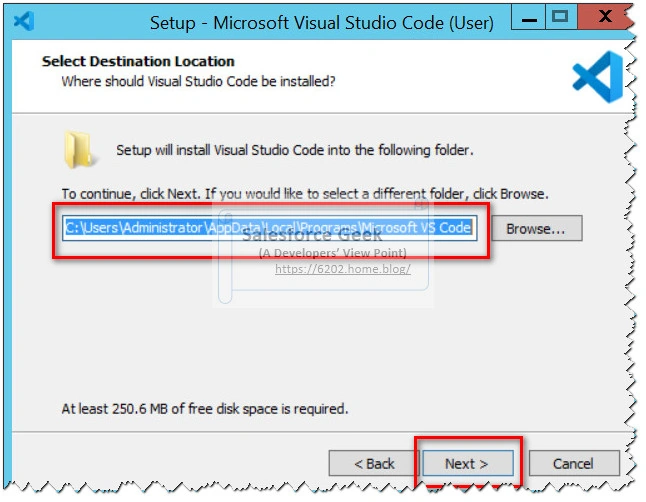
- Click Next
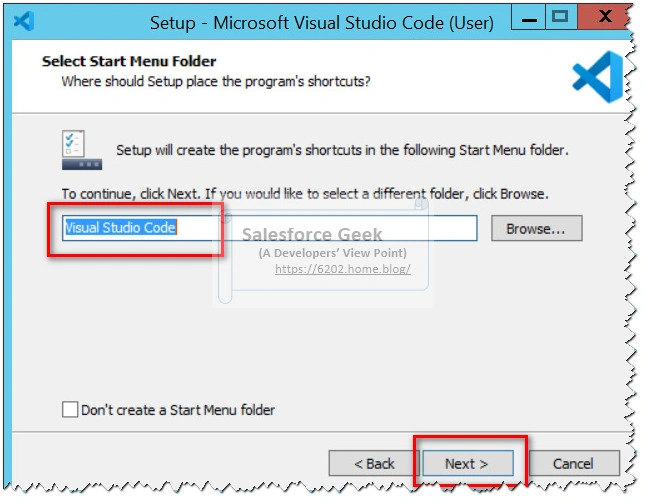
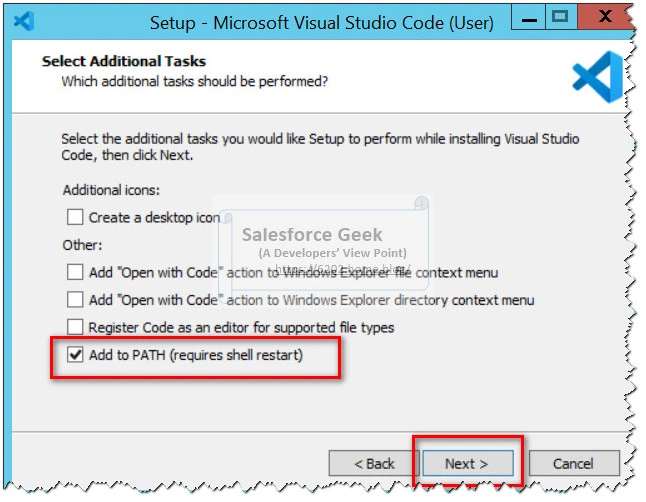
- Make sure “Add To Path” is checked and Click Next
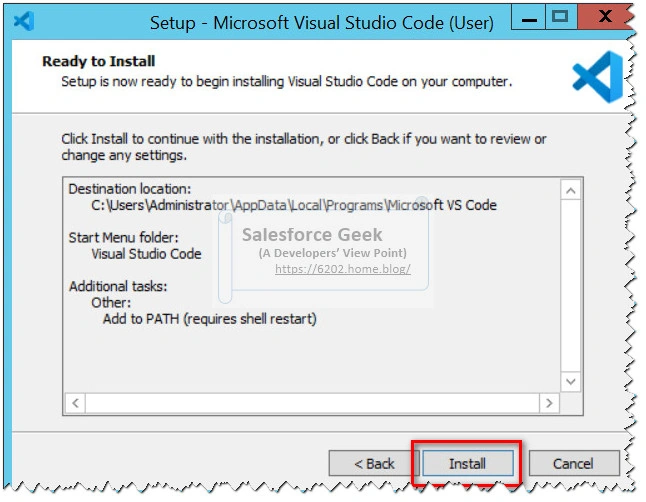
- Click Install
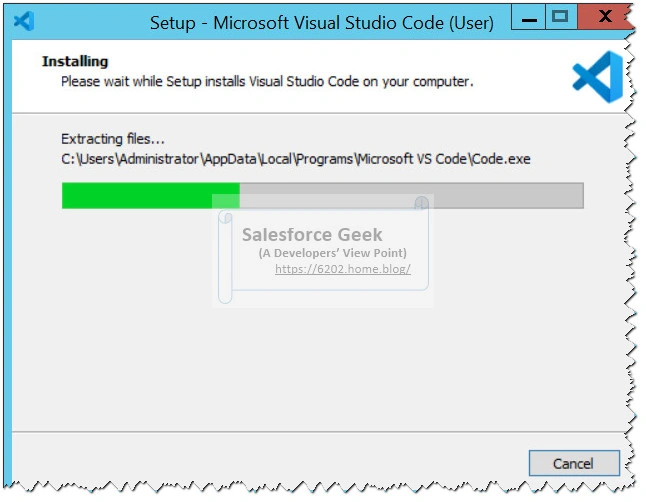
Wait till the setup completes the installation, which should be really a quick install
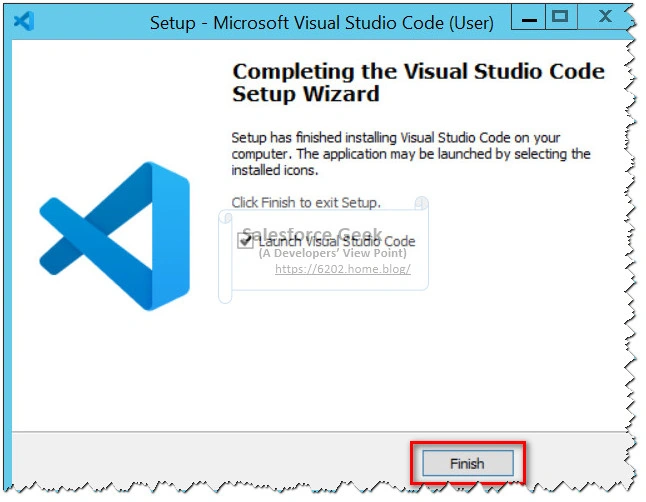
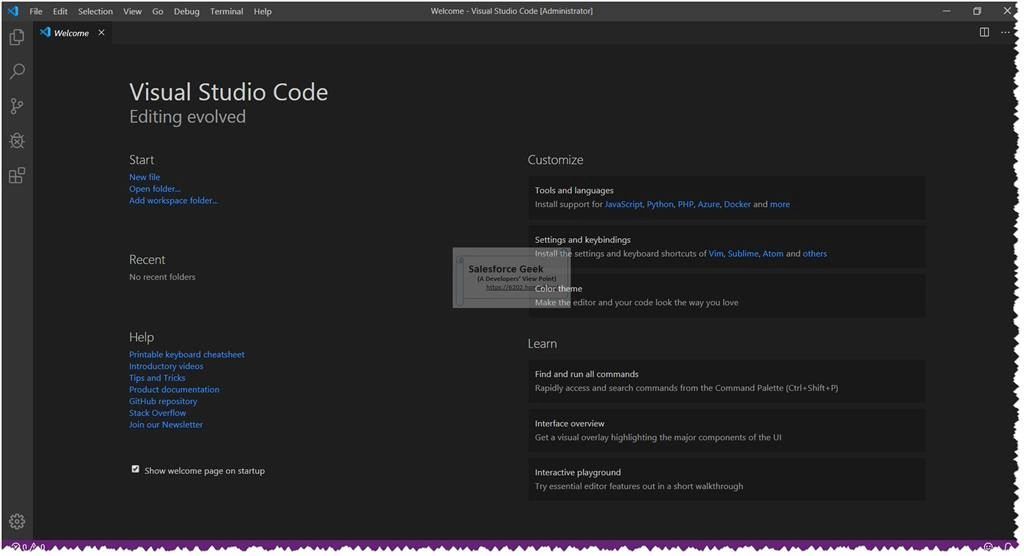
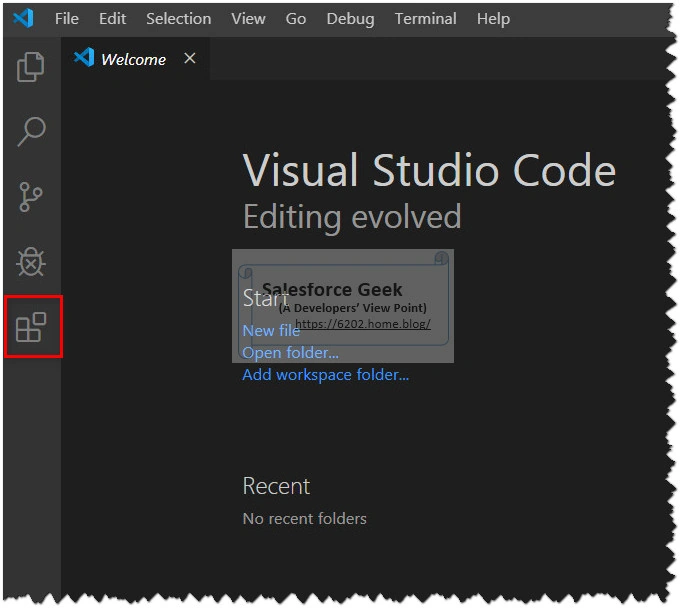
- Click Finish & Launch VS Code to make sure installation works just fine
Join the conversation! Your thoughts help the community grow.