

Overview
In this article, we will talk about the external sharing feature of Power BI. Sometimes, there are situations when we need to share our Power BI dashboard or Power BI report with external users. Power BI provides us with the facility to share the report with external users.
For external sharing, I prefer to share the report with an external user’s Microsoft account (Outlook or Live or any domain with a Microsoft account).
This article covers a step-by-step procedure to share the report with external users of your organization.
Let’s get started!
Step 1. Click on the "Share" icon from the report.

Step 2. Enter the email address of the external user and click on the "Share" button. You can add any message for your external user in the message text box. It is optional. I personally recommend adding a report link as a message.

Step 3. Your external user will receive an email notification.

Step 4. When your external user opens the email and clicks on “Go to Report”, it will be redirected to the login page.

Step 5. Enter the credentials. Once the authentication is successful, the user will be redirected to the Power BI Report.

Sometimes, it will prompt a message to upgrade to the Pro version.

Step 6. External users can view the report as shown in the following screen.

Stop External Users by Viewing the Report
- Power BI also provides the flexibility to stop sharing the report.
- To stop sharing, click on the "Share" icon of the report.
- Go to the Access tab. You will find a list of all the users with whom the report has been shared.
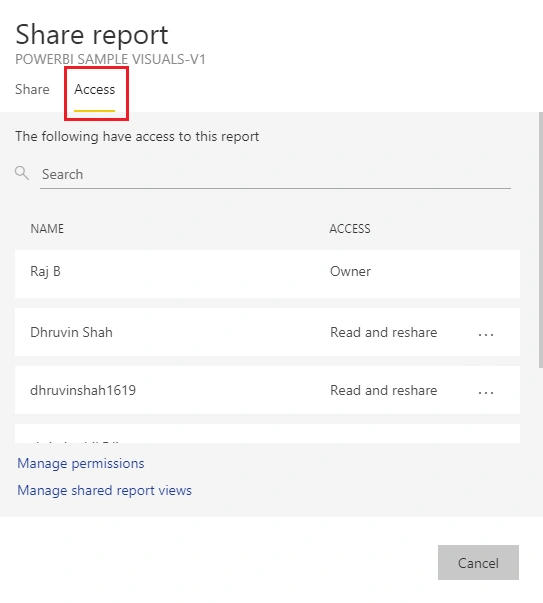
- Suppose, I want to remove access for any specific user, I will click on the ellipses (…) and select "Remove Access.

Conclusion
This is how we can grant/deny access to external users in Power BI.
Stay connected with me for more amazing articles!
Rushi MehtaPosted Nov 28, 2018, 9:08 PM
Nicely Explained in article