

In this article we are going to see how to show a message dialog in your Windows 10 apps on the Desktop and Mobile devices using C# and XAML. The MessageDialog class is available in Windows 10. We now have a Universal Windows Platform (UWP).
Create new Windows 10 UWP app and name it as you wish. Now go to Mainpage.Xaml and paste the following XAML code to create a button for showing message dialog.
- <StackPanel VerticalAlignment="Center" HorizontalAlignment="Center">
- <Button x:Name="Showbutton" Click="Showbutton_Click" Content="Show Message Dialog"/>
- </StackPanel>
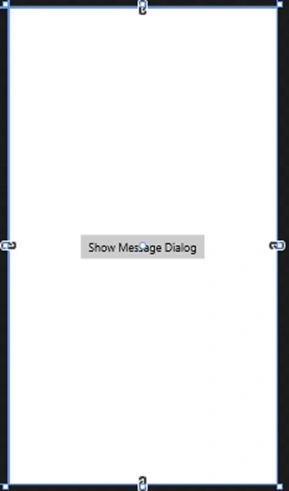
Now go to code behind page and write the following code on button click event.
- private async void Showbutton_Click(object sender, RoutedEventArgs e)
- {
- MessageDialog showDialog = new MessageDialog("Hi Welcome to Windows 10");
- showDialog.Commands.Add(new UICommand("Yes")
- {
- Id = 0
- });
- showDialog.Commands.Add(new UICommand("No")
- {
- Id = 1
- });
- showDialog.DefaultCommandIndex = 0;
- showDialog.CancelCommandIndex = 1;
- var result = await showDialog.ShowAsync();
- if ((int) result.Id == 0)
- {
- //do your task
- }
- else
- {
- //skip your task
- }
- }
Use ShowAsync() method to show the dialog and check the result containing command id and perform the yes or no task.
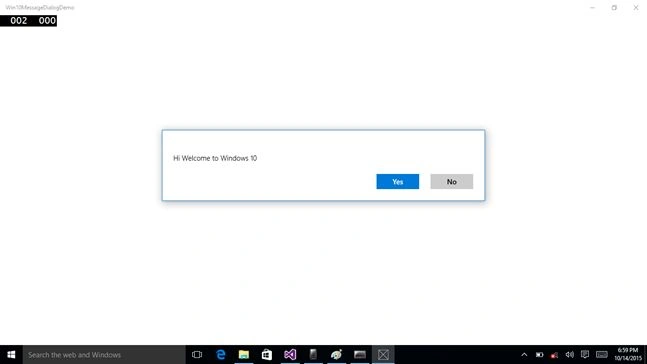
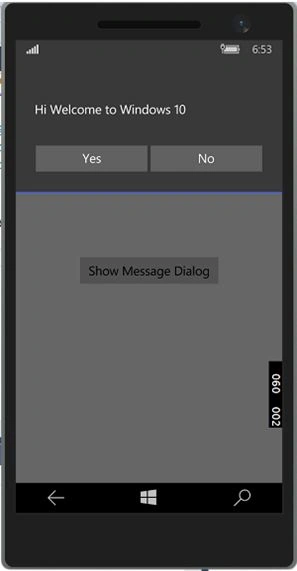
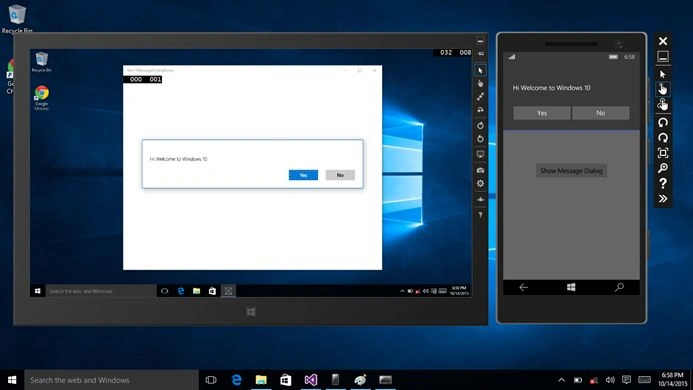
Now run your app with Local Machine, Mobile and Simulator to see the output as in the following image.
Local Machine
Mobile
Simulator
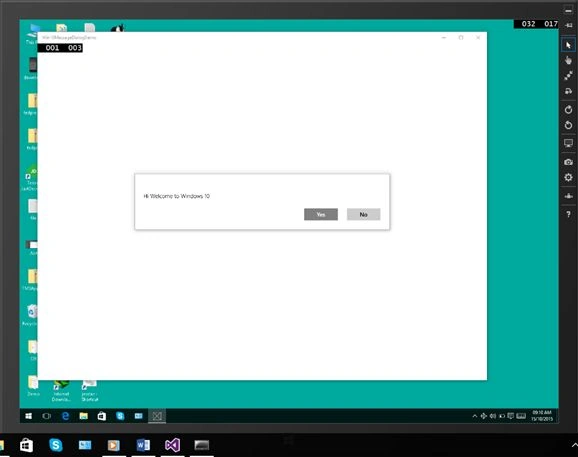
Simulator and Mobile
Source code.
Kumaresh RajalingamPosted Feb 19, 2016, 7:56 PM
good one
Kumaresh RajalingamPosted Feb 19, 2016, 7:56 PM
Nice explanation
Sr KarthigaPosted Feb 16, 2016, 9:57 PM
good explanation
Sr KarthigaPosted Feb 16, 2016, 9:57 PM
Nice one
Harshad PansuriyaPosted Oct 30, 2015, 1:49 AM
Nice one
Mohammed IbrahimPosted Oct 28, 2015, 9:25 AM
nice
Nilesh JadavPosted Oct 28, 2015, 8:30 AM
Good Share
Sibeesh VenuPosted Oct 28, 2015, 7:26 AM
Nice Share
Mukesh KumarPosted Oct 28, 2015, 5:12 AM
Nice One
Pramod KumarPosted Oct 28, 2015, 3:31 AM
Good Job