

Introduction
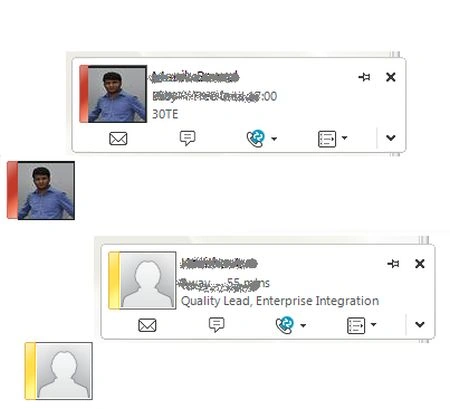
This Presence helps users to get in touch with their colleagues easily. A user can see more information about colleagues, like contact numbers, designation, departments without going to their personal page. Also it indicates the presence of a colleague whether he/she is available, away or offline.
Presentation
The presence awareness of SharePoint depends on a couple of different pieces of technology, all working together, namely:
- SharePoint
- Exchange
- Lync
- Active Directory
This is a very easy and straight-forward requirement for single users. What if you need to provide a presence indicator of more than one user? In thay case you need to be careful with some parameters in the code above. These are:
- The “id“must be unique and format must be like: “id="imn_716,type=sip"”.
- Provide an “alt” attribute value to the image.
- Provide a “src” attribute to the image.
- And of course be careful with the classes.
User Presence with Picture
Now in this article we will see how to display the OC or Lync Presence of a user on mouse hover on the picture of the user. In one of my articles we saw how to get my followers and of those I am following. In this article let's display users to whom I am following. You can use these snippets in Custom Web parts or Content Editor Web parts to show the respective user presence status.
- <span>
- <span class='ms-imnSpan'>
- <a href='#' onclick='IMNImageOnClick(event);return false;' class='ms-imnlink ms-spimn-presenceLink' >
- <span class='ms-spimn-presenceWrapper ms-imnImg ms-spimn-imgSize-10x10'>
- <img name='imnmark' title='' ShowOfflinePawn='1' class='ms-spimn-img ms-spimn-presence-disconnected-10x10x32' src= '/_layouts/15/images/spimn.png?rev=23' alt='User Presence' sip='[email protected]' id='imn_1,ty pe=sip' />
- </span>
- </a>
- </span>
- <span>
- <a href='#' onclick='IMNImageOnClick(event);return false;' class='ms-imnlink' tabIndex='-1'>
- <img name='imnmark' title='' ShowOfflinePawn='1' class=' ms-hide' src='/_layouts/15/images/spimn.png?rev=23' alt='Us er Presence' sip='[email protected]' id='imn_2,type=sip' /></a>Parth P
- </span>
- </span>
- Lync Presence: WithPictureDetailView
- <div>
- <div class="ms-tableRow">
- <div>
- <span class='ms-imnSpan'>
- <a href='#' onclick='IMNImageOnClick(event);return false;' class='ms-imnlink ms-spimn-presenceLink' >
- <span class='ms-spimn-presenceWrapper ms-imnImg ms-spimn-imgSize-10x10'><img name='imnmark' title='' ShowOfflinePaw n='1' class='ms-spimn-img ms-spimn-presence-disconnected-10x10x32' src='/_layouts/15/images/spimn.png?rev=23' alt=' User Presence' sip='[email protected]' id='imn_661,type=sip' /></span>
- </a>
- </span></span>
- </div>
- <div class="ms-tableCell ms-verticalAlignTop">
- <div class="ms-peopleux-userImgDiv"><span class="ms-imnSpan"><a href='#' onclick='IMNImageOnClick(event);return false;' class='ms-imnlink' tabIndex='-1'><img name='imnmark' title='' ShowOfflinePawn='1' class=' ms-hide' src='/_layouts/15/images/spimn.png?rev=23' alt='User Presence' sip='[email protected]' id='imn_3452,type=sip' /></a><span><img style="width:62px; height:62px; border:none" src="http://www.bing.com" alt=" Ram" /></span></span></span></div></div><div class="ms-tableCell ms-peopleux-userdetails ms-noList"><ul style="max-width:150px"><li><div class="ms-noWrap"><span><a href='#' onclick='IMNImageOnClick(event);return false;' class='ms-imnlink' tabIndex='-1'><img name='imnmark' title='' ShowOfflinePawn='1' class=' ms-hide' src='/_layouts/15/images/spimn.png?rev=23' alt='User Presence' sip='[email protected]' id='imn_34523,type=sip' /></a> Parth P</span></div></li></ul></div>
- </div>
- </div>
Step 1: Navigate to your SharePoint 2013 site.
Step 2: From this page select "Site Actions" | "Edit Page".
Edit the page, go to the "Insert" tab in the Ribbon and click the "Web Part" option. In the "Web Parts" picker area, go to the "Media and Content" category, select the "Script Editor" Web Part and press the "Add button".
- <script type="text/javascript">
- function showPresencePeople(followed) {
- var htmlStr = "";
- ClientContext context = new Microsoft.SharePoint.Client.ClientContext(“http://SPSite”);
- GroupCollection groupCollection = context.Web.SiteGroups;
- context.Load(groupCollection,
- groups = > groups.Include(
- group = > group.Users));
- context.ExecuteQuery();
- foreach (Group group in groupCollection)
- {
- UserCollection userCollection = group.Users;
- foreach (User userObj in userCollection)
- {
- var userName = userObj.get_name();
- var userSiteUri = userObj.get_personalSiteUri();
- var userId = userObj.get_id();
- var userPictureUri = userObj.get_imageUri();
- var userEmailAddress = userObj.get_emailAddress();
- if (userPictureUri == null) {
- var picsStr = '<span class="ms-imnSpan"><a href="#" onclick="IMNImageOnClick(event);return false;" class="ms-imnlink ms-spimn-prese nceLink" ><span class="ms-spimn-presenceWrapper ms-spimn-imgSize-8x72"><img onload="IMNRC(\'' + userEmailAddress + '\')" name="imnmark" title="' + userName + '" ShowOfflinePawn= "1" class="ms-spimn-img ms-spimn-presence-disconnected-8x72x32" src="/_layouts/15/images/spimn.png?rev=23" alt="' + userName + '" sip="' + userEmailAddress + '" id="imn_' + i + ',type=sip" /></span></a></span></span><span class="ms-imnSpan"><a href="#" onclick="IMNImageOnClick(event);return false;" class="ms-imnlink" tabIndex="-1"><img onload="IMNRC(\'' + userEmailAddress + '\')" name="imnmark" title="T_' + userName + '" ShowOfflinePawn="1" class=" ms-hide" src="/_layouts/15/images/spimn.png?rev=23" alt="A' + userName + '" sip="' + userEmailAddress + '" id="simn_' + i + ',type=sip" /></a><span class="ms-peopleux-imgUserLink"><span class="ms-peopleux-userImgWrapper" style="width:72px; height:72px"><a href="' + userSiteUri + '"><img style="min-width:72px; min-height:72px; clip:rect(0px, 72px, 72px, 0px); max-width:72px" src="/_layouts/15/images/PersonPlaceholder.200x150x32.png" alt="' + userName + '" /></a></span></span></span>';
- }
- else {
- var picsStr = '<span class="ms-imnSpan"><a href="#" onclick="IMNImageOnClick(event);return false;" class="ms-imnlink ms-spimn-prese nceLink" ><span class="ms-spimn-presenceWrapper ms-spimn-imgSize-8x72"><img onload="IMNRC(\'' + userEmailAddress + '\')" name="imnmark" title="' + userName + '" ShowOfflinePawn= "1" class="ms-spimn-img ms-spimn-presence-disconnected-8x72x32" src="/_layouts/15/images/spimn.png?rev=23" alt="' + userName + '" sip="' + userEmailAddress + '" id="imn_' + i + ',type=sip" /></span></a></span></span><span class="ms-imnSpan"><a href="#" onclick="IMNImageOnClick(event);return false;" class="ms-imnlink" tabIndex="-1"><img onload="IMNRC(\'' + userEmailAddress + '\')" name="imnmark" title="T_' + userName + '" ShowOfflinePawn="1" class=" ms-hide" src="/_layouts/15/images/spimn.png?rev=23" alt="A' + userName + '" sip="' + userEmailAddress + '" id="simn_' + i + ',type=sip" /></a><span class="ms-peopleux-imgUserLink"><span class="ms-peopleux-userImgWrapper" style="width:72px; height:72px"><a href="' + userSiteUri + '"><img style="min-width:72px; min-height:72px; clip:rect(0px, 72px, 72px, 0px); max-width:72px" src="' + userPictureUri + '" alt="' + userName + '" /></a></span></span></span>';
- }
- htmlStr += picsStr;
- }
- }
- $('#followedDiv').html(htmlStr);
- }
- </script>
- <div id=" followedDiv'"></div>
If you are rendering a presence for multiple/single users using the preceding snippets, ensure you:
- Set the email id, image source and alt property accordingly
- Id property always has unique value
- Opening and closing tags are managed properly.
Murtuza HusainPosted Sep 4, 2015, 9:14 AM
does this work even on html structure created using angular js ? I have tried it ...but I get the status always online. does not get yellow or red
Gowtham RajamanickamPosted Apr 9, 2015, 5:10 AM
great one sagar
Kaviya BalasubramanianPosted Apr 8, 2015, 6:03 AM
Its working like a charm. Thanks for the Great Article sagar.