

When you have a massive Word document to deal with, you can always split the document into small pieces and distribute them to multiple colleagues. After everyone has finished editing, all you need to do is merge these documents into a single document. To do so, you can effectively shorten the time limit for the project. In this article, I am going to introduce how to split or merge Word documents by using Spire.Doc for Java.
Add Spire.Doc.jar as dependency
If you create a Maven project, you can easily import the jar in your application using the following configurations. For non-Maven projects, please download the jar file from this link and manually add it as a dependency in your applicaition.
- <repositories>
- <repository>
- <id>com.e-iceblue</id>
- <name>e-iceblue</name>
- <url>http://repo.e-iceblue.com/nexus/content/groups/public/</url>
- </repository>
- </repositories>
- <dependencies>
- <dependency>
- <groupId> e-iceblue </groupId>
- <artifactId>spire.doc</artifactId>
- <version>3.8.8</version>
- </dependency>
- </dependencies>
Example 1. Split document by section break
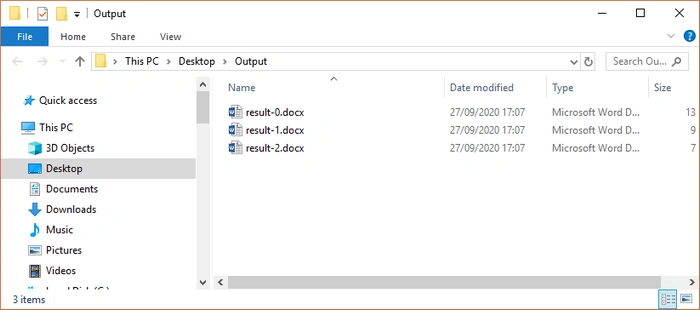
Spire.Doc provides the Document.getSectionsmethod, allowing programmers to easily access all sections within a document. Loop through these sections, get the specific one, and add its clone to a new document. The above steps will produce a sub-document.
Before you use this method to split document, make sure your document has multiple sections. Otherwise, it won’t work. In addition, Spire also supports splitting document by page break. If you’re interested, try it yourself.
- import com.spire.doc.Document;
- public class SplitWordBySection {
- public static void main(String[] args) {
- //Create a Document object
- Document document = new Document();
- //Load a source document that contains multiple sections
- document.loadFromFile("C:\\Users\\Administrator\\Desktop\\sections.docx");
- //Declare a new Document variable
- Document newWord;
- //Loop through sections in the source document
- for (int i = 0; i < document.getSections().getCount(); i++) {
- //Initialize the Document object
- newWord = new Document();
- //Copy the specific section from source document into new document
- newWord.getSections().add(document.getSections().get(i).deepClone());
- //Save the new document to the specified folder
- newWord.saveToFile(String.format("C:\\Users\\Administrator\\Desktop\\Output\\result-%d.docx", i));
- }
- }
- }
Output
Example 2. Merge documents by inserting content into a new page
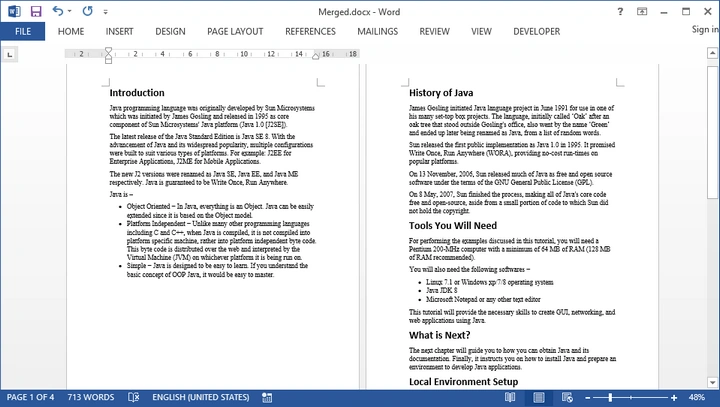
When you merge one document into another, you may want the content to be added to a new page instead of the last paragraph of the parent document. The Document.insertTextFromFile method allows you to accomplish this job easily.
- import com.spire.doc.Document;
- import com.spire.doc.FileFormat;
- public class MergeDocuments {
- public static void main(String[] args) throws Exception {
- //Get the paths of the files that you want to merge
- String[] filePaths = new String[] {
- "C:\\Users\\Administrator\\Desktop\\Documents\\sample_1.docx",
- "C:\\Users\\Administrator\\Desktop\\Documents\\sample_2.docx",
- "C:\\Users\\Administrator\\Desktop\\Documents\\sample_3.docx"
- };
- //Create a Document object and load the first Word document
- Document document = new Document(filePaths[0]);
- //Loop through the rest documents
- for (int i = 1; i < filePaths.length; i++) {
- //Insert the certain document to the first document
- document.insertTextFromFile(filePaths[i], FileFormat.Docx_2013);
- }
- //Save the document
- document.saveToFile("C:\\Users\\Administrator\\Desktop\\MergedDocument.docx", FileFormat.Docx_2013);
- }
- }
Output
Example 3. Merge documents by inserting content behind the last paragraph
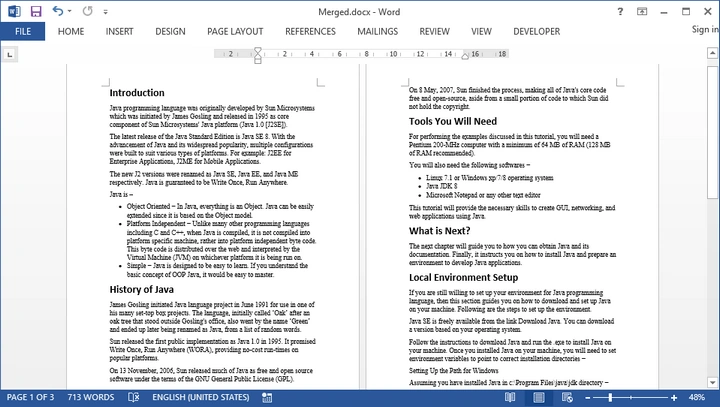
Apart from inserting content to a new page, you can insert content right behind the last paragraph of the previous document, so that the merged document appears to be continuous in content.
In the example 1,we already know how to access sections of a document. Under section, there is a more detailed division, which is child object. What we need to do is to get all the child objects of the current document and add them to the last section of the parent document. Remember to update the lastSection object dynamically, because each time we merge one document into the parent document, the lastSection changes.
- import com.spire.doc.Document;
- import com.spire.doc.DocumentObject;
- import com.spire.doc.FileFormat;
- import com.spire.doc.Section;
- public class MergeDocuments {
- public static void main(String[] args) throws Exception {
- //Get the paths of the files that you want to merge
- String[] filePaths = new String[] {
- "C:\\Users\\Administrator\\Desktop\\sample_1.docx",
- "C:\\Users\\Administrator\\Desktop\\sample_2.docx",
- "C:\\Users\\Administrator\\Desktop\\sample_3.docx"
- };
- //Create a Document object and load the first Word document
- Document firstDocument = new Document(filePaths[0]);
- //Get last section of the first document
- Section lastSection = firstDocument.getLastSection();
- //Delare another document object
- Document otherDocument;
- //Loop through the rest documents
- for (int i = 1; i < filePaths.length; i++) {
- //Load the specific document
- otherDocument = new Document(filePaths[i]);
- //Loop through sections of a certain document
- for (Object section: otherDocument.getSections()) {
- //Loop through child objects of a certain section
- for (Object childObj: ((Section) section).getBody().getChildObjects()) {
- //Add child object to the last section of the first document
- lastSection.getBody().getChildObjects().add(((DocumentObject) childObj).deepClone());
- }
- }
- //Update the lastSection object
- lastSection = lastSection.getDocument().getLastSection();
- }
- //Save the first document to another file
- firstDocument.saveToFile("C:\\Users\\Administrator\\Desktop\\MergedDocument.docx", FileFormat.Docx_2013);
- }
- }
Output
Thank you for taking the time to read this article. Happy coding!
Join the conversation! Your thoughts help the community grow.