

Xamarin is a free cross platform mobile Application development tool, using C#. We can create native iOS, Android and Windows apps , using Xamarin tools.
Let’s see the steps
Start a new instance of Visual Studio 2015 and go to File-> New -> Project, select blank Android under Visual C# Templates, as shown below.
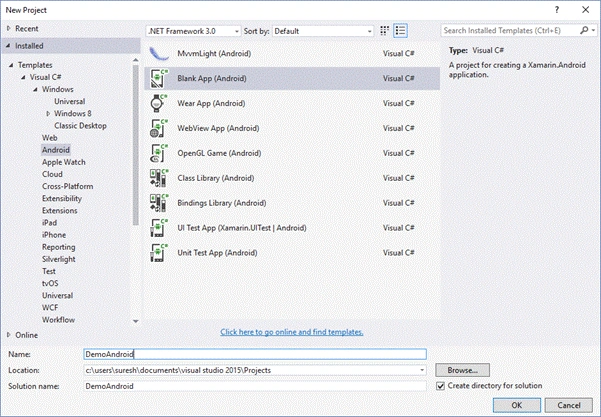
By default, the Application contains the folder structure, mentioned below.
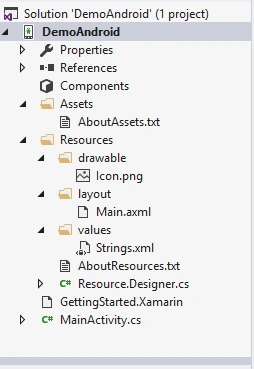
Assets Folder
It contains the files (text,json.etc.) required by your Application.
Resource Folder
Resource folder contains the Application resources such as strings, images and layouts.
Here, I am going to show you how to add one button and change the button text when the user clicks the button.
Open Main.axml file in your project and add one button. You can directly drag and drop the button from the tools or go to source view and add the button, using the code, mentioned below.
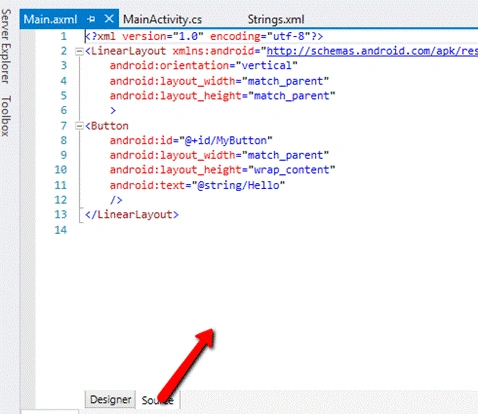
You can directly write the button text or getting from Strings.xml file. Here, I am referring to the button text from Strings.xml file.
Now, go to MainActivity.cs file and write the code, mentioned below to change the button text.
- [Activity(Label = "DemoAndroid", MainLauncher = true, Icon = "@drawable/icon")]
- public class MainActivity: Activity
- {
- protected override void OnCreate(Bundle bundle) {
- base.OnCreate(bundle);
- // Set our view from the "main" layout resource
- SetCotentView(Resource.Layout.Main);
- // Get our button from the layout resource,
- // and attach an event to it
- Button button = FindViewById < Button > (Resource.Id.MyButton);
- button.Click += delegate {
- button.Text = "Welcome to C# Corner";
- };
- }
- }
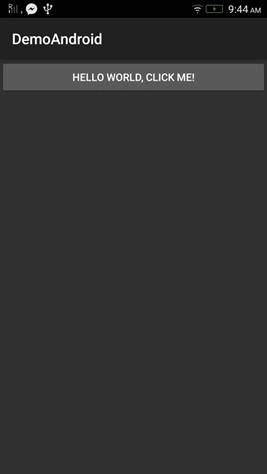
Now, run the Application and see the output, as shown below. We can deploy the Application, using Emulator or directly to the device.

Join the conversation! Your thoughts help the community grow.