

Introduction
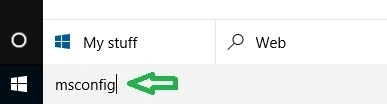
Stretch the Cortana search on your screen. In the text search field, type the phrase msconfig.
 Step 2
Figure 1: Search Box
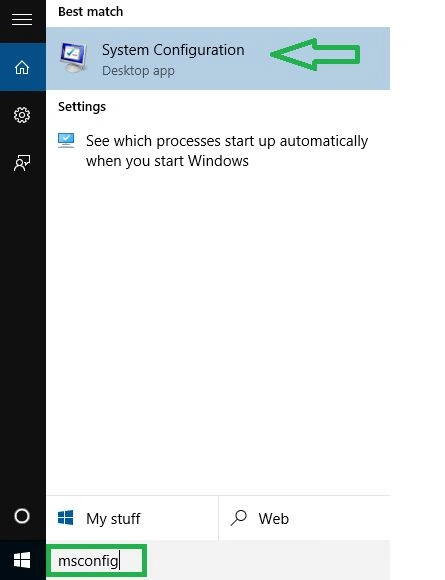
Now, cast your look at the topmost part of the Cortana bar and you can see System Configuration with the Desktop app written underneath. Click on it.
 Step 3
Figure 2: Msconfig in the Cortana search field.
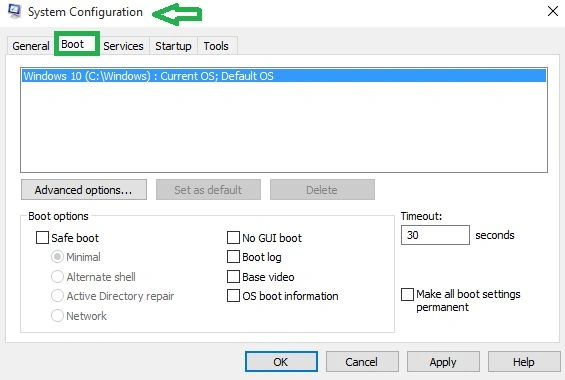
Upon the arrival of the System Configuration window, take your attention to the Boot tab.
 Step 4
Figure 3: System Configuration - Boot tab
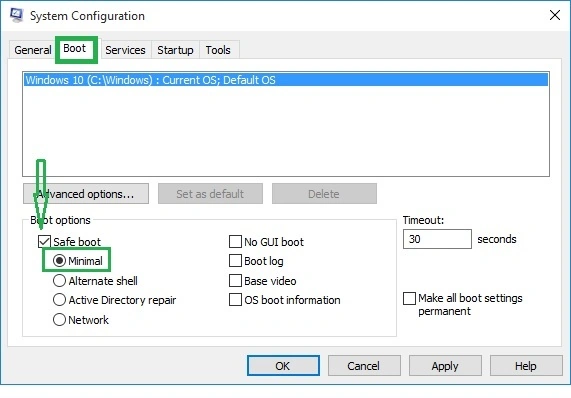
Make your way to the last section, Boot options. Clear off the Safe Boot cell.
 Step 5
Figure 4: Clear off Safe Boot Cell under Boot options
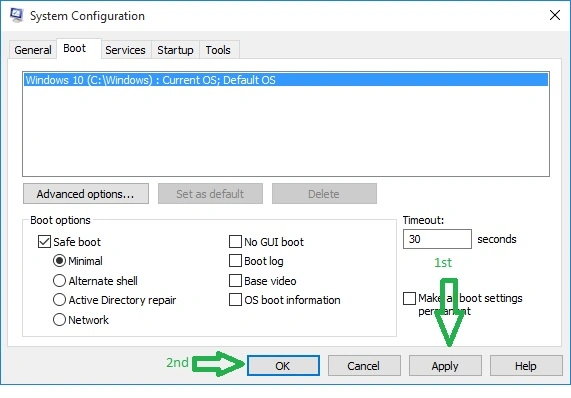
Finally, to bring the changes, click Apply and Ok buttons.
 Step 6
Figure 5: Apply Settings
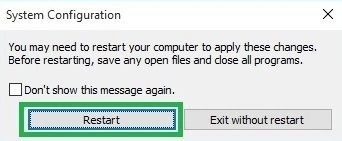
A separate dialog box will pop up saying you should save your work before you get out and have to reboot your system now in order to implement the changes. Click Restart.
 Give this a shot and see how to start or boot Windows 10 in Safe Mode. Many users unknowingly get trapped by the malicious sites and end up getting into the safe mode.
This article shows how to start or boot Windows 10 in Safe Mode.
Give this a shot and see how to start or boot Windows 10 in Safe Mode. Many users unknowingly get trapped by the malicious sites and end up getting into the safe mode.
This article shows how to start or boot Windows 10 in Safe Mode.
Figure 6: Restart the system now
Banketeshvar NarayanPosted Nov 15, 2015, 5:43 AM
Nice Share
Santhakumar MunuswamyPosted Nov 11, 2015, 10:45 AM
Good one
Gopi ChandPosted Nov 5, 2015, 6:00 AM
Nice one :)
Sibeesh VenuPosted Nov 4, 2015, 11:23 PM
Nice Share
Harshad PansuriyaPosted Nov 4, 2015, 11:08 PM
Nice one