

Introduction
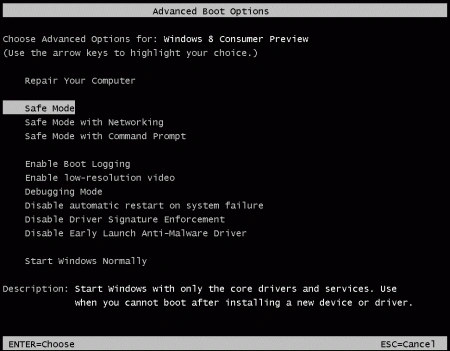
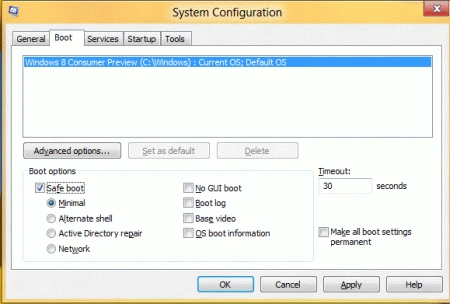
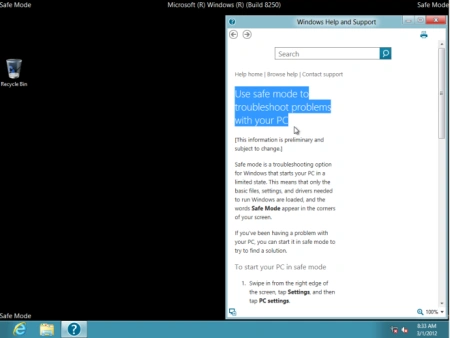
In this article, we are explaining how to enable Windows 8 Safe Mode. A safe Mode is a troubleshooting option for Windows that starts your PC in a limited state. In Windows 8 Consumer Preview, you can start in Safe Mode but the process of activating the Safe Mode is different. Safe Mode is a diagnostic mode that loads a set of drivers and processes sufficient to run Windows. If an existing problem does not reappear when you start in safe mode, you can eliminate the default settings and basic device drivers as possible causes. Windows 8 provides system repair utilities such as System Refresh and System Restore.
We are bringing you extensive coverage of all the new features in Microsoft's latest operating system With the release of Microsoft Windows 8 Consumer Preview. One of the most common steps when troubleshooting a PC is to boot into safe mode. This is achieved by pressing the F8 key for a long time; this all changes with Windows 8 and its Automatic Repair mode. You can still manually access the recovery options by pressing the Shift+F8 key combination.
Steps to start Safe Mode in Windows 8
Step 1. Click on Start and open the Metro apps screen; now click on Search as shown below.

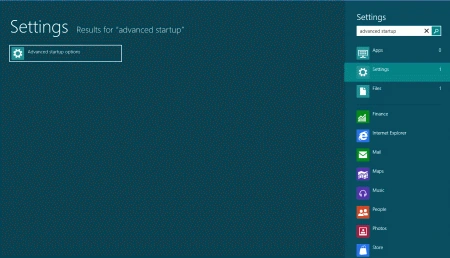
Step 2. You move the mouse to the bottom-right and type "advanced startup" in the search box under the settings tab highlighted; now click and open the advanced startup option.
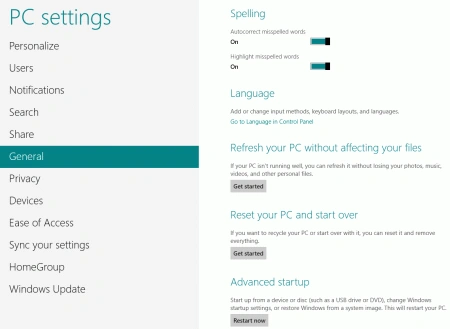
Step 3. Click on the RESTART Button NOW, under the advanced startup.
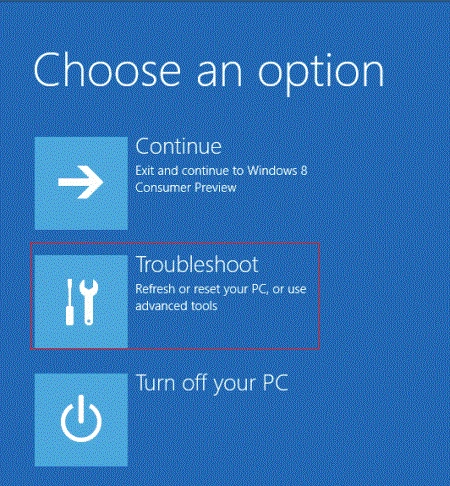
Step 4. After clicking on the Restart Button, choose to troubleshooting option.
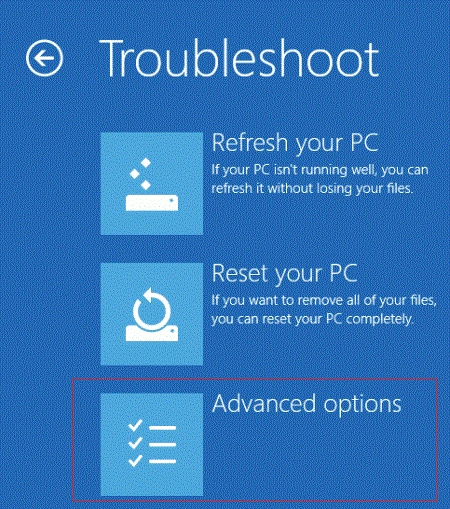
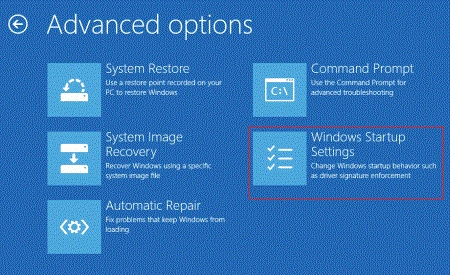
Step 5. Click on the advanced option.
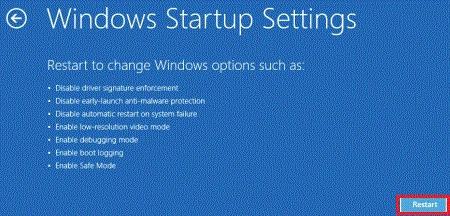
Step 6. Click on the Windows startup settings.
Join the conversation! Your thoughts help the community grow.