Staying organized is crucial, especially when juggling multiple tasks and meetings. Microsoft Teams Calendar offers an efficient way to manage your schedule, track deadlines, and ensure that you never miss an important meeting or task. Below is a step-by-step guide on how to use Microsoft Teams Calendar to its fullest potential, including syncing with Outlook, setting reminders, and tracking deadlines.
Step 1. Syncing with Outlook Calendar for Seamless Scheduling.
The first step to organizing your schedule effectively in Microsoft Teams is syncing it with your Outlook Calendar. This integration ensures that any meeting or event scheduled in Outlook automatically appears in your Teams Calendar and vice versa.
How to Sync?
- Ensure both your Teams and Outlook are connected through your Microsoft 365 account.
- Any meeting scheduled in Outlook will automatically appear in Teams, making it easy to manage everything in one place.
- Similarly, meetings scheduled in Teams will show up in your Outlook Calendar. This seamless connection eliminates the need to switch between platforms, ensuring you never miss an event.
Step 2. Schedule a Meeting in Teams.
With your calendars synced, you can now schedule meetings directly in Microsoft Teams. Teams allow you to create new meetings, invite attendees, and set recurrence for regular meetings.
How to Schedule?
- Go to the Calendar tab in Teams.

- Click on New Meeting to schedule a meeting.
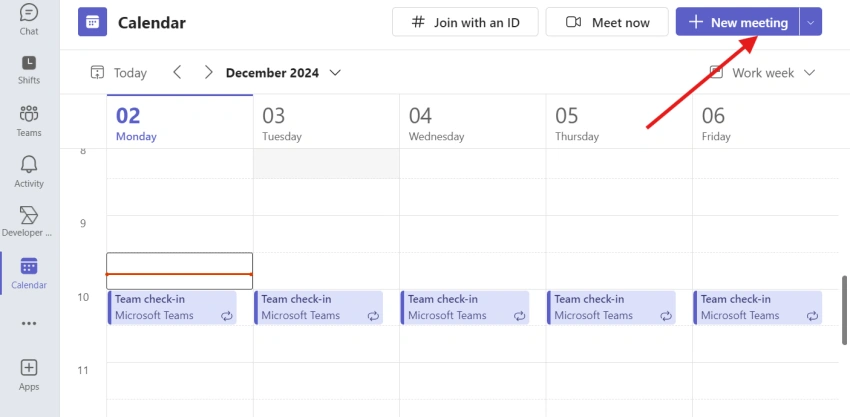
- Add a meeting title, set the date and time, and invite participants.
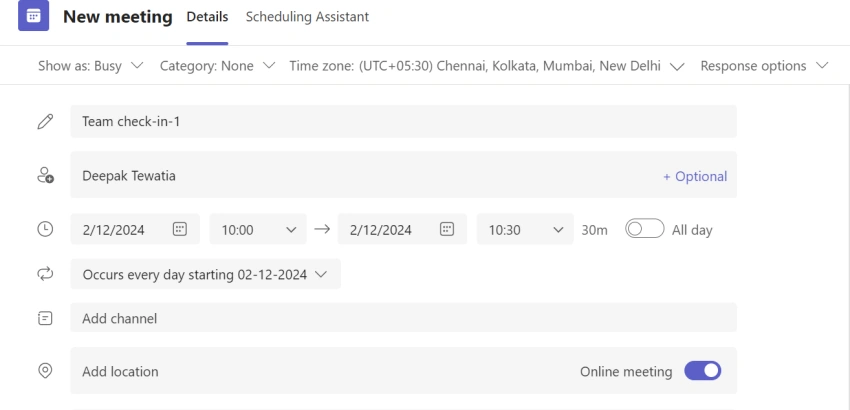
- You can also choose to set the meeting as recurring (daily, weekly, etc.), ensuring that regular events are added automatically.
Once you save the meeting, it will appear in both your Teams and Outlook calendars.
Step 3. Set Reminders for Meetings and Follow-Ups
To stay on track, setting reminders is essential. Microsoft Teams allows you to set reminders for your meetings so you’re notified ahead of time. You can also set follow-up reminders after meetings to make sure you take necessary actions or complete the tasks discussed.
How to Set Reminders?
- When scheduling a meeting, you can select the reminder option and set a time (e.g., 15 minutes or 30 minutes before the meeting).
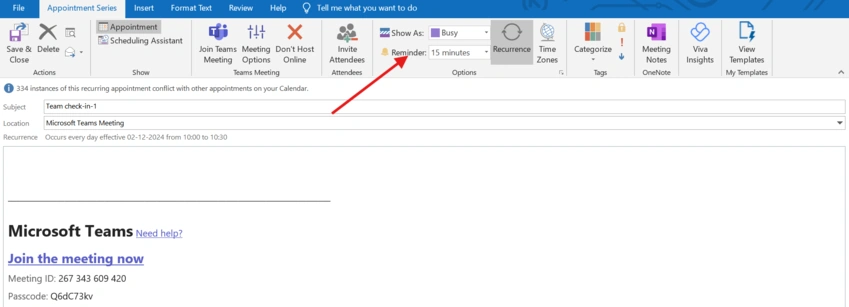
- For follow-ups, you can add reminders after the meeting to check on action items or ensure that tasks are completed.
This feature helps you stay prepared and ensures nothing is forgotten.
Step 4. Use Agenda View for Better Daily Planning.
To keep track of your meetings for the day, Teams offers an Agenda View. This view shows all your meetings in a simple, list-style format, making it easy to plan your day.
How to Access Agenda View?
- In the Teams Calendar, select the Agenda tab at the top of the page.
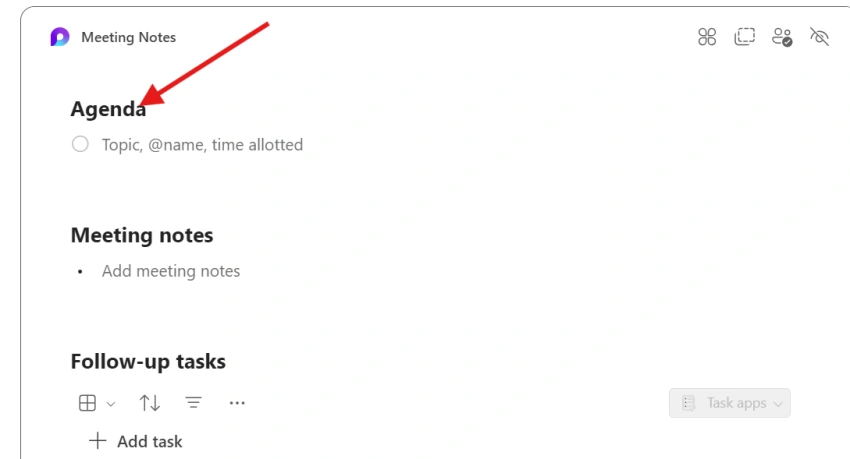
- The Agenda View will display a list of all your meetings for the day, allowing you to see your schedule at a glance.
This view helps you stay focused by giving you an easy overview of your meetings.
Step 5. Share Your Calendar with Your Team.
Sharing your calendar with your colleagues or team members can help everyone stay on the same page. It allows others to see your availability, reducing the risk of scheduling conflicts.
How to Share Your Calendar?
- Open a meeting in your Teams Calendar.
- Click on the Share button to share the event details.
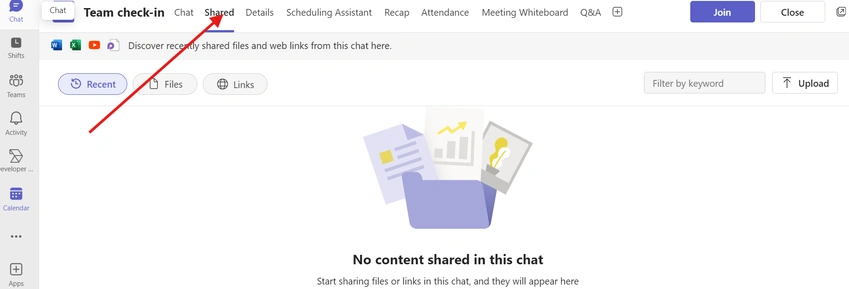
- Choose who you’d like to share it with and select whether they can only view or also edit your calendar.
Sharing your calendar makes scheduling easier for everyone, ensuring better communication and collaboration.
Step 6. Join Meetings Directly from the Calendar.
Once your meeting is scheduled, joining it is easy. Teams allow you to join meetings directly from the calendar with just one click.
How to Join?
- Open the Calendar in Teams.
- Find the meeting you want to join and click on it.
- When the meeting time arrives, click the Join button.
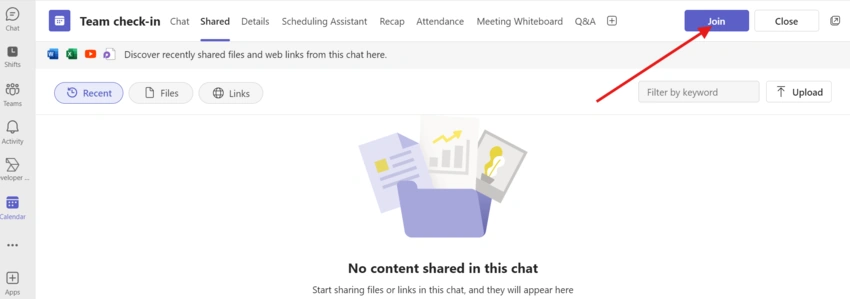
This eliminates the hassle of searching for meeting links and ensures you’re always ready to join your meetings on time.
Step 7. Color-Code Your Meetings.
Another helpful feature in Teams is the ability to color-code your meetings. This helps you quickly identify different types of events in your calendar.
How to Color-Code?
- When creating a meeting, you can select a color for the event based on its type (e.g., blue for team meetings, green for client calls).
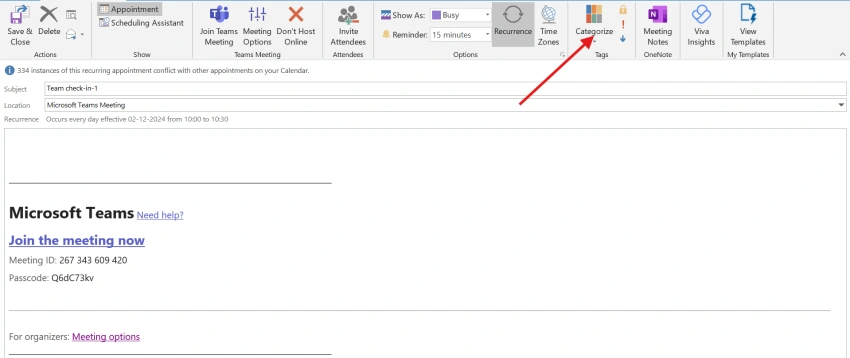
- This visual organization helps you distinguish between different kinds of meetings and prioritize your day accordingly.
Color-coding your calendar can help you stay organized and reduce confusion when managing various events.
Step 8. Track Deadlines and Important Dates in Teams.
Microsoft Teams Calendar isn’t just for meetings; it’s also useful for tracking deadlines and important dates. You can schedule deadlines for tasks, project milestones, or personal events directly in Teams.
How to Track Deadlines?
- When scheduling a meeting or event, add any important dates or deadlines to the calendar description.
- You can also set reminders for recurring deadlines to stay on top of long-term tasks and milestones.
By incorporating deadlines into your Teams Calendar, you’ll ensure that you meet your goals and stay on track with important projects.
Step 9. Sync Personal Calendars with Teams.
To fully manage your time, sync your personal calendar with Teams. This way, you’ll see both your work and personal events in one place.
How to Sync?
- Connect your personal calendar (e.g., Google Calendar, Apple Calendar) to your Outlook account.
- Once synced, your personal events will appear in your Teams Calendar, giving you a unified view of your schedule.
Syncing personal events with Teams helps you avoid scheduling conflicts between work and personal commitments.
Step 10. Maximize the Calendar Feature for Better Organization.
Now that you’re familiar with the Teams Calendar’s key features, here’s how to focus on utilizing the calendar effectively:
- Syncing with Outlook Calendar: By syncing Teams with Outlook, you can seamlessly schedule meetings, appointments, and events, ensuring you never miss a thing.
- Setting Reminders and Follow-Ups: Set automatic reminders for meetings, deadlines, and follow-ups to stay on top of your tasks and responsibilities.
- Tracking Deadlines and Important Dates: Use Teams to track not just meetings but also important deadlines and dates, helping you stay organized and productive.
By focusing on these features, you’ll have a more organized schedule, avoid missed deadlines, and stay prepared for every meeting or task.
Conclusion
Microsoft Teams Calendar is an excellent tool for staying organized, whether you’re managing meetings, deadlines, or personal events. By syncing with Outlook, setting reminders, color-coding your meetings, and tracking deadlines, you can maximize your productivity and ensure you never miss an important event. By following this step-by-step guide, you’ll be able to make the most of the Teams Calendar and keep your schedule running smoothly.


Join the conversation! Your thoughts help the community grow.