

Introduction
Not all of us have a Mac computer, which allows us to use the iOS simulator to test our own Xamarin app. Run the app during the build process is very important and we cannot leave a platform without testing it.
Xamarin allows us to code in C just once and then deploy on the three platforms (Windows, iOS and Android), but without a Mac, the iOS environment might give us some problems.
In Visual Studio, where Xamarin is installed, we have the Xamarin Mac Agent that allows you to run iOS Simulator. For commercial choice of Apple, the iOS app build and deploy process must pass through a Mac machine, so if you have a Windows machine, you need either a Mac or a Mac Cloud Service.
We can solve the lack of a physical Mac machine with a Mac Cloud Service. There are many of those (take a look at the Web with your favorite browser), but, in this tutorial, I’ll use MacinCloud (https://www.macincloud.com) and Visual Studio 2017 Community Edition.
Now, let me show you how to test a Xamarin.Forms Application in iOS environment without having a Mac.
Prerequisites
- Visual Studio 2017 with Xamarin.
- A credit card or a Paypal account.
The steps given below will lead you to the goal.
Step 1
- Launch Visual Studio and create a default Application. For the purpose of this tutorial, there is no reason to change the auto-generated code.
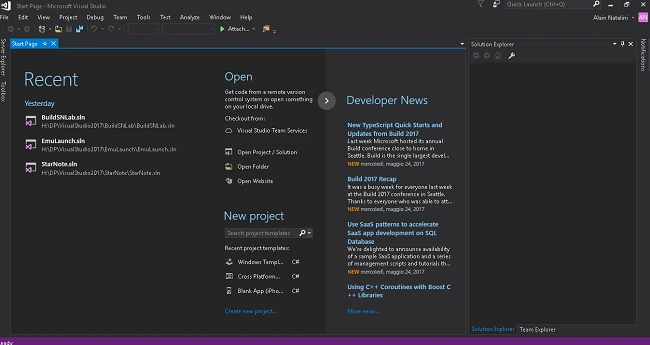
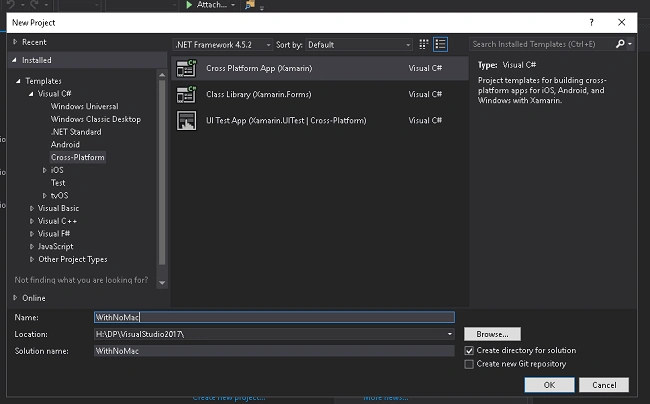
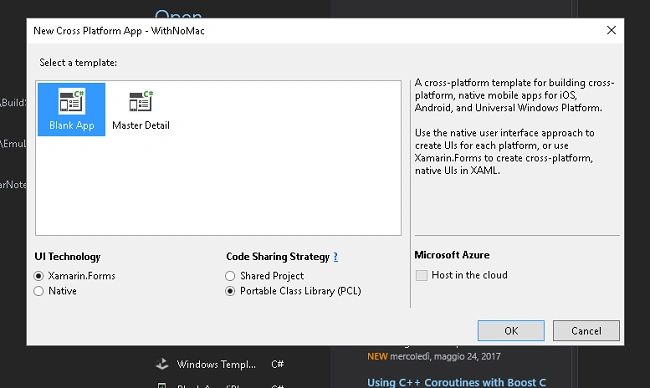

Step 2
- Now, you have to check all the settings to build and deploy the project. To do this, you must set as startup project (right click on it) and make sure it is selected in Configuration Manager.


Step 3
- Now, you need to think about the Mac Cloud Service. As I said earlier, I’ll use MacinCloud.
Connect with the Website, choose the appropriate solution and remember to check the Remote Build Port - SSH AddOn to allow you to use Xamarin Mac Agent.


Step 4
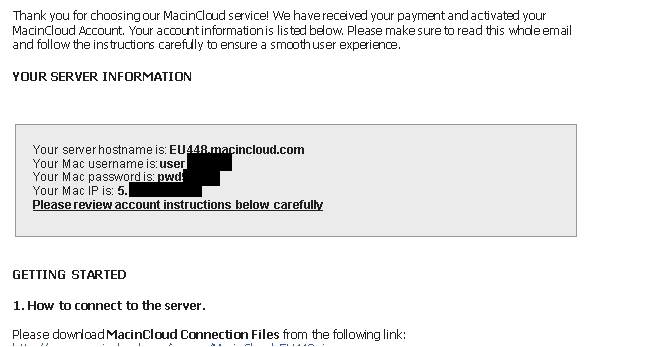
- When you have completed the registration, you’ll receive an email with the login credentials and the Mac IP. Follow the instructions listed in it to get the first access to your virtual Mac machine.


Step 5
- Now, you need to connect your Xamarin Mac Agent to your virtual Mac machine to be able to test your Xamarin.Forms app in iOS environment. To do this, follow the next steps and remember the login credentials, which you received via email after the registration at MacinCloud.


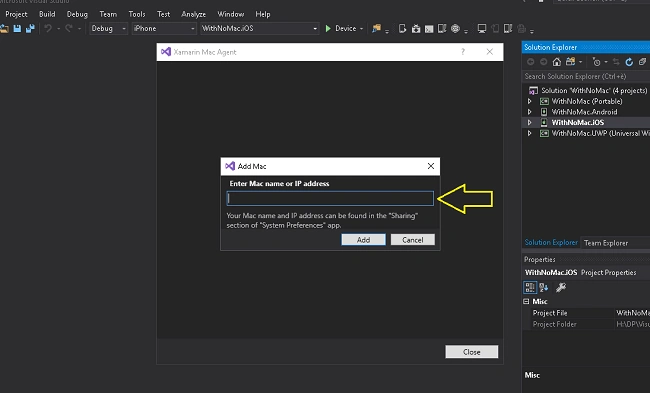
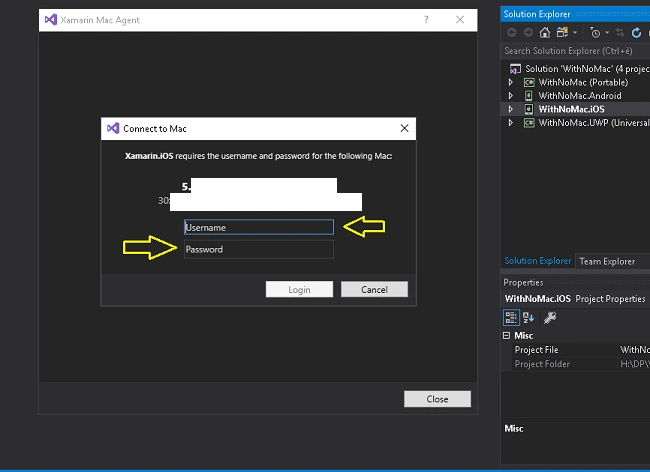
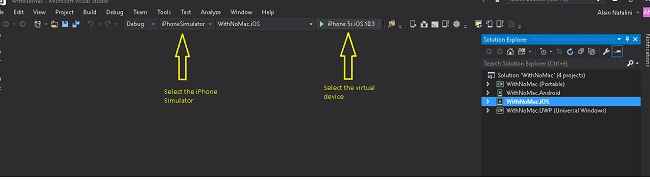
Step 6
Your MacAgent is enabled and correctly configured. Press CTRL + F5 and you will see your Xamarin.Forms Application run in iOS Simulator.
Conclusions
This article shows you how to complete the test of your own app also in iOS environment without a physical Mac machine.
This is a real opportunity to use Xamarin.Forms powers with the aim to deploy your Application in all the three mobile platforms.
Thank you for your interest and your attention
Neelam PrajapatiPosted Apr 18, 2018, 12:25 AM
Great tutorial..but its paid and very cost;y for practice purpose.do u know any free solution???
Vaibhav PatilPosted Jun 11, 2017, 3:29 AM
Great tutorial. But not everyone is credit card or paypal account holder like students. Can you post tutorial with mac agent in virtual machine or something ? Thanks in advance.