

Introduction
In this article, I will walk you through the process of testing SharePoint Online REST APIs using the POSTMAN tool.
Step 1
Go to https://<YourSharePointCollectionURL>/_layouts/15/appregnew.aspx to register a new Sharepoint app. Follow the steps as shown in the screenshot below.
For example - https://contoso.sharepoint.com/sites/ContosoTeamSite/_layouts/15/appregnew.aspx

Step 2
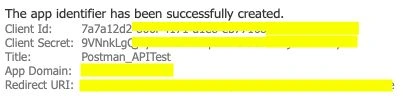
Once the Client Id & Client Secret are generated successfully, you will be redirected to a new page as shown in the screenshot below with your app details. Note down the Client Id and Client Secret values. We will be using them in the next steps.
Step 3
To grant permission to your app go to https://<YourSharePointCollectionURL>/_layouts/15/appinv.aspx
For example- https://contoso.sharepoint.com/sites/ContosoTeamSite/_layouts/15/appinv.aspx
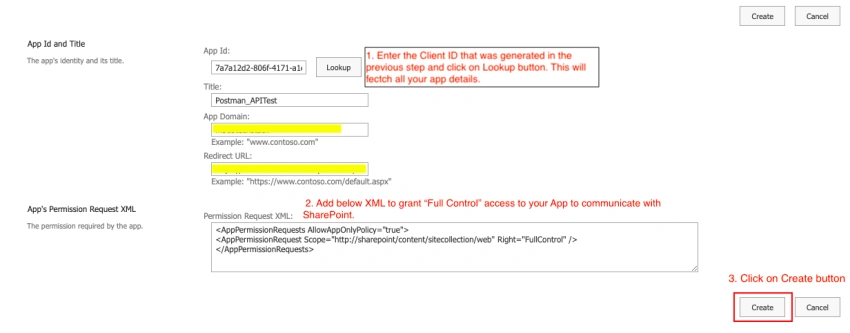
- Get the Client Id from Step2 and paste it in the App Id field and click on the Lookup button. It will fetch all your App details.
- Copy & Paste below XML in Permission Request XML section.
<AppPermissionRequests AllowAppOnlyPolicy="true">
<AppPermissionRequest Scope="http://sharepoint/content/sitecollection/web" Right="FullControl" />
</AppPermissionRequests>
Step 4
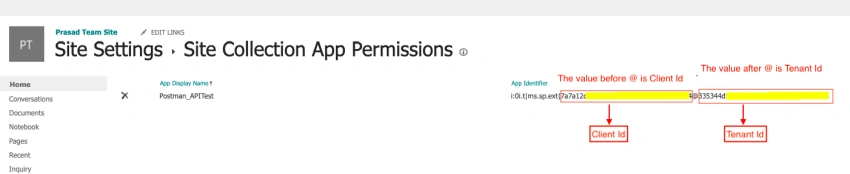
We need Tenant Id also. So to get the Tenant Id go to https://<YourSharePointCollectionURL>/_layouts/15/appprincipals.aspx
For example - https://contoso.sharepoint.com/sites/ContosoTeamSite/_layouts/15/appprincipals.aspx
Step 5
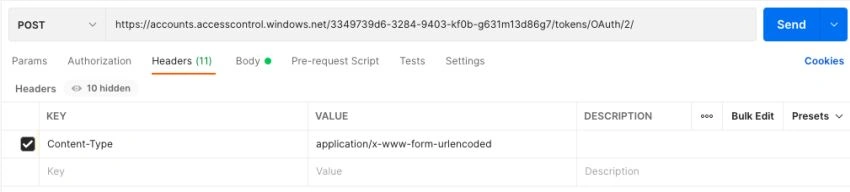
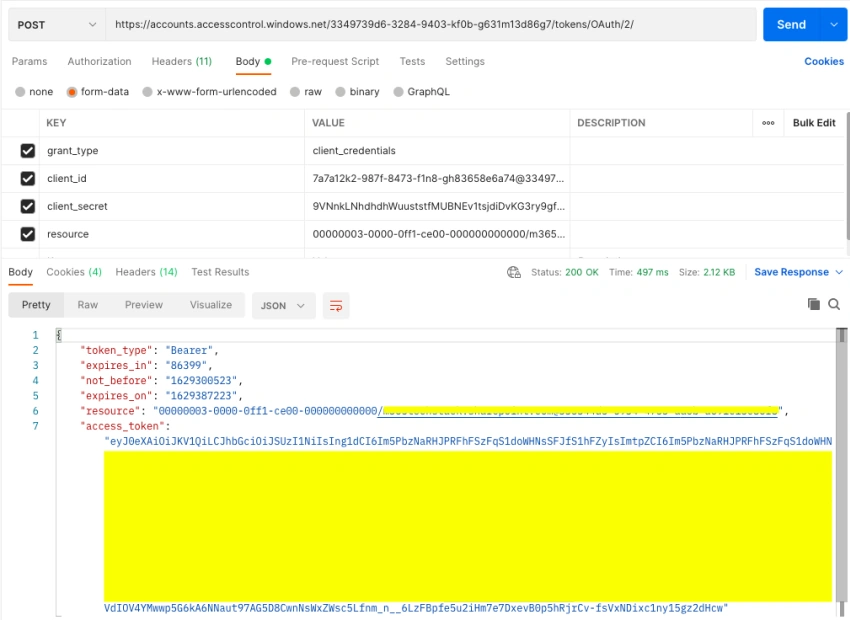
After getting the Tenant Id, Open the POSTMAN tool and make a POST request to the below URL with your App & Tenant details to get the access token.
URL: https://accounts.accesscontrol.windows.net/tenant_id/tokens/OAuth/2/
Headers
Content-Type:application/x-www-form-urlencoded
Body
grant_type:client_credentials
client_id:client_id@tenant_id
client_secret:client_secret
resource:00000003-0000-0ff1-ce00-000000000000/YourSharepointOnlineDomainName@tenant_id
Change the values in Red color with your corresponding App & Tenant details. The client_id & client_secret can be obtained from Step2 and tenant_id from Step5.
For example
grant_type:client_credentials
client_id:7a7a12k2-987f-8473-f1n8-gh83658e6a74@3349739d6-3284-9403-kf0b-g631m13d86g7
client_secret:9VNnkLNhdhdhWuuststfMUBNEv1tsjdiDvKG3ry7=
resource:00000003-0000-0ff1-ce00-000000000000/contoso.sharepoint.com@3349739d6-3284-9403-kf0b-g631m13d86g7
Step 6
Now copy the access_token from the response.
Step 7
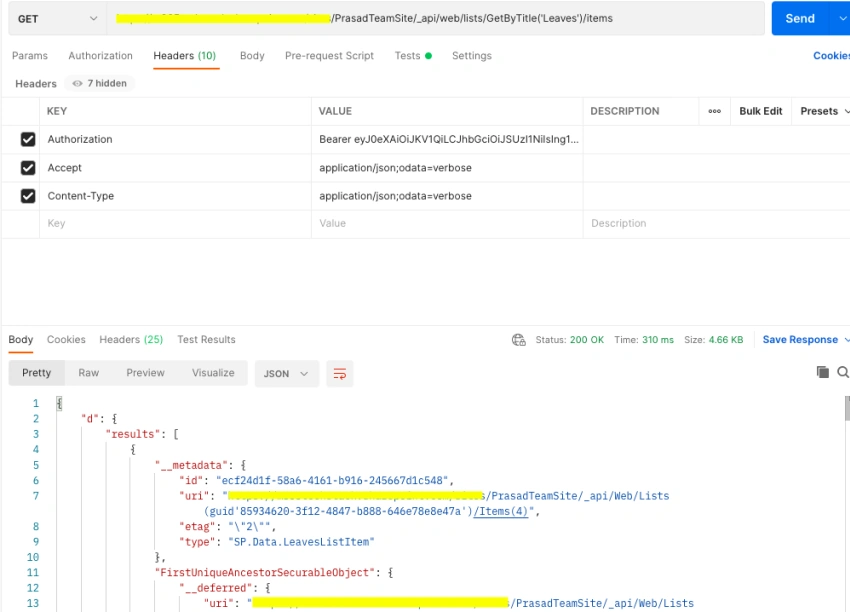
Make a GET call to get items from SharePoint List
URL: https://<YourSharePointCollectionURL>/_api/web/lists/GetByTitle('<ListDisplayName>')/items
For example
My Site Url is: https://contoso.sharepoint.com/sites/ContosoTeamSite
List DisplayName is: Leaves
REST URL: https://contoso.sharepoint.com/sites/ContosoTeamSite/_api/web/lists/GetByTitle('Leaves')/items
Headers
Authorization:Bearer access_token
Accept:application/json;odata=verbose
Content-Type:application/json;odata=verbose
Note
There should be a space between Bearer and access_token in the Authorization header
Conclusion
So in this article, we learned how to test SharePoint Online REST APIs using the POSTMAN tool. I hope you enjoyed reading this article.
Alexander MillandPosted Oct 30, 2023, 11:55 AM
I keep getting Unauthorized 401 despite following your steps to the T . Any ideas what could be blocking?
kali muthuPosted Oct 26, 2023, 11:16 AM
Whta is the resource value - 00000003-0000-0ff1-ce00-000000000000 is it default
Francisco GilPosted May 18, 2023, 4:10 PM
Is there any way to create an app for multiple sites?
Vinay AyinapurapuPosted Aug 19, 2021, 4:20 PM
Good Article prasad..