Message tracing or tracking is the process of checking the mail's status or result in Office 365 and after seeing the result, you can see the details of a message. This process is used by administrators only. You can trace the messages that are not older than 90 days and you can also view or download the details of messages not older than 7 days in a CSV file. So here, we are going to discuss how to track or trace the message in Office 365 Exchange Online. Follow this step-by-step process to know the status of tracing Office 365 messages.
Method 1 - Track the message without PowerShell
This is the easiest way of tracing a message in Office 365. But most of the users prefer PowerShell commands to track the emails. Now here, we are discussing how to trace a message using Exchange Admin Center (EAC). So, follow all the steps.
Note
In the On-premise Exchange, we cannot track the message by the Exchange Admin Center (EAC).
Step 1
First, log in with your Office 365 Admin account and go to Exchange Admin Center by clicking the Admin Center >> Exchange.
Step 2
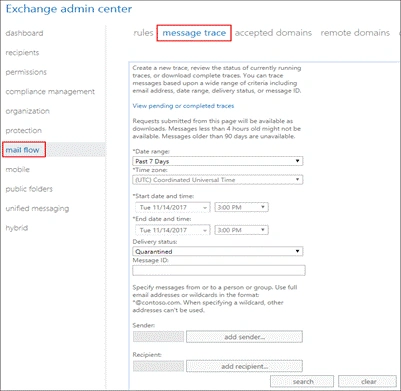
Once the Exchange Admin Center window is opened, choose mail flow >> message trace.
Note
In this window, you can also track the message items of particular dates by selecting "Custom".
Step 3
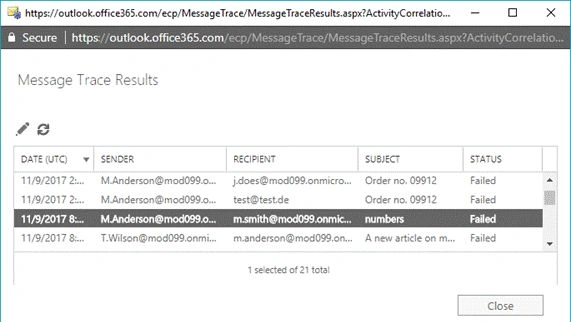
Once the tracing is complete, the details will show on the screen.
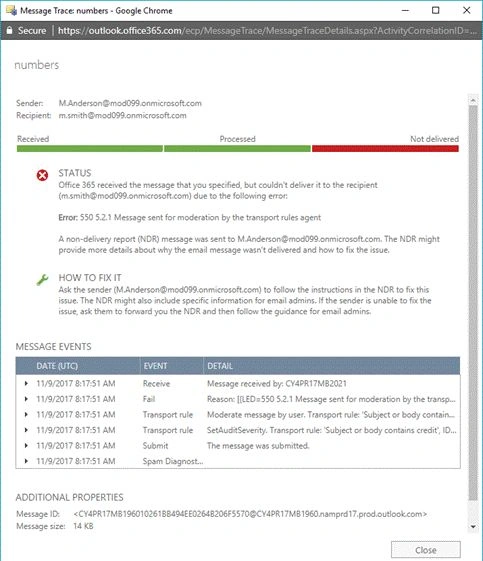
Here, you can see the details of the selected mail, just double-click on it and the details of that particular mail will show on the screen.
Step 4
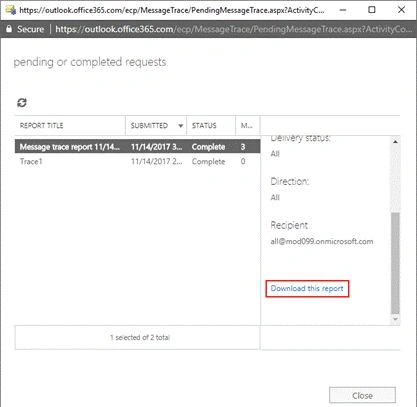
Now, go back to the main message tracking window and here, we can see the list of the pending or traced messages by clicking the "view pending" or "completed traces". If you have started a historical search with the PowerShell and the –NotifyAddress parameter has failed to specify, then the only way to know is to download the CSV file.
Method 2 - Trace or track the Office 365 message using PowerShell
Here, you can you also track the Office 365 message by the PowerShell commands. Here, only one cmdlet was used for the sole purpose of achieving the interest figures in the on-pre-exchange: for the Get-MessageTrackingLog in the corresponding cmdlet, you can use Get-MessageTrace.
Note
In the Get-MessageTrace, you do not need to add any additional parameters.
Step 1
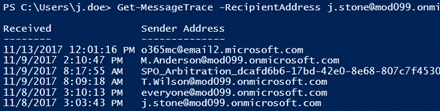
Now, type the given command to see the message.
Get-MessageTrace –RecipientAddress <user address> -StartDate 11/07/2017 -EndDate 11/14/2017
Step 2
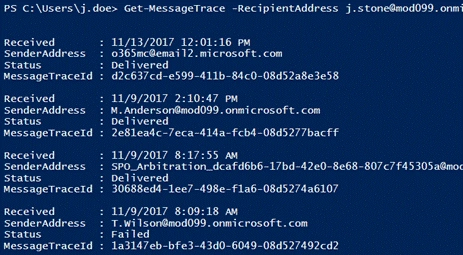
After that, type the below command to know the status of all messages of the particular date ranges.
Get-MessageTrace –RecipientAddress <user address> -StartDate 11/07/2017 –EndDate 11/14/2017 |Format-list –Property Received,SenderAddress,Status,MessageTraceID
Step 3
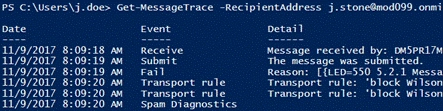
Once you trace the status of the Office 365 message status then you can easily know the reason for the failed message.
Get-MessageTrace -RecipientAddress <user’s address> -StartDate 11/07/2017 -EndDate 11/14/2017 -Status Failed | Get-MessageTraceDetail
But if you want to search the old details then you need to run the given command.
Start-HistoricalSearch –ReportTitle “Trace1” –ReportTpye MessageTrace –SenderAddress [email protected] –StartDate 11/01/2017 –EndDadte 11/07/2017 –NotiftAddress [email protected]
Conclusion
In this post, I explained how to track or trace the message in Office 365 Exchange Online. Here, I also discussed two possible ways - using PowerShell and using EAC. You can use any one of them to know the status of the mail. If you have any doubt, just leave a message on the comment box.


Join the conversation! Your thoughts help the community grow.