

Introduction
Invoice processing is a common task in every organization, but manual processing is time-consuming and labor-intensive. Normally, someone has to open each invoice, verify all details, and then enter the information into a system such as Excel or a database. With Power Automate and AI Builder, we can train an AI model to automatically read invoices and extract key details such as the invoice number, vendor name, date, and total amount. In this article, we focus on training an AI model for invoice processing in Power Automate.
Before starting, if you want to explore different AI Builder models in Power Automate, you can check out this article I wrote earlier: Different AI Models in Power Automate
Below are the steps to train an AI model for invoice processing in Power Automate:
Step 1: Open AI Builder and Select Invoice Model
First, go to make.powerautomate.com. From the left-hand menu, select AI Hub, then click on AI models. Here, you will see different types of AI models available. Select Extract Information from Invoices to start creating a new AI model for invoice processing.

Step 2: Choose Custom Model
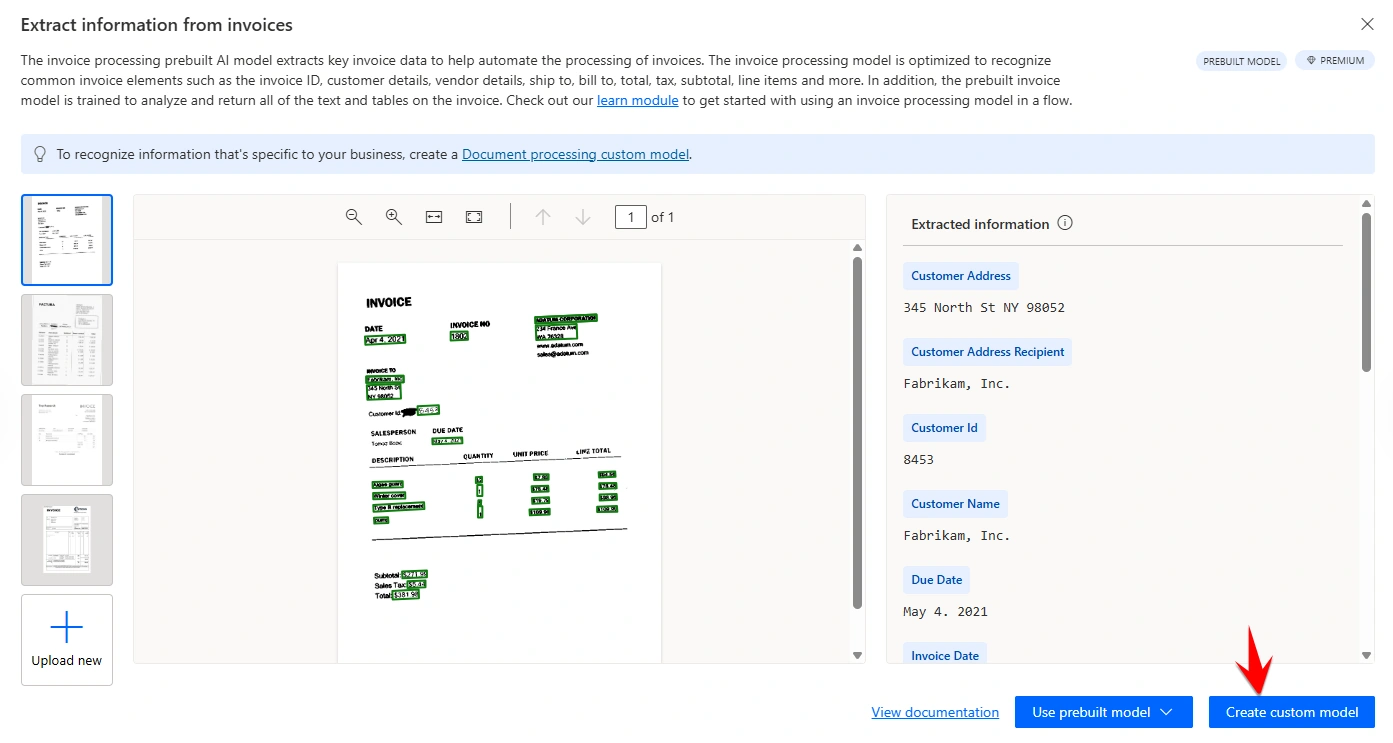
After selecting Extract Information from Invoices, you will see two options: Use prebuilt model and Create custom model. The prebuilt model is useful for standard invoice formats, but in most real-world cases, invoices can have different layouts and structures. That is why, in this article, we will use the custom model so that we can train it based on our own invoice samples. So, click on Create custom model.
Step 3: Select Document Type
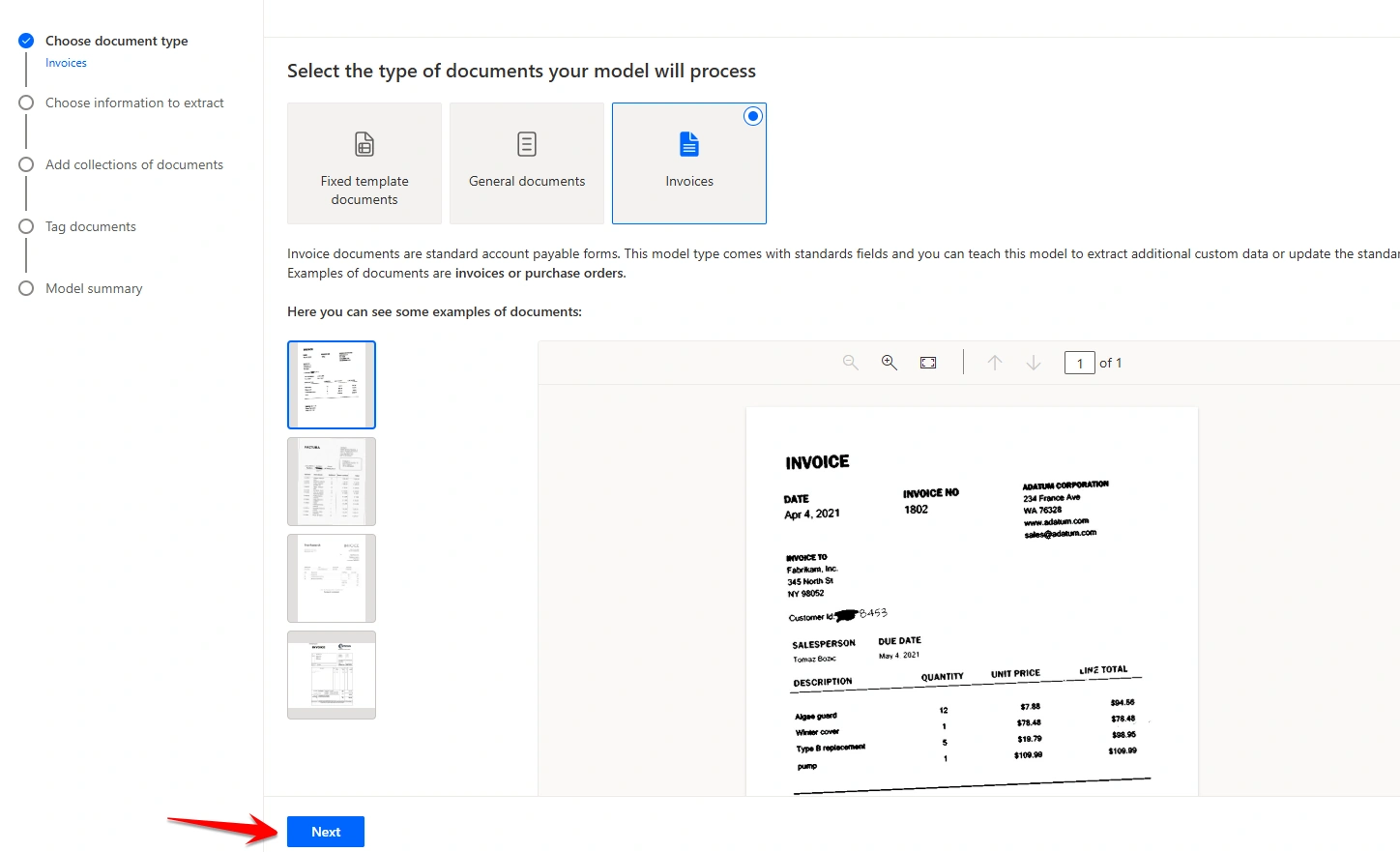
In the next screen, you will be asked to select the document type. Here, choose Invoices as the document type. Once selected, simply click on Next to continue.
Step 4: Choose Information to Extract
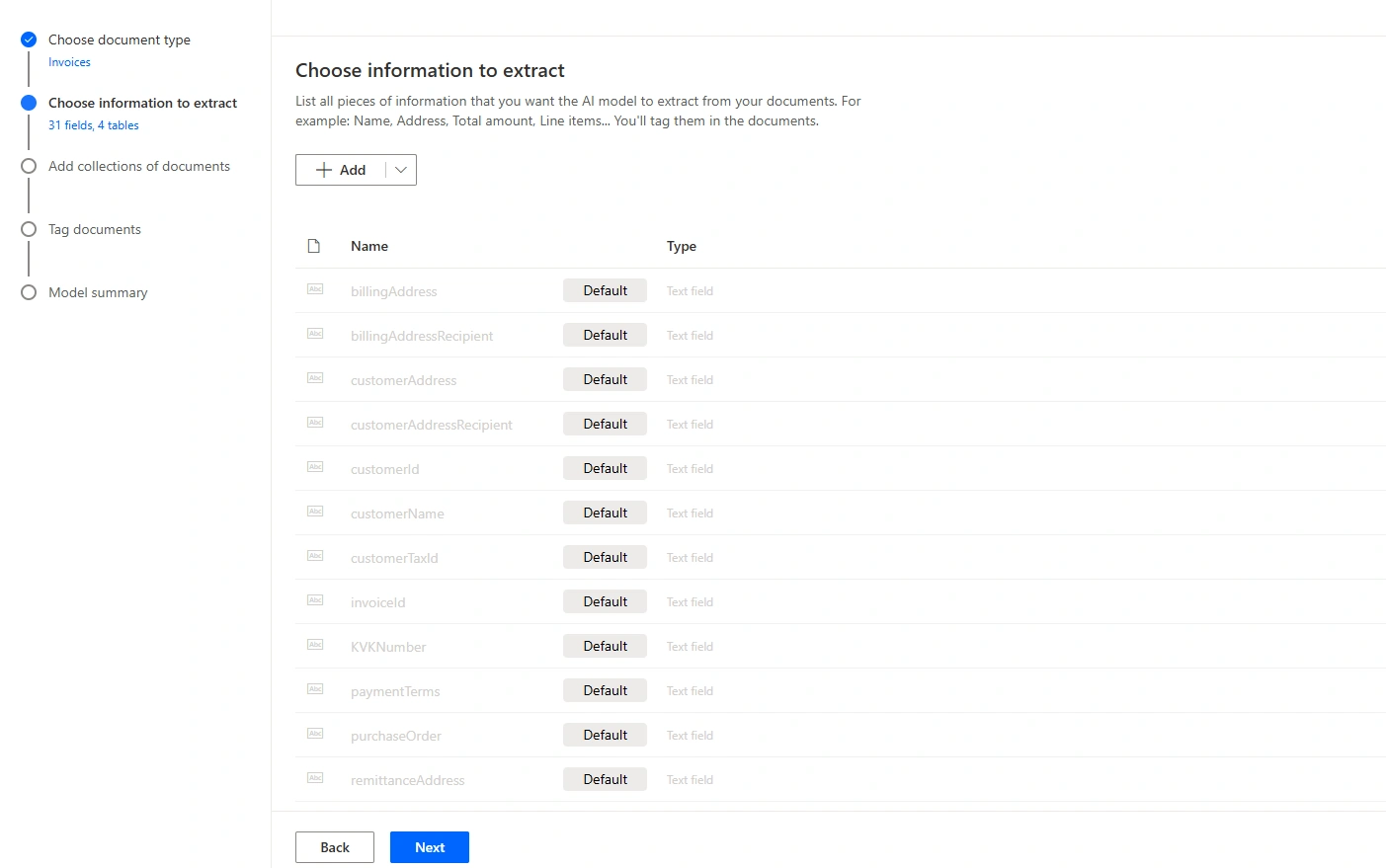
In this step, you need to choose what information you want to extract from the invoices. You will see some default prebuilt tags, which are commonly used fields like invoice ID, Customer Name, and so on. These fields will be extracted automatically. If you want to extract any additional information, you can add your own custom tags by clicking on Add and creating new fields. Once everything looks fine, click on Next to continue.
Step 5: Add your invoices to the collection
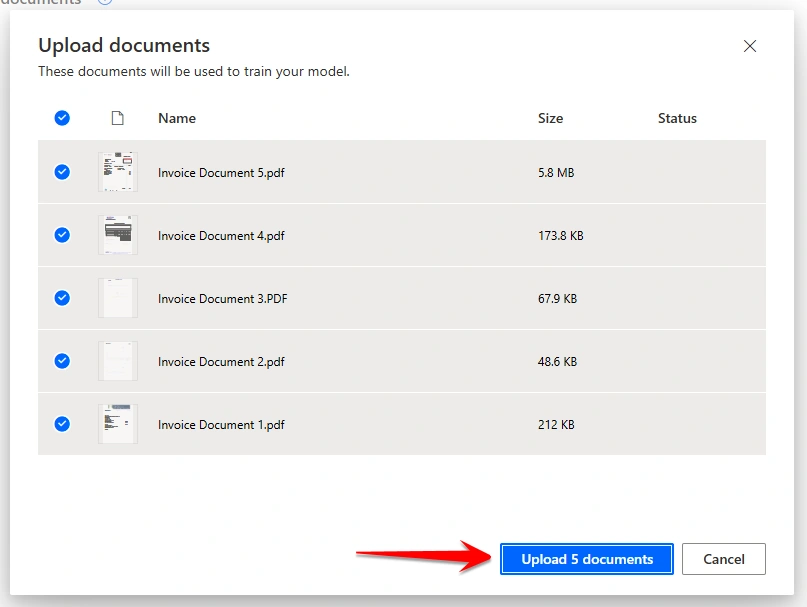
In this step, you need to add your invoices to train the model. Make sure to add at least 5 invoices, because the AI needs them to learn properly. After that, click Upload Documents and select your invoice files. When all the documents are uploaded, just click Done.


Step 6: Tag your documents
In this step, you will see that the AI has automatically tagged important information from your invoices, like Invoice ID, Due Date, and other key fields. You can review these tags and make changes if needed. If you created any custom tags, you can also add or adjust them here. Once you have reviewed all the tags for all your invoices, click Next to continue.


Step 7: Review and Train Your Model
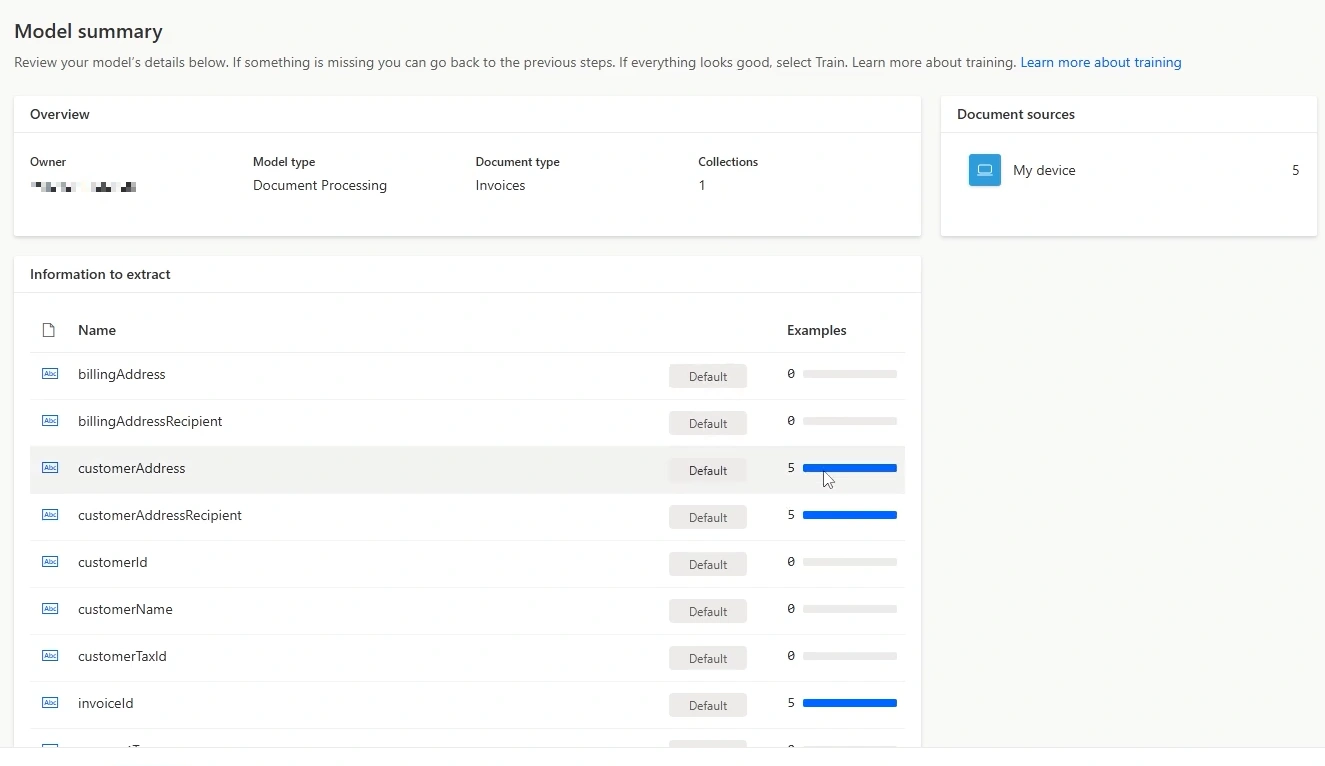
Check the summary to make sure all your uploaded invoices look correct and the fields are right. If something is wrong, go back and fix it. When everything looks good, click Train to start training the model
Step 8: View Your Trained Models
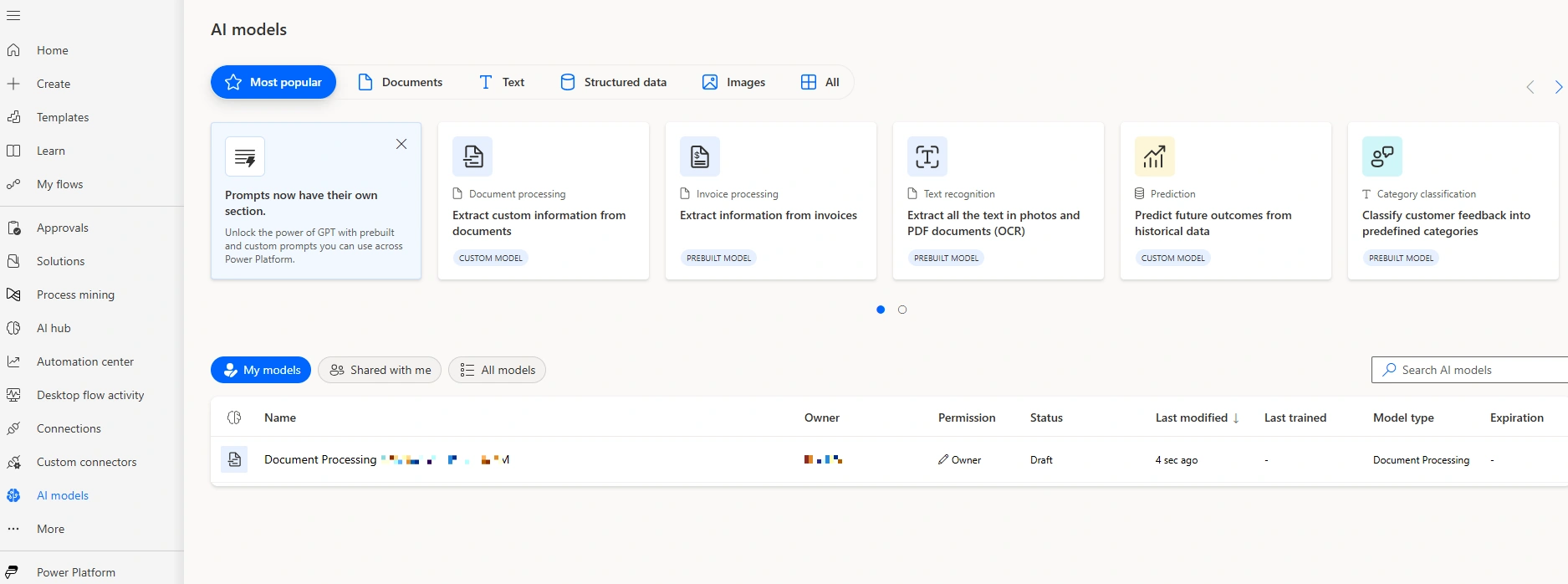
After training, go to the AI models section. Here, you can see all the models you have trained. You can check their status, see when they were last modified or trained, and manage them from this section.
Step 9: Publish Your Model
Go to the AI models section and select the model you just trained. Check the accuracy score, and if it looks good, click Publish.

Refer to the official Microsoft Learn documentation to explore more about invoice processing models, adding custom fields, etc: Invoice processing model
Conclusion
By following these steps, you can easily train an AI model to process invoices in Power Automate. It speeds up your work, reduces errors, and keeps everything running smoothly.
Join the conversation! Your thoughts help the community grow.