

Introduction
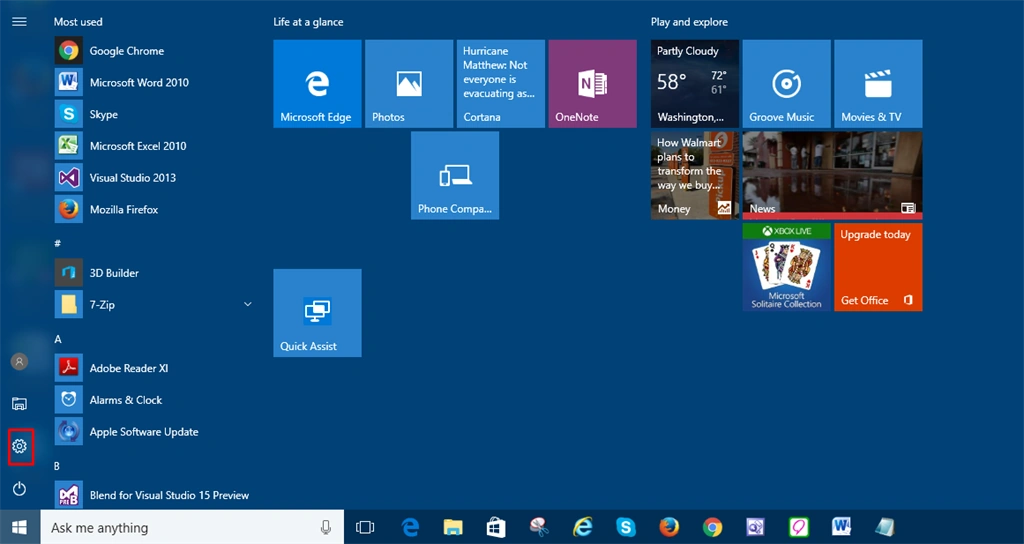
In this step, you can click on the start icon and select the settings icon.
 Step 2
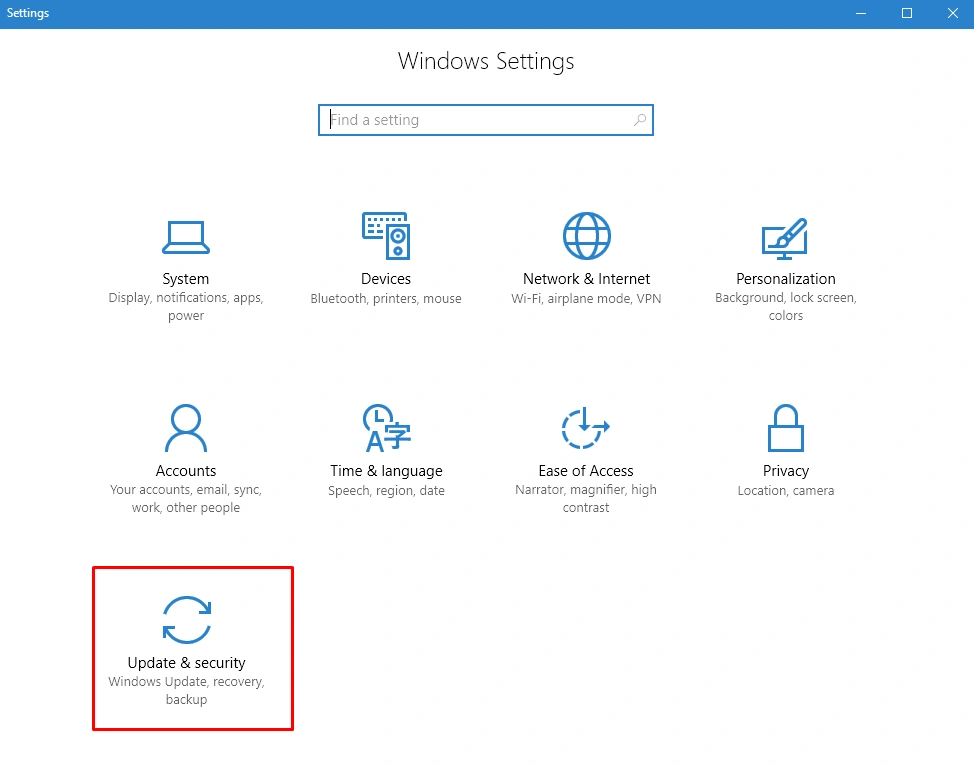
In this step, when you click on the settings icon, the new Window opens and then select Update & Security.
Step 3
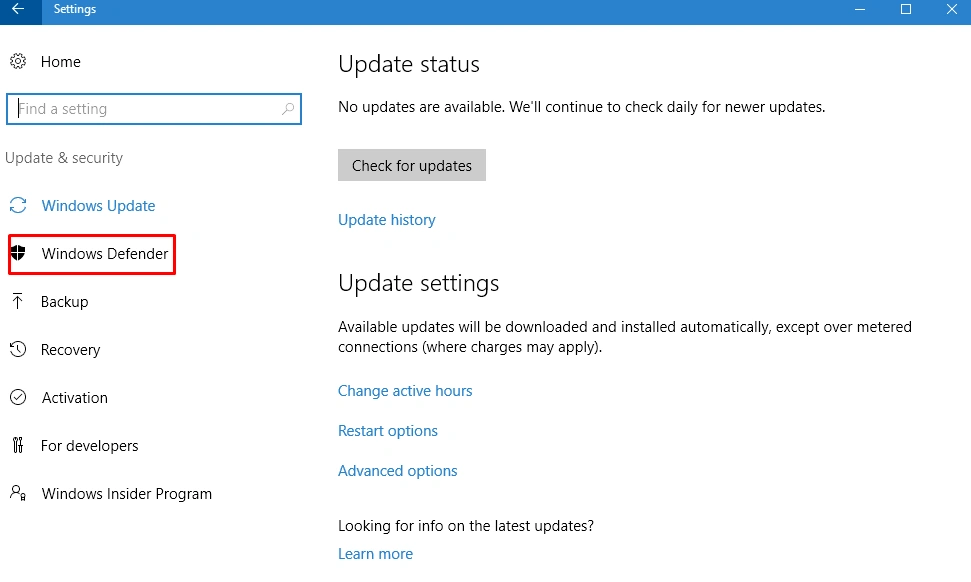
In this, you can click on the Window Defender icon.
 Step 4
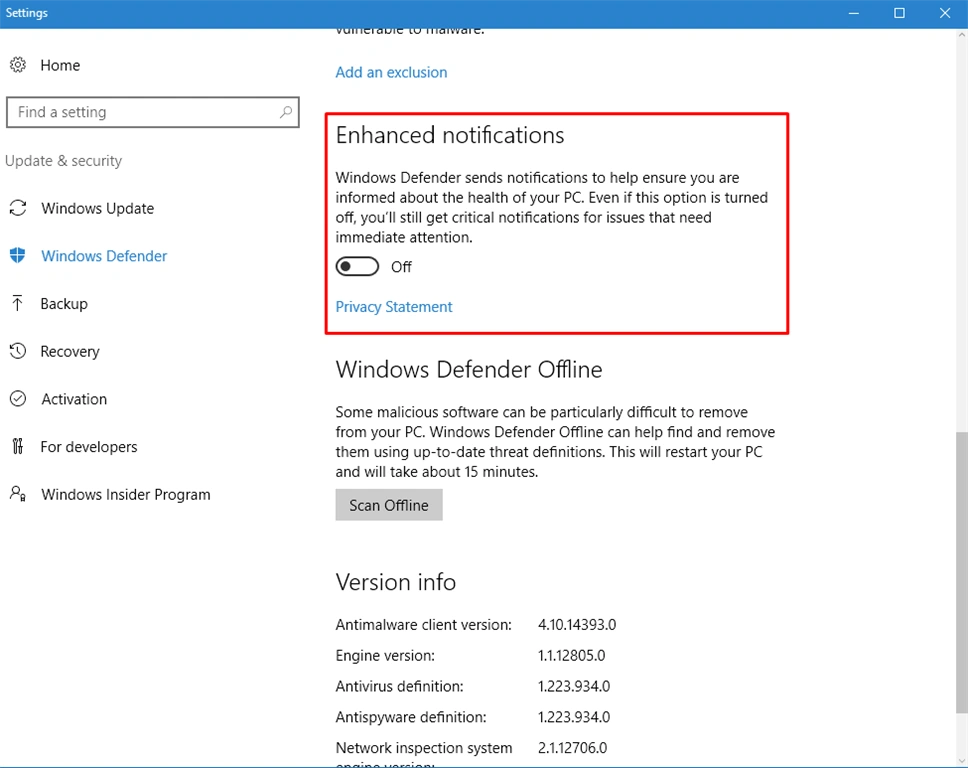
In this step, you can turn off the Enhanced Notifications.
Summary
In this article, we learned about how to turn off enhanced notifications for Windows Defender In Windows 10.
Prasanna MuraliPosted Oct 9, 2016, 10:14 AM
Nice post..