

Introduction
Windows Store is the new-to-Windows notion which is designed to hold many Windows 8 applications. As we know that just like the other app stores Windows Store also features both free and paid apps. If you want to temporarily disable Windows Store for all user account holders on your computer for security purposes then we can do that. So in this article, we will discuss how to disable the Windows Store application.
Steps for disabling the Windows Store application
Step 1
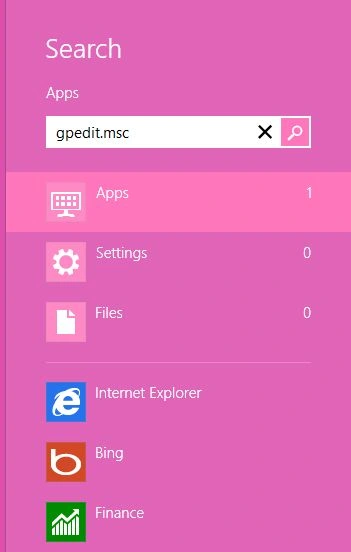
First of all, we have to move the cursor to the bottom-right of the window screen and click the search box which helps to search in Windows 8.

Step 2
Then in the search box type "gpedit.msc" and click on Apps from the right sidebar then click gpedit.msc in the main window.
Step 3
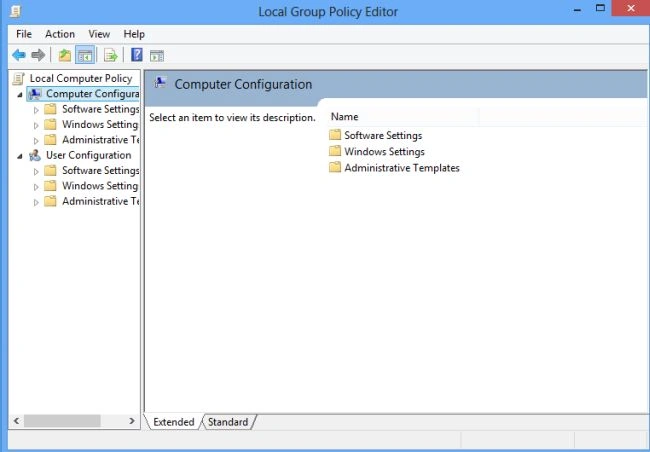
When we click on gpedit.msc in the main window the Local Group Policy Editor will open as follows.
Step 4
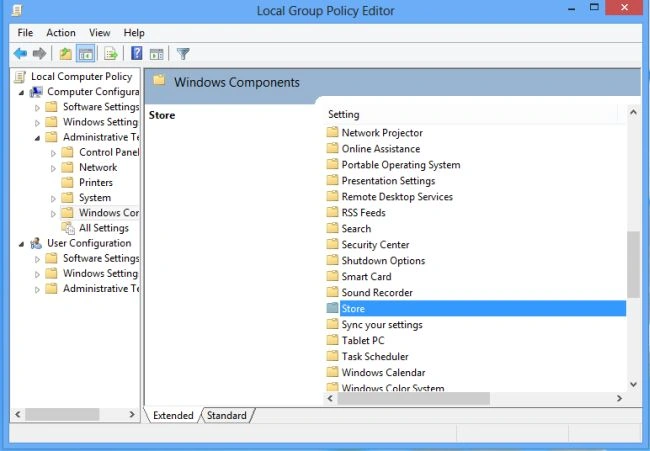
Once the Local Group Policy is opened then use the following.
User Configuration > Administrative Templates > Windows Components > Store
Step 5
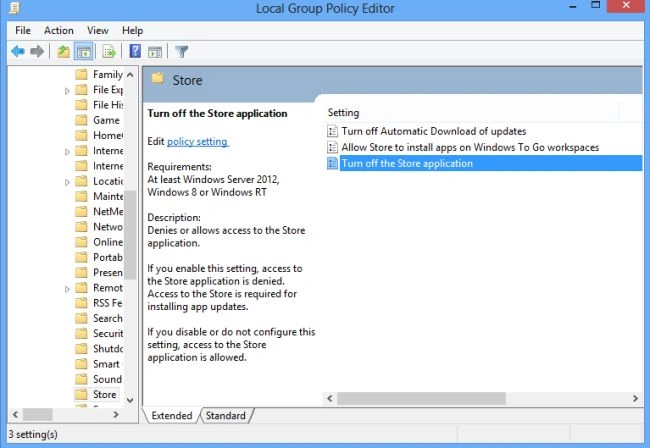
When you click on Store the dialog box with the settings options is shown, then double-click Turn off Store application.
Step 6
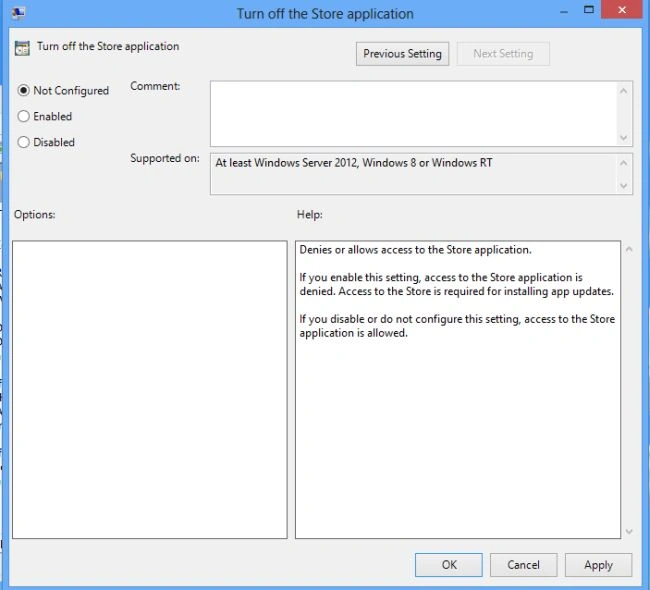
When you click on Turn off Store application a dialog box of Turn off Store application will appear. On which at the top, there are Not Configured, Enabled and Disabled options available.
Step 7
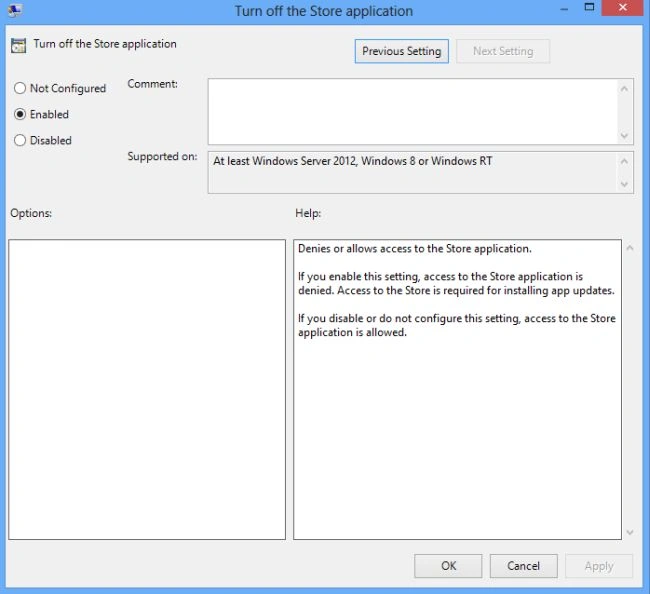
Then to turn off the Windows Store application just select Enabled from the list and click OK.
Summary
In this article, we learned about How to Turn Off Windows Store Application In Windows 8.
Join the conversation! Your thoughts help the community grow.