

Introduction
Hence in this article we will discuss how to enable the Windows Store application if someone has disabled the Windows Store Application In Windows 8 for security purposes.
Steps how to enable the Windows Store application
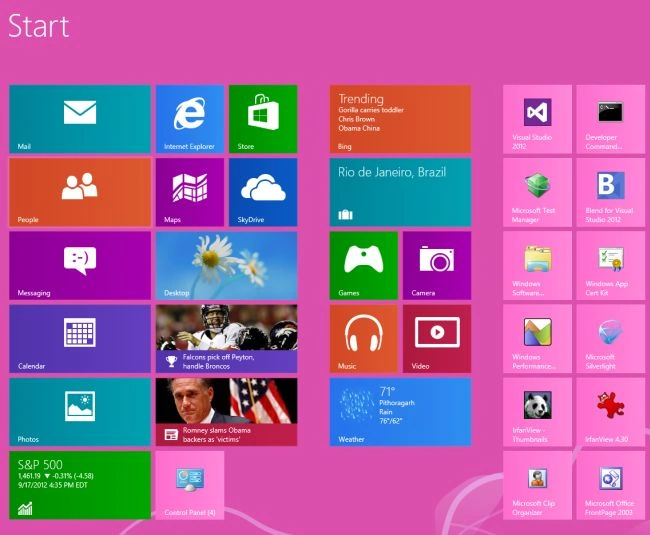
First of all we have to move on the Start screen window of Windows 8.
Step 2
Then move the cursor on the bottom-right of the window screen and click the search box which is helpful to search in Windows 8.

Step 3
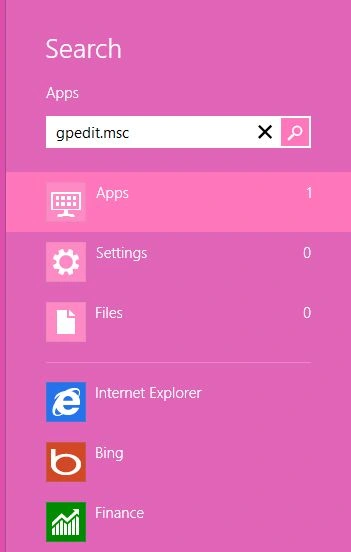
Then in the search box type "gpedit.msc" and click on Apps from the right sidebar then click gpedit.msc in the main window.
Step 4
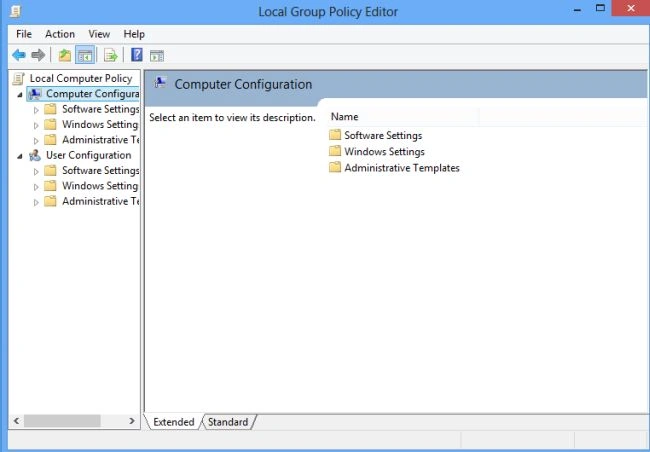
When we click on gpedit.msc in the main window the Local Group Policy Editor will open as follows.
Step 5
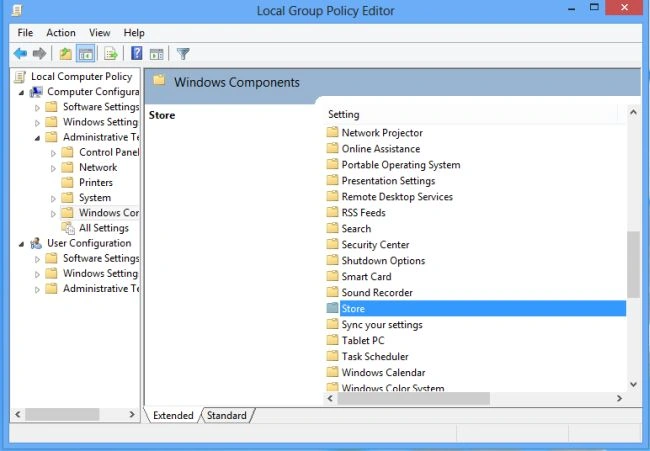
Once the Local Group Policy is opened then use the following.
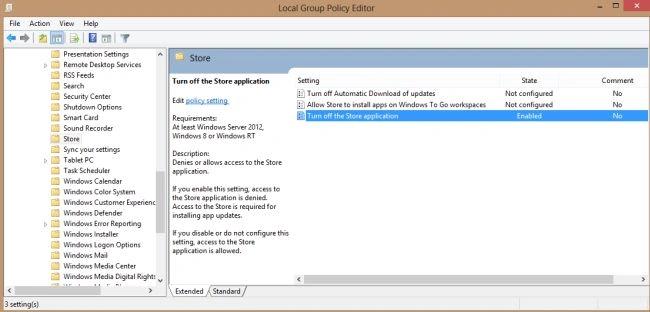
Computer Configuration > Administrative Templates > Windows Components > Store
Step 6
When you click on Store, the dialog box with the settings options is shown; then double-click Turn off Store application.
Step 7
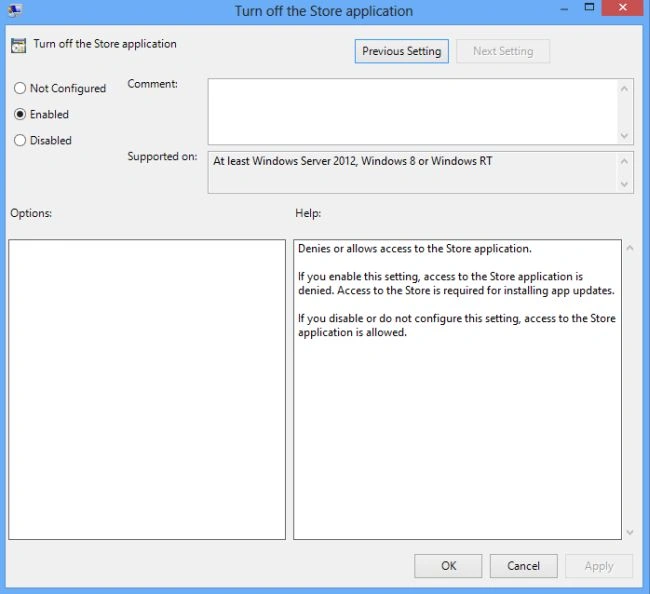
When you click on Turn off Store application a dialog box of Turn off Store application will appear. On which at the top, there are Not Configured, Enabled and Disabled options available.
Step 8
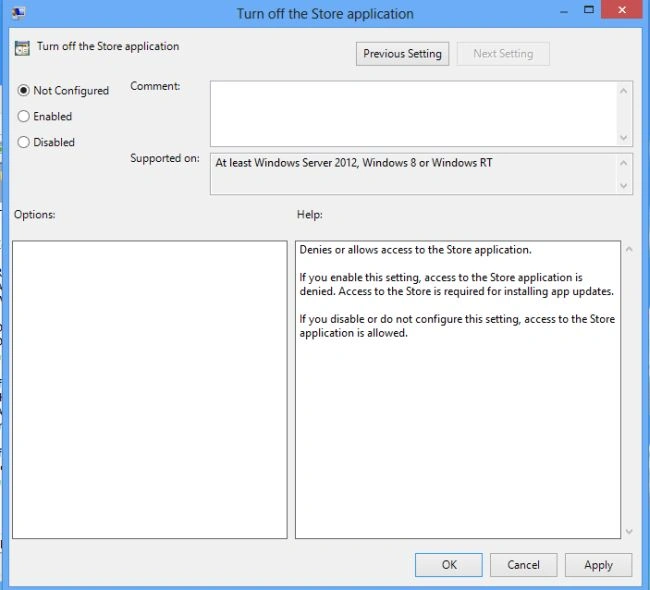
Then to turn on the Windows Store application just select Not configured or Disable checkbox from the list and click OK.
Summary
In this article, we learned about How to Turn on Windows Store Application In Windows 8.
Agus IrengPosted Dec 1, 2012, 10:49 PM
I can browse the store, but I can't install/Update any App. I've put a "Enabled" value in "Allow Store to install apps on Windows To Go workspaces", but it doesn't change anything. Please help me...