

Introduction
When developing canvas apps in Microsoft Power Apps, you may encounter delegation warnings while working with large datasets. These warnings indicate that Power Apps cannot delegate certain operations to the connected data source.
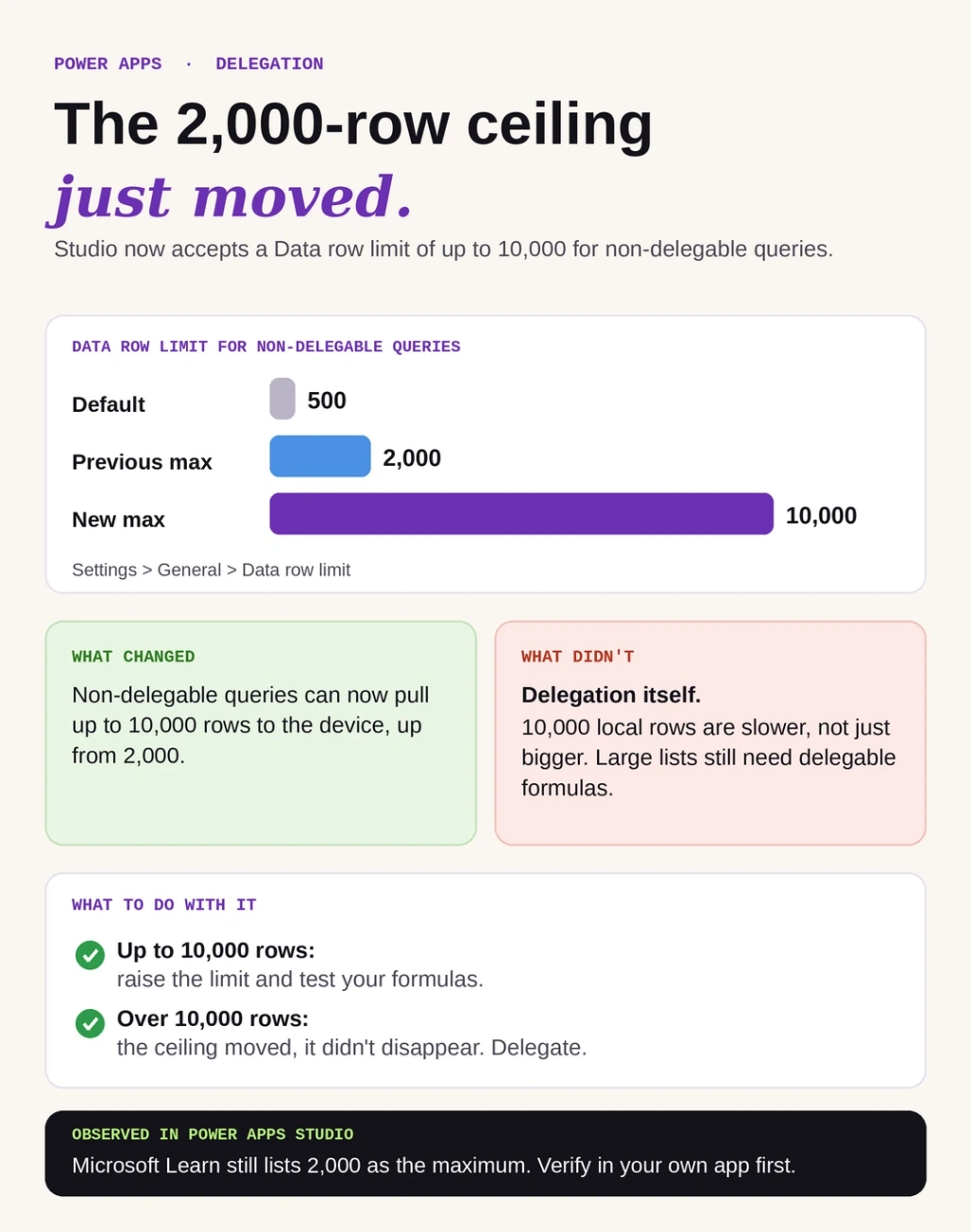
When a query is non-delegable, Power Apps retrieves a limited number of records and processes them locally. The default Data row limit is 500 records, and it can be increased to a maximum of 2,000 records in the traditional setting documented for canvas apps. Always verify the current limit in Microsoft documentation before publishing an article that mentions a newer maximum.
Understanding delegation is important because an app may return incomplete results when the required records fall outside the retrieved set. This article explains how delegation works, how the Data row limit affects your app, and how to improve performance when working with large datasets.
What Is Delegation in Power Apps?
Delegation allows Power Apps to send supported operations to the connected data source instead of retrieving records and processing everything locally.
For example, suppose a SharePoint list contains 50,000 invoice records. You want to display only invoices whose status is Pending.
You can use the following Power Fx formula:
Filter(
    InvoiceDetails,
    Status.Value = "Pending"
)
If the expression is supported for delegation by the SharePoint connector and the column type, SharePoint processes the filter and returns matching records.
This approach helps Power Apps work efficiently with large datasets.
Understanding the Data Row Limit
The Data row limit determines how many records Power Apps retrieves for local processing when a query cannot be fully delegated.
For example, if the limit is set to 500, Power Apps may process only the first 500 retrieved records for a non-delegable query. If the required record is outside that set, the result may be incomplete.
Increasing the limit can allow more records to be processed locally, but it does not make a non-delegable formula search the entire data source.
Example: Delegable vs. Non-Delegable Queries
Consider a SharePoint list containing 50,000 invoice records. Your app needs to find invoices with a Pending status.
Non-delegable query: Power Apps retrieves a limited set of records and processes them locally. Matching invoices outside that set may be missed.
Delegable query: Power Apps sends the supported filter to SharePoint, which searches the full dataset and returns the matching records.
How to Change the Data Row Limit
Follow these steps to configure the Data row limit in Power Apps Studio:
Open your canvas app in edit mode.
Select Settings.
Open the General settings.
Locate Data row limit.
Set the desired value within the available range.
Save and test your app.
Remember that increasing the limit does not resolve delegation warnings. It only increases the number of records that may be processed locally.
Best Practices for Handling Large Datasets
1. Use Delegable Functions
Use functions supported by your connector, such as Filter and SortByColumns, where applicable.
SortByColumns(
    Filter(
        InvoiceDetails,
        Status.Value = "Pending"
    ),
    "Created",
    SortOrder.Descending
)
Verify that the formula is delegable for your data source and column types.
2. Avoid Loading Entire Lists into Collections
Using ClearCollect to retrieve a large list can lead to incomplete data when the operation is subject to the non-delegable row limit.
Where possible, connect galleries directly to the data source and use delegable formulas in their Items properties.
3. Check Delegation Warnings
Review delegation warnings in Power Apps Studio. If a formula is non-delegable, consider rewriting it using supported functions or moving the filtering logic to the data source.
4. Filter Records at the Data Source
For large datasets, filter records at the source using supported SharePoint queries, Dataverse operations, or SQL queries. Retrieve only the data needed for the current screen.
5. Test with Large Datasets
Test your app with realistic data volumes and records that appear beyond the first 500 or 2,000 records. Confirm that searches, filters, and sorting return the expected results.
Conclusion
Delegation is essential for building reliable Power Apps that work with large datasets. Although the Data row limit controls how many records can be processed locally for non-delegable queries, increasing it does not eliminate the limitations of delegation.
By using delegable Power Fx formulas, filtering data at the source, avoiding unnecessary collections, and testing with large datasets, you can improve application performance and reduce the risk of incomplete results.
Join the conversation! Your thoughts help the community grow.