

You can use the SharePoint client object model to retrieve, update and manage data in SharePoint 2013. SharePoint makes the object model available in several forms.
- .NET Framework redistributable assemblies
- JavaScript library
- REST/OData endpoints
- Windows Phone assemblies
- Silverlight redistributable assemblies
This article shows how to do basic operations using the JavaScript object model. You can add a reference to the object model using HTML <script> tags.
The following sections describe tasks that you can complete programmatically and they include JavaScript code examples that show the operations.
To update the file's contents you can use a FileCreationInformation object and set the overwrite attribute to true by using the set_overwrite() method, as shown in this example.
Procedure
The following sections describe tasks that you can complete programmatically and they include JavaScript code examples that show the operations.
To update the file's contents you can use a FileCreationInformation object and set the overwrite attribute to true by using the set_overwrite() method, as shown in this example.
Procedure
Open your SP Site in SharePoint 2013 Designer, then select the Site Assets icon in the designer ribbon and add a JavaScript file.
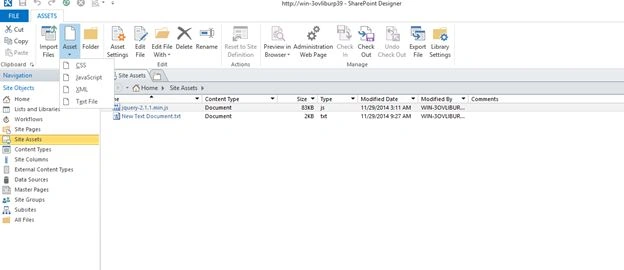
Figure 1: Open SP Site
After adding the JavaScript file, this file is available in the SharePoint Site Assets Folder.
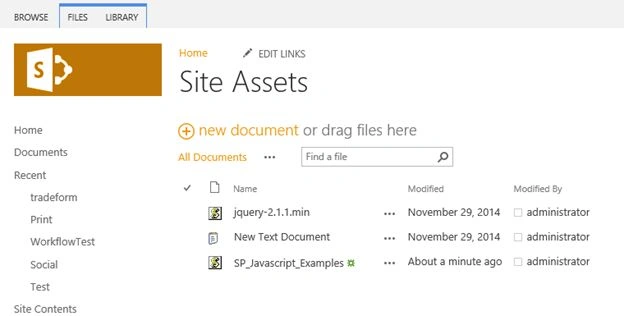
Figure 2: Site Assets
Go to the SP site page and add a new page to the SharePoint site.
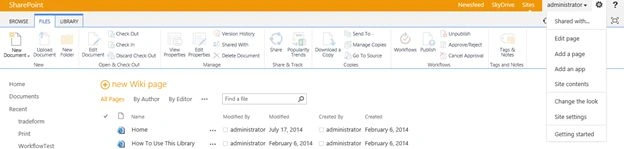
Figure 3: Add a new Page
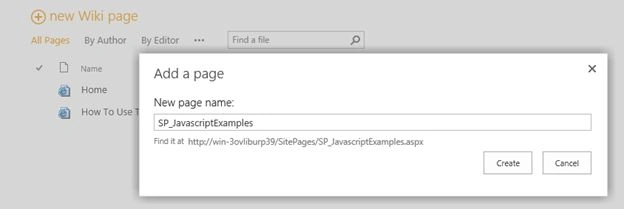
Figure 4: New Wiki page
After adding a page, select an Insert button in the Ribbon Menu.

Figure 5: Ribbon Menu
Then add a Content Editor Web part into the page.

Figure 6 :Content Editor
Edit the WebPart and add a JavaScript file link to the content link.
Figure 7: Content link
Save the web part and save the page in the site. Click the button!
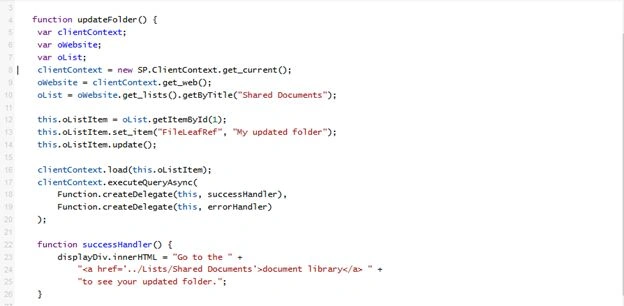
Figure 8: Save the Web Part

Figure 9: Update Succesfully
List updated successfully.
Source Code
Figure 1: Open SP Site
After adding the JavaScript file, this file is available in the SharePoint Site Assets Folder.
Figure 2: Site Assets
Go to the SP site page and add a new page to the SharePoint site.
Figure 3: Add a new Page
Figure 4: New Wiki page
After adding a page, select an Insert button in the Ribbon Menu.
Figure 5: Ribbon Menu
Then add a Content Editor Web part into the page.
Figure 6 :Content Editor
Edit the WebPart and add a JavaScript file link to the content link.
Figure 7: Content link
Save the web part and save the page in the site. Click the button!
Figure 8: Save the Web Part
Figure 9: Update Succesfully
List updated successfully.
Source Code
- <div>
- <button onclick=" updateFile ()">Click here to updateFile </button>
- </div>
- <div id=" displaydiv "></div>
- <script type="text/javascript">
- function updateFile()
- {
- var clientContext;
- var oWebsite;
- var oList;
- var fileCreateInfo;
- var fileContent;
- clientContext = new SP.ClientContext.get_current();
- oWebsite = clientContext.get_web();
- oList = oWebsite.get_lists().getByTitle("Shared Documents");
- fileCreateInfo = new SP.FileCreationInformation();
- fileCreateInfo.set_url("TextFile1.txt");
- fileCreateInfo.set_content(new SP.Base64EncodedByteArray());
- fileCreateInfo.set_overwrite(true);
- fileContent = "The updated content of my file";
- for (var i = 0; i < fileContent.length; i++)
- {
- fileCreateInfo.get_content().append(fileContent.charCodeAt(i));
- }
- this.existingFile = oList.get_rootFolder().get_files().add(fileCreateInfo);
- clientContext.load(this.existingFile);
- clientContext.executeQueryAsync(
- Function.createDelegate(this, successHandler),
- Function.createDelegate(this, errorHandler)
- );
- function successHandler()
- {
- displaydiv.innerHTML =
- "Go to the " +
- "
- <a href='../Lists/Shared Documents'>document library</a> " +
- "to see the updated \"TextFile1.txt\" file.";
- }
- function errorHandler()
- {
- displaydiv.innerHTML =
- "Request failed: " + arguments[1].get_message();
- }
- }
- </script>
Thanks for reading my article.
Gowtham RajamanickamPosted Apr 13, 2016, 11:02 PM
Hope you all liked this
Gowtham RajamanickamPosted Apr 13, 2016, 11:02 PM
Thanks
Santhakumar MunuswamyPosted Jul 11, 2015, 3:00 AM
Nice article! Thanks for sharing
Gowtham RajamanickamPosted Jul 11, 2015, 2:02 AM
Thanks
Gowtham RajamanickamPosted Jul 10, 2015, 5:01 AM
Thank u all.
Neeraj KumarPosted Jul 9, 2015, 5:21 PM
Nice Article
Sibeesh VenuPosted Jul 9, 2015, 6:41 AM
Good One! Thanks for sharing