

Introduction
In this article, we explain how to update Windows Store apps. When we install some apps in Windows 8, we'll want to ensure they remain updated. Here's how to learn when updates are available and install them.
Procedure for update Windows Store apps
Step 1
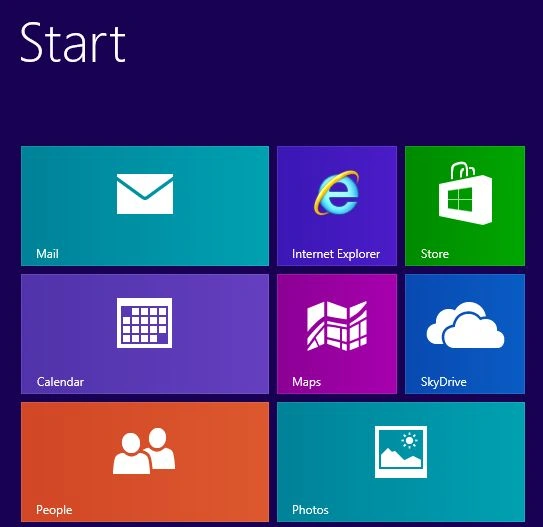
On the Windows 8 Desktop, the Windows Store tile will show you the number of apps that have updates available. In this instance, there are eight that have updates. Click on the Windows Store tile.
Step 2
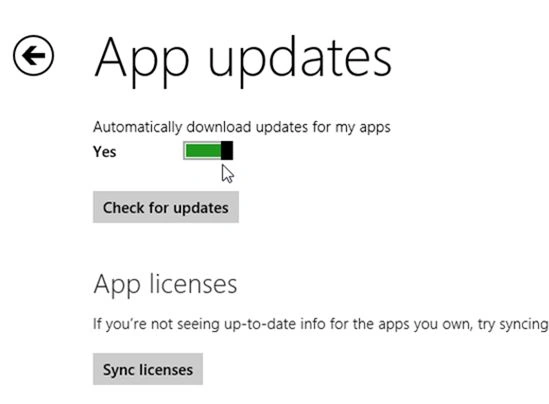
If we don't see that notification on the Windows Store tile, then we can go into the Charms Bar and click "Settings" and click "App updates".

Step 3
After that set the option to automatically check for updates to "Yes".
Step 4
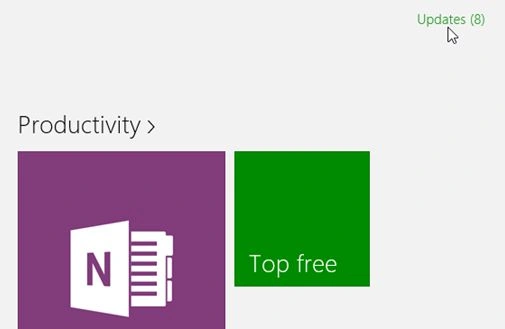
When the Store opens, click on the "Updates" link on the top-right corner of the screen.
Step 5
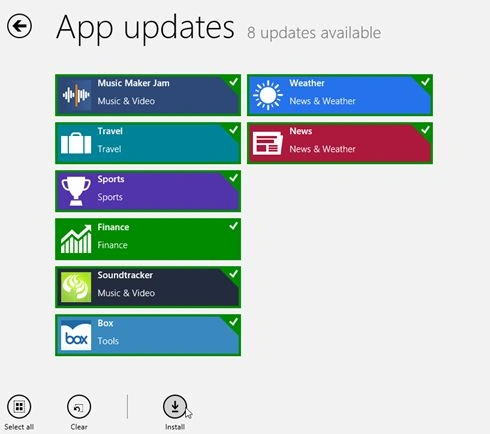
Then we see the app updates screen and all apps selected by default. If you want to update all of them, click "Install".
Note
If you don't want to update all of them then just click the ones you don't want to be updated.
Step 6
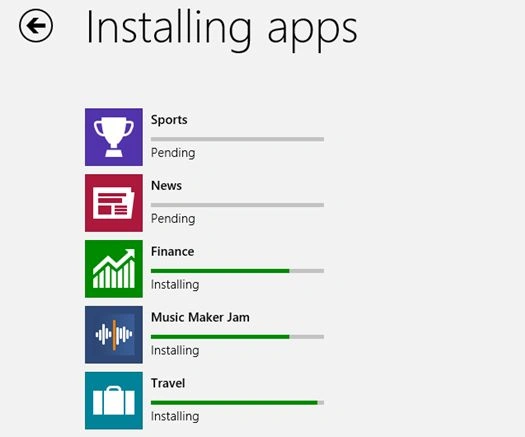
Then we'll see the progress of each app as it's being updated.
Step 7
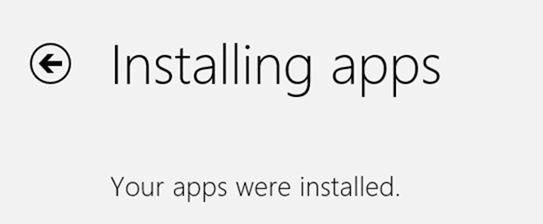
After an app is updated, it will disappear from this screen. When they're all done being updated, we'll get the following message informing us that the updates were installed.
Then if we return to the Windows 8 Start screen, we'll see that the Windows Store icon is no longer displaying a number.
Summary
In this article, we learned about How To Update Windows 8 Apps.
Aman SinghalPosted Jan 28, 2013, 5:01 AM
Thanx Shivam, PLZ read Step 5 in this article.
Shivam SinghPosted Jan 28, 2013, 12:02 AM
Nice article Aman, If we don,t want to updated all of them.