

Develop the project using the following method in the NAPA Tool.
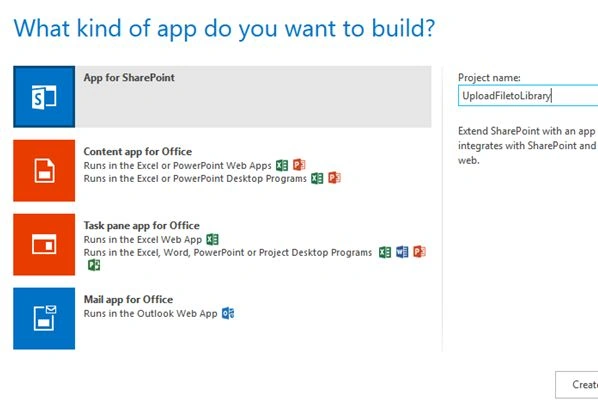
On your Developer Site, open the "Napa" Office 365 Development Tools and then choose Add New Project.
- Choose the App for SharePoint template, name the project. Create the site and then choose the Create button.
- Replace APP.js with the following source code.
- Publish Your App.
Prerequisites
The following are important steps to be done before creating the app.
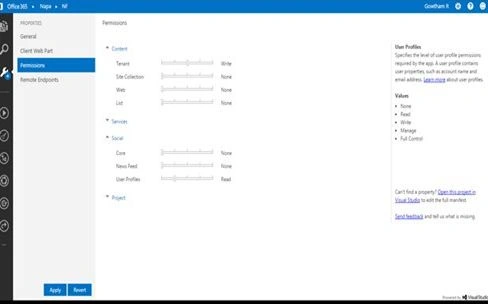
Specify the permissions that your app needs as in the following.
Choose the Properties button at the bottom of the page.
- In the Properties window, choose Permissions.
- In the Content category, set the Write permissions for the Tenant scope.
- In the Social category, set the Read permissions for the User Profiles scope.
- Close the Properties window.
Default ASPX
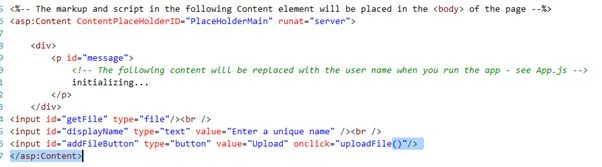
- <input id="getFile" type="file"/><br />
- <input id="displayName" type="text" value="Enter a unique name" /><br />
- <input id="addFileButton" type="button" value="Upload" onclick="uploadFile()"/>
- 'use strict';
- var appWebUrl, hostWebUrl;
- $(document).ready(function ()
- {
- // Check for FileReader API (HTML5) support.
- if (!window.FileReader) {
- alert(' FileReader API does not support Your Current Browser.');
- }
- // Get the app web and host web URLs.
- appWebUrl = decodeURIComponent(getQueryStringParameter("SPAppWebUrl"));
- hostWebUrl = decodeURIComponent(getQueryStringParameter("SPHostUrl"));
- });
- // Upload the file.
- // You can upload files up to 2 GB with the REST API.
- function uploadFile()
- {
- // Define the folder path for this example.
- var serverRelativeUrlToFolder = '/sites/apps/shared documents';
- // Get test values from the file input and text input page controls.
- // The display name must be unique every time you run the example.
- var fileInput = $('#getFile');
- var newName = $('#displayName').val();
- // Initiate method calls using jQuery promises.
- // Get the local file as an array buffer.
- var getFile = getFileBuffer();
- getFile.done(function (arrayBuffer) {
- // Add the file to the SharePoint folder.
- var addFile = addFileToFolder(arrayBuffer);
- addFile.done(function (file, status, xhr) {
- // Get the list item that corresponds to the uploaded file.
- var getItem = getListItem(file.d.ListItemAllFields.__deferred.uri);
- getItem.done(function (listItem, status, xhr) {
- // Change the display name and title of the list item.
- var changeItem = updateListItem(listItem.d.__metadata);
- changeItem.done(function (data, status, xhr) {
- alert('file uploaded successfully in Library);
- });
- changeItem.fail(onError);
- });
- getItem.fail(onError);
- });
- addFile.fail(onError);
- });
- getFile.fail(onError);
- // Get the local file as an array buffer.
- function getFileBuffer()
- {
- var deferred = jQuery.Deferred();
- var reader = new FileReader();
- reader.onloadend = function (e) {
- deferred.resolve(e.target.result);
- }
- reader.onerror = function (e) {
- deferred.reject(e.target.error);
- }
- reader.readAsArrayBuffer(fileInput[0].files[0]);
- return deferred.promise();
- }
- // Add the file to the file collection in the Shared Documents folder.
- function addFileToFolder(arrayBuffer)
- {
- // Get the file name from the file input control on the page.
- var parts = fileInput[0].value.split('\\');
- var fileName = parts[parts.length - 1];
- // Construct the endpoint.
- var fileCollectionEndpoint = String.format(
- "{0}/_api/sp.appcontextsite(@target)/web/getfolderbyserverrelativeurl('{1}')/files" +
- "/add(overwrite=true, url='{2}')?@target='{3}'",
- appWebUrl, serverRelativeUrlToFolder, fileName, hostWebUrl);
- // Send the request and return the response.
- // This call returns the SharePoint file.
- return $.ajax({
- url: fileCollectionEndpoint,
- type: "POST",
- data: arrayBuffer,
- processData: false,
- headers: {
- "accept": "application/json;odata=verbose",
- "X-RequestDigest": jQuery("#__REQUESTDIGEST").val(),
- "content-length": arrayBuffer.byteLength
- }
- });
- }
- // Get the list item that corresponds to the file by calling the file's ListItemAllFields property.
- function getListItem(fileListItemUri)
- {
- // Construct the endpoint.
- // The list item URI uses the host web, but the cross-domain call is sent to the
- // app web and specifies the host web as the context site.
- fileListItemUri = fileListItemUri.replace(hostWebUrl, '{0}');
- fileListItemUri = fileListItemUri.replace('_api/Web', '_api/sp.appcontextsite(@target)/web');
- var listItemAllFieldsEndpoint = String.format(fileListItemUri + "?@target='{1}'",
- appWebUrl, hostWebUrl);
- // Send the request and return the response.
- return $.ajax({
- url: listItemAllFieldsEndpoint,
- type: "GET",
- headers: { "accept": "application/json;odata=verbose" }
- });
- }
- // Change the display name and title of the list item.
- function updateListItem(itemMetadata)
- {
- // Construct the endpoint.
- // Specify the host web as the context site.
- var listItemUri = itemMetadata.uri.replace('_api/Web', '_api/sp.appcontextsite(@target)/web');
- var listItemEndpoint = String.format(listItemUri + "?@target='{0}'", hostWebUrl);
- // Define the list item changes. Use the FileLeafRef property to change the display name.
- // For simplicity, also use the name as the title.
- // The example gets the list item type from the item's metadata, but you can also get it from the
- // ListItemEntityTypeFullName property of the list.
- var body = String.format("{{'__metadata':{{'type':'{0}'}},'FileLeafRef':'{1}','Title':'{2}'}}",
- itemMetadata.type, newName, newName);
- // Send the request and return the promise.
- // This call does not return response content from the server.
- return $.ajax({
- url: listItemEndpoint,
- type: "POST",
- data: body,
- headers: {
- "X-RequestDigest": jQuery("#__REQUESTDIGEST").val(),
- "content-type": "application/json;odata=verbose",
- "content-length": body.length,
- "IF-MATCH": itemMetadata.etag,
- "X-HTTP-Method": "MERGE"
- }
- });
- }
- }
- // Display error messages.
- function onError(error)
- {
- alert(error.responseText);
- }
- // Get parameters from the query string.
- // For production purposes you may want to use a library to handle the query string.
- function getQueryStringParameter(paramToRetrieve)
- {
- var params = document.URL.split("?")[1].split("&");
- for (var i = 0; i < params.length; i = i + 1) {
- var singleParam = params[i].split("=");
- if (singleParam[0] == paramToRetrieve) return singleParam[1];
- }
- }
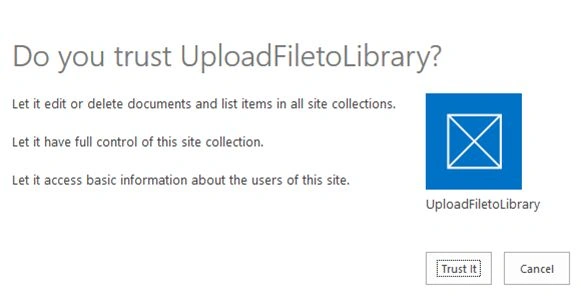
Publish the App and click the Trust it Button.
Output
File uploaded successfully in Document Library.
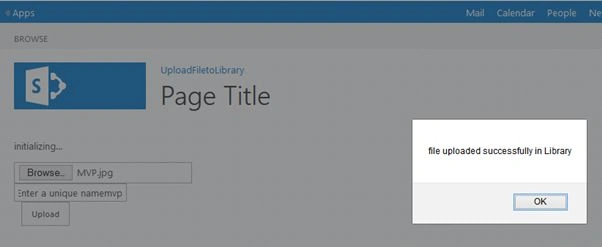
Reference: MSDN
I hope you liked this article.
vasu APosted May 20, 2016, 5:58 AM
{"error":{"code":"-2130575251, Microsoft.SharePoint.SPException","message":{"lang":"en-US","value":"The security validation for this page is invalid and might be corrupted. Please use your web browser's Back button to try your operation again."}}} . i am using it in Client Web Part Sharepoint hosted app
gopal yadavPosted Nov 20, 2015, 1:56 AM
hi, please give me reply.
gopal yadavPosted Nov 20, 2015, 1:53 AM
hi,the functionality doesn't work when redirecting from default page to another page but working normally in default page.
Vijay SPosted Apr 8, 2015, 9:14 AM
Informative.
Karthik Muthu KaruppanPosted Mar 30, 2015, 11:12 AM
cool